WhatsApp Text Formatting: Bold, Italics, Lists and Line Breaks in Chats and Templates
Every WhatsApp text formatting code (bold, italics, strikethrough, monospace, lists, quotes), the shortcuts on each device, and how to format templates.
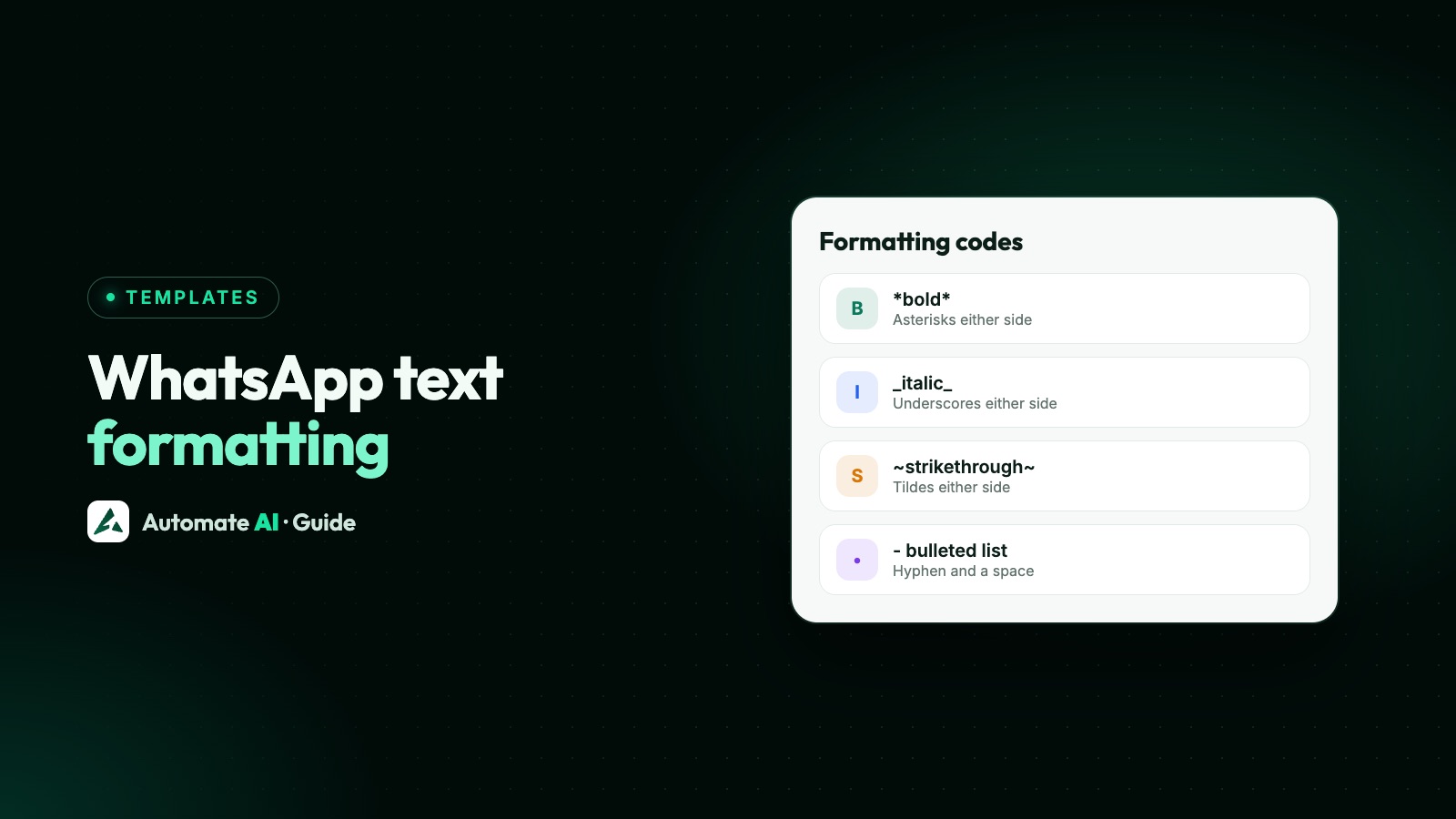
To format text on WhatsApp, wrap it in symbols: *bold*, _italic_, ~strikethrough~ and three backticks for monospace. Start a line with - or * for a bullet, 1. for a numbered list or > for a quote, and wrap words in single backticks for inline code. There’s no underline code.
Most of the same codes work in the body of a WhatsApp Business API template, which is where formatting does the most work: a bold order number or a short list is easier to read on a phone than a block of text. This guide covers every code, the menus that add them for you, the rules that stop formatting from showing, and how to format templates without tripping Meta’s rules.
Key takeaways
- WhatsApp has eight formatting styles: bold, italic, strikethrough, monospace, inline code, bulleted lists, numbered lists and quotes.
- Keep the symbols touching the words:
*sale*turns bold, while* sale *, with spaces inside, may not. - There’s no underline, colour or font size in WhatsApp’s own formatting.
- In templates, format the body. Meta says not to use Markdown special characters in a text header.
- In Automate AI, the chat box and the template editor have a formatting bar and shortcuts such as Ctrl+B (Cmd+B on a Mac).
Every WhatsApp formatting code
These are the styles in WhatsApp’s Help Center. Type the symbols yourself, or use the menu described in the next section.
| Style | Type this | What the customer sees |
|---|---|---|
| Bold | *Order confirmed* | Order confirmed |
| Italic | _see you soon_ | see you soon, in italics |
| Strikethrough | ~₹1,499~ | ₹1,499 with a line through it |
| Monospace | Three backticks before and after the text | The text in a fixed-width font, good for codes |
| Inline code | One backtick before and after the text | The text highlighted as code |
| Bulleted list | - Size M or * Size M at the start of a line | A bullet point |
| Numbered list | 1. Choose a slot at the start of a line | A numbered item |
| Quote | > Your earlier question at the start of a line | An indented quote |
Lists and quotes need a space after the symbol, and each item goes on its own line. WhatsApp’s Help Center also notes that formatting can’t be switched off, so a stray pair of asterisks in a message will turn the words between them bold.
Formatting without typing the symbols
WhatsApp on Android, iPhone, the web and Mac has a menu that adds the codes for you. These steps follow WhatsApp’s Help Center:
| Device | How to open the formatting menu | Options |
|---|---|---|
| Android | Tap and hold the text you’ve typed, then tap More | Bold, Italic, Strikethrough, Monospace |
| iPhone | Double-tap the text you’ve typed, then tap Format | Bold, Italic, Strikethrough, Monospace |
| WhatsApp Web and Mac desktop | Double-click the text in the message box | Bold, Italic, Strikethrough, Inline code |
Select only the words you want styled. If you select a trailing space as well, the closing symbol can end up after the space and the formatting won’t show.
Rules that make formatting work (or not)
Most “formatting not working” problems come down to where the symbols sit. These rules are how Automate AI’s preview reads formatting, and following them keeps your messages safe on every phone:
- Symbols hug the words.
*Free delivery*works.* Free delivery *, with spaces inside, shows the asterisks as they are. - One line at a time. A style doesn’t carry over a line break. To make two lines bold, wrap each line separately.
- Styles can be combined.
*_Last day_*is bold and italic. Keep the symbols in matching pairs, opening and closing in reverse order.
Underline, colours, fonts and “fancy” symbols
WhatsApp’s formatting list has no underline, coloured text, highlight or larger font. If you type <u> tags or other Markdown, the customer sees the raw characters.
Online “WhatsApp font generators” get around this by swapping your letters for look-alike Unicode symbols, such as letters with a line beneath them. They aren’t real formatting. The words can’t be searched in the chat, they may look broken on some phones, and screen readers can read them out as strange symbols or skip them. For a business message, stick to the eight built-in styles and use plain text for anything a customer may need to copy, such as a code or a phone number.
Emojis are fine as markers, for example a tick before each confirmed item, as long as the message still makes sense without them.
Line breaks and lists in chats
Short paragraphs separated by a blank line are the easiest way to make a long reply readable. On a phone, the return key on the WhatsApp keyboard adds a new line. In the Automate AI inbox, Enter sends the message and Shift+Enter starts a new line.
A free-form text message on the API can be up to 4,096 characters, but nobody wants to read that much in a chat. A reply with a bold heading line, three bullets and one question at the end works for most support answers:
*Your order #EX-2041*(bold, on its own line)- Shipped today from our Pune warehouse- Arrives by Thursday- Track it at example.com/trackAnything else I can help with?
Free-form messages like this can only be sent inside the 24-hour customer service window. Outside it, you need an approved template; see the 24-hour window explained.
Formatting in WhatsApp templates
Templates follow the same codes, but each part of a template has its own rules. Meta’s component docs say a text header must not use Markdown special characters. The body is where formatting belongs.
| Template part | Formatting | Tip |
|---|---|---|
| Text header | Don’t use Markdown special characters (Meta) | Headers already stand out, so keep them plain |
| Body | Bold, italic, strikethrough and monospace; lists and quotes usually work too, but send yourself a test first | Bold the one detail the customer looks for first |
| Footer | Keep it plain | Short and quiet, such as an opt-out line |
| Buttons | Plain labels | A verb and a noun, such as “Track order” |
A few more habits help templates through review and keep them readable:
- Format the fixed words.
Your order *{{1}}* has shippedis common, but if you bold a variable, send yourself a test first to see how a real value looks. - Put line breaks in the template text, not inside the values you fill into variables.
- Leave at most one blank line between paragraphs. Large gaps look broken on a small screen.
- Keep strikethrough honest. A crossed-out price must be a price you really charged.
Character limits for each part, and the rules for variables, are in our guide to WhatsApp templates.
Two formatted samples
Utility (sample data): Hi {{1}}, your appointment is confirmed. then a blank line, *{{2}} at {{3}}*, - Example Clinic, Andheri West, - Please arrive 10 minutes early, and finally Need to change it? Reply here.
Marketing (sample data): Hi {{1}}, our winter sale starts today. then *20% off all jackets until Sunday*, - Free delivery over ₹999, - Easy 7-day exchanges, with the footer Reply STOP to opt out.
Want more? Our WhatsApp template library has original samples you can copy and adapt.
Formatting in Automate AI
You don’t need to remember the codes in Automate AI. The chat box in the team inbox and the body of the template editor both have a formatting bar: select some words and click a button, or click it again to take the style off.
| Button | Shortcut | Adds |
|---|---|---|
| Bold | Ctrl+B (Cmd+B on a Mac) | *text* |
| Italic | Ctrl+I (Cmd+I) | _text_ |
| Strikethrough | Ctrl+Shift+X (Cmd+Shift+X) | ~text~ |
| Monospace | Ctrl+Shift+M (Cmd+Shift+M) | Three backticks on each side |
| Bulleted list | None | - at the start of each selected line |
| Numbered list | None | 1. , 2. and so on |
| Quote | None | > at the start of each selected line |
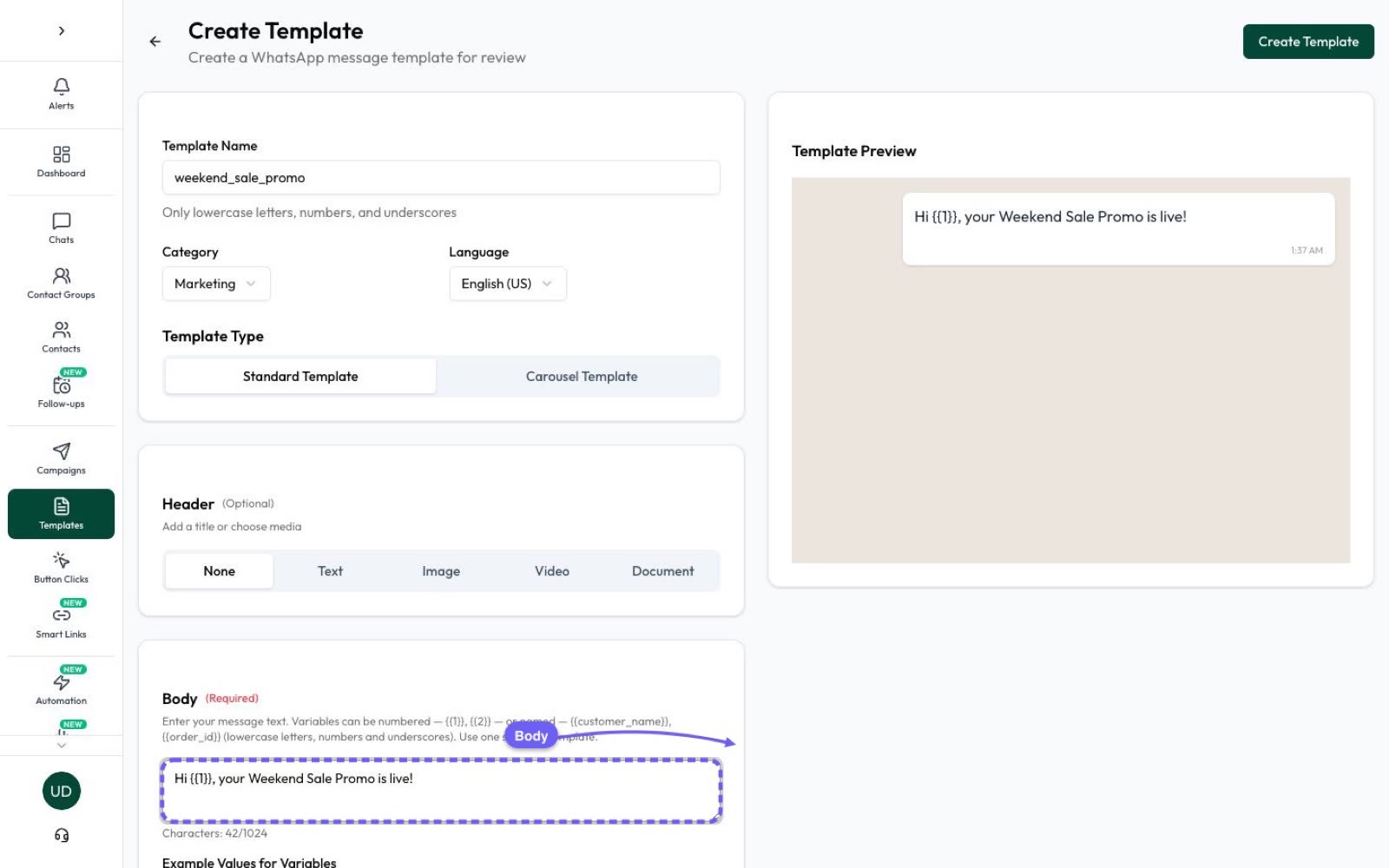
In the inbox, open the bar with the T (Formatting) button next to the emoji picker. In Templates › Create Template, the bar sits above the body, and the live preview shows the message the way WhatsApp will draw it, bold and lists included, before you submit it to Meta. You can then send the template in WhatsApp campaigns or reply with it from the team inbox.
Common formatting mistakes and fixes
| What you see | Why | Fix |
|---|---|---|
| Asterisks show around the words | There’s a space inside the symbols | Write *word*, with no spaces next to the symbols |
| Only the first line is bold | A style may not carry over a line break | Wrap each line on its own |
| Half a sentence is suddenly italic | A stray underscore or asterisk paired with another one | Remove the extra symbol |
| A list shows as one long line | No line break, or no space after the dash | Put each item on a new line, starting with - |
| Header breaks Meta’s rules | Markdown characters in a text header | Move the emphasis into the body |
Underline shows as <u> tags | WhatsApp has no underline | Use bold instead |
Frequently asked questions
How do I make text bold on WhatsApp?
Put an asterisk on each side of the words, like *this*, with no spaces next to the asterisks. You can also select the text and choose Bold from the formatting menu.
Can I underline text on WhatsApp?
No. WhatsApp’s formatting includes bold, italic, strikethrough, monospace, inline code, lists and quotes, but not underline. Use bold for emphasis instead.
Why is my WhatsApp formatting not working?
Usually there’s a space between the symbol and the word, the style crosses a line break, or one symbol is missing its pair. Write *word*, not * word *, and format each line separately.
Can I use bold and italics in WhatsApp template messages?
Yes, in the body of the template. Meta says a text header must not use Markdown special characters, so keep the header, footer and button labels plain.
How do I make a list on WhatsApp?
Start each line with a hyphen or an asterisk and a space for bullets, or a number, a full stop and a space for a numbered list. Put every item on its own line.
What symbol is used for monospace on WhatsApp?
Three backticks on each side of the text. A single backtick on each side gives inline code instead.
Sources
- WhatsApp Help Center: How to format your messages
- Meta: Template components
- Meta: Text messages
- Meta: Template fundamentals
WhatsApp rules and prices change. We check these guides against Meta’s documentation, but always confirm current terms with Meta before you rely on them. Questions? Message us on WhatsApp at +91 836 977 8812.