Location Messages on WhatsApp: How to Send and Request a Location
How to send a location pin and a location request with the WhatsApp API, what arrives in the webhook, the 24-hour rule and how customers share a location.
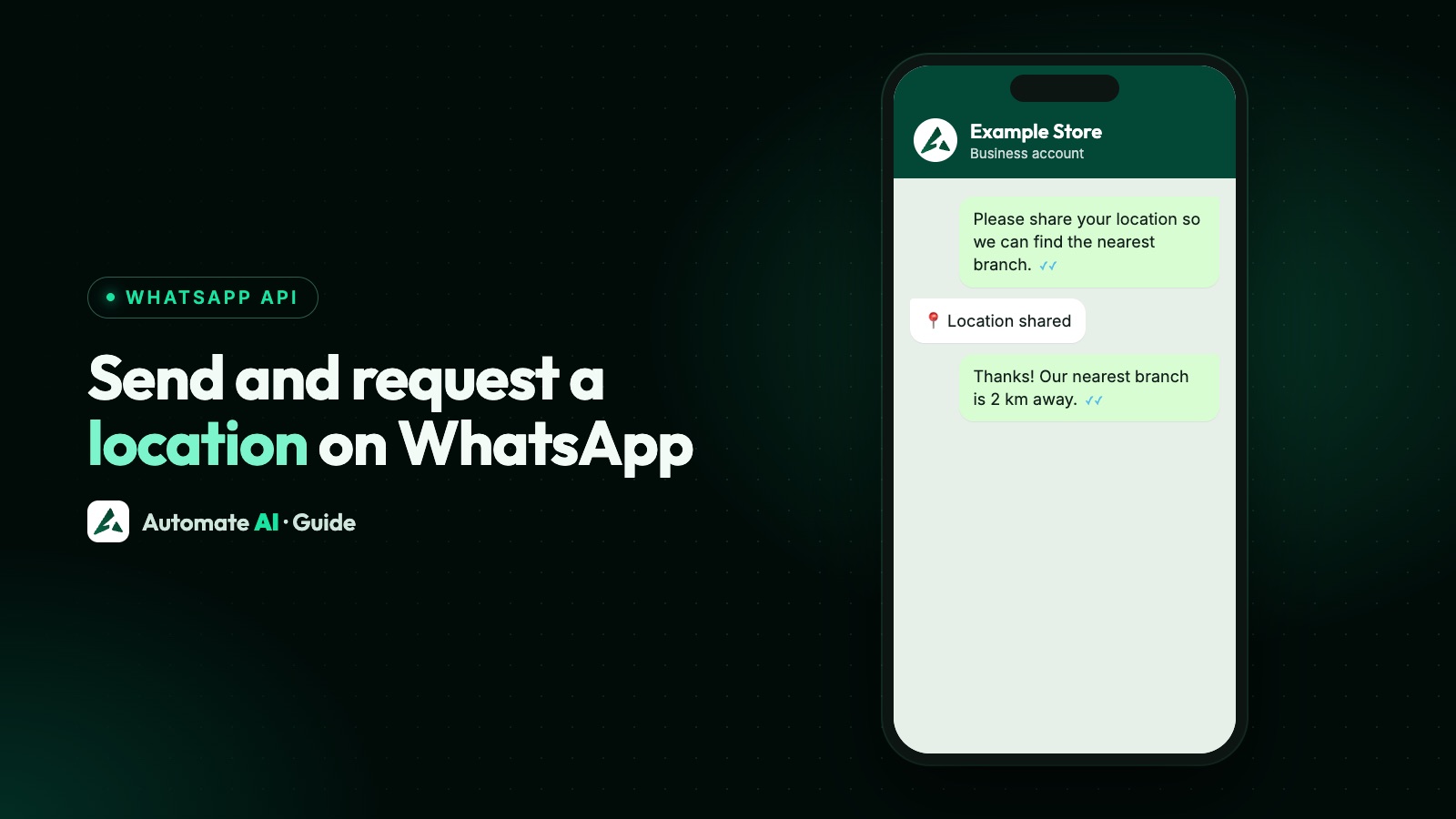
A WhatsApp location request message is an interactive message with a “send location” button: the customer taps it, picks a location, and it comes back to you as a location message with latitude and longitude. The other direction, sending your own pin, is a plain location message with coordinates and an optional name and address.
Both are part of the WhatsApp Business Platform (API), and both are free-form messages, so they only go out inside the 24-hour customer service window. This guide gives the requests, the webhook you receive, a template option for outside the window, how customers share a location from the app, and what Automate AI supports today.
Key takeaways
- A location message sends a map pin:
latitudeandlongitudeare required,nameandaddressare optional. - A location request message is
interactive.type: "location_request_message"with a body of up to 1,024 characters and the actionsend_location. - The customer’s reply arrives as a
locationmessage webhook with coordinates, and a name and address only if they share them. - Both are free-form, so they need an open 24-hour window. Outside it, use a template with a location header (Utility or Marketing).
- Automate AI shows shared locations on a map in the inbox. It doesn’t send pins or location requests, so send a maps link instead.
Three ways a location moves in a chat
| What | Direction | API type | When you can send it |
|---|---|---|---|
| Location message | Business to customer | type: "location" | Inside the 24-hour window |
| Location request message | Business asks, customer replies | interactive › location_request_message | Inside the 24-hour window |
| Template with a location header | Business to customer | Template, header format: "location" | Any time, once approved and with opt-in |
| Customer shares a location | Customer to business | Arrives as a location webhook | Whenever they choose |
Location requests, pins and location headers are all API message types. In the free WhatsApp Business app you’d send a pin from the attach menu, or simply ask the customer in words.
Send a location message (a map pin)
Send it to the usual endpoint, POST /<PHONE_NUMBER_ID>/messages, with type: "location" and a location object:
| Field | Required | Example (sample data) |
|---|---|---|
latitude | Yes | "19.0760" (decimal degrees) |
longitude | Yes | "72.8777" (decimal degrees) |
name | No | "Sample Store, Andheri" |
address | No | "12 Example Road, Mumbai 400001" |
The response is the same as for any sent message, with the new message’s wamid in messages[].id, and you get sent, delivered and read statuses for it like any other message.
Send a location request message
A location request is an interactive message. It shows your body text and a send location button, and tapping the button opens WhatsApp’s location sharing screen. The request body looks like this:
type: "interactive"andto: the customer’s numberinteractive.type: "location_request_message"interactive.body.text: your question, required, up to 1,024 characters, and it can include URLsinteractive.action.name: "send_location"
Write the body so the customer knows why you’re asking and what happens next. Some sample wording to adapt:
| Use case | Sample body text |
|---|---|
| Delivery | Hi Asha, where should we deliver order #A1023? Tap below to send your location. |
| Nearest branch | Send us your location and we’ll reply with the nearest store and its opening hours. |
| Home service | To book your AC service, please share the address where our technician should visit. |
| Pickup | Share your pickup point and we’ll confirm the driver’s arrival time. |
Other interactive types, such as reply buttons and lists, are compared in WhatsApp buttons and list messages.
What you receive when a customer shares a location
Whether the customer taps your request button or shares a location on their own, you get a messages webhook with type: "location". Inside the location object:
| Field | What it holds |
|---|---|
latitude, longitude | The position in decimal degrees |
name | A place name, only if the customer chose to share it |
address | A street address, only if the customer chose to share it |
url | A website for the place, usually only for business locations |
If the location came through a Click-to-WhatsApp ad, the message also carries a referral object with the ad details. Envelope, signatures and retries are covered in WhatsApp Cloud API webhooks.
- Store the coordinates with the order or ticket, not just the address text.
- Don’t rely on name and address. They’re included only if the customer chooses to share them, so work from the coordinates if you need an address.
- Reply to confirm what you understood, such as “Got it, delivering to Andheri East”.
- Treat it as a single point. Meta’s location webhook carries one set of coordinates and doesn’t document live location, so don’t count on receiving live updates.
Outside the 24-hour window: a template with a location header
Both location messages and location requests are on Meta’s list of messages you can send while the customer service window is open. Once it closes, only approved templates go out. See the 24-hour window.
If you need to send a place to someone who hasn’t written recently, Meta offers a location header on templates. It appears as a map at the top of the template, and you supply the latitude, longitude, name and address when you send it, not when you create the template.
- Categories: location headers work only in Utility or Marketing templates.
- Static only: Meta says real-time locations aren’t supported.
- Good uses: an appointment reminder with the clinic’s pin, or a pickup notice with the collection point.
Location requests aren’t among Meta’s template types. To ask for a location outside the window, send a template with a quick-reply button such as “Share my address”, then send the location request once they tap it and the window reopens.
How customers share a location in the WhatsApp app
Customers can also share a location without any request from you. WhatsApp’s Help Center describes two kinds:
| Kind | What it shares | How |
|---|---|---|
| Current location | A static pin of where the device is when they send it | Attach › Location, then send |
| Live location | Real-time location for a period they choose | Attach › Location › Share live location, then pick a duration |
On Android the attach button is the paper clip. Live location stops when the time runs out, or earlier from the chat (Stop sharing) or from Settings › Privacy › Live location.
Locations in Automate AI
Here’s what works today, checked in the app’s code:
| Task | In Automate AI |
|---|---|
| Receive a shared location | Yes. The inbox shows it on a map, with the place name and address when the customer shared them |
| Open it in maps | The pin shows on an embedded map; when a name or address is included, a button opens it in Google Maps |
| See it in the chat list and notifications | Yes, shown as a location |
| Send a location pin | Not yet |
| Send a location request message | Not yet |
| Create a template with a location header | Not yet. Templates offer text, image, video or document headers |
| Save a location in a chatbot step | No location step yet |
Until then, there are simple workarounds. Paste a maps link into your reply from the shared inbox. In a chatbot, send a text step with the link, or a website button that opens your store’s map. For directions in a reminder, put the link behind a website button on an approved template.
To collect an address in a chatbot, ask the customer to type it and save it with an Update Contact step, as shown in WhatsApp forms.
Privacy and good practice
- Ask only when you need it, and say why in the body text.
- Keep locations with the order, and delete them when your data rules say you should.
- Don’t ask for a live location to track a customer. Ask for the one place you need.
- Offer a typed address as an alternative for people who won’t share their location.
Frequently asked questions
How do I send a location request on WhatsApp?
Use the WhatsApp Business Platform (API): send an interactive message with type "location_request_message", a body text of up to 1,024 characters and the action name "send_location".
What happens when the customer taps the button?
WhatsApp opens its location sharing screen. When they send a location, you receive a messages webhook with type "location", latitude and longitude, plus a name and address if they chose to share them.
Can I send a location request outside the 24-hour window?
No. It’s an interactive message, so it needs an open window. Send a template first, and ask for the location once the customer replies.
Can a WhatsApp template include a location?
Yes, as a location header on a Utility or Marketing template. You supply the coordinates, name and address when sending. Real-time locations aren’t supported.
Can I receive a customer’s live location through the API?
Meta’s location webhook carries one set of coordinates and doesn’t document live location, so plan around a fixed pin. Ask customers to send their current location.
Does Automate AI support location messages?
It receives them: shared locations appear on a map in the inbox, with a Google Maps button when a name or address is included. Sending pins, location requests and location headers isn’t available yet, so send a maps link instead.
Sources
- Meta: Location messages
- Meta: Location request messages
- Meta: Location message webhook reference
- Meta: Template components (location header)
- Meta: Send messages (customer service window)
- WhatsApp Help Center: How to use live location
- WhatsApp Help Center: About sharing your device’s location
WhatsApp rules and prices change. We check these guides against Meta’s documentation, but always confirm current terms with Meta before you rely on them. Questions? Message us on WhatsApp at +91 836 977 8812.