How to Collect Customer Feedback on WhatsApp
Collect customer feedback on WhatsApp: sample messages, when to send, buttons vs a Flow vs chatbot questions, utility or marketing category, and saving answers.
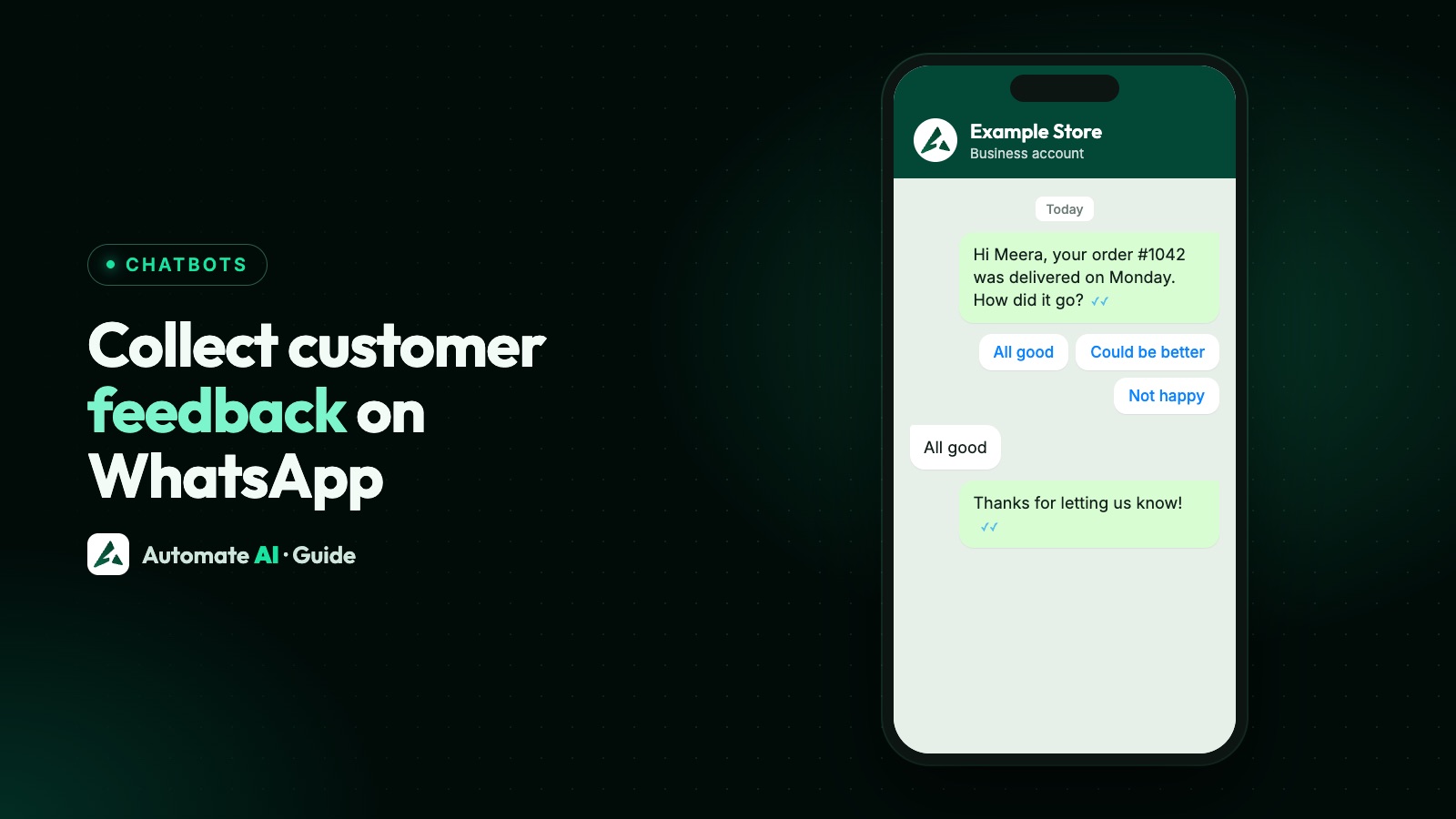
To collect customer feedback on WhatsApp, send one short question about a specific order or chat, with reply buttons for the answer. If the 24-hour window has closed, that question must be an approved template, and Meta accepts it as utility only when it names the specific order or interaction.
This guide gives you sample messages, when to send them, how buttons, a WhatsApp Flow and chatbot questions compare, how to store the answers in Automate AI, and how to ask for public reviews without breaking the review site’s rules.
Key takeaways
- Meta has no separate survey category. Feedback requests are utility or marketing.
- A feedback template can be utility only if it’s about a specific order, transaction or interaction. A generic survey won’t be approved as utility.
- Add a promotion to a survey and it becomes marketing, so keep offers in a separate message.
- Use buttons for a quick rating, chatbot questions for a follow-up comment, and a Flow for a longer survey.
- In a chatbot, Update Contact saves the next typed reply, not a button tap. Use Add to Group to record a tap.
- Never offer a reward for a Google review, and don’t ask only happy customers.
Utility or marketing? What Meta says
Inside the 24-hour customer service window you can just ask in a normal message. After it closes, you need an approved template, and the category matters. Meta lists feedback surveys as a utility use, on one condition: the survey must be tied to a specific order or interaction.
| Your message | Likely category | Why |
|---|---|---|
| “How was order #{{2}}?” | Utility | About one specific order |
| “How was your visit on {{2}}?” | Utility | About one specific interaction |
| “Tell us what you think of our brand” | Not utility | Meta says a general or generic request won’t be approved as utility |
| “How was order #{{2}}? Rate us and get 10% off” | Marketing | A survey with promotional content counts as mixed content |
Don’t submit a vague survey as utility and hope. Meta can update the category of any approved template that doesn’t meet its guidelines, and misuse can bring restrictions on your account. A recategorised template stays approved, but it’s treated and charged as marketing. See WhatsApp template messages and current pricing.
When to send it
Ask soon enough that they remember and late enough that they’ve had the experience. Meta sets no timing rule for feedback, so treat these as starting points and adjust them for your business:
| Event | When to ask | How to send |
|---|---|---|
| Support chat closed | Right after closing | Normal message, inside the window |
| Salon, clinic or restaurant visit | Later the same day | Utility template naming the visit (for a clinic, not the treatment) |
| Delivered order | After it has arrived and they’ve had time to use it | Utility template naming the order |
| Course or event | The day after it ends | Utility template naming the event |
| Long-term service | After a specific milestone, such as a completed job | Utility template naming that job |
Ask once per order, and don’t chase people who ignore it. Unwanted messages lead to blocks and reports, which hurt your quality rating. Only message people who gave opt-in, and respect every request to stop.
Sample feedback messages
These are our own samples with demo data. Change the wording to suit you, and submit each template for approval.
After an order (utility template)
Sample values: Ananya, 4182, 28 October.
After a visit (utility template)
Sample values: Rohan, Example Salon, Saturday.
After a support chat (normal message, inside the window)
A 1 to 5 rating (typed reply, inside the window)
Follow-up for an unhappy customer
A separate offer (marketing template)
Keep that last one apart from any survey, and send it only to people who opted in to offers. Template quick-reply buttons allow 25 characters and chatbot reply buttons 20, so keep labels short. More samples are in our template library.
Buttons, chatbot questions or a Flow?
Pick the lightest option that gets you the answer you need:
| Method | Best for | Where it reaches | Where the answer goes |
|---|---|---|---|
| Template with quick-reply buttons | A one-tap rating after an order | Anyone opted in, once the template is approved | The chat, and a group if a chatbot records it |
| Chatbot buttons or a list | Branching on the answer, or a 1 to 5 list | Open 24-hour windows | A group, through Add to Group |
| Chatbot typed question | A comment in their own words | Open 24-hour windows | A contact field, through Update Contact |
| WhatsApp Flow | A longer survey on one tidy form | In Automate AI, open 24-hour windows only | The template’s webhook, not the chat |
| Link to a web form | A long survey with its own reports | Any message with a link | Your survey tool |
A tap on a quick-reply button reaches you as a message from the customer, which opens a 24-hour window. That’s why a one-tap template is a good start: your chatbot can then ask a follow-up in a normal message.
Set it up in Automate AI
You can do this in the chatbot builder at Automation › Flows, included in Series 2, 3 and 4. Here’s a simple setup for the three-button template above:
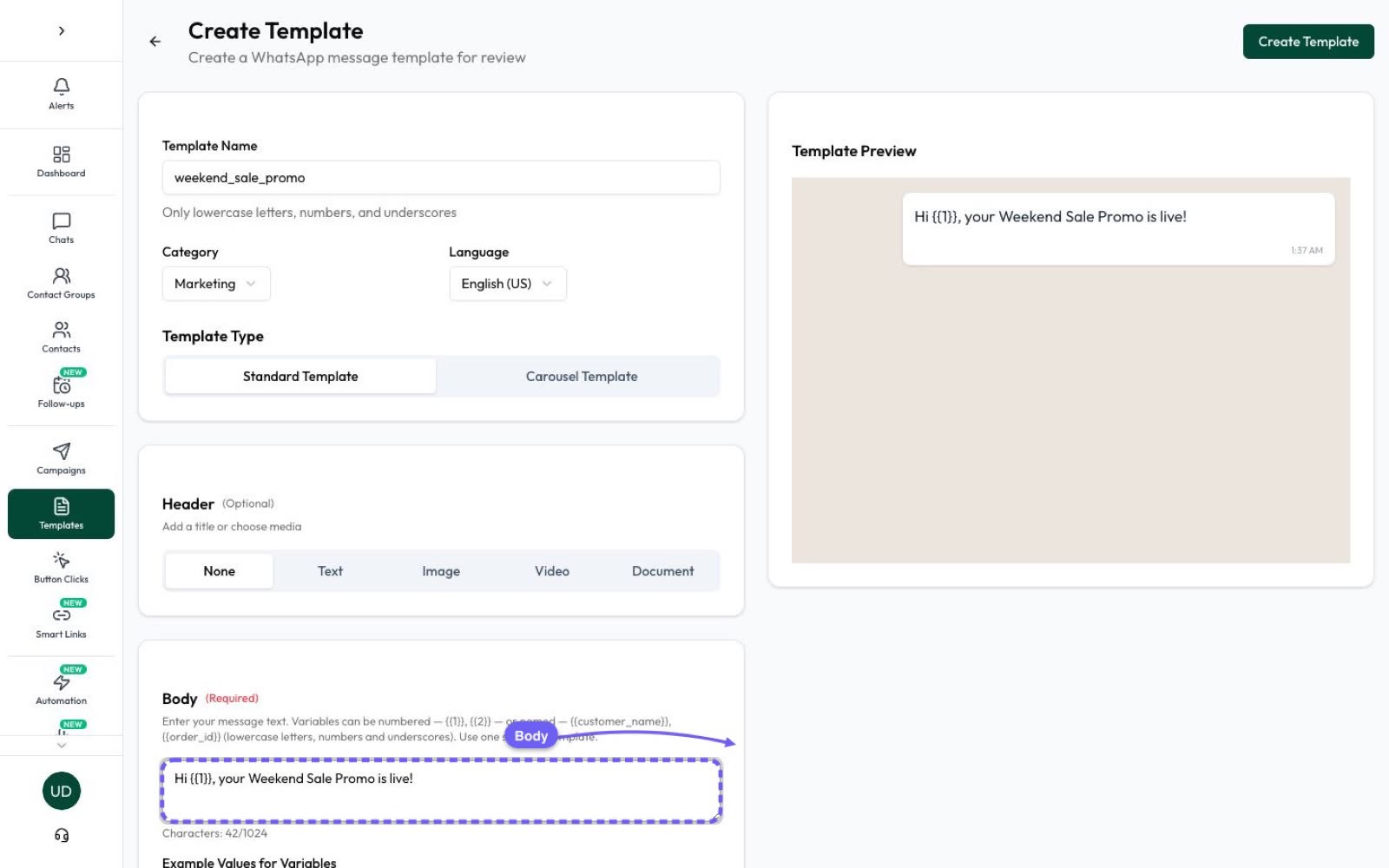
- Create the template. Under Templates, pick the Utility category, name the order or visit in the text, and add the three quick-reply buttons. Wait for approval.
- Make one flow per button. Each flow starts on a keyword that’s the full button label, such as “all good”. Automate AI reads a template button tap as the customer’s message, so a matching keyword starts the flow. Publish each flow, because only active flows run.
- Record the choice. Add an Add to Group step in each flow, such as “Feedback: all good”.
- Thank them. Add a text step. For “All good”, a short thanks is enough.
- Ask “Not happy” customers why. First create a “Feedback note” field in Settings › Contact Fields. Add a text question, then an Update Contact step straight after it, saving to that field. The flow waits for the next message and saves it.
- Alert a person. Add a Send Email step so someone on your team follows up. Always give unhappy customers a real person.
Two small cautions. Multi-word labels without commas are safer as keywords: a one-word keyword also fires if a customer uses that word anywhere in a message, and a comma splits a keyword in two. And test all three buttons on your own number before you send to customers.
Sending it at the right time
- A drip sequence: at Automation › Schedule › Drip Sequence, step 1 goes out on enrolment and later delays count from then, so the feedback template has to be step 2, after a first message such as a delivery notice. Each contact goes through a sequence once, so this doesn’t suit repeat orders. See the drip campaign guide.
- A campaign: send to a group, status, tag or other filter. The date filter is the date a contact was created, not a delivery date. An order number per person only works if it’s saved in a custom field on the contact.
- Your own system: developers can send the template through the API when an order is delivered. This is the best fit for timing each order.
Using a form for a longer survey
For more than two or three questions, a WhatsApp Flow keeps everything on one form, and Meta’s Flow categories include survey. Automate AI has no visual Flow builder, so build it in WhatsApp Manager, then add it to a Utility template by its Flow ID, with a webhook URL.
- Automate AI sends form templates as interactive Flow messages, so they reach only people whose 24-hour window is open. Use one as a reply, not to start a conversation.
- The answers go to the template’s webhook, not the chat, so you need a system at that URL to receive them.
- The chatbot builder has no form step. A keyword reply at Automation › Basic Replies can send the form when someone types a word such as FEEDBACK.
More in WhatsApp forms and WhatsApp Flows. Never ask for card numbers, ID numbers or health details in a survey.
How to store and use the answers
| Answer | Store it in | Use it for |
|---|---|---|
| Button tap | A contact group (latest answer only) | Counting each group, and filtering campaigns |
| Typed comment or rating | A custom field | Reading it on the contact, and Export if the field is shown in the contacts table |
| Flow answers | Your system, through the webhook | Full reports |
| Answers sent elsewhere | A chatbot Webhook step | Passing data to your own tools |
A custom field holds one value, so a new answer replaces the old one. If you need a history per order, send answers to your own system with a webhook. A group shows who chose what, not when. The chatbot’s Add to Group also replaces a contact’s main group, so use it only if that’s acceptable, and don’t expect older answers to stay on record. For a one-off file, turn on Show in contacts table for your field, then use Contacts › ⋯ › Export.
Most importantly, act on it. Reply to each “Not happy” in your shared inbox the same day, while the window is still open. A survey that nobody reads does more harm than no survey.
Asking for public reviews without breaking the rules
A private rating and a public review are different. If you ask for Google reviews, Google’s rules apply as well as Meta’s, and they’re strict:
- No incentives. Google prohibits payment, discounts or free goods or services in exchange for a review.
- No selective asking. Businesses may not selectively solicit positive reviews or discourage negative ones.
- So don’t filter. Sending the review link only to people who tapped “All good” is selective asking. Send it to all customers or to none.
Google says you can ask customers to visit a Google link or scan a QR code, and it explains how to create one. Meta’s pages don’t cover review requests specifically. The sample above is written as a marketing template, so it ends with an opt-out line and goes only to people who opted in. Other review sites and app stores have their own rules. Check them before you ask.
Frequently asked questions
Is a WhatsApp feedback message utility or marketing?
It can be utility if it’s about a specific order, transaction or interaction and has no promotion. A generic survey won’t be approved as utility, and a survey with promotional content is marketing.
Does Meta have a survey template category?
No. The template categories are marketing, utility and authentication. Survey is a category you can give a WhatsApp Flow, which is a different thing.
Can I send a feedback form to customers who haven’t messaged me?
Not with a form template in Automate AI, because it goes out as an interactive Flow message that reaches open 24-hour windows only. Start with a utility template with buttons instead.
How do I save a customer’s button tap in Automate AI?
Use Add to Group in a chatbot. Update Contact saves the customer’s next typed reply, not a tap.
Can I give a discount for leaving feedback?
Not for a Google review: Google prohibits incentives. For a private survey, an offer in the same template makes it marketing, so keep any offer in a separate message and check the rules for where the feedback appears.
Do feedback buttons opt someone out?
No. In Automate AI a typed STOP, or your own opt-out keyword, opts a contact out automatically. Button taps don’t.
Does Automate AI have a built-in feedback report?
There’s no dedicated survey report. Answers sit in groups and custom fields, or in your own system if you use a webhook.
Sources
- Meta: Template categorization (feedback surveys)
- Meta: Send a Flow message
- Meta: Send messages (customer service window)
- WhatsApp Business Messaging Policy
- Google: Maps user contributed content policy (prohibited and restricted content)
- Google Business Profile Help: Tips to get more reviews
WhatsApp rules and prices change. We check these guides against Meta’s documentation, but always confirm current terms with Meta before you rely on them. Questions? Message us on WhatsApp at +91 836 977 8812.