Meta Ads Manager App: What You Can Do on Your Phone
What the Meta Ads Manager app does: where to get it, creating ads, editing budgets, notifications, the PC question and what to check when it won’t work.
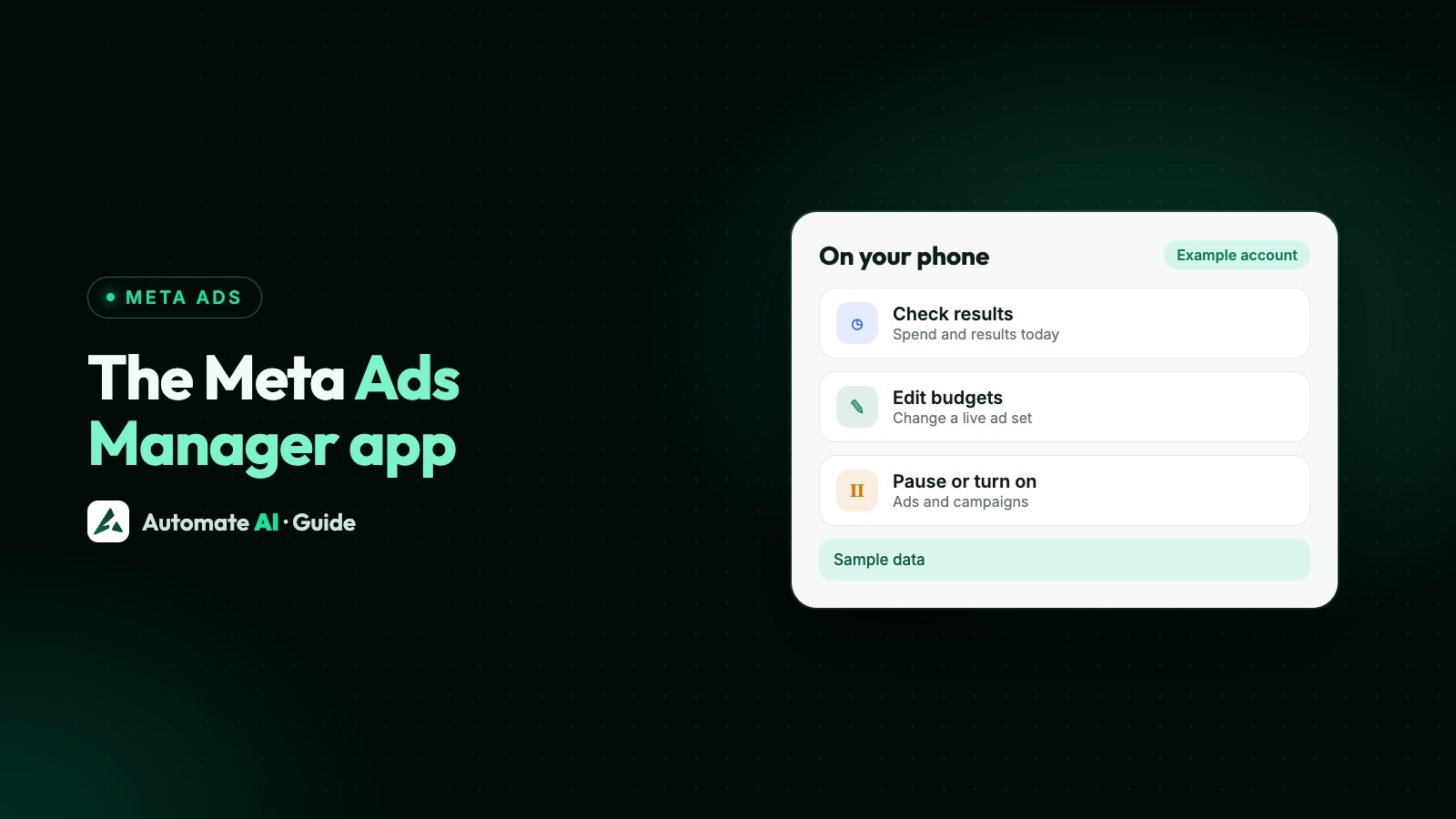
The Meta Ads Manager app is Meta’s phone app for advertisers. Meta says it’s available on the App Store and the Google Play Store, and lets you create, edit and monitor ads in real time, get notifications about your campaigns and see recommendations. It’s the same ad account you use in Ads Manager on a computer, just on a smaller screen.
This guide covers where to get the app safely, what you can and can’t do in it, how to change a budget or schedule from your phone, how notifications work, the “Ads Manager for PC” question, and what Meta suggests when the app doesn’t behave. If you’re deciding between Ads Manager and Meta Business Suite, read Meta Business Suite vs Ads Manager first.
Key takeaways
- Get the app only from the App Store or Google Play, as Meta’s Help Centre says. Avoid APK sites and “old version” downloads.
- In the app you can create a campaign or duplicate an existing one, but you can’t save ad drafts.
- You can change a live campaign’s budget, schedule or name. No Edit button may mean you don’t have permission on that ad account.
- App notifications come in four types (alerts, updates, recommendations, marketing) and are managed only in the app’s settings. You can pause them for 1, 8 or 24 hours.
- There’s no PC version in Meta’s pages: on a computer, use Ads Manager in your web browser.
What the Meta Ads Manager app is for
Meta describes the app as a way to create, monitor and manage ads from your phone, wherever you are. Its own list of what the app offers:
- Stay informed: monitor ad performance in real time.
- Get notifications: campaign updates you don’t want to miss.
- Manage your ads: create and edit campaigns on the go.
- Boost your results: analytics and recommendations to improve campaigns.
- Get support: tips from the Meta Business Help Centre, or ask an expert.
Meta also points out what the app isn’t for. To manage your Page on your phone, for example to create a post, Meta suggests the Meta Business Suite app instead. So many businesses keep both: Business Suite for posts and messages, Ads Manager for paid campaigns.
How to get the app (Android and iPhone)
Meta’s Help Centre says the Ads Manager app is available on the App Store and the Google Play Store. That’s the whole download story:
- On Android, open Google Play. On iPhone or iPad, open the App Store.
- Search for Meta Ads Manager and check that the publisher is Meta before you install.
- Install it and log in with the Facebook account that has access to your ad account.
- Allow notifications when your phone asks, if you want campaign alerts (more on that below).
Meta’s app articles have steps for Android phones, iPhones and iPads, so a tablet works too.
What you can and can’t do in the app
Based on Meta’s app articles, here’s a practical split. Where Meta doesn’t say a feature is in the app, plan to use a computer.
| Task | In the app | What Meta says |
|---|---|---|
| See campaigns and their status | Yes | Home lists campaigns with status (active, scheduled, in review) and key metrics |
| Check results by date | Yes | Last 7 days, last 30 days, maximum or a custom range |
| See demographics, placements and locations | Yes | Tap View performance on a campaign |
| Choose which metrics you see | Yes | You can customise the metrics shown for your campaigns |
| Create a new campaign | Yes | Tap +, then Create campaign or Duplicate existing |
| Save an ad as a draft | No | You can’t save ad drafts in the app |
| Change budget, schedule or name of a live campaign | Yes | Campaign › Edit, then Publish |
| Get notifications | Yes | Alerts, updates, recommendations and marketing |
| Fix a campaign you can’t edit | Maybe not | Without permission, Meta suggests asking an admin or making the change on a computer |
For reading results on any device, our Meta ads reporting guide explains which numbers to watch each week.
How to create an ad in the Meta Ads Manager app
Meta’s steps follow the same three levels as on a computer: campaign, ad set and ad. On your phone:
- Open the app and tap + at the top.
- Choose + Create campaign, or Duplicate existing to start from a campaign you already have.
- Choose your objective (and a setup, if asked).
- Campaign: name it, select a special ad category if you need to, set a daily or lifetime budget, then tap Next.
- Ad set: name it, pick a conversion location (only for some objectives), set the schedule and any ad set spend limits, choose the audience and, if you want, manual placements. Tap Next.
- Ad: name it, choose your Facebook Page and Instagram account under Identity, pick Create ad or Use existing post, design the creative and check the preview.
- Tap Review, make any edits, then Publish. Meta reviews the ad before it runs.
Meta says Advantage+ audience is selected by default, with an option to switch to the original audience options, and Advantage+ placements is the default too. Because you can’t save drafts, have your picture, text and budget ready before you start.
Editing budgets and schedules from your phone
This is what most people install the app for: raising or cutting a budget without opening a laptop. Meta’s steps for a published campaign:
- Open the Ads Manager app and find the campaign.
- Tap Campaign at the top right.
- Select Edit.
- Tap Budget, or Budget and schedule if your campaign shows that label.
- Change the budget amount or schedule, then tap Publish. The changes apply to the live campaign.
| What you see | What it means (per Meta) | What to do |
|---|---|---|
| No Edit button | You may not have permission to edit campaigns in this ad account | Ask an ad account admin for advertiser access, or make the change on a computer |
| No Budget or Budget and schedule | You may not have opened an active campaign | Check you’re on the right, active campaign |
How a daily budget is spent through the day is explained in Meta ads budget per day. If ads pause even though your budget isn’t spent, the reason is often a spending limit, covered in our payment threshold and spending limits guide.
Meta Ads Manager app notifications
Meta says app notifications can tell you, for example, that your ad has been reviewed and approved, how your ad account did the previous day, that a campaign is doing well, or that its delivery is held back because the budget is too low. First, allow the app to send notifications in your phone’s settings. Then:
- Open the Ads Manager app.
- Tap Notifications, then Settings.
- Turn all notifications on, or pick the types you want.
- Optionally, turn on Pause notifications for 1 hour, 8 hours or 24 hours, say over a weekend.
| Type | What it covers |
|---|---|
| Alerts | Critical issues with ads, payments and accounts |
| Updates | Ad statuses, performance summaries and trends |
| Recommendations | Tips to improve performance |
| Marketing | New features and reminders |
Two things Meta adds: notifications for the app can only be managed from the app’s own settings, not from Ads Manager on a computer; and Meta also says that, whatever you choose in your notification settings, it still sends important notifications such as ad approvals and rejections, payment issues and invoices. Keep Alerts on: they’re the ones that tell you about payment or account problems.
Is there a Meta Ads Manager app for PC?
Meta’s pages describe the app as a phone app on the App Store and Google Play, and we found no Meta page offering a desktop or PC version. On a laptop or desktop, you use Ads Manager in your web browser, logged in with the same Facebook account. Nothing to install.
That’s also where the bigger jobs are easier: building several ad sets, and comparing campaigns side by side on a big screen. A sensible split for a small team:
- Computer: build campaigns, set up audiences, export reports.
- Phone app: check results, approve the budget change you planned, react to alerts.
Be wary of downloads that claim to be “Ads Manager for PC” or that run the Android app on a computer from unofficial files. They aren’t Meta’s, and Ads Manager in a browser is Meta’s own way to manage ads on a computer.
Meta Ads Manager app not opening or crashing
We found no Meta Help Centre article on the app crashing or not opening, so here’s only what Meta does document:
- Update the app. Meta suggests turning on automatic updates so you’re always on the latest version. On Android: Play Store › your account › Settings › Network preferences › auto-update apps. On iPhone: Settings › App Store › turn on App Updates under Automatic Downloads.
- Check your access. If the app opens but you can’t edit, Meta says you may not have permission on that ad account. Ask an admin for advertiser access.
- Check notifications in the phone’s settings if alerts stopped arriving; the app needs permission to send them.
- Use Ads Manager on a computer in the meantime. It’s the same ad account, so nothing is lost while the app misbehaves.
Don’t fix it by installing an older version from an APK site. If your ads themselves have stopped, the cause is in the ad account, not the app; see Meta ads not delivering.
Managing Click-to-WhatsApp ads from Automate AI
If your ads open WhatsApp chats, the chats matter as much as the ad. Meta Ads in Automate AI’s main menu (every plan, owners and managers) works with your own Meta ad account, so it sits alongside the Ads Manager app rather than replacing it:
- Describe an offer and AI drafts a Click-to-WhatsApp ad, audience and greeting. Ads are created paused, so nothing is spent until you publish.
- See every ad in your ad account, including ones made in Ads Manager, with spend, chats started, cost per chat and new contacts.
- Change the name, budget, dates or bid strategy, or switch an ad, ad set or campaign on or off. Anything that can spend more asks you first.
The chats from those ads arrive in the shared inbox, which works in the browser and as an Android app you download from your dashboard. Meta bills the ad spend to your ad account; Automate AI doesn’t take ad payments. More on the builder in Click-to-WhatsApp Ads, and every Meta ads guide is on the Meta Ads hub.
Frequently asked questions
Where can I download the Meta Ads Manager app?
From the App Store on iPhone or iPad, or the Google Play Store on Android, as Meta’s Help Centre says. Don’t download it from APK or “old version” sites.
Is there a Meta Ads Manager app for PC?
Meta’s pages describe a phone app only. On a computer, open Ads Manager in your web browser and log in with the same Facebook account.
Can I create ads in the Ads Manager app?
Yes. Tap +, then Create campaign or Duplicate existing, and work through the campaign, ad set and ad screens. You can’t save drafts in the app, so finish in one go.
How do I change my budget in the Ads Manager app?
Open the campaign, tap Campaign at the top right, select Edit, tap Budget (or Budget and schedule), change the amount and tap Publish.
Why can’t I edit my campaign in the app?
Meta says a missing Edit button may mean you don’t have permission to edit campaigns in that ad account. Ask an admin for advertiser access, or make the change on a computer.
How do I turn off Ads Manager app notifications?
Open the app, tap Notifications, then Settings, and switch off the types you don’t want, or pause them for 1, 8 or 24 hours. They can only be managed in the app.
What should I do if the Ads Manager app keeps crashing?
Update it from the App Store or Google Play (Meta suggests automatic updates), and use Ads Manager in a browser in the meantime. Never install an older copy from an APK site.
Sources
- Meta Business Help Centre: About Meta Ads Manager app
- Meta Business Help Centre: How to create an ad using the Meta Ads Manager app
- Meta Business Help Centre: How to create a lead ad using Meta Ads Manager app
- Meta Business Help Centre: How to edit a campaign in the Meta Ads Manager app
- Meta Business Help Centre: How to manage your campaign budget in Meta Ads Manager app
- Meta Business Help Centre: Manage notifications in Meta Ads Manager app
- Meta Business Help Centre: About notification settings in Meta Ads Manager
- Meta Business Help Centre: See performance in Meta Ads Manager app
- Meta Business Help Centre: Turn automatic app updates on or off
WhatsApp rules and prices change. We check these guides against Meta’s documentation, but always confirm current terms with Meta before you rely on them. Questions? Message us on WhatsApp at +91 836 977 8812.