Meta Business Suite vs Ads Manager: Which One to Use
Meta Business Suite vs Ads Manager: what each is for, which ads show in which, where WhatsApp, the inbox and lead forms live, and who should use which.
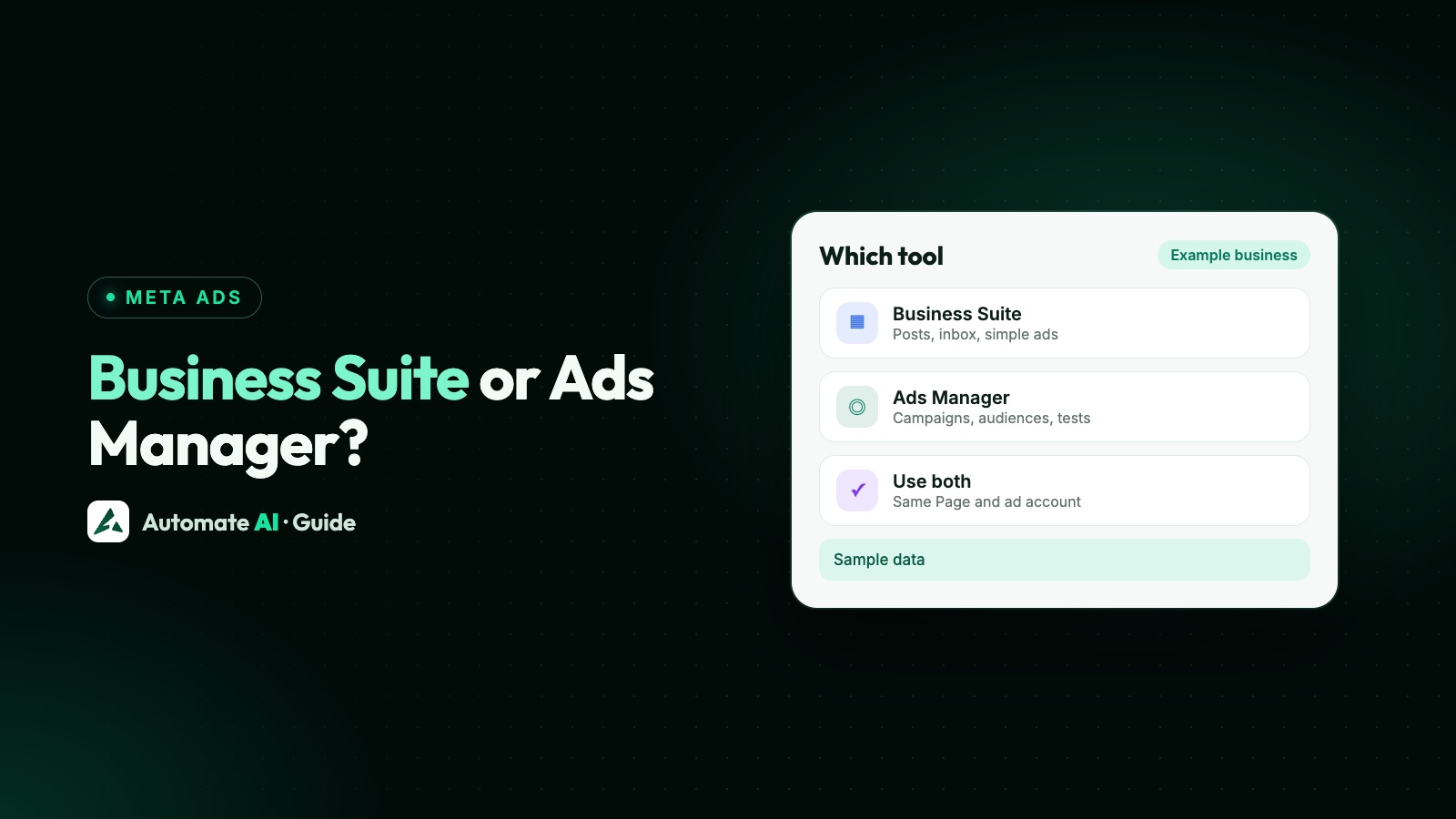
Use Meta Business Suite to run your business presence day to day: schedule posts, answer messages and comments in one inbox, read insights, manage settings and make simple ads. Use Ads Manager when you need full campaigns: several ad sets, custom audiences, retargeting, A/B tests and detailed reporting. Meta says you can use both at the same time for different tasks, and most businesses do.
This guide isn’t about boosting a post. It compares the two tools as workspaces: who in your team should live in which, how ads made in one appear in the other, where WhatsApp, the inbox and lead forms sit, and a simple way to split the work.
Key takeaways
- Business Suite is the all-round workspace: posts and stories, the inbox for Messenger, Instagram and WhatsApp, insights, settings and a streamlined ad builder.
- Ads Manager is the campaign workspace: multiple ad sets and ads, custom audiences, scheduling, A/B tests, retargeting and detailed analytics.
- In Business Suite you can’t see ads that someone else created in Ads Manager, so use Ads Manager as the single view of all spend.
- Business settings live in Business Suite: the business portfolio, people, WhatsApp accounts.
- Lead forms are made in Business Suite › All tools › Instant forms or in Ads Manager; Ads Manager has a few extra form features.
Meta Business Suite vs Ads Manager at a glance
Meta’s Help Centre has an article on exactly this question. Based on its examples, side by side:
| Task | Meta Business Suite | Ads Manager |
|---|---|---|
| Schedule posts, stories and reels | Yes, for your Facebook Page, Instagram account or both | No |
| Answer messages and comments | Yes, one inbox for Messenger, Instagram and WhatsApp | No |
| Insights | How organic and paid content performs | Detailed ad analytics |
| Create ads | A streamlined builder designed for simple setup | Campaigns with several ad sets and ads |
| Boosted posts | Schedule a boosted post | Not covered in Meta’s comparison |
| Custom audiences and retargeting | Audiences Meta suggests, such as people who like your Page, or ones you’ve used before | Yes, including retargeting past customers |
| A/B tests | Use Ads Manager | Yes, compare ad sets or campaigns |
| Shops ads | Use Ads Manager | Yes |
Meta’s own short version, from its getting-started checklist: Business Suite lets you quickly create an ad or boost content, and for advanced and customisable campaigns you can use Ads Manager. If your question is boost versus a full ad, see boost post vs Ads Manager.
What Meta Business Suite is for
Think of Business Suite as the front office. Everything about your Page and Instagram account, and the business behind them, is here:
- Content: create and schedule posts, stories and reels, and reschedule them from the Content area or the Planner.
- Inbox: read and reply to messages from Messenger, Instagram and WhatsApp, reply to comments, set up automations such as greetings, away messages and keyword replies, add labels and notes to customers, and open a Leads tab.
- Insights: a high-level view of how your organic and paid content performed.
- Ads: a simpler builder, plus an Ads area listing your ads and their status.
- All tools: extras such as Instant forms for lead ads and Leads Centre for working through leads.
- Settings: your business portfolio, people and their access, Pages, ad accounts and WhatsApp accounts.
There’s a Business Suite mobile app as well as the desktop version, so it suits owners and front-line staff who answer customers during the day.
How to create an ad in Meta Business Suite
Before you start, Meta says you need a Facebook Page in your business portfolio, Facebook access to the Page or task access to ads, and full control of the ad account or the manage campaigns permission. Then, on desktop:
- Open Meta Business Suite and click + Create on the left, then Ads.
- Select a goal for the ad. You can change it later.
- Fill in the sections for that goal: ad creative (media, text, headline and button), Advantage+ creative, special ad category if the ad is about housing, employment or financial products and services, audience, ad transparency, schedule and budget, placements, Meta Pixel and payment method.
- Check the ad preview on the right, and See all previews for each placement.
- Click Publish, or Next and then Schedule to start later.
Budgets here are a daily amount, with an end date or Run this ad continuously until you pause it. Placements can include Facebook, Instagram, Messenger and Audience Network. You follow results in the Ads summary on the Ads tab.
What Ads Manager adds
Ads Manager is the back office for paid media. Meta suggests it when you want to:
- Build campaigns with several ad sets and ads, each with its own audience, budget or creative.
- Use custom audiences, such as your customer list or website visitors, and lookalikes. See Meta custom audiences.
- Run retargeting, for example an offer for customers who haven’t bought in a while.
- A/B test ad sets or campaigns to see which works best.
- Schedule ads and dig into detailed analytics and reports.
- Create Shops ads for products.
Meta’s help points to Ads Manager for ads that click to WhatsApp. If you’ve never set up a campaign there, start with Meta Ads Manager for beginners.
Ads made in one tool, seen in the other
This trips teams up. Meta’s Help Centre says that in Meta Business Suite you cannot see ads that were created in Ads Manager by another person. So an owner checking the Ads area in Business Suite may not see what the agency or marketing lead is spending.
In Business Suite, go to Ads › All ads for your Page or Instagram account, and filter by status. The statuses Meta lists:
| Status | What it means |
|---|---|
| Draft | Saved but not published or scheduled; it won’t be reviewed yet |
| Pending approval / In review | Submitted and waiting for, or going through, Meta’s review |
| Scheduled | Approved with a future start date |
| Active | Running and being shown |
| Limited delivery | Running, but reaching fewer people than expected |
| Not delivering | Not running because of an issue that needs attention |
| Paused | Stopped until you turn it back on |
| Completed | The end date has passed |
| Rejected | Doesn’t comply with Meta’s advertising standards |
| Unable to create | Something went wrong while creating it |
WhatsApp in Business Suite and Ads Manager
WhatsApp touches both tools in different ways:
| What you want | Where | What to know |
|---|---|---|
| Add a WhatsApp Business account to your portfolio | Business Suite › Settings › WhatsApp accounts | Needs full control of the portfolio. Numbers on the WhatsApp Business API are added to the portfolio automatically |
| Answer WhatsApp in Meta’s inbox | Business Suite › Inbox › WhatsApp tab | Meta’s steps are for a WhatsApp Business app number. Not offered in some places, including the EU, the UK, Australia and Japan. Groups and Status aren’t in the inbox, and you must open the app at least every 20 days |
| Run ads that open WhatsApp | Ads Manager | Meta’s help points to Ads Manager for ads that click to WhatsApp. The ad needs a WhatsApp number connected to your Page |
| Remove a WhatsApp account from the portfolio | Business Suite › Settings › WhatsApp accounts › Options | Needs full access to that WhatsApp account |
Business Suite’s inbox is fine for a small team on the WhatsApp Business app. Once several people answer chats from ads, or you want chatbots and broadcasts, you may want the WhatsApp Business API through a platform, and answer there. You can keep using the phone app on the same number with WhatsApp coexistence.
Which to use: a simple split
| Your situation | Use |
|---|---|
| You post a few times a week and answer customers yourself | Business Suite for everything; boost your best posts |
| You want a quick ad with one audience and a daily budget | Business Suite’s ad builder |
| You spend on ads every week or want leads and sales | Ads Manager for campaigns, Business Suite for content and settings |
| An agency runs your ads | Ads Manager for both of you, so you see their ads; Business Suite to give access |
| You want to test offers or retarget customers | Ads Manager |
| You need to add staff, a Page or a WhatsApp account | Business Suite settings |
Lead forms sit across both. You can make instant forms in Business Suite › All tools › Instant forms or in Ads Manager, and Meta keeps some extra form features, such as conditional logic, for Ads Manager. Downloading leads works from either (leads from organic forms only from Business Suite); see how to download Facebook leads.
Where Automate AI fits
If your WhatsApp number runs on the API through Automate AI, your team answers chats in Automate AI’s shared inbox rather than in Business Suite. For ads, Meta Ads in Automate AI’s main menu (every plan, owners and managers) works with the same ad account you use in Ads Manager:
- Describe an offer and AI drafts a Click-to-WhatsApp ad, audience and greeting. Every ad is created paused, so nothing is spent until you publish.
- See every ad in your ad account, including ones made in Ads Manager, with spend, chats started, cost per chat and new contacts.
- Make lead form ads using one of your Page’s instant forms, the ones you built in Business Suite or Ads Manager.
And the Facebook Lead Ads integration saves every new form lead as a contact and can send a WhatsApp message straight away. More on the ad side in Click-to-WhatsApp Ads, and every Meta ads guide is on the Meta Ads hub.
Frequently asked questions
What is the difference between Meta Business Suite and Ads Manager?
Business Suite manages your Page and Instagram day to day: posts, the inbox, insights, settings and simple ads. Ads Manager is for full ad campaigns with several ad sets, custom audiences, A/B tests and detailed reporting.
Can I use Meta Business Suite and Ads Manager together?
Yes. Meta says you can use them at the same time for different tasks, for example content and messages in Business Suite and campaigns in Ads Manager.
Why can’t I see my agency’s ads in Business Suite?
Meta says Business Suite doesn’t show ads that another person created in Ads Manager. Open the ad account in Ads Manager to see every ad and its spend.
Is Meta Business Suite the same as Business Manager?
Not quite. Business Manager was the older name for what’s now the business portfolio, which you manage from Business Suite settings. Ads Manager is a separate tool for campaigns.
Where do I make ads that open WhatsApp?
Meta’s help points to Ads Manager for ads that click to WhatsApp, after your WhatsApp account is in your business portfolio. The ad needs a WhatsApp number connected to your Page.
Where do I make a Facebook lead form?
In Business Suite under All tools › Instant forms, or in Ads Manager while creating a lead ad. Some extra form features are only in Ads Manager.
Sources
- Meta Business Help Centre: When to use Meta Business Suite and when to use Meta Ads Manager
- Meta Business Help Centre: Getting started checklist for creating ads in Meta Business Suite
- Meta Business Help Centre: Create an ad in Meta Business Suite on desktop
- Meta Business Help Centre: Track ad approval and delivery in Meta Business Suite on desktop
- Meta Business Help Centre: About inbox in Meta Business Suite
- Meta Business Help Centre: How to sync a WhatsApp Business account with inbox in Meta Business Suite
- Meta Business Help Centre: Add a WhatsApp Business account to your business portfolio
- Meta Business Help Centre: Reschedule content on Meta Business Suite desktop
WhatsApp rules and prices change. We check these guides against Meta’s documentation, but always confirm current terms with Meta before you rely on them. Questions? Message us on WhatsApp at +91 836 977 8812.