Where to Find and Download Your Facebook Leads (and Get Them on WhatsApp)
How to download leads from Facebook: the steps in Ads Manager, Meta Business Suite and Leads Centre, what the file contains, the 90-day limit and fixes.
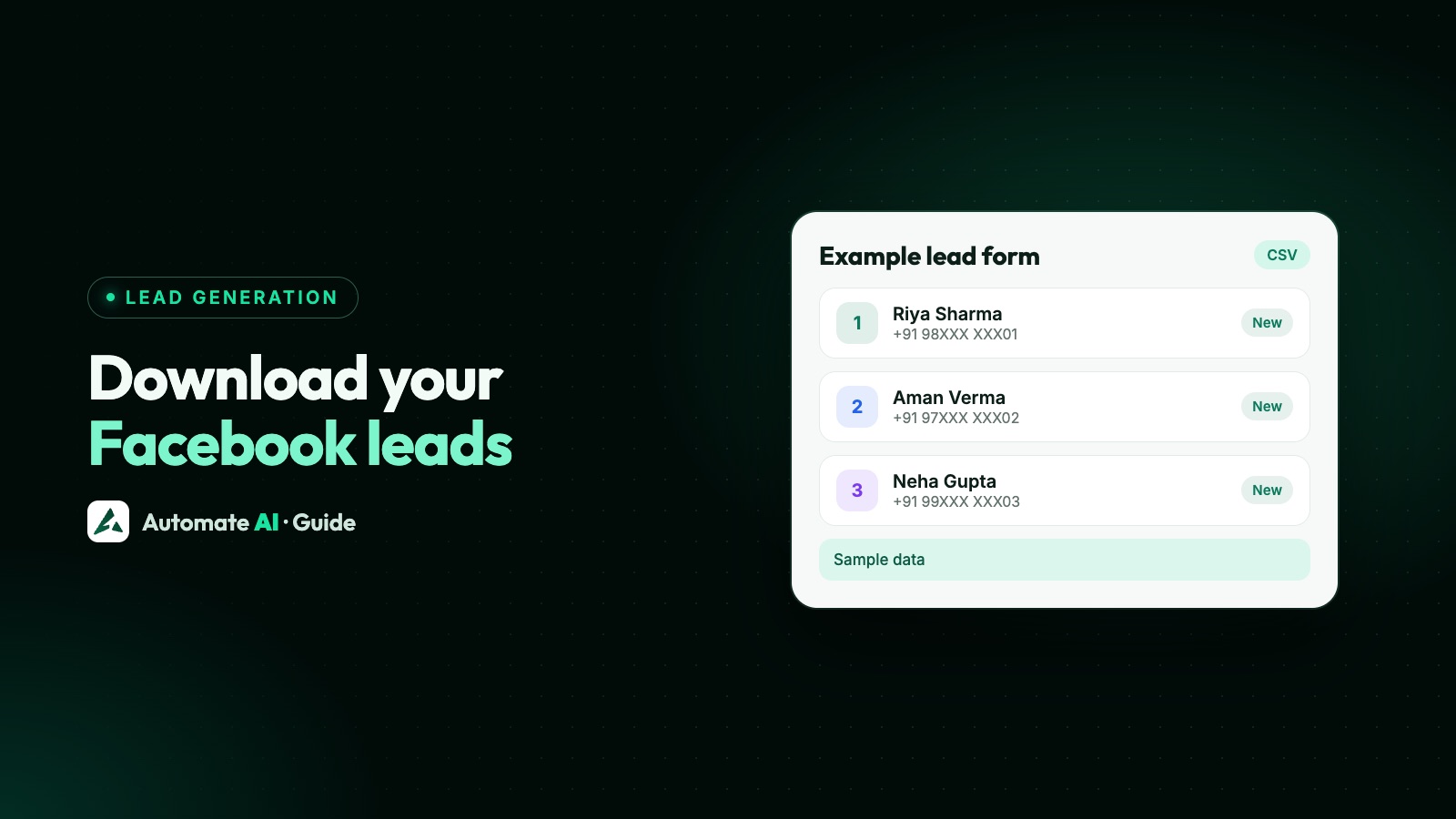
To download leads from Facebook, open Meta Ads Manager, go to the Ads tab, click the On-Facebook leads link in the Results column, pick your filters and choose CSV or XLS. You can also download them from the Instant forms page or from Leads Centre in Meta Business Suite. Whichever you use, Meta keeps lead details for only 90 days, so download often.
This guide shows where Facebook and Instagram form leads go, the steps for each place, what the file contains, why the numbers don’t always match your ad results, and what to do when the download won’t work. The last section covers getting those leads onto WhatsApp, both the ones already in a spreadsheet and the new ones still to come.
Key takeaways
- Leads from instant forms can be downloaded in three places: Ads Manager, the Instant forms page and Leads Centre in Meta Business Suite.
- Ads Manager and the Instant forms page give CSV or XLS; Leads Centre gives a CSV with seven fields and up to 10,000 leads per file.
- Leads expire after 90 days and can’t be downloaded after that, even if Ads Manager still counts them.
- Organic leads are only in the Business Suite download, not in Ads Manager.
- If you can’t download, check leads access permissions first.
- Downloading is slow follow-up. Meta recommends an integrated CRM or Leads Centre so each lead arrives straight away.
Where Facebook leads go
When someone submits your instant form on Facebook or Instagram, the answers don’t go to your inbox or your email. Meta stores them against your Facebook Page, and you collect them from one of these places:
| Where | How to get there | What you can download | Good for |
|---|---|---|---|
| Ads Manager | Ads tab › On-Facebook leads in the Results column | CSV or XLS, filtered by ad, location, language and date | Leads from one or several ads at once |
| Instant forms page | Meta Business Suite › All tools › Instant forms | CSV or XLS: new leads since your last download, or a date range | Everything from one form, including organic leads |
| Leads Centre | Meta Business Suite › Leads Centre, or your Page › Business Dashboard › Leads Centre | CSV of date, name, email, phone, stage, source and owner | Working leads through stages and owners |
| Ads Manager app | The app on your phone | Meta says you can view and manage leads there | Checking leads on the move |
| A connected CRM or tool | Set up once through Meta’s CRM integrations or a lead ads integration | Nothing to download: new leads arrive on their own | Fast follow-up |
Leads from ads that click to Messenger, Instagram or WhatsApp work differently: those people message you, so their details are in your chats. Leads Centre can show those too, but the downloads in Ads Manager and on the Instant forms page are for instant forms.
How to download leads from Ads Manager
Ads Manager is the quickest way to get leads from several campaigns in one file. Use a computer for this.
- Open Meta Ads Manager and click the Ads tab. The link doesn’t appear on the Campaigns or Ad sets tabs.
- Find the lead ad you want.
- In the Results column, click On-Facebook leads.
- In the Download leads window, tick the leads you want. You can pick several ads.
- Filter by ad object, location, language and date range, then click Next.
- Check the details and click CSV or XLS.
- Click Download and save the file.
How to download leads from Meta Business Suite
From the Instant forms page
- Go to Meta Business Suite and click All tools.
- Click Instant forms.
- Click Download next to the form.
- Choose Download new leads for only the leads received since your last download, or Download by date range and pick the dates.
- In the pop-up, click CSV or XLS.
“Download new leads” is the handy one if you download once a day: you get only the fresh rows and won’t import the same people twice.
From Leads Centre
Leads Centre is Meta’s simple lead tracker. Open it from the left menu in Meta Business Suite (or All tools › Engage audience), or from your Facebook Page under Business Dashboard › Leads Centre. It shows leads from instant forms, ads that click to message and organic business messaging, in a pipeline or a table.
- Filter the list first: the Download icon exports the leads in your current filter as a CSV.
- The file only has date, name, email address, phone number, stage, source and owner. For custom question answers, use Ads Manager or the Instant forms page.
- Each file shows up to 10,000 leads.
- Every lead starts at the Intake stage. You can move leads to stages such as Qualified, Converted, Lost and Not qualified, assign an owner, add labels and notes, and set a reminder.
What’s in the download file
Files from Ads Manager and the Instant forms page start with the same default columns, then one column for each question on your form, including prefilled ones such as name, phone and email.
| Column | What it tells you |
|---|---|
| id | The lead’s unique ID |
| created_time | When the form was submitted |
| ad_id, ad_name | The ad the lead came from |
| adset_id, adset_name | The ad set |
| campaign_id, campaign_name | The campaign |
| form_id, form_name | The instant form |
| is_organic | Whether the lead came from the ad or from someone sharing it |
| platform | Where it was submitted, for example Facebook or Instagram |
Meta says you need both Facebook Page admin permissions and a role on the ad account to see every column. Blank fields usually mean your leads access is limited.
Why the file and Ads Manager don’t match
- Fewer leads in the file: leads older than 90 days have expired. Ads Manager still counts them in Results, even for lifetime results.
- More leads in the file: organic leads (when a friend shares your ad and then fills it in) and leads you submitted while testing are in the file, but not in the Results column. You pay only for leads that come directly from your ad being shown.
- No ad ID on a row: Meta says the lead was organic, was sent from an ad preview, or you lack advertiser access to the ad account.
You can turn organic leads off in the form’s settings: Form configuration › Sharing › Restricted is the default. Test leads still appear in the file either way. For making and reading test leads, see the Lead Ads Testing Tool guide.
On your phone, and lead notifications
Meta says the Ads Manager app lets you view and manage leads on your phone. The download steps above are written for a computer, so plan to export from a laptop or desktop.
Many people search for a Facebook leads email notification. Meta Business Suite lets you choose, for each type of business notification, whether it shows in Business Suite or arrives by email: go to Settings › Notifications and use the toggles under Business updates. The Meta Help Centre pages we checked don’t describe an email that carries each new lead’s details, though, so don’t rely on email to catch every lead.
Meta’s own advice on responding to leads is to collect them with an integrated CRM or Leads Centre, because downloading by hand slows down follow-up. It also suggests running lead ads during the hours you can reply. If you sell on WhatsApp, the fastest route is to send each lead a WhatsApp message the moment they submit (more on that below, and on why minutes matter in speed to lead).
Can’t download your leads? Quick fixes
| What you see | Likely cause | What to do |
|---|---|---|
| No On-Facebook leads link | You’re on the Campaigns or Ad sets tab | Switch to the Ads tab |
| The file won’t download or open | Leads access has been customised and you aren’t assigned | Ask someone with full control of the business portfolio to assign you in leads access |
| Leads access was never customised, and it still fails | You don’t have full control of the Page or messaging permissions | Ask someone with full control of the Page to give you access |
| Old leads missing | They passed 90 days and expired | Download regularly, or connect a CRM so leads are copied as they arrive |
| Answers to your own questions are missing | You used the Leads Centre download | Download from Ads Manager or the Instant forms page instead |
| Some columns are blank | You lack Page admin permissions or a role on the ad account | Ask an admin for the missing role |
The full story on leads access, including why a newly connected CRM gets no leads until it’s assigned, is in our Lead Ads Testing Tool guide. If you haven’t built the form yet, start with how to create a Facebook lead form.
From the spreadsheet to WhatsApp
A downloaded file of names and numbers is only useful once someone contacts those people. Before you message anyone on WhatsApp, check what the form said: WhatsApp only allows businesses to message people who opted in to hearing from that business. If your form didn’t say you’d contact people on WhatsApp, call or email those leads instead, and add a WhatsApp consent line to the form for next time. Any first message you send must be an approved template, because these people haven’t messaged you.
Import the leads you already have
- Download the leads from Ads Manager or the Instant forms page as XLS or CSV, so the file includes the answers to your questions.
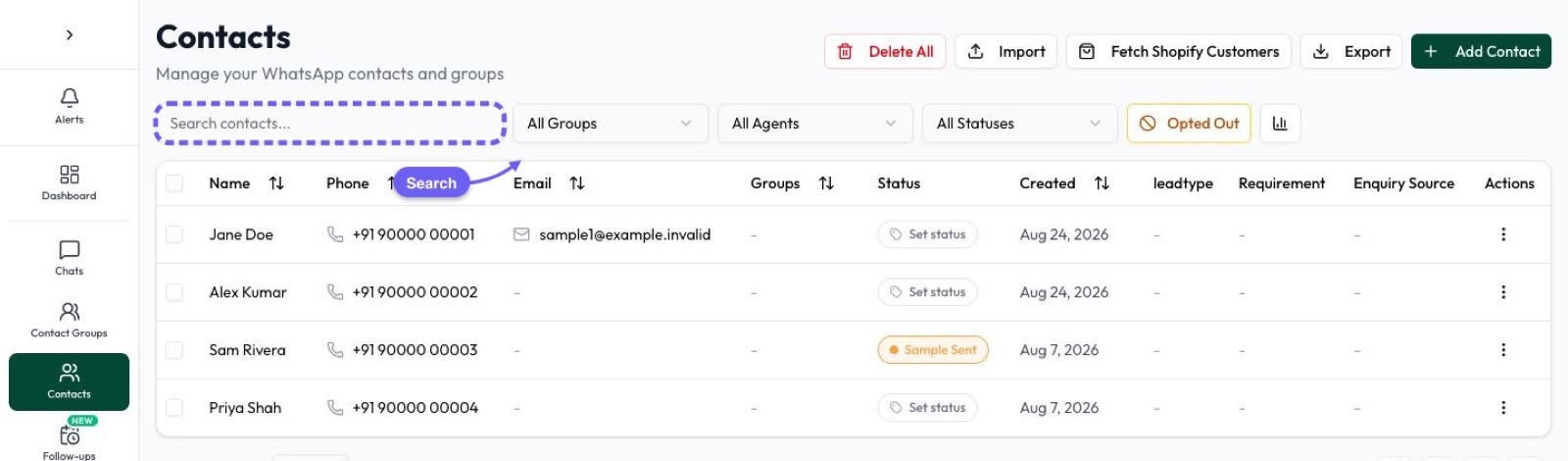
- In Automate AI, open Contacts and import the file. The importer takes .csv, .xlsx and .xls files with any column headings and suggests a match for each column, which you confirm on screen. It finds the phone column even when the heading is unusual.
- Put everyone in the file into one group, such as “Facebook leads November”, and give them a status such as “New lead”.
- Send an approved template to that group as a campaign, or, on the AI + Automation Plan and Series 4, let a drip campaign aimed at the group send two or three helpful messages over a week, stopping when someone replies.
A sample first message for older leads (sample data)
“Hi {{1}}, you asked Example Homes about 2 BHK flats at Example Heights last month. Prices and site visit slots for this weekend are ready. Would you like them here? [Yes, send details] [Not now] Reply STOP to opt out”
Meta decides a template’s category when it reviews it, and a message that promotes or persuades counts as marketing. Keep it short, name what they asked about, and offer one easy next step. For more on wording and categories, see WhatsApp template messages.
Stop downloading new leads by hand
Automate AI’s Facebook Lead Ads integration connects your Facebook Pages and receives each new form submission through Meta’s webhook. Every lead with a phone number becomes a contact (or updates the existing one), and can get an approved WhatsApp template straight away, with a different template for each ad if you like. It handles leads submitted after you connect, so import older ones from a download as above. The integration is part of the AI + Automation Plan and Series 4 (pricing). Setup, consent wording and the lead activity log are covered in send Facebook Lead Ads leads to WhatsApp.
Frequently asked questions
How do I download leads from Facebook Ads Manager?
Go to the Ads tab, find your lead ad and click On-Facebook leads in the Results column. Choose the leads and filters, click Next, then pick CSV or XLS and click Download.
How do I download leads from Meta Business Suite?
Click All tools, then Instant forms, then Download next to the form. Choose new leads only or a date range, then CSV or XLS. You can also export a shorter CSV from Leads Centre.
Where do Facebook leads go?
They’re stored by Meta against your Facebook Page. You see them in Ads Manager, on the Instant forms page and in Leads Centre in Meta Business Suite, or in a CRM or tool you’ve connected.
Where do I find Leads Centre on Facebook?
In Meta Business Suite, click Leads Centre in the left menu or find it under All tools › Engage audience. From your Facebook Page, open Business Dashboard and then Leads Centre.
How long can I download Facebook leads?
For 90 days after each form is submitted. After that the lead expires and can’t be downloaded, even though Ads Manager still counts it.
Does Facebook email me when I get a new lead?
You can choose which business notifications reach you by email in Meta Business Suite’s notification settings, but the Meta pages we checked don’t describe an email with each lead’s details. Connect a CRM or integration to get every lead as it arrives.
Can I message downloaded Facebook leads on WhatsApp?
Only if they agreed to hear from your business on WhatsApp, for example through a consent line on the form. The first message must be an approved template, because they haven’t messaged you yet.
Sources
- Meta Business Help: Download or retrieve your leads data from Meta
- Meta Business Help: About Leads Centre in Meta Business Suite
- Meta Business Help: Information included when you download your leads data
- Meta Business Help: About expired leads
- Meta Business Help: About organic leads
- Meta Business Help: Best practices to respond to leads from your lead ads
- Meta Business Help: Change your notification settings in Meta Business Suite
- Meta: Get opt-in for WhatsApp
WhatsApp rules and prices change. We check these guides against Meta’s documentation, but always confirm current terms with Meta before you rely on them. Questions? Message us on WhatsApp at +91 836 977 8812.