Facebook Lead Ads Testing Tool: Test Leads and Fix Missing Ones
How to use Meta’s Lead Ads Testing Tool, read Track Status, and fix Facebook leads that never reach your CRM or app: permissions, Leads Access, webhooks.
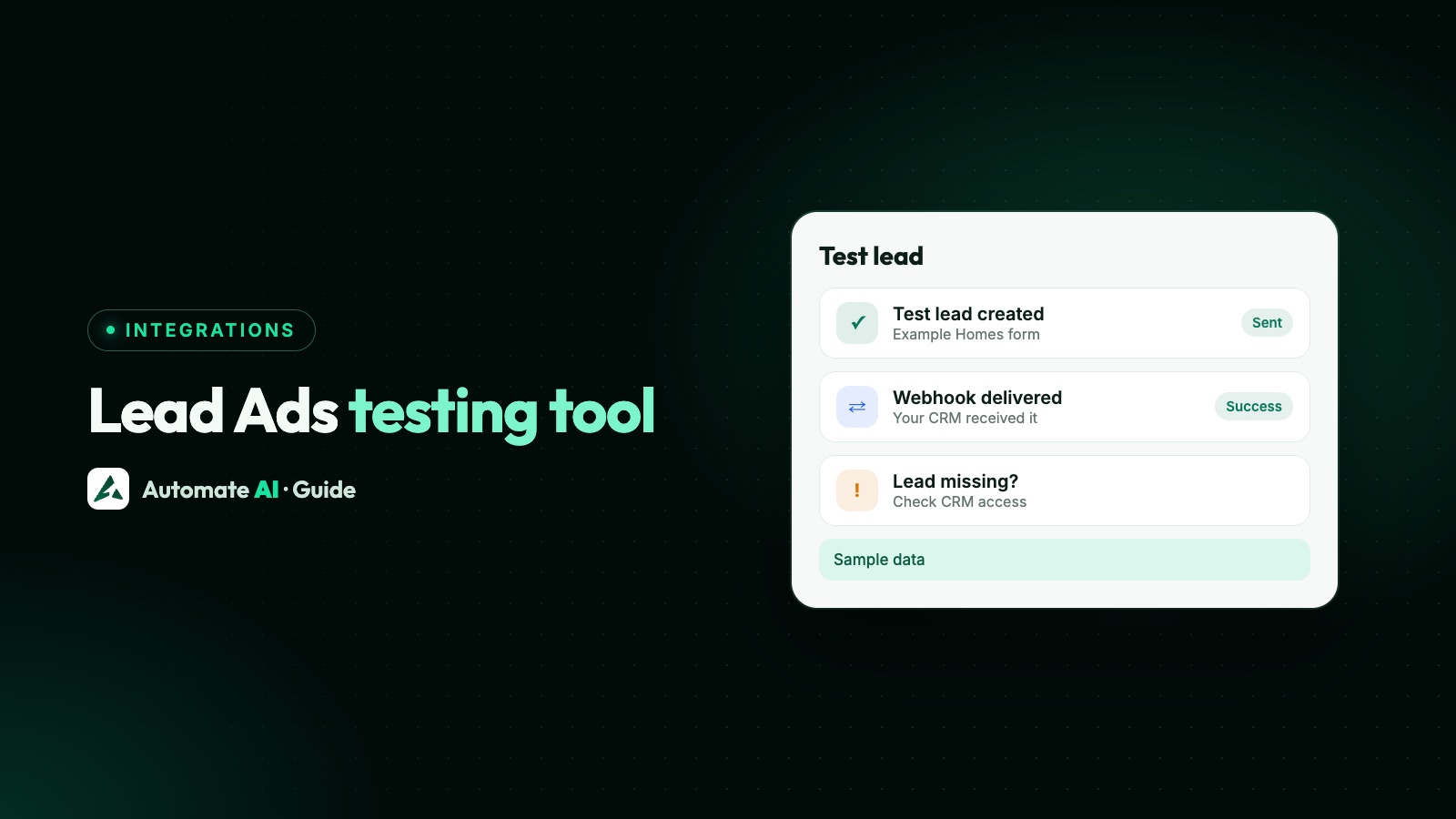
The Lead Ads Testing Tool is a Meta for Developers page that creates a test lead on one of your instant forms, sends the same notification a real lead would to the apps connected to your Page, and shows whether delivery worked. Open it at developers.facebook.com/tools/lead-ads-testing, pick your Page and form, click Create Lead, then click Track Status.
This guide shows how to run a test, what each status means, which permissions and settings a lead needs to reach your CRM or messaging tool, and a troubleshooting table for leads that go missing. The last section covers testing leads in Automate AI. To build the form first, see how to create a Facebook lead form.
Key takeaways
- You can create one test lead per form; delete it to make another.
- Test leads contain dummy data unless you enter your own values, and they’re not tied to any ad.
- Track Status shows pending, success or failed, with an error code when delivery fails.
- Most missing leads come from permissions: the Page’s app subscription, the token’s access, or Leads Access in Business Suite.
- After Leads Access is customised, a new CRM gets no leads until someone with full control assigns it.
- Lead data can be downloaded from Meta for 90 days, so don’t leave fixes for weeks.
What the Lead Ads Testing Tool does
When someone submits an instant form, Meta sends a short notification, called a webhook, to every app subscribed to that Page for the leadgen field. The notification carries IDs: the lead ID (leadgen_id), the Page, the form, the ad and the time. The app then uses the lead ID to fetch the answers from Meta. The testing tool lets you set this off on demand, without running an ad or waiting for a real lead.
| What you get | Details from Meta’s docs |
|---|---|
| Test leads per form | One. Delete the existing test lead to create a new one |
| Data in the lead | Dummy data by default, or your own values if you fill in Preview Form first |
| Link to an ad | None: test leads are fake leads and aren’t associated with any ad |
| Who can use it | People with advertiser access to the Page; the Page list only shows those Pages |
| Limits | Meta says the tool can’t be used in developer mode |
Developers can do the same through the Graph API: a POST to /{form-id}/test_leads creates a test lead (with optional field data), a GET reads it and a DELETE on the lead ID removes it. Meta requires a Page access token and an Advertiser role or higher on the Page that owns the form.
How to create a test lead, step by step
- Open the tool at developers.facebook.com/tools/lead-ads-testing while logged in to Facebook.
- Choose the Page from the drop-down. If it isn’t there, you don’t have advertiser access to it yet.
- Choose the form. Only forms on that Page are listed.
- Add your own answers (optional). Click Preview Form and fill in the values you want, such as a name you’ll recognise.
- Click Create Lead. If the tool refuses, the form probably already has a test lead: delete it and try again.
- Click Track Status. The delivery starts as pending; Meta says it takes a few seconds to reach the app, so keep clicking until it changes.
- Check the other end. Look for the lead in your CRM or tool, not just in the tool’s status table.
Reading Track Status
| Status | What it means | What to do |
|---|---|---|
| Pending | Meta hasn’t delivered the notification yet | Wait a few seconds and click Track Status again |
| Success | The notification reached the app; the table shows a copy of the payload Meta sent | Check the lead arrived in your CRM with the right fields |
| Failed | Delivery broke | Read the error_code column, fix the cause, then delete the test lead and create a new one |
| An error next to your CRM | After Leads Access is customised, a CRM without access gets no real-time updates, and Meta shows an error for it here | Assign the CRM in Leads Access (next section) |
Meta’s app dashboard also has a Test button in the Webhooks settings, which is handy if you built your own integration and want to check your endpoint before testing a real form.
What a lead needs to reach your CRM
A lead has to pass four checks before it lands in a CRM or messaging tool. Most “lead ads not working” problems are one of these.
- The Page is subscribed to the app. The app subscribes the Page with
subscribed_fields=leadgenon the Page’ssubscribed_appsedge. AGETon the same edge lists the apps installed on the Page; an empty list means none will get leads. Meta also says notifications stop if the Page has turned off the app platform in its settings. - The app has the right permissions. Meta’s webhook guide lists
pages_show_list,pages_read_engagement,pages_manage_metadata,ads_managementand the lead retrieval permission (leads_retrieval). - The person behind the token can advertise on the Page. Meta says the Page token must come from someone who can perform the ADVERTISE task on that Page.
- Leads Access allows it. In Meta Business Suite, Settings › Integrations › Leads access controls which people, partners and CRMs can get your leads.
How Leads Access catches people out
By default, Page admins can download leads. Once someone with full control of the business portfolio clicks Customize access, Meta gives access to the existing Page admins and connected CRMs, but any CRM or admin added afterwards has no access until it’s assigned. A CRM without access gets no real-time updates. And if your CRM fetches leads with a person’s or Page’s token, the fetch fails when the people behind that token aren’t listed under People in Leads Access.
To assign access, go to Business Suite › Settings › Integrations › Leads access, then use Assign people, Assign partners or Assign CRMs. A CRM only appears in the list after it has been connected to the Page.
Leads not arriving in your CRM or app: troubleshooting
| What you see | Likely cause | What to do |
|---|---|---|
| The Page isn’t in the testing tool | You don’t have advertiser access to the Page | Ask a Page admin to give you a role that can advertise |
| Create Lead won’t work | The form already has a test lead | Delete it in the tool, then create a new one |
| Track Status says Failed | The app’s endpoint didn’t accept the notification | Read the error code; the endpoint should answer every notification with 200 OK |
| Your CRM shows an error in the tool | Leads Access is customised and the CRM isn’t assigned | Assign the CRM in Leads access |
| Nothing at all reaches the CRM | The Page isn’t subscribed to the CRM’s app for leadgen | Reconnect the Page in the CRM, or check the Page’s subscribed apps |
| The CRM gets the notification but no answers | The token’s person lacks Leads Access, a permission or the ADVERTISE task | Add them in Leads access, reconnect and allow every permission |
| Leads counted in Ads Manager but missing from a download | Leads older than 90 days have expired | Download often, or connect a CRM so leads are copied as they arrive |
| A lead has no ad ID | It was organic, a test lead or sent from an ad preview, or you lack advertiser access to the ad account | Usually expected; rules that match by ad won’t apply to it |
| Phone or email lands in the wrong field | Field names were changed in the form’s Settings › Field names | Match the names your CRM expects, or update its field mapping |
| The same lead appears twice | Meta retried a delivery | Match on the lead ID so each lead is stored once |
Webhook behaviour worth knowing
- Retries: if an endpoint doesn’t confirm a notification, Meta retries straight away and then a few more times over the next 36 hours, after which it drops it.
- Duplicates: because of retries, Meta tells developers to remove duplicates on their side. The lead ID is the natural key.
- Batches: Meta may group up to 1,000 updates in one delivery, but says batching can’t be relied on, so each update should be handled on its own.
- Signatures: each delivery is signed in the
X-Hub-Signature-256header with the app secret. Meta says checking it is optional but recommended. - Expiry: lead data is available from Meta for 90 days after the form is submitted, so fix a broken connection quickly: older leads can’t be downloaded.
If you’re building your own receiver, the WhatsApp Cloud API webhooks guide covers the same verify-and-respond pattern for WhatsApp messages.
Testing Facebook leads in Automate AI
Automate AI’s Facebook Lead Ads integration is included in the AI + Automation Plan and Series 4 (pricing). Here is what its code does, so you know what to check.
- Connecting: an owner or manager opens Integrations › Facebook Leads and clicks Continue with Facebook. It asks for
pages_show_list,pages_read_engagement,pages_manage_metadata,pages_manage_adsandleads_retrieval, and warns “Facebook did not grant” if any is missing. - Subscribing: when you save, each ticked Page is subscribed to Automate AI’s app for the leadgen field, and you’ll see “Leads from 1 Page will now arrive here” or the reason a Page couldn’t be connected. Saving again subscribes them again. No webhook setup is needed for Pages connected this way.
- Which leads count: only leads from Pages saved in Automate AI are handled, and a Page can be saved in only one Automate AI account.
- Lead activity and duplicates: each lead is listed with its status and leadgen ID, and you can search by leadgen ID to compare with Meta’s download. A lead already processed is skipped if Meta sends it again; a failed one is tried again. The columns, the fix for failed rows and how the first message is sent are in Send Facebook Lead Ads leads to WhatsApp.
What happens to a test lead
“Processed” means Automate AI fetched the lead’s answers from Meta. It’s set before the contact step, so it doesn’t prove a contact was made or a message sent. A contact needs a usable phone number, read from a field named phone_number, phone, mobile_number, mobile or whatsapp_number, and Automate AI drops Meta’s placeholder values (the ones starting “<test lead:”).
| Test lead | Lead activity | Contact | WhatsApp message |
|---|---|---|---|
| Meta’s dummy data | Processed | None: the phone number is a placeholder | None |
| Made with Preview Form and your own real number | Processed | Created, or your existing contact updated | Your default message, never a per-ad template, because test leads have no ad ID |
That’s what happens once a test lead reaches Automate AI. For a full end-to-end check, also submit your live form once with your own WhatsApp number, then look for the contact and the template in the shared inbox.
Frequently asked questions
What is the Facebook Lead Ads Testing Tool?
A Meta for Developers page that creates a test lead on one of your instant forms and shows whether the notification was delivered to the apps connected to your Page. You need advertiser access to the Page.
Why is the lead ads testing tool not working?
Usually the form already has a test lead (delete it first), you lack advertiser access to the Page, or you’re trying to use it in developer mode. If the lead is created but Track Status fails, read the error code.
Are test leads linked to my ads?
No. Meta describes them as fake leads that aren’t associated with any ad, and they carry dummy data unless you enter your own values in Preview Form.
Why are my Facebook leads not coming into my CRM?
Check that the Page is subscribed to the CRM’s app, that the CRM is assigned in Leads Access if access has been customised, and that the person whose token the CRM uses has Leads Access and permission to advertise on the Page.
How many test leads can I create?
One per form at a time. Delete the existing test lead to create another for the same form.
How long can I download Facebook leads?
For 90 days from the time each form is submitted. After that the lead expires and can’t be downloaded, so download often or connect a CRM.
Can a lead get a WhatsApp message automatically?
Yes, with an integration such as Automate AI’s, if the lead gave a usable phone number and your form says your business will contact them on WhatsApp. The first message must be an approved template.
Sources
- Meta for Developers: Lead Ads testing and troubleshooting
- Meta for Developers: Webhooks for Lead Ads
- Meta for Developers: Getting started with Webhooks
- Meta Business Help: Enable leads access in Meta Business Suite
- Meta Business Help: Assign or remove permissions in leads access
- Meta Business Help: Download or retrieve your leads data from Meta
- Meta Business Help: Change the field names on your lead ad with instant form
- Meta Business Help: About CRM system integrations for lead ads
WhatsApp rules and prices change. We check these guides against Meta’s documentation, but always confirm current terms with Meta before you rely on them. Questions? Message us on WhatsApp at +91 836 977 8812.