How to Create a Facebook Lead Form (and Message Every Lead on WhatsApp)
How to create a lead form on Facebook in Ads Manager: form types, questions, privacy policy, ending screen and Instagram, then message each lead on WhatsApp.
To create a lead form on Facebook, open Meta Ads Manager, start a campaign with the Leads objective, choose Instant forms as the conversion location, then click Create form at the ad level and work through the form type, intro, questions, privacy policy and ending screen. The same form can run on Instagram, and people fill it in without leaving the app.
This guide walks through each screen of the form editor, compares the form types, gives sample question sets to adapt, and shows the wording that lets you contact leads on WhatsApp. Sending the WhatsApp message itself is covered in more depth in Send Facebook Lead Ads leads to WhatsApp automatically.
Key takeaways
- Build the form in Ads Manager (Leads objective, then Instant forms): Meta says some extra features only work in forms made there.
- Pick More volume for quick, mobile-friendly forms and Higher intent when you want people to review their answers before they submit.
- Ask for the phone number and up to 15 custom questions; use answer ranges to keep multiple choice short.
- Add your privacy policy link and a consent line that names your business and WhatsApp.
- A published form can’t be edited, so check it in the preview first, or duplicate it later.
- Leads haven’t messaged you, so your first WhatsApp message must be an approved template.
Before you start
You need a Facebook Page and a Meta ad account you can advertise from. Meta also suggests two things before you build anything:
- Have the questions reviewed. Meta advises asking your legal team to check the questions, the Lead Ads Terms and Meta’s Advertising Standards, which limit what you may ask for.
- Have your privacy policy link ready. Meta says a privacy policy is required to run instant forms on Facebook or Instagram. You can use the one already on your website.
You can make instant forms from your Page, from Meta Business Suite (All tools › Instant forms) or from Ads Manager. Meta notes that extra features such as conditional logic, phone number verification and work email validation are only available when you build the form in Ads Manager, so that’s the route below.
How to create a lead form in Ads Manager, step by step
- Start the campaign. In Ads Manager, click + Create, choose the Leads objective and click Continue.
- Choose Instant forms. At the ad set level, in the conversion section, select Instant forms as the conversion location. Set your budget, schedule and audience as usual.
- Check placements. Leave Advantage+ placements on, or choose placements manually and include Instagram if you want the form to run there too.
- Open the form editor. At the ad level, add your image or video and text, then click Create form (or pick a form you made earlier). Give it a name you’ll recognise later.
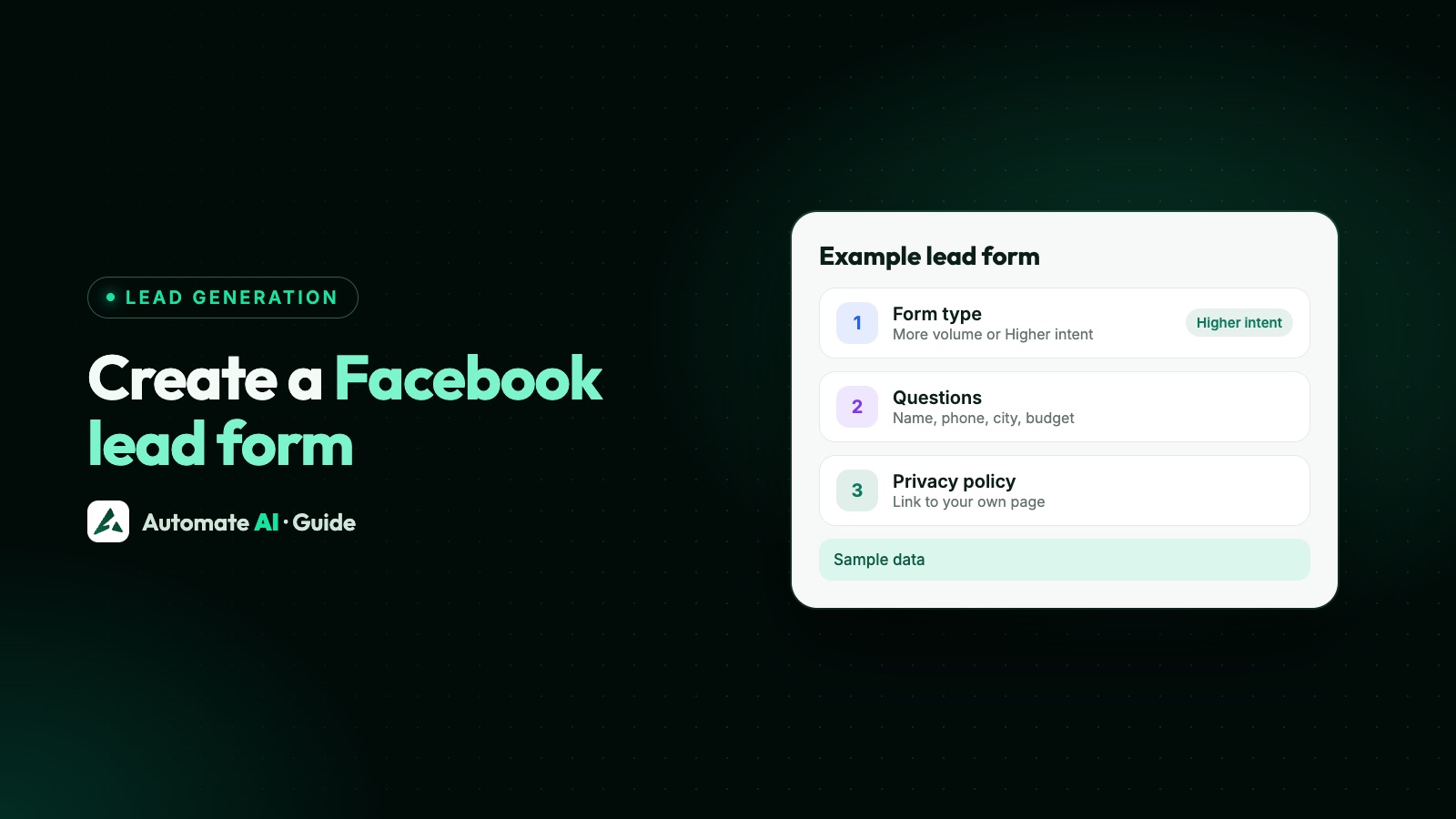
- Pick a form type: More volume (the default), Higher intent or Rich creative. The next section explains the difference.
- Write the intro (optional). Turn on a background image and add a short greeting: a headline and one or two lines saying what people get for filling it in.
- Add the questions. Choose the prefill fields (such as full name, phone number and email), write the short notice that explains how you’ll use the information, then click + Add question for your own questions.
- Add the privacy policy link and link text, then any custom disclaimer, such as your WhatsApp consent line.
- Write the ending screen: a headline, a description, and a call-to-action button with a link, telling people what happens next.
- Turn on phone verification if you want it. People confirm their number with a one-time code that Meta sends by WhatsApp or SMS. The phone number must be a required prefill field. For a Higher intent form, tick it under Form type in the form editor; for other form types, tick Require SMS verification to submit form in the destination section.
- Preview, create and publish. Check every screen of the preview, click Create form, then publish the ad. Meta reviews it before it runs.
More volume, higher intent or rich creative?
The form type is the first choice in the editor, and it changes how much effort the form asks for.
| Form type | What Meta says it does | When it suits you |
|---|---|---|
| More volume (default) | A form that’s quick to fill in and submit on a mobile device | Simple offers, short forms, and teams that contact every lead quickly |
| Higher intent | Adds a review step so people can confirm their information before submitting | When leads type wrong numbers, forget the form or aren’t serious |
| Rich creative | Adds your images, branding and product details; the intro section is required, and these features only show in the Facebook app on mobile | Products that need explaining before someone hands over their details |
If leads are cheap but don’t pick up, try Higher intent, one qualifying question or phone verification, and expect fewer leads that are easier to reach. For a wider look at lead quality and cost, see Facebook lead ads vs WhatsApp ads.
Questions to ask, with sample sets
Prefill questions use details people have already given Meta, such as their name, email and phone number. People can edit them before submitting. Custom questions are your own: you can add up to 15, and choose from multiple choice, short answer, conditional answers and appointment requests. Meta recommends ranges to keep multiple choice lists short: its own example is one answer of “2001–2004” instead of four separate years.
Every extra question costs submissions, so ask only what you’ll use on first contact. Our own example sets:
| Business | Prefill fields | Custom questions (sample) |
|---|---|---|
| Home services | Full name, phone number, post code | Which service do you need? (Repair / Regular service / New installation) · When should we visit? (This week / Next week / Just comparing prices) |
| Property | Full name, phone number, city | How many bedrooms? (1 / 2 / 3 or more) · When do you plan to buy? (Within 3 months / 3 to 6 months / Just looking) |
| Courses and coaching | Full name, phone number, email | Which course interests you? (Example Spoken English / Example Data Basics) · Preferred batch? (Weekday evenings / Weekends) |
| B2B software | Full name, work email, phone number, company name | How big is your team? (1 to 10 / 11 to 50 / More than 50) · What do you want to fix first? (short answer) |
| Car dealer test drive | Full name, phone number, post code | Which model? (Example Hatch / Example SUV) · Buying or leasing? (Buying / Leasing / Not sure yet) |
A “when” question tells your team who to contact first. Conditional logic shows a question only after a certain answer, such as asking about budget only when someone plans to buy within three months.
Privacy policy, consent and the ending screen
Every form carries Meta’s own privacy disclaimer, with your privacy policy link next to it. The custom disclaimer is where your own wording goes, and it can include checkboxes that people must tick, or may tick, before submitting. For WhatsApp this matters: a phone number field on its own isn’t permission. Before you message anyone, WhatsApp expects them to have agreed to hear from you, with your business named in the wording they agreed to, so put both in the checkbox text.
Sample consent wording (sample data)
- Required checkbox: “Example Realty can send me details of this home on WhatsApp and phone me about my enquiry.”
- Optional checkbox for offers: “I’d also like news of other Example Realty homes on WhatsApp. I can reply STOP at any time.”
Offers sit in a box of their own because Meta advises asking for opt-in per message type, so nobody gets promotions they didn’t choose. Privacy and marketing laws differ from country to country, so check the ones that cover you and your buyers, and note the form name against each lead as your record of consent. More on this in WhatsApp opt-in.
The ending screen
The ending screen is what people see after they submit, so use it to set expectations: “Thanks for your enquiry. We’ll message you on WhatsApp within a few minutes with three visit slots.” Add a button that links somewhere useful, such as your price list or website. In Business Suite, Meta limits the headline and button text to 60 characters each.
Running the same lead form on Instagram
There’s no separate Instagram lead form. Meta says a lead ad made in Ads Manager runs on Instagram with Advantage+ placements (the default) or Instagram placements chosen by hand. Differences to know:
- Some questions don’t show on Instagram: the store locator and appointment request questions are skipped there, though the ad still runs.
- Mobile only: lead ads appear in the Instagram app, not on Instagram on a computer.
- Same form, same Page: the form belongs to your Facebook Page, so in Automate AI leads from Instagram placements arrive the same way as Facebook ones.
How to message every lead on WhatsApp
A lead has filled in a form, not sent you a message, so there’s no open 24-hour window. Meta’s rules mean the first WhatsApp message must be an approved template. Write it about the exact request, send it within minutes, and end with one easy next step.
Sample first template (sample data)
“Hi {{1}}, this is Example Realty about the 2-bedroom home you asked about. Here’s the floor plan. Would you like to see it in person?” with quick-reply buttons Book a viewing] [Send prices first]. Because it answers the person’s own enquiry and sells nothing, a message like this may qualify as utility; if it pushes offers, it’s marketing. Meta sets the final category when it reviews the template. Promotional follow-ups go out only to people who ticked the offers box, and end with “Reply STOP to opt out”. See [WhatsApp template messages for the categories, or start from the template library.
Doing it in Automate AI
- Send the message automatically. The Facebook Lead Ads integration saves each new lead with a phone number as a contact and can send your chosen template straight away, with a different template for each ad if you like. It’s included in the AI + Automation Plan and Series 4 (pricing). The setup is in this guide.
- Keep the phone field name. Automate AI reads the number from a field named
phone_number(the standard one),phone,mobile_number,mobileorwhatsapp_number. Meta lets you rename fields under the form’s Settings › Field names, so if you do, keep one of these names. - Run the ad from Automate AI. On every plan, Campaigns › Meta Ads can make a lead form ad: choose Lead form as the ad type and pick one of your Page’s forms. Make the form in Meta first (Business Suite › Instant forms, or Ads Manager, as above), because only active forms are listed. See Click-to-WhatsApp Ads.
Not sure a form is the right ad at all? Click-to-WhatsApp ads vs website vs lead forms compares the three routes.
Check these before you publish
- Phone number is a prefill field and required.
- Consent line names your business and WhatsApp.
- Privacy policy link opens and is the current version.
- Preview looks right on every screen, because you can’t edit the form once it’s published.
- Test lead: send one through Meta’s Lead Ads Testing Tool and check it arrives where it should. See Facebook Lead Ads Testing Tool.
Frequently asked questions
How do I create a lead form on Facebook?
In Ads Manager, create a campaign with the Leads objective, choose Instant forms as the conversion location at the ad set level, then click Create form at the ad level. Choose a form type, add your questions, privacy policy link and ending screen, then publish the ad.
Can I create a Facebook lead form without running an ad?
Yes. Create and save it in Meta Business Suite under All tools › Instant forms, then use it in an ad later. Some extra features need Ads Manager.
What is a higher intent lead form on Facebook?
It’s a form type that adds a review step, so people check and confirm their answers before they submit. It asks a little more of people than the default More volume form.
How do I make an Instagram lead form?
Use the same instant form. Create the lead ad in Ads Manager and keep Advantage+ placements on, or choose Instagram placements. Store locator and appointment request questions aren’t shown on Instagram, and lead ads only appear in the Instagram mobile app.
How many questions can a Facebook lead form have?
Meta allows up to 15 custom questions, alongside prefill fields such as name, email and phone number. A form needs at least one question.
Can I edit a lead form after publishing it?
No. Meta says a published instant form can’t be edited. Duplicate it, change the copy and use the new form in your ad.
Can I send Facebook leads a WhatsApp message?
Yes, if the form tells people your named business will contact them on WhatsApp. The first message must be an approved template, because the lead hasn’t messaged you yet.
Sources
- Meta Business Help: How to create an instant form for a lead ad in Meta Ads Manager
- Meta Business Help: About lead ads with instant form
- Meta Business Help: Add custom questions to your lead ads with instant form
- Meta Business Help: Add a custom disclaimer to your lead ad with instant form
- Meta Business Help: How to create a lead ad for Instagram
- Meta Business Help: Change the field names on your lead ad with instant form
- Meta: Get opt-in for WhatsApp
- Meta Business Help: Enable phone verification to improve lead quality
WhatsApp rules and prices change. We check these guides against Meta’s documentation, but always confirm current terms with Meta before you rely on them. Questions? Message us on WhatsApp at +91 836 977 8812.