Speed to Lead: How to Reply to Every New Lead in Seconds on WhatsApp
What speed to lead means, where the delay comes from for forms, ads, websites, IndiaMART and JustDial, and how to set up instant WhatsApp replies and handover.
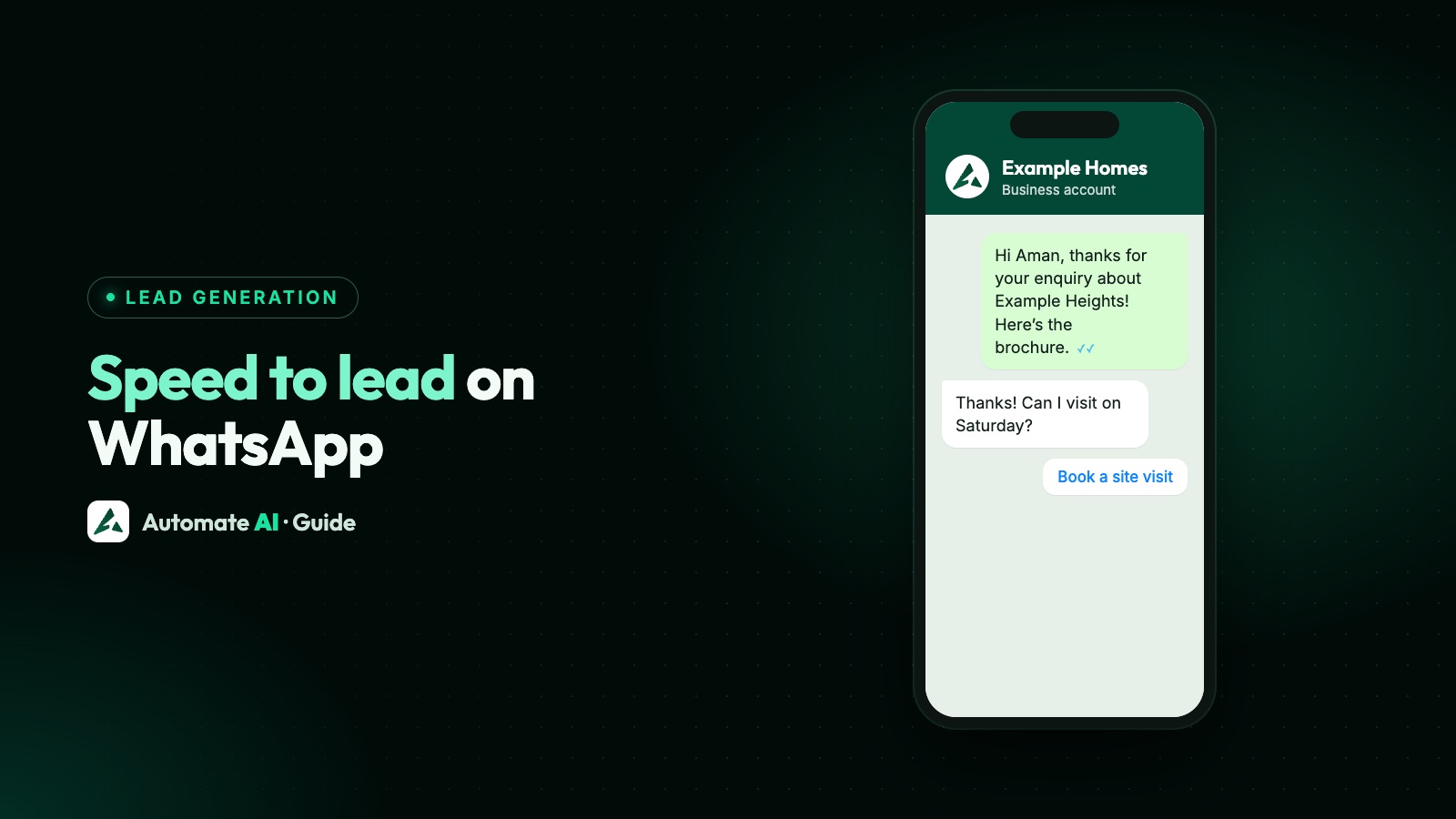
Speed to lead is the time between a new lead arriving and your business sending them a useful first reply. On WhatsApp you can bring it down to seconds for almost every lead: an approved template goes out the moment a form lead is saved, and a chatbot or AI answers anyone who messages you, while a person picks up the serious ones.
The catch is that each lead source has its own delay, and WhatsApp’s rules decide what kind of message you’re allowed to send first. This guide shows where the time goes for lead forms, Click-to-WhatsApp ads, your website, IndiaMART and JustDial, then gives a setup you can copy. For what happens after the first reply, see our lead follow-up playbook.
Key takeaways
- Measure two clocks: time to the first automatic reply, and time to the first reply from a person.
- A lead who filled in a form hasn’t messaged you, so the first WhatsApp message must be an approved template.
- A lead who messaged you has opened a 24-hour window, so a chatbot or AI can answer in seconds with normal messages.
- Some delay is built into the source: IndiaMART’s API can be checked every 5 minutes at most.
- Speed only helps if a person takes over quickly when the lead is serious.
- There’s no official “good” response time. Track your own by source and improve on it.
What speed to lead means, and how to measure it
Speed to lead (also called lead response time) starts when the form is submitted or the first WhatsApp message lands, and stops when the lead gets a reply that helps them. With automation, the first reply and the first conversation with a person are different moments, so measure both:
| Clock | Starts | Stops | What makes it fast |
|---|---|---|---|
| First reply | Lead created or first message received | First useful WhatsApp message sent | An instant template, chatbot or AI reply |
| First human reply | Lead created or first message received | A salesperson writes or rings back | Auto-assignment, alerts and clear ownership |
What about speed to lead statistics?
People often quote numbers about how much faster replies win more leads. One study often cited is “The Short Life of Online Sales Leads” by Oldroyd, McElheran and Elkington in Harvard Business Review (March 2011). Its public summary says most companies weren’t responding nearly fast enough. The full figures sit behind HBR’s paywall, so we don’t repeat them here. Treat numbers quoted without a link to the original with care.
Your own numbers are more useful anyway. For 20 recent leads, note when each arrived, got its first reply and got its first human reply, by source.
Where the delay comes from, lead source by lead source
Every source reaches you in a different way, and some add a delay before your team even sees the lead:
| Lead source | How it reaches you | Built-in delay | Who writes first |
|---|---|---|---|
| Facebook and Instagram lead forms | Meta’s Lead Ads webhook notifies your platform in real time | Almost none, if a tool is connected; otherwise however long until someone downloads the CSV | You, with a template |
| Click-to-WhatsApp ads | The customer taps the ad and sends a message | None: the chat is already open | The customer |
| WhatsApp button on your website | The customer starts a chat | None | The customer |
| Enquiry form on your website | Your form posts the lead to your platform | None, if the form is connected | You, with a template |
| IndiaMART | Your platform pulls leads with IndiaMART’s API | One call per key every 5 minutes at most; IndiaMART’s suggested strategy calls every 5 minutes | You, with a template |
| JustDial | JustDial pushes each lead to a URL you give them | None once it’s pushed | You, with a template |
Then come the human delays, which are usually bigger: leads at night or on a Sunday, chats nobody owns, and lead lists someone has to remember to open. Automation fixes the first reply; ownership and alerts fix the rest. For better leads from ads, see quality leads from WhatsApp ads.
The two WhatsApp rules that decide your first message
- Did they agree to hear from you? WhatsApp’s Business Messaging Policy says you may only contact people who gave you their number and opted in to messages from you. Meta’s opt-in guide adds that the opt-in must name your business. Put that line on every form. See WhatsApp opt-in.
- Have they messaged you in the last 24 hours? When someone messages you, a 24-hour customer service window opens and you can send normal messages. Outside it, Meta allows only approved templates.
| The lead… | Your first message | Category to expect |
|---|---|---|
| Filled in a form (Facebook, website, IndiaMART, JustDial) | An approved template | Utility only if it’s non-promotional and about their request; anything persuasive is marketing |
| Messaged you from an ad or your website | Any normal message, sent by a person, chatbot or AI | No template needed inside the window |
Meta decides the category when it reviews the template, and mixed content counts as marketing. Ads have a bonus: if someone messages you from a Click-to-WhatsApp ad on WhatsApp’s Android or iOS app and you reply inside the customer service window, a free entry point window opens for up to 7 days. Meta Business Agent messages are still charged.
Instant templates for form leads
In Automate AI, lead capture saves form leads as contacts automatically and can message them straight away. Set up each source once:
- Facebook and Instagram lead forms: in Integrations › Facebook Leads, connect the Pages that run your lead ads and choose A WhatsApp template as the message for all leads. Give any ad its own template so the reply matches the offer. The full walkthrough is in Facebook Lead Ads to WhatsApp.
- IndiaMART: add each seller account with its CRM key in IndiaMART and pick the shortest fetch interval, 5 minutes, if speed matters most (the default is 15). Switch on the welcome message as a template, and decide whether repeat enquiries get it again.
- Website forms: in Settings › Webhook Settings, post your form to the endpoint with your API key, choose a group and status for new contacts, and set Welcome message to new contacts to a WhatsApp template. It goes only to contacts created by the form, not to people you already have.
- JustDial: give JustDial your push URL from JustDial and choose a default group. JustDial leads don’t get a message on arrival, so add that group to a drip campaign whose first step goes out on enrolment. Message only people who agreed to hear from you.
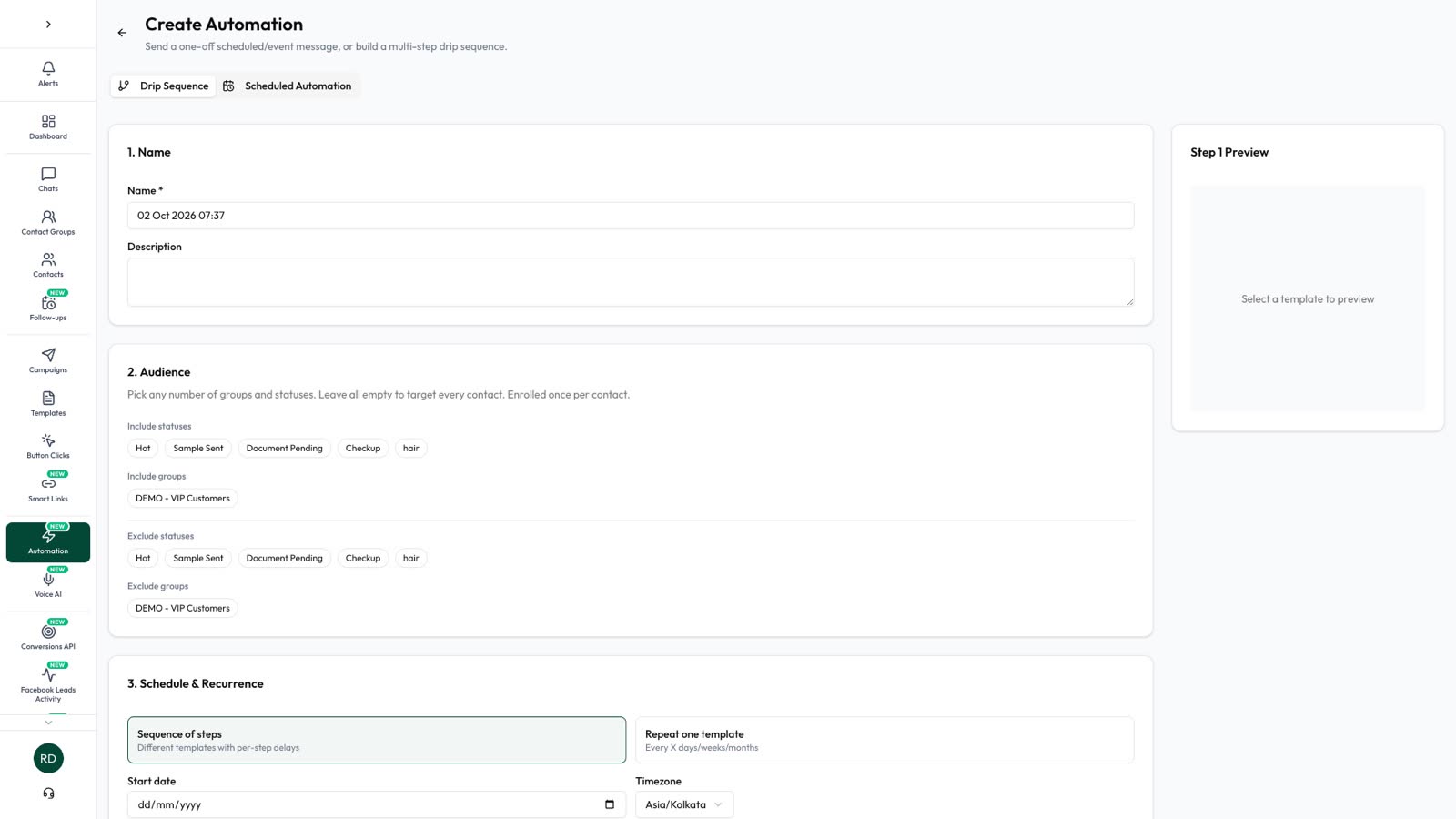
Drip campaigns look for new contacts every minute, so the first step follows shortly after a lead joins the group. Respect business hours is on by default and holds night-time leads until you open. For a welcome drip where speed comes first, turn it off, and leave Smart sending (which waits for the hour each person usually reads) off too.
Instant replies for chats: chatbot or AI
When the lead writes first, from an ad or your website button, something should answer within seconds, day or night:
- A chatbot in Automation › Flows can start on a keyword, such as a word from your ad’s pre-filled message, or whenever a new contact messages you. Use it to ask one or two qualifying questions with buttons. See the chatbot builder.
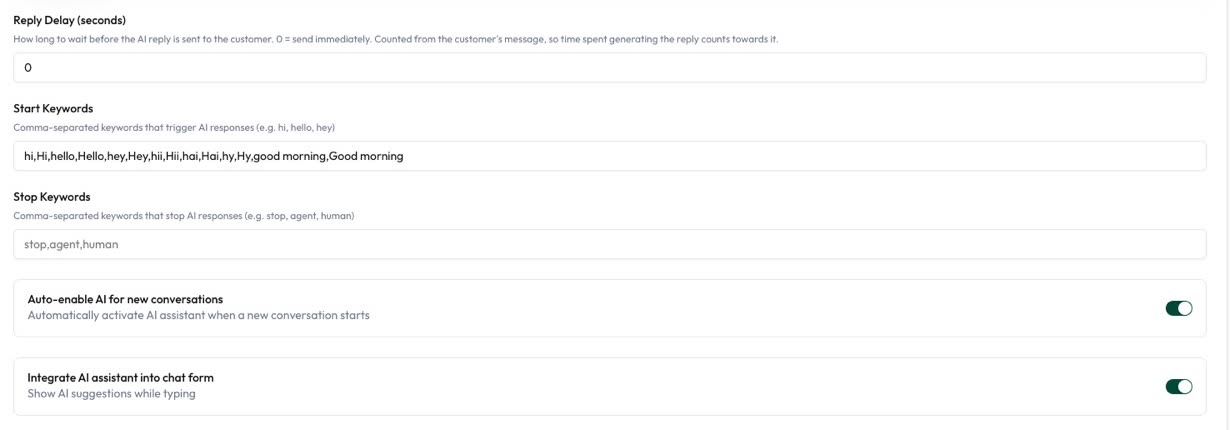
- The AI Assistant answers open questions from your own documents and website, in the customer’s language. Turn it on for new chats and set the reply delay to 0 to send as soon as the reply is ready. See the AI Assistant.
- An away message in Settings › Business Hours answers people who write while you’re closed and no chatbot or AI replies, at most once every 12 hours.
That’s what “speed to lead AI automation” means on WhatsApp: the AI answers conversations the customer started. It can’t start one with a form lead; that first message is your approved template. Without an AI key of your own, Basic AI answers up to a daily number of replies.
Hand over to a person, fast
WhatsApp’s policy also says automated replies need prompt, clear and direct escalation paths, such as handing the chat to a person, a phone number or an email. Set up the handover before you turn up your ad budget:
- Auto-assignment (Settings › Auto Assignment) gives each new chat an owner, taking turns or least busy first, and can keep chats to chosen departments.
- Human Escalation (Settings › AI Assistant) hands a chat to your team when a customer asks for a person, uses a word you list, or the AI can’t answer, and alerts up to 10 team numbers on WhatsApp. A Needs a person filter in Chats shows who is waiting.
- AI Sales Center scores each lead from 0 to 100 from what they write and alerts the teammates you choose when a hot lead needs a salesperson.
- Lead Sources (Settings › Lead Sources) fills in a new contact’s Lead Source from words in their first message, so you can see where each lead came from.
Give your team a rule: a hot lead gets a personal message while still in the chat. Saved quick replies in the shared inbox make that quicker.
Sample first messages by source
Original samples with example businesses. Template variables such as {{1}} are filled in for each lead.
| Source | First message | Send as |
|---|---|---|
| Lead form | “Hi {{1}}, thanks for your enquiry about the 2 BHK at Example Heights. Here’s the floor plan you asked for. Which day suits you for a visit?” [Saturday] [Sunday] [Call me] | Template (Meta decides utility or marketing) |
| IndiaMART | “Hi {{1}}, thanks for your IndiaMART enquiry for {{2}}. I’m Neha from Example Industries. How many units do you need, and where should we deliver?” | Template |
| Website form | “Hi {{1}}, we got your request for an AC service quote from Example Cooling. Shall we send a technician tomorrow or at the weekend?” [Tomorrow] [Weekend] | Template |
| Click-to-WhatsApp ad | “Hi Rahul! Thanks for messaging Example Academy. Is this for the weekday or the weekend batch?” | Normal message from a chatbot (window open) |
| After hours | “Thanks for your message. We’re closed now and open at 10 AM. Leave your question here and we’ll reply first thing.” | Away message (window open) |
Each names what they asked about and asks one easy question. For follow-ups once they go quiet, see 30 follow-up message examples. For what to say once they reply, see WhatsApp sales scripts.
Follow up when the first reply isn’t enough
Many leads read the first message and say nothing. Follow up, with restraint:
- Inside the window: the AI Assistant’s AI follow-up (in Settings › Auto Follow-ups) can send one personal message when a customer goes quiet, while the 24-hour window is still open.
- After the window: a short drip of approved templates, with Stop on reply on, so a person takes over the moment they answer.
- For your team: follow-up reminders on the contact, and Smart Follow-up tasks from AI Sales Center. Those are tasks for people; AI Sales Center doesn’t message customers on its own.
For cadence and wording, see the lead follow-up playbook. For leads that went cold months ago, see convert cold leads with AI. Lead capture, chatbots, the AI Assistant, drip campaigns and AI Sales Center are included in the AI + Automation Plan and Series 4; see pricing.
Frequently asked questions
What is speed to lead?
The time between a lead arriving, by a form or a first message, and your business sending a useful first reply. Many teams also track the first reply from a person.
What is a good lead response time?
There’s no official benchmark. On WhatsApp the first reply can be automatic and take seconds, so aim for that, and set a first-human-reply target your team can keep.
Are there reliable speed to lead statistics?
The study most often cited is “The Short Life of Online Sales Leads” in Harvard Business Review (2011). Its public summary says most companies weren’t replying fast enough; the detailed figures are behind a paywall, so we don’t quote them.
Can I reply instantly to a Facebook lead on WhatsApp?
Yes, with an approved template. A form lead hasn’t messaged you, so there’s no open 24-hour window, and only templates can be sent. Automate AI can send one as soon as the lead is saved.
How quickly do IndiaMART leads reach WhatsApp?
IndiaMART’s Pull API allows one call per key every 5 minutes at most, and its suggested strategy calls every 5 minutes. In Automate AI you can set the fetch interval to 5 minutes, and each new lead can get a welcome template as soon as it’s fetched.
Is speed-to-lead automation allowed on WhatsApp?
Yes, if people opted in to hear from you. WhatsApp allows automated replies inside the 24-hour window, as long as there are prompt, clear and direct ways to reach a person. Outside the window, use approved templates.
Does AI reply to leads who filled in a form?
Not first. The AI Assistant answers once the lead writes to you. The first message to a form lead is the approved template you set up, and the AI can take over when they reply.
Sources
- Harvard Business Review: The Short Life of Online Sales Leads (2011)
- WhatsApp Business Messaging Policy
- Meta: Send messages (customer service window)
- Meta: Get opt-in for WhatsApp
- Meta: Template categorization
- Meta: Pricing on the WhatsApp Business Platform (free entry point window)
- Meta: Webhooks for Lead Ads
- IndiaMART: Lead Manager CRM integration (Pull API)
WhatsApp rules and prices change. We check these guides against Meta’s documentation, but always confirm current terms with Meta before you rely on them. Questions? Message us on WhatsApp at +91 836 977 8812.