Event Reminder Messages on WhatsApp (Samples and Timing)
Sample WhatsApp event reminder messages for webinars, workshops and in-person events, when to send each one, and whether they count as utility or marketing.
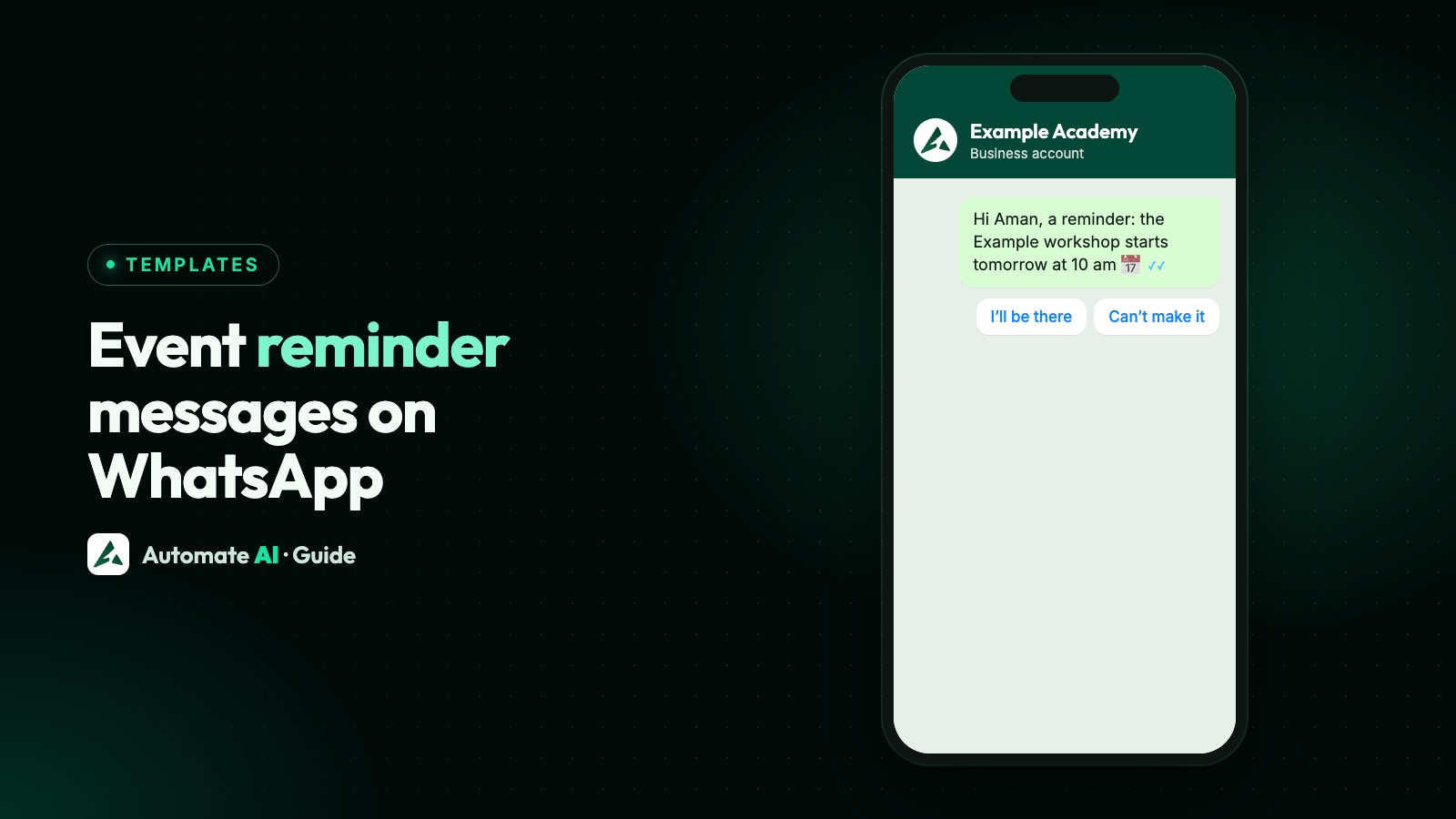
A WhatsApp event reminder is a short template message sent to people who registered, usually the day before and again shortly before the start, with the date, time, place or joining link, and what to do if they can’t come. Keep it purely about the event they signed up for, because that’s what gives it a chance of being approved as a utility template.
This guide gives a reminder schedule, sample messages for webinars, workshops, in-person events and last-minute changes, Meta’s category rules, and how to send reminders on time in Automate AI. For the first message, the one asking people to come, see event invitations on WhatsApp.
Key takeaways
- Remind people who registered, not your whole list. Inviting new people is a separate, marketing message.
- A reminder that’s non-promotional and specific to the person may fit Meta’s utility rules. Add an offer and it’s marketing.
- A good rhythm is confirmation at sign-up, a reminder the day before, and one shortly before the start.
- Every reminder needs the event name, date and time with time zone, place or link, and a way to say “I can’t make it”.
- In Automate AI, a scheduled campaign to your registrants’ group is the simplest way to hit a fixed event time.
Reminder, invitation or update: which message is which
Before writing anything, be clear about what each message does, because Meta categorises them differently and you pay by category:
| Message | Sent to | Likely category |
|---|---|---|
| Invitation | People who haven’t signed up yet | Marketing (Meta’s own event example is marketing) |
| Registration confirmation | Someone who just signed up | Utility, if it only confirms their booking |
| Reminder | Registered people, before the event | Utility, if it only covers their event |
| Change of time, venue or link | Registered people | Utility, if it only explains the change |
| Reminder with an offer or upsell | Registered people | Marketing, because the content is mixed |
| “Last seats left, join us” | People who haven’t signed up | Marketing |
Meta reviews every template and makes the final call on category, so treat the right-hand column as a guide, not a promise.
When to send event reminders
There’s no official best time, so use this as a starting point and adjust it to your event and audience:
| Message | When | Best for |
|---|---|---|
| Confirmation | Right after they register | Every event |
| Early reminder | 7 days before | Conferences, trips or anything people must plan for |
| Main reminder | 1 day before | Every event |
| Last reminder | 1 to 2 hours before | In-person events and long sessions |
| “Starting soon” | 10 to 15 minutes before | Webinars and online classes |
| Thank you and recording | After the event | Webinars; only if they agreed to follow-ups |
Two or three messages per event is plenty. If someone tells you they can’t come, take them off the rest.
What to put in every reminder
- Your business name near the start, so people know who’s writing.
- The event name, exactly as they registered for it.
- Date and time, with the time zone for online events, such as “7 PM IST”.
- Where: the full address for in-person events, or the joining link for online ones. A website button works well for links.
- What to bring or prepare, if anything: a ticket number, a laptop, an ID for entry.
- What to do if plans change: “Reply 2 if you can’t make it” or a quick-reply button.
Leave out anything promotional. “See you tomorrow at 10 AM” keeps a reminder clean; “and get 20% off our next course” turns it into marketing.
Sample event reminder messages
These are our own samples with demo details. Each {{1}} is a variable filled in for every person. Change the wording to fit your event before you submit them.
In-person event, the day before
Hi {{1}}, a reminder from Example Store: your place at the Saturday Styling Workshop is booked for tomorrow, 16 November, at 11 AM at 12 Park Street, Example City. Please bring your booking number {{2}}. Can’t make it? Reply 2 and we’ll free your seat.
Webinar, one hour before
Hi {{1}}, your Example Academy webinar “Getting started with exports” starts in one hour, at 7 PM IST. Join with the button below a few minutes early to test your sound. [Join webinar]
Workshop, what to bring
Hi {{1}}, your pottery class at Example Studio is on {{2}} at {{3}}. Wear clothes that can get messy; we provide aprons and clay. The class runs for two hours. Reply 2 if you need to cancel.
Conference, a week ahead
Hi {{1}}, Example Expo is one week away: {{2}}, Hall B, Example Convention Centre. Doors open at 9 AM. Your pass number is {{3}}; show it at the entrance. [View agenda]
Starting now
Hi {{1}}, we’re live! Example Academy’s session has just started. Tap below to join. [Join now]
Change of time or venue
Hi {{1}}, a change to your booking for {{2}}: it now starts at {{3}}. The venue and everything else stay the same. If the new time doesn’t suit you, reply 2 and we’ll help.
Utility or marketing? Meta’s rules for reminders
Meta’s template categorisation guide says a utility template must meet both of these:
- Non-promotional: no promotional or persuasive intent.
- Specific to the user or requested by them, or essential to them, for example for their safety.
A reminder for an event someone registered for can meet both. Meta also says templates with mixed content, such as an update with a promo, are treated as marketing. A few more things to plan around:
- Every delivered template is charged, at a rate set by category and the customer’s country. See rates by country.
- Marketing has per-person limits. A blocked send fails with error 131049, and Meta says to wait at least 24 hours before trying again.
- US numbers don’t get marketing templates, so keep reminders to US attendees strictly informational.
- Opt-in still applies. Registering for an event isn’t automatically agreement to messages; your sign-up form should make clear people are agreeing to get messages from your business, and name it. See WhatsApp opt-in.
Send event reminders on time in Automate AI
An event has a fixed start time, so pick the tool that can hit it:
| Tool | Use it for | Good to know |
|---|---|---|
| Scheduled campaign | Day-before and hour-before reminders to everyone registered | Every plan. The time is read in your device’s time zone |
| Drip sequence | A confirmation the moment someone joins your registrants’ group | Later steps count from when each person joined, not from the event date |
| Scheduled Automation, Event Based | Events where each person has their own date, such as a booked session | Sends 1, 3 or 7 days before, or on the day, a date saved on the contact |
Reminders with a scheduled campaign
- Collect registrants in one group, such as “Workshop 16 Nov”, from your sign-up form, a chatbot or an import.
- Create the reminder template in Campaigns › Templates, choose Utility, and submit it a few days ahead, because review can take up to 24 hours.
- Create a campaign in Campaigns, choose the group and the template, and fill the variables with contact fields such as First Name.
- Schedule it for the day before. Then create a second campaign for an hour before.
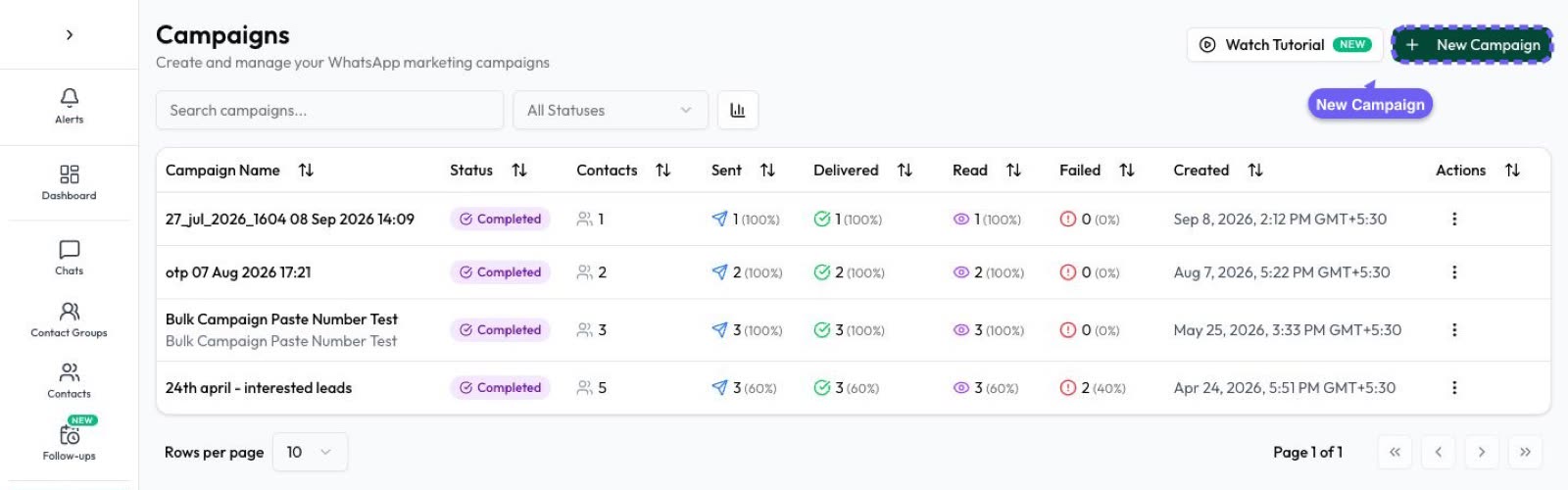
- Check results in the campaign: sent, delivered, read and failed.
Things that catch people out
- Replies end drip sequences. With Stop on reply on (the default), a reply ends that person’s sequence. If your confirmation says “Reply YES”, so later reminder steps won’t go out. Use scheduled campaigns for the reminders themselves.
- Business hours hold drip messages. With Respect business hours on, a step due at 7 PM waits until you open, which is too late for a 7 PM webinar.
- Event Based automations repeat yearly. They match the day and month of the saved date, so switch the automation off after the event.
- Drip Campaigns (under Campaigns) are included in the AI + Automation Plan and Series 4. See pricing and drip campaigns.
Handle “I can’t make it” and other replies
A reply is good news: it opens a 24-hour customer service window, so you can answer freely without another template. Plan for the common ones:
- Can’t come: thank them, release the seat, and leave them out of later reminders.
- Questions about parking, timing or the link: have someone watch the team inbox on the day before and the day of the event.
- Late joiners: send the link again in the chat; no template needed while the window is open.
If you automate replies with a keyword chatbot, remember a keyword matches that word anywhere in a message, not only a plain “2”. Use a distinctive word, or have the bot ask a confirm question first. Booking-style reminders with Confirm and Reschedule buttons are covered in WhatsApp appointment reminders.
Event reminders in a WhatsApp group
If you run a small community in the regular WhatsApp or WhatsApp Business app, WhatsApp’s own Events feature may be all you need. According to WhatsApp’s Help Center:
- You create an event from the + (attach) menu in an individual or group chat, with a name, date and time, and optionally a description, end time, location and a WhatsApp call link.
- People answer Going, Maybe or Not going, and those who say Going or Maybe get a notification when the event begins.
- If you edit the event, Going and Maybe people are notified and a notice is posted in the chat.
- Only the creator can edit or cancel it, and you can’t forward it to another chat or invite people outside the chat.
- New members can’t see events created before they joined the group.
WhatsApp doesn’t describe an automatic reminder before the start time, so for a day-before nudge, post a message in the group yourself or pin the event. For hundreds of attendees, or people who aren’t in one group, templates sent through the WhatsApp Business Platform are the better fit.
Frequently asked questions
How do I write an event reminder message on WhatsApp?
Start with your business name and the event name, then the date and time (with time zone for online events), the address or joining link, anything to bring, and how to say they can’t come. Keep it to a few lines and leave out offers.
Is a WhatsApp event reminder a utility or marketing template?
A reminder that only covers an event the person registered for can fit Meta’s utility rules, because it’s non-promotional and specific to them. Add an offer or upsell and Meta treats it as marketing. Meta makes the final decision.
When should I send a WhatsApp event reminder?
A common rhythm is a confirmation at sign-up, a reminder the day before and a last one an hour or two before. For webinars, a short “starting soon” message 10 to 15 minutes before helps.
Can I send reminders to people who haven’t registered?
That’s an invitation, not a reminder, so it’s a marketing template, and only for people who opted in to hear from your business on WhatsApp.
Does a WhatsApp group event send reminders?
WhatsApp’s Help Center says people who answer Going or Maybe are notified when the event begins. It doesn’t describe a reminder before that, so post one in the group yourself if you need it.
Can Automate AI send a reminder a day before the event?
Yes. Schedule a campaign with your reminder template to the group of registrants for the day before, and a second one for an hour before. For dates saved on each contact, an Event Based scheduled automation can send 1, 3 or 7 days before.
Sources
- Meta: Template categorization
- Meta: Pricing on the WhatsApp Business Platform
- Meta: Send messages (customer service window)
- Meta: Per-user marketing template limits
- Meta: Get opt-in for WhatsApp
- Meta: Templates overview
- WhatsApp Help Center: Events in chats
WhatsApp rules and prices change. We check these guides against Meta’s documentation, but always confirm current terms with Meta before you rely on them. Questions? Message us on WhatsApp at +91 836 977 8812.