How to Connect Calendly to WhatsApp
Connect Calendly to WhatsApp: share booking links in chats, log every booking on the contact, and send WhatsApp confirmations, with what Calendly does itself.
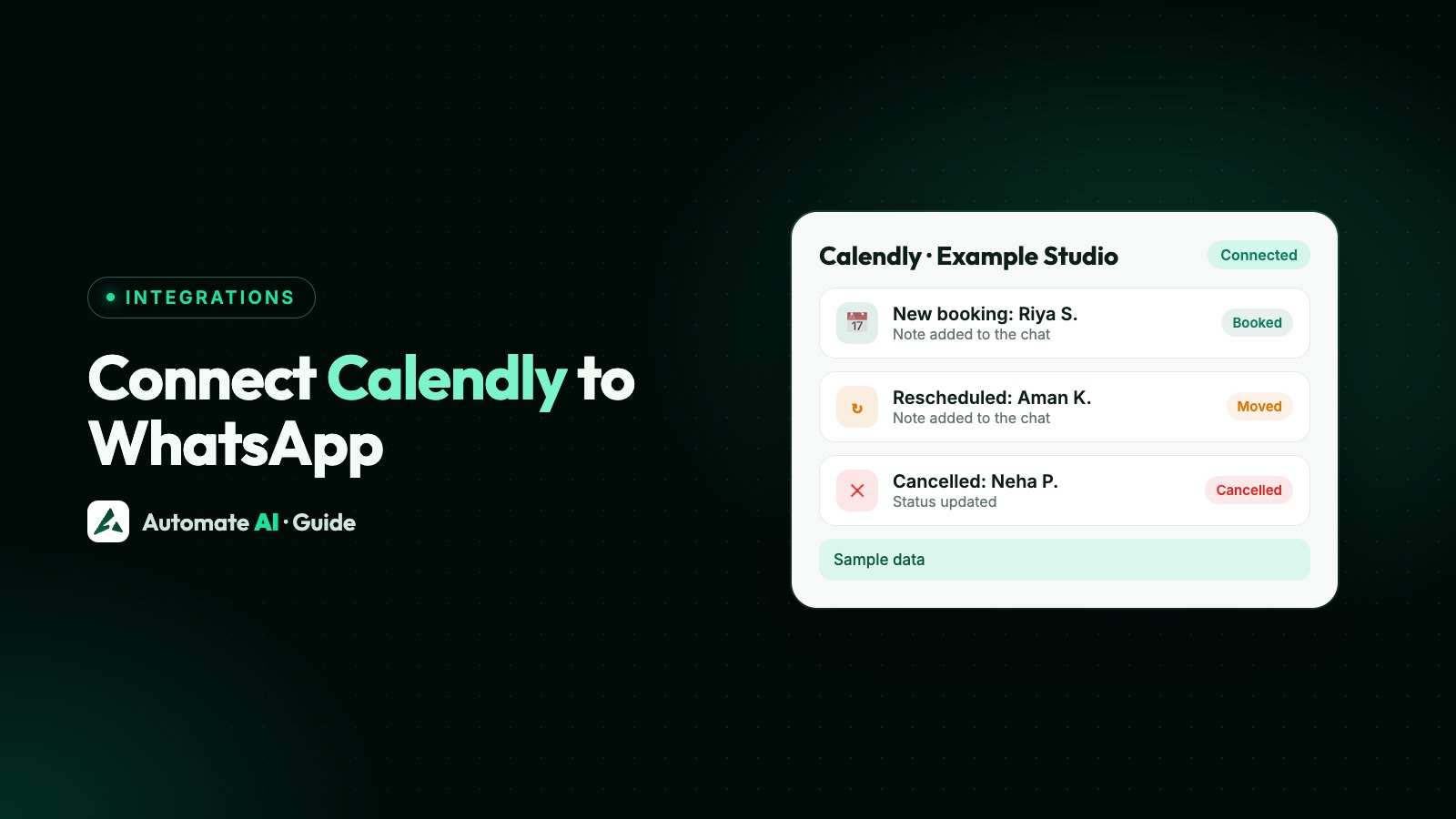
To connect Calendly to WhatsApp in Automate AI, go to Integrations › Calendly and click “Connect with Calendly”. Your booking links then appear ready to copy into chats, templates and chatbot flows, and every booking or cancellation is added to the right WhatsApp contact as a chat note, with an optional status and a follow-up at the meeting time.
Calendly itself doesn’t send WhatsApp messages: its own automatic texts are SMS. This guide covers what you need before connecting, the setup, how bookings are matched to contacts, how to send a WhatsApp confirmation after each booking, and how to fix the usual problems.
Key takeaways
- Connect from Integrations › Calendly. Only the account owner or a manager can do it.
- Booking links work on every Calendly plan, and Calendly says the webhooks that send bookings to Automate AI are on all its plans, including Free.
- Bookings are matched to contacts by phone, then email, so ask for a WhatsApp number with the country code.
- The integration adds notes, statuses and follow-ups. It doesn’t send WhatsApp messages by itself.
- To message the customer after a booking, set a status on booking and start a drip sequence on that status.
- Calendly’s own text reminders are SMS, not WhatsApp.
What the integration does, and what it doesn’t
Be clear about this before you start, because “Calendly WhatsApp integration” means different things on different tools. Here is exactly what Automate AI’s Calendly connection does:
| It does | It doesn’t |
|---|---|
| List your active Calendly event types with a Copy button for each booking link | Create or edit event types in Calendly |
| Add a chat note to the contact for each booking, cancellation or move | Send a WhatsApp message to the customer by itself |
| Find the contact by phone, then email, or add a new one | Add contacts from bookings that have no usable phone number or matching email |
| Optionally set a status after a booking and after a cancellation | Change your Calendly calendar or availability |
| Optionally set a follow-up for your team at the meeting time | Import bookings made before you connected |
The WhatsApp messages come from other features: the drip sequence for confirmations, chatbots for replies and the shared inbox for your team. The sections below show how to join them up. Drip sequences, chatbots and the REST API are in the AI + Automation Plan and Series 4, not the Marketing Plan; see pricing.
What you need before you connect
- An Automate AI account with WhatsApp connected, and the owner or a manager to click Connect. Agents can see the page but can’t connect it.
- A Calendly account. Booking links work on any plan. Calendly says webhooks, which Automate AI uses to receive booking updates, are available on all its plans, including Free, though access can vary with older accounts and add-ons. If Calendly refuses, Automate AI shows a notice and your links still work.
- A phone question on your event types. Without a phone number, a booking can only match an existing contact by email.
- The Calendly login whose bookings you want. Automate AI receives bookings for the Calendly user who connects, so connect with the account that hosts the meetings.
Connect Calendly step by step
- Open Integrations › Calendly in Automate AI and click Connect with Calendly.
- Sign in to Calendly and allow access. Automate AI asks to read your user details, event types and scheduled events, and to create the webhook that sends booking updates.
- Check the banner. Back in Automate AI, a notice says “New bookings and cancellations are added to your contacts automatically” when booking updates are on. If your Calendly plan doesn’t allow them, the notice says so and your links still work.
- Copy a booking link. Under Booking links, copy the event you want and paste it into a reply, a template button or a chatbot step.
- Choose what happens on a booking (next sections), then click Save.
- Test it. Book a slot on your own link with a phone number that includes the country code. Within a minute or so the contact has a chat note; refresh the page if the Activity list hasn’t updated.
Make sure every booking finds its WhatsApp contact
Matching is what makes the integration useful, so it’s worth getting right. For each booking, Automate AI looks for a phone number in this order:
- The number the invitee gave for Calendly’s text reminders, if you use them.
- The answer to a booking question whose wording mentions phone, mobile, WhatsApp, contact number or cell.
- The invitee’s number, if the event’s location is a phone call you make to them.
It then finds the contact by the last 10 digits of that number, the same way every contact is matched. If there’s no match, it tries the invitee’s email. A new contact is only created when the number has a country code, because WhatsApp needs one to reach the person. A number starting with a single 0 is treated as a national number.
The chat note shows the meeting name, the time in your business time zone, who booked, the join link and the invitee’s first answers to your booking questions. Your team sees it in the chat, next to the conversation.
Statuses and follow-ups on each booking
Under When someone books, you can choose three things. All are off until you set them:
| Setting | What happens | Good for |
|---|---|---|
| Status after a booking | The contact moves to the status you pick, such as “Meeting booked” | Filtering the inbox, reports and starting a drip sequence |
| Status after a cancellation | The contact moves to another status, such as “Cancelled” | A win-back list your team works through |
| Follow-up at the meeting time | A follow-up rings at the meeting time for the chat’s assigned person, or whoever connected Calendly | Making sure someone is ready, or checks in after a no-show |
- In the chat’s Activity, a status set this way shows as “Automatic”, next to the Calendly note about the booking.
- A follow-up someone already set for the contact is kept as it is, not replaced.
- If the meeting is cancelled, its follow-up is removed again.
- If the invitee moves the meeting, the note says so and the cancellation status isn’t applied. The follow-up isn’t removed, so check its time.
Send a WhatsApp confirmation after each Calendly booking
Here is how to turn a Calendly booking into a WhatsApp message, using the status from the last section and a drip sequence:
- Create a status such as “Meeting booked”, and pick it as the status after a booking in Integrations › Calendly.
- Create a utility template for the confirmation, for example: “Hi {{1}}, thanks for booking a call with Example Studio. You’ll find the time and join link in your Calendly email. Need to change it? Use the link in that email or reply here.” Keep it free of offers so it stays utility.
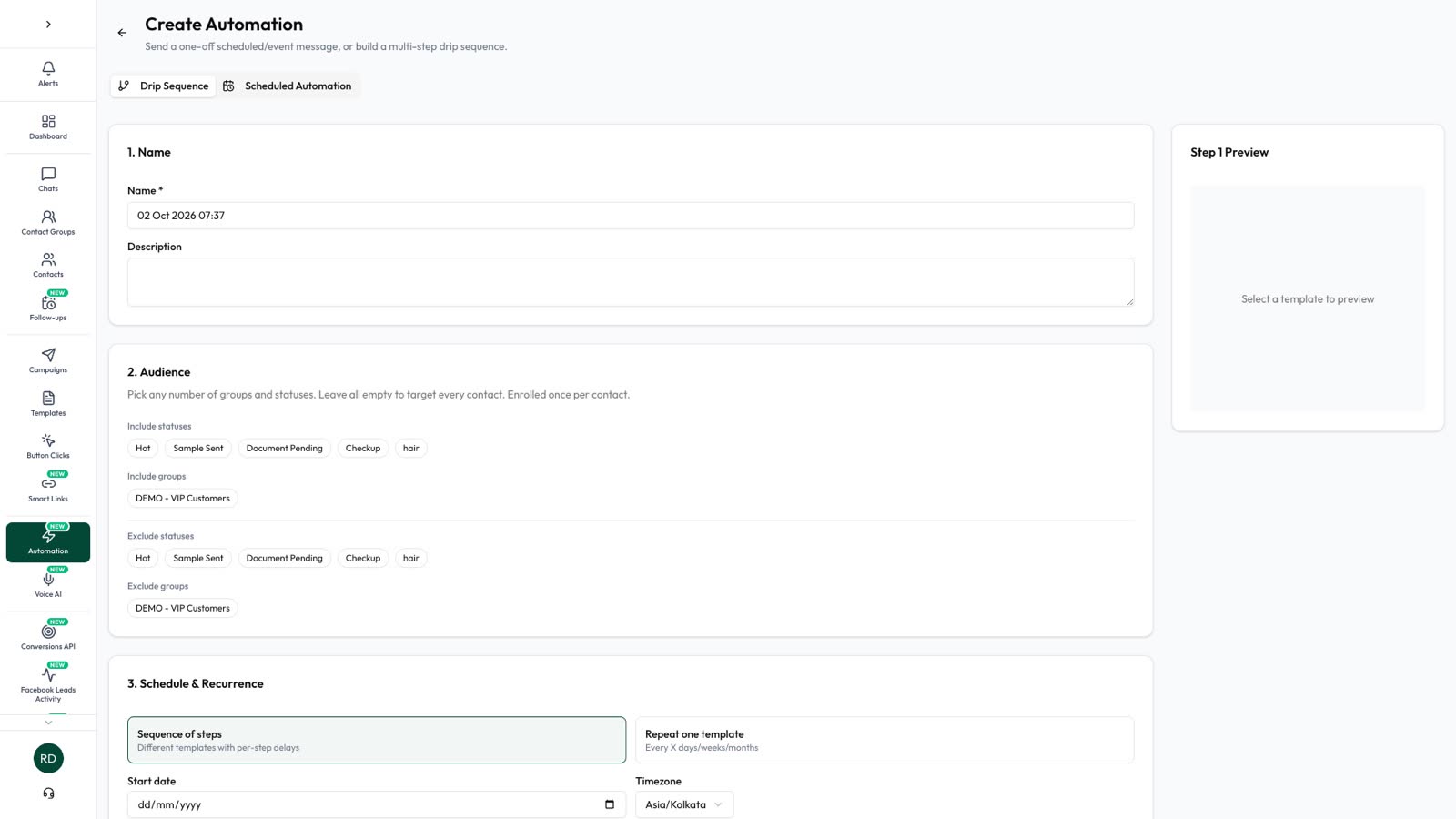
- Create a drip sequence in Automation › Schedule › Drip Sequence, with the audience set to the “Meeting booked” status.
- Add the template as step 1, which goes out on enrolment. Add later steps only if they make sense, such as a short “what to prepare” message.
- Switch on Stop on reply and business hours, and set a budget if you like, then save and activate.
Drip sequences check for newly matching contacts every minute, so the confirmation goes out shortly after the booking arrives, and within business hours if you switched that on. Before each step is sent, the contact is checked again: if a cancellation moved them to “Cancelled”, or they opted out, the rest of the sequence isn’t sent.
Only message people who agreed to hear from you on WhatsApp. Say on your booking page that you’ll send booking updates on WhatsApp, for example in the description of the phone question. More in WhatsApp opt-in.
Calendly’s own reminders compared with WhatsApp
Calendly can send reminders itself, so you may not need WhatsApp for every message. According to Calendly’s help pages and pricing page:
| Calendly text reminders | WhatsApp through Automate AI | |
|---|---|---|
| Channel | SMS, from a number Calendly assigns | WhatsApp, from your business number |
| Plans | Paid plans; not during the trial | Any plan, per Calendly (access can vary) |
| Length | 180 characters per message | Template text with buttons and media |
| Consent | The invitee must choose to receive texts | The customer must agree to WhatsApp messages |
Calendly also says it doesn’t deliver SMS to Singapore, Russia or Iran. A sensible split for many teams: Calendly’s email and SMS reminders for the timing, and WhatsApp for the confirmation, questions and anything that needs a reply from your team.
For timing and wording of reminder templates, see WhatsApp appointment reminders. To take bookings from inside a chat, see how to take appointment bookings on WhatsApp.
Troubleshooting
| What you see | Why | What to do |
|---|---|---|
| “Your Calendly plan does not send bookings to other apps” | Calendly refused the webhook for your account | Check your Calendly plan or contact Calendly, then click “Turn on booking updates” |
| “Calendly stopped sending bookings” | Calendly turned the webhook off or it was removed in Calendly | Click “Turn on booking updates” |
| A booking is listed as skipped | No matching contact, and no phone number with a country code | Make the WhatsApp number question required and ask for the country code |
| “Calendly ended the connection” | The Calendly login was removed or expired | Click “Connect again” |
| “Calendly is not set up on this platform yet” | The platform’s Calendly app isn’t configured | Contact support |
| No booking links listed | No active event types in Calendly | Turn an event type on in Calendly |
The Activity list on the Calendly page shows each booking that arrived and what was done with it, which is the quickest place to check. Owners and managers can see it.
Frequently asked questions
Can Calendly send WhatsApp reminders?
Not by itself. Calendly’s own automatic texts are SMS. To send WhatsApp messages after a Calendly booking, connect Calendly to a WhatsApp Business API platform such as Automate AI.
How do I connect Calendly to WhatsApp?
In Automate AI, go to Integrations › Calendly, click “Connect with Calendly”, sign in and allow access. The account owner or a manager has to do it.
Which Calendly plan do I need?
Booking links work on any plan. Automatic booking updates use Calendly webhooks, which Calendly says are available on all its plans, including Free, though access can vary with older accounts and add-ons.
Does the integration message customers automatically?
No. It adds a chat note and can set a status and a follow-up. To send a WhatsApp confirmation, start a drip sequence on the status you set after a booking.
Why didn’t a booking appear on a contact?
Usually because the booking had no phone number with a country code and no email that matched an existing contact. Add a required WhatsApp number question to your Calendly event.
Can I send a WhatsApp reminder exactly 24 hours before a Calendly meeting?
Not with a drip sequence, because its delays count from enrolment. Use Calendly’s own reminders for that, or send a template through the Automate AI API from your own system.
Sources
- Calendly: How to send text messages with Workflows
- Calendly: Pricing and plans
- Calendly: Webhooks overview
- Meta: Template categorization
- Meta: Send messages (customer service window)
- Meta: Pricing on the WhatsApp Business Platform
- WhatsApp Business Messaging Policy
WhatsApp rules and prices change. We check these guides against Meta’s documentation, but always confirm current terms with Meta before you rely on them. Questions? Message us on WhatsApp at +91 836 977 8812.