How to Take Appointment Bookings on WhatsApp
Build a WhatsApp appointment booking system: a chatbot that offers services and times, a booking link or a Flow, where bookings land, and the rules to follow.
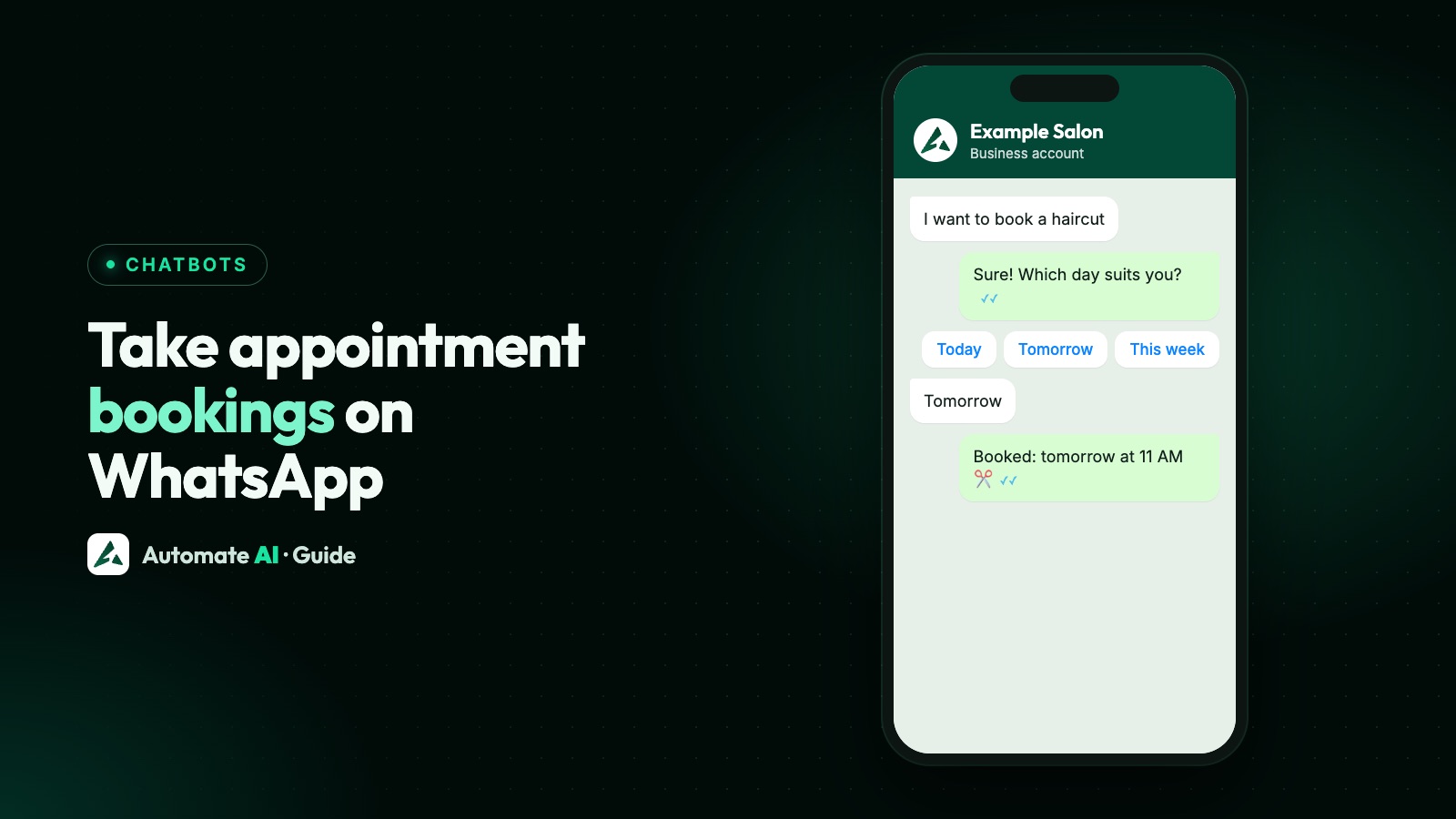
A WhatsApp appointment booking system is a chatbot on the WhatsApp Business API that lets a customer pick a service and a time inside the chat, then hands the booking to your calendar or your team. The customer sends a word such as BOOK, taps through a short menu, and gets a confirmation without calling you.
There are three ways to build one: a chatbot that sends a booking link, a chatbot that collects a request your team confirms, or a WhatsApp Flow form with a date picker. This guide helps you choose, walks through building the chatbot step by step, and covers where the booking goes and which WhatsApp rules apply.
Key takeaways
- Pick one of three set-ups: chatbot plus booking link, chatbot plus team confirmation, or a WhatsApp Flow form.
- The chatbot is the front door. Live availability comes from a booking tool, your own system or a person.
- Use a list message for services (up to 10 rows) and reply buttons for quick choices (up to 3).
- Free-form replies, buttons and lists only work inside the 24-hour window the customer opens by writing to you.
- Clinics: book the time, place and doctor only. Never ask for symptoms, reports or card numbers in the chat.
Three ways to take bookings on WhatsApp
Every WhatsApp booking system has the same front: a customer messages you and a bot replies. What differs is how the time slot gets fixed.
| Set-up | How the slot is fixed | Live availability | Best for |
|---|---|---|---|
| Chatbot + booking link | The bot sends a link to your booking page (for example Calendly) and the customer picks a free slot there | Yes, from the booking tool | Consultants, demos, coaching, services with fixed slots |
| Chatbot + team confirmation | The bot collects the service and preferred time, and your front desk confirms in the inbox | Checked by a person | Clinics, salons and workshops where a person juggles the diary |
| WhatsApp Flow form | A form opens in the chat with a service dropdown and a date picker | Only with a data endpoint you build | Businesses with a developer and their own booking system |
Most small businesses start with the first or second option, because neither needs code. A Flow gives the smoothest form, but showing real free slots inside it needs a server that answers WhatsApp’s requests. Our WhatsApp Flows guide covers that in detail, so this post focuses on the chatbot.
How customers start a booking
A booking bot only runs when the customer writes first, which opens the 24-hour customer service window. Inside it you can send free-form text, reply buttons, lists, links and Flows. Outside it, Meta allows only approved templates. Give people easy ways to start:
- A click-to-chat link or QR code with a pre-filled word such as “BOOK”, on your website, Google Business Profile, receipts and shop counter. See WhatsApp links and QR codes.
- A keyword trigger in the chatbot, so “book”, “appointment” and “slot” all start the same flow.
- A Book button on a template for past customers who agreed to hear from you, such as a “your next service is due” message.
- Click-to-WhatsApp ads that open a chat, where the bot takes over from the first message.
Build the booking chatbot, step by step
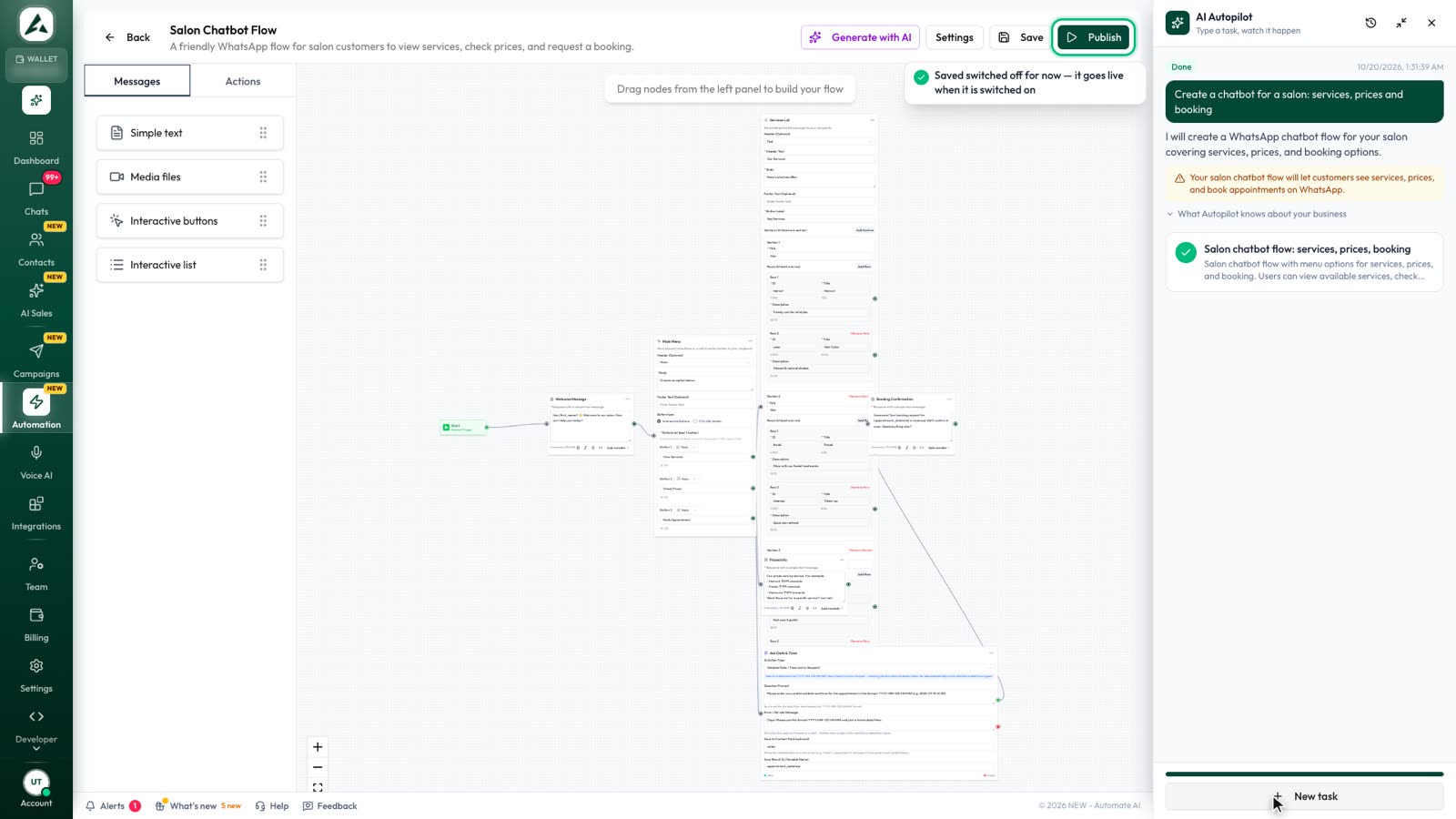
Here is how to build it in Automate AI’s chatbot builder, on a drag-and-drop canvas with no code. The builder is in the AI + Automation Plan and Series 4. The same plan of steps works in most WhatsApp platforms.
- Create a flow. Go to Automation › Flows, create a flow and call it “Bookings”.
- Set the trigger. Choose Keywords and add book, booking, appointment and slot.
- Greet and offer services. Add a list message with a button such as “See services”. Meta allows up to 10 rows, each with a title of up to 24 characters and a description of up to 72, which suits services with a price or duration.
- Branch on the choice. Each list row and each button can lead to its own next step, so a haircut and a colour consultation can ask different questions.
- Offer a day. Add reply buttons such as Today, Tomorrow and This week. Meta allows up to 3 buttons with titles of up to 20 characters.
- Ask for details. An Update Contact step waits for the customer’s next typed reply and saves it to a contact field, so use it for “What time suits you?” or the customer’s name. Button taps aren’t saved this way, so use Add to group for those.
- Hand it over. Add the contact to a group such as “Booking requests”, send an email to the front desk, or call a webhook to pass the request to your booking software.
- Confirm what happens next. End with a plain message: who will confirm, by when, and how to change the request.
- Publish. Flows stay inactive until you publish them. Test it from your own phone first.
A sample booking conversation
A made-up salon example, to show how short a good booking chat can be:
- Customer: BOOK
- Bot: Hi Riya, welcome to Example Salon. What would you like to book? [See services]
- Customer taps: Haircut and blow-dry (45 min)
- Bot: Which day suits you? [Today] [Tomorrow] [This week]
- Customer taps: Tomorrow
- Bot: What time suits you tomorrow? We’re open 10am to 7pm.
- Customer: around 5
- Bot: Thanks, Riya. We’ve noted haircut and blow-dry, tomorrow around 5pm. Our front desk will confirm the exact time here within an hour (10am to 7pm).
Keep each message short, give no more than one question per message, and always tell the customer what happens next. If someone types something the bot doesn’t expect, route them to a person instead of repeating the menu.
Where the booking lands
A chatbot doesn’t know your diary by itself. Decide where the confirmed time lives, then connect the bot to it:
| Your diary is in | Connect it by | What your team sees |
|---|---|---|
| Calendly | Sending your Calendly link from the bot, and connecting Calendly in Integrations | Each booking or cancellation as a note in the WhatsApp chat, with an optional status |
| Your own booking or practice software | A webhook step that posts the request to your system | The request in your software, and the chat in the inbox |
| A paper diary or spreadsheet | A group such as “Booking requests” and an email to the front desk | The request in the group and the shared inbox, ready to confirm |
Setting up Calendly, including what it needs on Calendly’s side, is covered in how to connect Calendly to WhatsApp. Booking links work on any Calendly plan, and Calendly says the webhooks behind automatic booking updates are on all its plans too.
Whichever you pick, your team replies from one shared inbox, and can switch the chatbot off for a single chat while they talk to that customer.
After the booking: confirm, remind and follow up
Taking the booking is half the job. The other half is making sure the customer turns up:
- Confirmation: send it straight away, while the 24-hour window is still open, so it can be a normal message.
- Reminder: usually sent a day before, when the window has closed, so it must be an approved utility template with only the booking details. Add an offer and Meta treats it as marketing.
- Changes: add Confirm, Reschedule and Cancel quick-reply buttons to the reminder. A tap opens a new window and the chatbot can handle it.
Timing, wording and 20 ready templates are in WhatsApp appointment reminders, so we won’t repeat them here. For a series of messages after a booking, such as aftercare tips and a rebooking nudge, use a drip sequence.
Rules for clinics, payments and personal data
WhatsApp’s Business Messaging Policy sets limits that matter for booking bots:
- Health details: the policy says not to send or ask for health information where the law requires stricter systems for it. A clinic bot should book the doctor, date and time, and never ask about symptoms, conditions, reports or medicines.
- Card and ID numbers: don’t ask for full card numbers, bank account numbers or ID numbers in the chat. Take deposits through a payment link instead.
- Only what you need: a name and a preferred time are enough for most bookings. Every extra question costs you finished bookings.
See how clinics use this in WhatsApp for healthcare and salons in WhatsApp for salons, spas and fitness.
What it costs to run
Meta charges per delivered message. Messages customers send you are free, and messages you send inside the 24-hour window are service messages: each business number gets 1,000 free service messages a month, and from 1 October 2026 Meta charges for service messages beyond that. Reminders sent later as utility templates are charged at the utility rate for the customer’s country.
Rates by country are on our WhatsApp API pricing page, and Automate AI’s plans are on the pricing page.
Mistakes that cost bookings
- Too many questions. Ask for the service, the day and a time. Collect anything else at the visit.
- Promising a slot the bot can’t check. If a person confirms, say so and say when.
- No way out. Add a “Talk to us” row to your list menus, or a typed keyword such as HELP, so people can reach a person.
- Forgetting after-hours. Tell people when you’ll confirm if they book at night.
- Reminders with offers. Keep the reminder about the booking, or it becomes a marketing template.
Frequently asked questions
Can I take appointment bookings on WhatsApp?
Yes. With the WhatsApp Business API, a chatbot can offer services and times with lists and buttons, then send a booking link or pass the request to your team or booking system.
Does a WhatsApp booking bot show real free slots?
Only if it’s connected to something that knows your diary. The simplest way is to send a booking link from a tool such as Calendly. A WhatsApp Flow can show live slots, but that needs a data endpoint you build.
Do I need to code to build a WhatsApp booking chatbot?
No. In Automate AI you build it on a drag-and-drop canvas with keyword triggers, lists, buttons, contact updates and a webhook step.
Can the free WhatsApp Business app take bookings automatically?
No. The free app has greeting and away messages and quick replies but no chatbot builder. Automated booking needs the WhatsApp Business API.
Can clinics book appointments on WhatsApp?
Yes, as long as the chat covers only the doctor, date, time and place. Don’t ask for symptoms, reports or other health details in the chat.
How do I send reminders after a WhatsApp booking?
Send the confirmation straight away inside the 24-hour window, then the reminder a day before as an approved utility template with Confirm and Reschedule buttons.
Sources
- Meta: Send messages (customer service window)
- Meta: Interactive reply buttons messages
- Meta: Interactive list messages
- Meta: Template categorization
- Meta: Pricing on the WhatsApp Business Platform
- WhatsApp Business Messaging Policy
- Calendly: Pricing and plans
WhatsApp rules and prices change. We check these guides against Meta’s documentation, but always confirm current terms with Meta before you rely on them. Questions? Message us on WhatsApp at +91 836 977 8812.