Meta Pixel: How to Set It Up and Check It With Pixel Helper
Set up the Meta Pixel: find your pixel ID, add the base code and events, test with Pixel Helper (now Ads Data Advisor) and pair it with the Conversions API.
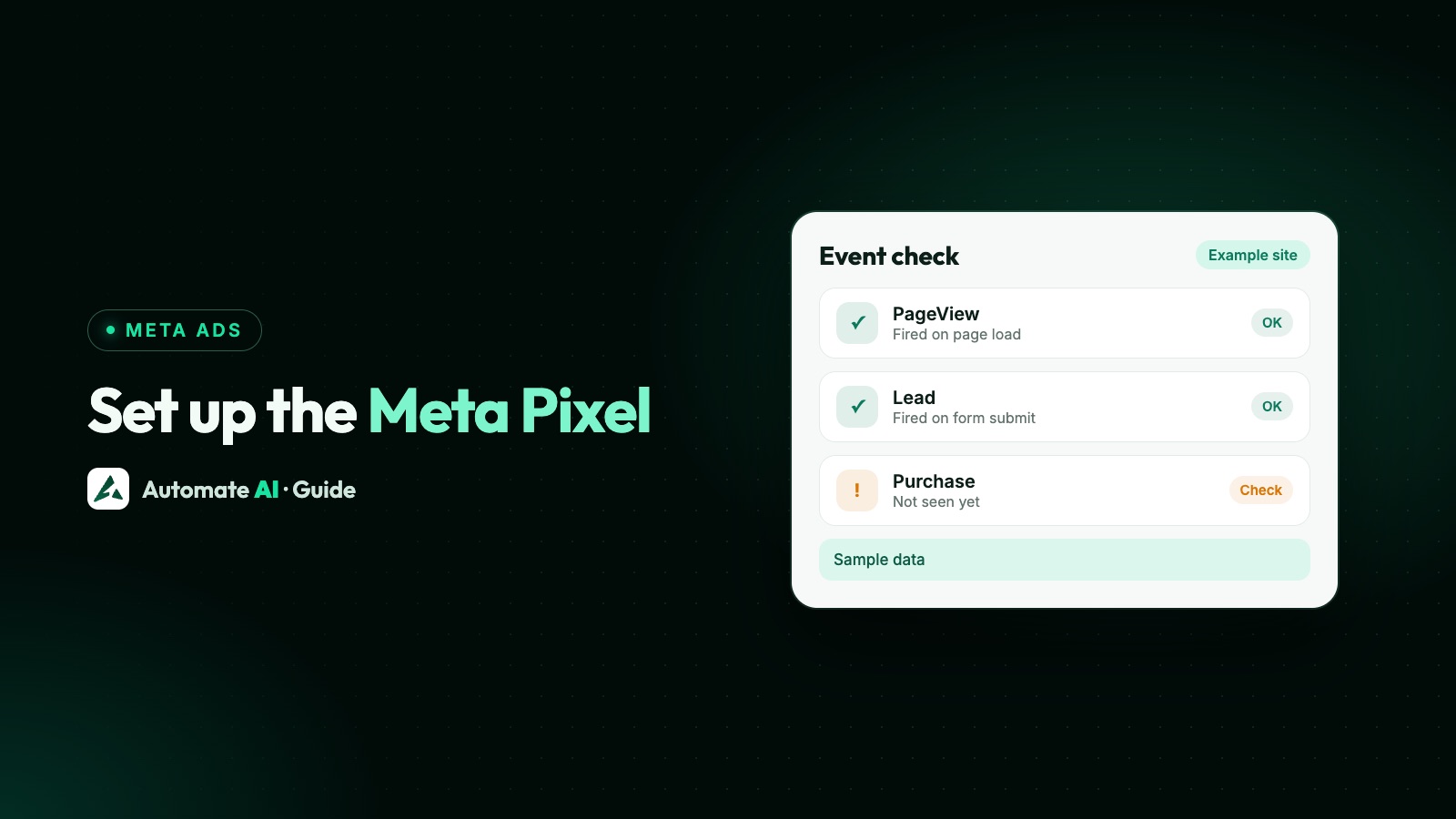
The Meta Pixel is a piece of code you put on your website so Meta can see what people do after your ad: which pages they view, whether they sign up, add to cart or buy. You create it in Meta Events Manager, paste its base code into the head of every page (or connect it through a partner such as your shop platform), add events, and check it with Meta’s browser extension, once called Pixel Helper and now Meta Ads Data Advisor.
Below: where to find your pixel ID, the setup steps from Meta’s Help Centre, the events worth adding, how to test them, how the pixel and the Conversions API differ, and where the pixel fits when your ads lead to WhatsApp.
Key takeaways
- Create the pixel in Events Manager › Connect data › Web. The pixel ID is made when you name it, and it’s inside your base code.
- Paste the base code just above
</head>on every page. It sends a PageView on each load; add standard events such as Lead, Contact or Purchase for the actions you care about. - Pixel Helper is now Meta Ads Data Advisor, a free extension for Chrome and Edge. Its badge shows how many pixel events fired on the page.
- Use the Test events tab in Events Manager too: activity from a website is recorded only while that page is open.
- Meta recommends the Conversions API alongside the pixel. If both send the same event, give them the same
event_nameandevent_idso Meta counts it once.
What the Meta Pixel does
Meta’s developer documentation says the pixel’s base code loads a library of functions for conversion tracking, starts the pixel with your ID, and automatically sends a PageView event each time a page loads. By default it tracks the URLs and domains visited and the devices visitors use, and it relies on Meta cookies to match visitors to their Facebook accounts. Depending on where you do business, you may need visitors’ consent first, so check the privacy rules that apply to you.
With the pixel in place you can:
- See results such as purchases or sign-ups in Ads Manager, credited to the ad under your attribution setting.
- Optimise delivery for an event, which is what Sales and Leads campaigns with a website conversion location need.
- Build audiences of past visitors, for example people who viewed a product but didn’t buy.
Before you start, Meta says you need a business website or app and the ability to edit its code or its tag manager. If two agencies run ads for you, Meta notes they may each need their own pixel on the site; otherwise one pixel covers the whole website.
Set up the pixel in Events Manager
These are Meta’s steps at the time of writing:
- Go to Meta Events Manager.
- Click Connect data and select Web, then Connect.
- Name your pixel and click Create pixel. A new ID is created and shown in Events Manager.
- Enter your website address and click Check. If a partner integration (such as your shop or website platform) is available, Meta shows it; follow its steps.
- Otherwise, choose Get guidance (Meta’s recommendation) or Do it yourself.
- Choose Conversions API and Meta Pixel or Meta Pixel only. For the pixel alone, pick Install code manually, or Email instructions to send them to your developer.
- Copy the base code and paste it at the bottom of the header section, just above the closing
</head>tag, on every page. - Optionally turn on automatic advanced matching, which sends hashed customer details with events, and Meta’s option to include more page and product detail automatically.
- Add events with the Event setup tool (point and click, no code) or with code.
Meta’s developer guide recommends putting the code directly in the head rather than only through a tag manager, because it loads sooner and is less likely to be blocked. A tag manager still works; Meta Ads Data Advisor can even set the pixel up through Google Tag Manager for you.
Where to find your Facebook pixel ID
Your pixel ID is the number shown next to the pixel’s name under Data sources in Events Manager. It also appears twice in the base code, in the fbq('init', …) line and in the image fallback. You’ll need it when a website platform, a plugin or an agency asks for it.
Add the events that matter
PageView only tells Meta that someone arrived. Standard events, predefined by Meta, tell it what they did. A few that suit businesses that also sell over WhatsApp:
| Standard event | Meta’s description | Code |
|---|---|---|
| ViewContent | A visit to a page you care about, such as a product or landing page | fbq('track', 'ViewContent'); |
| Lead | A submission of information, with the understanding the business may contact them later | fbq('track', 'Lead'); |
| Contact | Contact between a customer and your business by phone, SMS, email, chat or other means | fbq('track', 'Contact'); |
| CompleteRegistration | Submitting information in exchange for a service, such as an email sign-up | fbq('track', 'CompleteRegistration'); |
| Schedule | Booking an appointment to visit one of your locations | fbq('track', 'Schedule'); |
| InitiateCheckout | The start of a checkout process | fbq('track', 'InitiateCheckout'); |
| Purchase | A completed purchase, usually a thank-you or confirmation page | fbq('track', 'Purchase', {value: 499.00, currency: 'INR'}); |
The Purchase line uses made-up values; send the real order value and currency. Because Meta’s Contact event includes chat, it suits a “Chat on WhatsApp” button on your site: fire Contact when the button is tapped, and you can see which ads send people to WhatsApp from your website.
Online stores need more than this: product IDs on each event and a pixel connected to the catalog. That setup is in Meta ads for ecommerce.
Check it with Pixel Helper (now Meta Ads Data Advisor)
If you search for the Meta Pixel Helper Chrome extension, you’ll now find Meta Ads Data Advisor. Meta describes it as a major overhaul of Pixel Helper: it still checks pixel installation and event firing, and can also help set up the pixel and Conversions API through Google Tag Manager or Shopify, flag broken events or missing parameters such as price or currency, and apply fixes with your approval. It’s free, for Google Chrome and Microsoft Edge.
- Open the Chrome Web Store and search for Meta Ads Data Advisor.
- Click Add to Chrome, review the permissions and click Add extension.
- Log in to Facebook to use it.
- Open your website. The icon shows a dot or a number: the number of pixel events fired on that page. No badge means no pixel found.
- Click the icon to see which pixel and events loaded and any errors.
- For each event on a later step, complete a test action, such as adding an item to the cart for AddToCart.
Read the permissions before you install. Meta lists “read and change all your data on all websites”, which it needs to work on other sites on your behalf. You also have to turn off ad blockers, or the extension can’t see the pixel. If an older Pixel Helper is installed but switched off, Meta says you can reactivate it from chrome://extensions/, where it now shows as Meta Ads Data Advisor.
The Test events tool
In Events Manager › Data sources, select your pixel and open Test events. Enter your website address and click Open website, then click around. Events appear as they fire. Meta notes that website activity is recorded only while the Test events page is open, test data stays for 24 hours or until you clear it, and data can take 30 minutes or more to reach your analytics. The Diagnostics tab in Events Manager lists setup problems and suggested fixes.
You’re ready when PageView fires on every page, each standard event fires only where you added it, and the pixel’s status in Events Manager reads Active.
Meta Conversions API vs pixel
The pixel runs in the visitor’s browser. The Conversions API sends events from your server. Meta’s summary of the difference:
| Meta Pixel | Conversions API | |
|---|---|---|
| Runs in | The visitor’s browser | Your server (or a partner’s) |
| Weak spot | Browser settings, ad blockers or connection problems can block or lose events | More resilient to browser limits and ad blockers |
| Setup | Paste code or use a partner integration | Partner integration, Meta’s web-only option, or a developer |
| Covers | Website actions | Website events, and business messaging events from chats |
Meta doesn’t ask you to pick one. It recommends a redundant setup: send key events such as Purchase, InitiateCheckout and Contact from both. Then each event needs the same event_name and the same event_id from both sources, so Meta can deduplicate it (matching external_id or fbp also works). If you send different events from each, for example AddToCart from the browser and Purchase from the server, no deduplication is needed. Many shop platforms add these parameters for you.
The pixel and ads that open WhatsApp
A pixel only sees your website. When an ad opens WhatsApp directly, the customer never loads a page, so there’s nothing for the pixel to record. For those chats, Meta identifies the ad with a click ID in the first message, and a sale in the chat reaches Meta only through the Conversions API. That’s covered in how to track which ads bring WhatsApp customers.
| Your ad sends people to | What records the result |
|---|---|
| Your website | The Meta Pixel (plus the Conversions API), with events such as Lead or Purchase |
| Your website, then a WhatsApp button | The pixel’s Contact event for the tap; the chat itself has no pixel |
| WhatsApp directly (Click-to-WhatsApp ad) | Meta’s messaging metrics, and Conversions API events for sales in the chat |
Using your pixel with Automate AI
Automate AI doesn’t install a pixel for you, and there’s no field in the app to paste one: you set it up on your own website as above. Where the pixel is used is in the ad builder. Under Meta Ads in the main menu (every plan, owners and managers), the Website sales ad type lists the pixels in your connected ad account and asks which website event to aim for: Purchase, Lead, Complete registration, Add to cart, Initiated checkout, Contact or Subscribe. If the ad account has no pixel, the app tells you to add one in Meta Events Manager first.
For chats, Automate AI sends events back to Meta itself under Integrations › Conversions API: a Lead when a contact first arrives from an ad, and Purchase or status-change events for contacts who came from an ad. The same ad builder makes Click-to-WhatsApp ads; see the Click-to-WhatsApp Ads feature page. Choosing the right campaign goal first is covered in Meta ads objectives, and every Meta ads guide is on the Meta Ads hub.
Common pixel problems and fixes
| What you see | Likely cause | What to do |
|---|---|---|
| No badge on the extension | Base code missing on that page, or an ad blocker | Check the code is in the head of every page; turn off the blocker |
| PageView fires, other events don’t | Event code missing, in the wrong place, or misspelt | Put the event code inside the pixel script on the right page; check the spelling |
| A custom event you didn’t mean to create | Wrong capitalisation of a standard event | Use Meta’s exact names, such as ViewContent |
| Purchases counted twice | Pixel and Conversions API both send Purchase without a shared event ID | Send the same event_id from both |
| Nothing in Test events | Test events page closed, or an ad blocker | Keep the page open while testing; turn off ad blockers |
Frequently asked questions
What is a Meta Pixel?
A piece of code on your website that tells Meta which pages people view and what they do, such as signing up or buying, so you can measure and optimise your ads.
Where do I find my Facebook pixel ID?
In Meta Events Manager under Data sources, next to the pixel’s name. It also appears in your pixel base code.
What happened to the Meta Pixel Helper Chrome extension?
Meta replaced it with Meta Ads Data Advisor, a free extension for Chrome and Edge that checks your pixel and events and can help fix setup problems.
Do I need the Conversions API if I have the pixel?
Meta recommends using both. The Conversions API sends events from your server, so it catches events the browser misses. Give shared events the same event ID so they’re counted once.
Can the Meta Pixel track WhatsApp chats?
No. The pixel only sees your website. It can record a tap on a WhatsApp button as a Contact event, but sales in the chat need the Conversions API.
Can I add my Meta Pixel in Automate AI?
There’s nowhere to install a pixel in Automate AI; you add it to your own website. The app’s Website sales ads let you pick a pixel already in your ad account.
Sources
- Meta Business Help Centre: How to set up a Meta pixel and events on your website
- Meta Business Help Centre: Specifications for Meta pixel standard events
- Meta Business Help Centre: Best practices for Meta pixel standard event setup
- Meta Business Help Centre: About Meta Ads Data Advisor
- Meta Business Help Centre: Install or uninstall Meta Ads Data Advisor
- Meta Business Help Centre: Test events tool
- Meta Business Help Centre: About deduplication for Meta pixel and Conversions API events
- Meta for Developers: Meta Pixel, get started
WhatsApp rules and prices change. We check these guides against Meta’s documentation, but always confirm current terms with Meta before you rely on them. Questions? Message us on WhatsApp at +91 836 977 8812.