WhatsApp Business Notifications Not Working: Fixes
WhatsApp Business notifications not working on iPhone or Android? Check permissions, tone, battery saver, Focus and linked devices, step by step, in minutes.
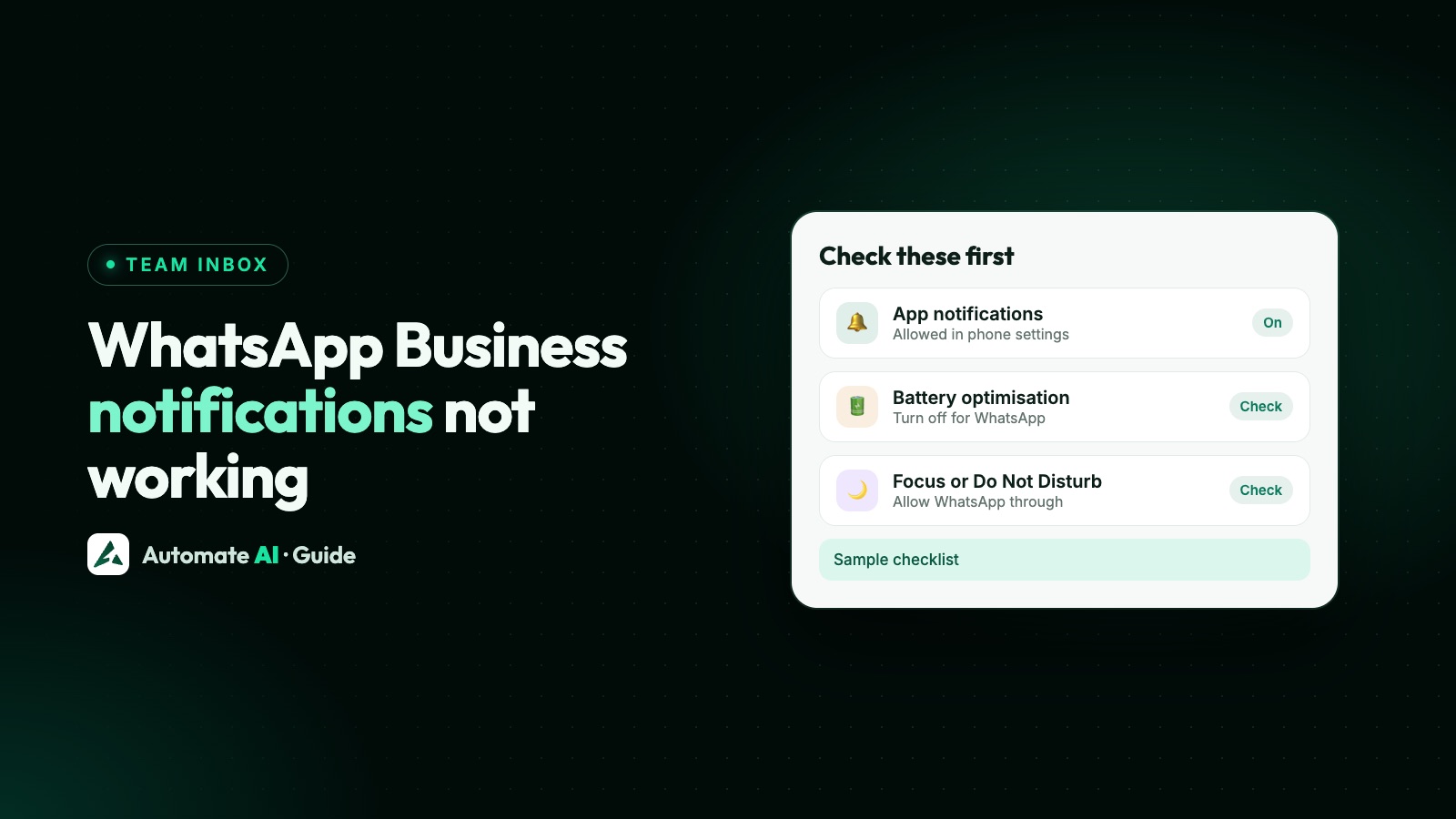
If WhatsApp Business notifications aren’t working, check four things first: notifications are allowed for the app in your phone’s settings, the app’s own notification tone isn’t set to Silent or None, the chat isn’t muted, and battery saving (Android) or a Focus mode (iPhone) isn’t holding WhatsApp back. Most missing alerts come from one of these.
This guide helps you work out which problem you have, then walks through the fixes on Android, iPhone and WhatsApp Web, using the steps in WhatsApp’s Help Center. At the end, it explains how alerts work when a team answers your number from a shared inbox instead of one phone.
Key takeaways
- If messages appear as soon as you open the app, it’s a notification problem. If they don’t appear even then, it’s a connection problem.
- On Android 13 and later, WhatsApp needs notification permission, and battery optimisation can stop alerts in the background.
- On iPhone, check Focus, Scheduled Summary and Background App Refresh, and don’t swipe the app closed.
- A tone set to Silent (Android) or None (iPhone) means no sound, whatever your phone’s volume.
- Linked devices may be logged out if the main phone isn’t used for more than 14 days, and their alerts stop with them.
First, work out which problem you have
WhatsApp’s Help Center splits notification problems into a few types. Spotting yours saves time, because each one has a different fix:
| What you notice | What it usually means | Where to look |
|---|---|---|
| No alert while the app is closed, but messages are there when you open it | Push notifications are blocked or delayed | Phone notification settings, battery saving, Focus |
| No messages arrive at all, even with the app open | A connection problem, not a notification one | Wi-Fi or mobile data, then WhatsApp’s connection help |
| The alert shows but makes no sound or vibration | The tone or the phone’s sound settings | Notification tone, Do Not Disturb, Focus |
| Personal chats alert, but a group doesn’t | The group is muted or group alerts are off | The group’s own notification settings |
| Nothing shows while you’re using the app | In-app notifications | WhatsApp’s notification settings |
| The number on the app icon is wrong or missing (Android) | Your phone’s launcher, not WhatsApp | The home screen shortcut |
If you can’t load a website in your browser either, fix the connection first. Nothing below will help until the phone is online.
Quick checks on any phone
Try these in order. Each takes under a minute:
- Check the internet. Open a browser and load any website.
- Open WhatsApp Business notification settings. On Android, tap ⋮ › Settings › Notifications. On iPhone, tap Settings (or your profile picture) › Notifications. Turn on the types you want: messages, groups and calls.
- Check the tone. A tone of Silent on Android or a sound of None on iPhone means no sound, even when the phone’s own sounds are on.
- Check the chat. Open the chat, tap its name, then Notifications, and make sure it isn’t muted. Groups have separate settings, and each group can be muted on its own.
- Update the app from Google Play or the App Store.
- Restart the phone, and install any system update.
How to fix notifications on Android
Android phones are the most likely to stop alerts in the background, usually to save battery. Work through these steps:
- Allow notifications. On Android 13 and later, apps need permission to notify you. If you refused it the first time you opened the app, go to Settings › Apps › WhatsApp Business › Notifications and turn on Allow notifications.
- Check the phone’s app list. Go to Settings › Notifications › App notifications, find WhatsApp Business and turn it on. Sound and vibration are under Settings › Sound and vibration.
- Reset background data. Go to Settings › Apps › WhatsApp Business › Mobile data usage, turn Background data off, then on again.
- Stop battery optimisation for the app. The path depends on the brand (see the table below).
- Check Do Not Disturb is off, or that WhatsApp Business is allowed through it.
| Phone | Where to stop battery saving for WhatsApp |
|---|---|
| Samsung | Settings › Battery and device care › Battery › Background usage limits › Never sleeping apps, then add the app |
| Xiaomi or Redmi | Settings › Battery & performance › App battery saver › the app › No restrictions |
| OnePlus | Settings › Battery › Battery optimization › the app › Don’t optimize |
| Oppo or Realme | Settings › Battery › More battery settings › Optimize battery use › the app › Don’t optimize |
| Huawei or Honor | Settings › Battery › App launch › the app › Manage manually, with every switch on |
| Other Android phones | Settings › Battery › Battery optimization › the app › Don’t optimize |
These are the paths WhatsApp lists. Menu names can change with your phone’s software version, so search your phone’s settings for “battery” if one doesn’t match.
How to fix notifications on iPhone
On iPhone, notifications reach your phone through Apple’s Push Notification Service, not straight from WhatsApp. WhatsApp says it can’t fix delivery problems in that service, so the fixes are all in your settings:
- Allow notifications. Go to Settings › Notifications › WhatsApp Business and turn on Allow Notifications.
- Turn on Background App Refresh. Go to Settings › General › Background App Refresh and turn it on for the app.
- Check Focus. A Focus such as Do Not Disturb or Sleep can silence the app. Go to Settings › Focus, pick the Focus you use, and add the app under the apps allowed to notify you.
- Check Scheduled Summary. A summary can hold alerts back until a set time. Go to Settings › Notifications › Scheduled Summary and remove the app from it.
- Check previews. In Settings › Notifications › WhatsApp Business › Show Previews, choose Always or When Unlocked if you want to see who wrote.
- Don’t swipe the app closed. WhatsApp says force-quitting can stop notifications until you open the app again.
If none of this works, WhatsApp’s advice is to update the app and iOS, restart the phone, and then contact Apple or your phone’s maker.
Notification sound not working
When the alert shows but stays quiet, the cause is almost always a sound setting:
- The app’s tone. Check the message and group tones in WhatsApp Business notification settings, and each chat’s own tone too. A chat can have a custom tone that’s different from the rest.
- The phone’s mode. Silent mode, Do Not Disturb or a Focus mutes the app even when the tone is set.
- Custom sounds on iPhone. WhatsApp says custom sounds must come from its built-in list.
- Custom sounds on Android that keep resetting. The file must be MP3, OGG, WAV or M4A and stored in your phone’s notifications folder. If it still reverts, reset notification settings, choose the tone again, and if that fails clear the app’s cache in Settings › Apps › WhatsApp Business › Storage.
WhatsApp Web, desktop and linked devices
Linked devices have their own notification settings, so a computer or second phone can be silent while the main phone works fine.
- WhatsApp Web. Click the banner above your chat list to turn on desktop notifications. If there’s no banner, refresh the page.
- Browser blocks. In Chrome, go to ⋮ › Settings › Privacy and security › Site settings › Notifications and, if web.whatsapp.com is in the blocked list, change it to Allow. Firefox, Safari and Edge have a similar list in their site settings.
- A second phone or tablet. Allow notifications, stop battery optimisation and turn on background data on that device as well, using the steps above.
- The main phone. Linked devices may be logged out if the main phone isn’t used for more than 14 days. If alerts stopped after a long break, restart the main phone and connect it to the internet, then unlink the device in Linked devices and link it again.
More on the limits of linked devices in WhatsApp Business on multiple devices.
Wrong or missing count on the app icon
On Android, the number on the app icon comes from your phone’s launcher, not from WhatsApp. If the dot or count is missing, WhatsApp suggests removing the WhatsApp Business shortcut from your home screen, then dragging a fresh one out of the app drawer. If that doesn’t help, ask your phone’s maker.
Android also has a Clear badge when viewed option in WhatsApp’s notification settings, which changes when the count on the icon clears.
When missed alerts mean missed customers
If the whole business depends on one phone buzzing, a muted chat or a battery saver can cost you an enquiry. The WhatsApp Business API works differently: your number connects to a platform, and your team answers from a shared team inbox on their own computers and phones. Here’s how alerts work in Automate AI:
- In the browser: go to Settings › Notifications to turn the new-message sound on or off, pick a sound (Default Beep, Chime, Ding, Pop or Bell), set the volume and play a test. The setting is saved in each browser, so set it on every computer you use.
- On Android: the Automate AI app, downloaded from your dashboard, notifies you of new customer messages even when the app is closed. Several quick messages from one customer show as one notification, and signing out of the app stops them.
- Who gets alerted: an assigned chat notifies only the person it’s assigned to, while unassigned chats notify owners and managers, and agents too when they can see all chats or the chat is new.
- On iPhone: use Automate AI in the browser and add it to your home screen.
The same phone settings above still matter for the Android app: allow its notifications and keep battery saving from stopping it. And the inbox doesn’t need your phone to be online, so a flat battery doesn’t take the team offline. See WhatsApp Business app limitations for when the move makes sense, or coexistence to keep the app on the same number.
Frequently asked questions
Why am I not getting WhatsApp Business notifications until I open the app?
That’s a push notification problem. Allow notifications for the app in your phone’s settings, stop battery optimisation on Android, and on iPhone turn on Background App Refresh and check Focus and Scheduled Summary.
Why is my WhatsApp Business notification sound not working?
Check that the app’s tone isn’t Silent (Android) or None (iPhone), that the chat has no custom silent tone, and that silent mode, Do Not Disturb or a Focus isn’t on.
Why don’t I get notifications from one WhatsApp group?
The group is probably muted, or group notifications are off. Open the group, tap its name, then Notifications. Groups have settings separate from personal chats.
Why did WhatsApp Web stop showing notifications?
The browser may be blocking web.whatsapp.com, so allow it in the browser’s site notification settings. Also check the main phone has been used in the last 14 days, or linked devices may be logged out.
Can WhatsApp fix notification problems on iPhone?
Not directly. WhatsApp says iPhone notifications are delivered by Apple’s Push Notification Service, so after checking your settings, the next step is Apple or your phone’s maker.
Does clearing the cache delete my WhatsApp Business chats?
WhatsApp says clearing the cache won’t delete your messages or chats. Back up first anyway, and don’t tap Clear storage, which removes the app’s data.
How do notifications work in Automate AI?
In the browser, Settings › Notifications sets the new-message sound. The Android app notifies you of new messages even when it’s closed, and an assigned chat alerts only the person it’s assigned to.
Sources
- WhatsApp Help Center: Can’t see or hear notifications (Android)
- WhatsApp Help Center: Can’t see or hear notifications (iPhone)
- WhatsApp Help Center: How to manage your notifications
- WhatsApp Help Center: Notification problems on iPhone
- WhatsApp Help Center: Can’t receive notifications on Chrome
- WhatsApp Help Center: Can’t see notification count
- WhatsApp Help Center: Fixing issues on WhatsApp (clearing cache)
WhatsApp rules and prices change. We check these guides against Meta’s documentation, but always confirm current terms with Meta before you rely on them. Questions? Message us on WhatsApp at +91 836 977 8812.