How to Use WhatsApp Business on a PC or Laptop
Use WhatsApp Business on a PC, Mac or laptop: desktop app or WhatsApp Web, how to link with a QR code or phone number, and fixes when linked devices log out.
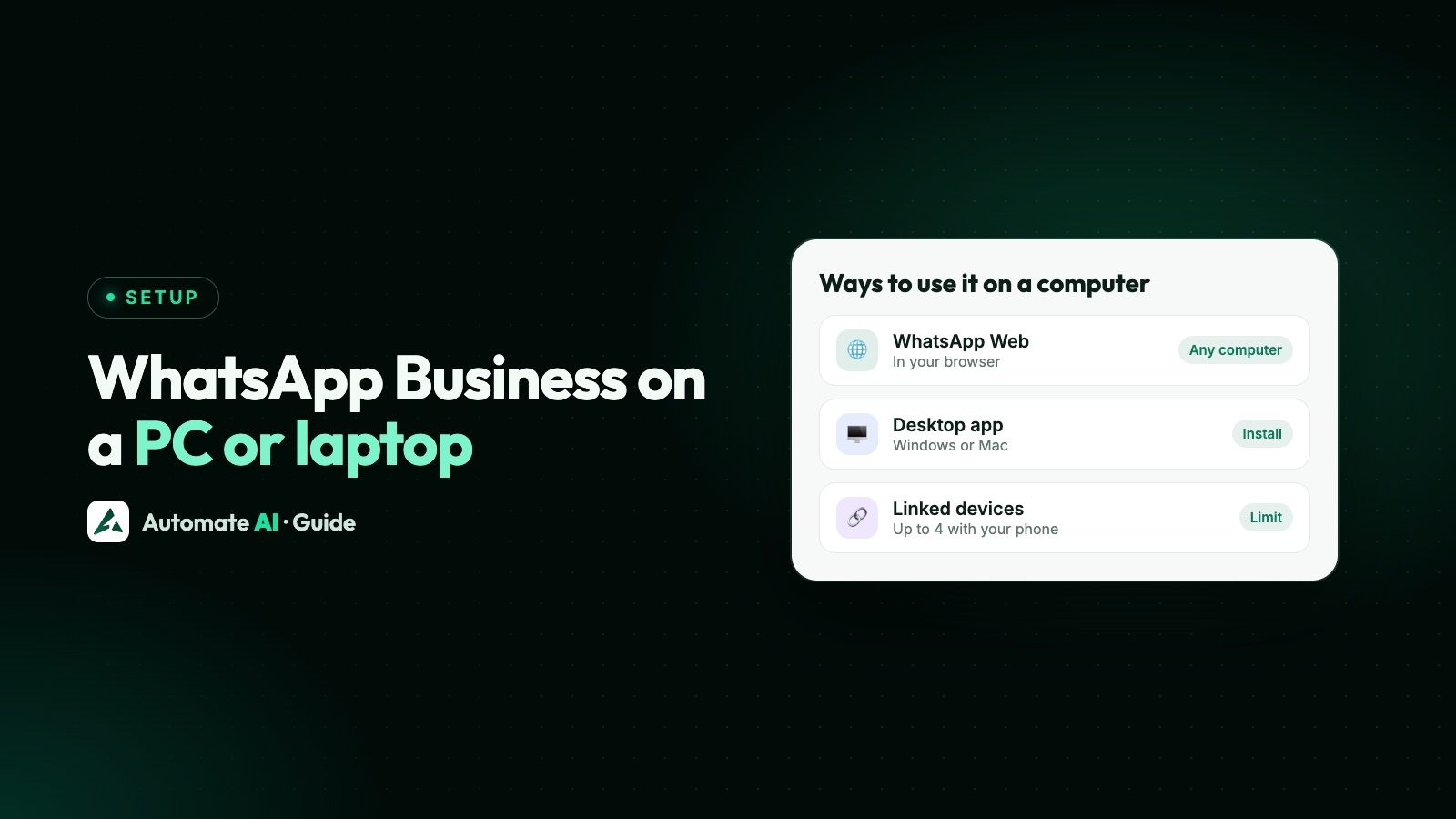
To use WhatsApp Business on a PC or laptop, link the computer to the WhatsApp Business app on your phone. Open WhatsApp Web in a browser, or install the WhatsApp desktop app for Windows or Mac, then scan the QR code from your phone’s Linked devices screen. There’s no separate login with a password: your phone is the key.
This guide is for one person who wants to answer business chats from a bigger screen. It covers which option to pick, the exact linking steps on Android and iPhone, what doesn’t work on a computer, and how to fix the usual problems, such as a computer that keeps logging out or won’t connect.
Key takeaways
- You link a computer to your phone’s WhatsApp Business app. The phone stays the main device and is needed to register the account and link new devices.
- Use WhatsApp Web in an up-to-date browser, or the desktop app for Windows (10, 64-bit, version 1903 or newer) or Mac.
- Scan the QR code, or on Windows and WhatsApp Web use Link with phone number instead and an 8-character code.
- Linked devices work when the phone is offline, but log out if the phone isn’t used for over 14 days, and an unused computer is disconnected after 30 days.
- Broadcast lists, live location and posting status don’t work on linked devices, so keep the phone for those.
WhatsApp Web or the desktop app?
Both show the same chats and both are linked devices. WhatsApp’s Help Center lists WhatsApp Web and WhatsApp Desktop among the places you can link a WhatsApp Business account. The download page offers one WhatsApp desktop app; you link your Business number to it in the same way.
| WhatsApp Web | Desktop app (Windows) | Desktop app (Mac) | |
|---|---|---|---|
| Where you get it | web.whatsapp.com in a browser | Microsoft Store or WhatsApp’s download page | Apple App Store or WhatsApp’s download page |
| Needs | Latest Chrome, Firefox, Edge, Opera or Safari | Windows 10 64-bit, version 1903 or newer | macOS 11 or later |
| Link with phone number | Yes | Yes | QR code only |
| Good for | Shared or work computers, quick use | Daily use with notifications | Daily use with notifications |
If your computer’s system is too old for the app, WhatsApp says to use WhatsApp Web in a browser instead. WhatsApp Web doesn’t work in old browsers such as Internet Explorer.
How to link WhatsApp Business to your computer
Open WhatsApp Web or the desktop app on the computer first, so the QR code is on screen. Then, on your phone:
Android
- Open WhatsApp Business and tap the three-dot menu.
- Tap Linked devices, then Link a device.
- Confirm it’s you with your fingerprint, face or phone unlock PIN if asked.
- Point the phone at the QR code on the computer screen.
iPhone
- Open WhatsApp Business and go to Settings (or tap your profile picture).
- Tap Linked devices, then Link device.
- Confirm with Face ID, Touch ID or your phone’s passcode if asked.
- Scan the QR code on the computer.
Your chats then appear on the computer. If WhatsApp doesn’t recognise the device, it asks you to confirm before it links. Only approve a computer you’re sitting at.
WhatsApp Web may also ask you to create or use a passkey, which checks it’s you with your device’s own lock, such as a fingerprint or screen lock, rather than a password.
Link with a phone number instead of a QR code
If your phone camera won’t scan the code, WhatsApp for Windows and WhatsApp Web let you link with your number and a one-time code:
- On the computer, choose the option to log in with a phone number.
- Pick your country, type your WhatsApp Business number and continue. An 8-character code appears.
- On your phone, tap the Enter code notification from WhatsApp, or go to Linked devices › Link a device › Link with phone number instead.
- Check the device name and location shown, confirm it’s you, and type the code.
What works on a computer, and what doesn’t
Day-to-day chatting works: you can read and reply, send files by dragging them into a chat, and get notifications even when your phone is offline. The desktop app also has voice and video calls if you give it your microphone and camera.
WhatsApp’s Help Center says these don’t work on linked devices of the Business app:
- Broadcast lists: you can’t create or view them on a computer.
- Live location: sharing and viewing it.
- Status: adding or deleting status updates.
WhatsApp’s general linked devices article adds that WhatsApp Flows, the in-chat forms some businesses send, can’t be used from a linked device. WhatsApp also lists a known issue where some linked devices don’t show up to a year of older chats; the full history stays on your phone.
More on what the free app can and can’t do in WhatsApp Business app limitations.
Why WhatsApp Business keeps logging out on your PC
A linked computer doesn’t need your phone online, but it does depend on the phone being used. Work through these causes in order:
| What you see | Likely cause | Fix |
|---|---|---|
| Logged out after a holiday or a while away | The phone wasn’t used for more than 14 days | Open WhatsApp Business on the phone, then link the computer again |
| An old laptop is no longer linked | That device wasn’t used for 30 days | Link it again; use it now and then to keep it linked |
| Logged out without warning | Someone logged it out from the phone’s Linked devices list | Check the list on the phone and link again |
| Can’t add another computer | Four devices are already linked | Log one out on the phone first |
| Odd errors after an update | The app on the phone or computer is out of date | Update WhatsApp Business and the desktop app or browser |
WhatsApp’s rule is that you must open WhatsApp on your main phone at least every 14 days to keep linked devices connected. If the phone is lost or broken, see moving WhatsApp Business to a new phone.
When WhatsApp Web or desktop won’t connect
A yellow Computer not connected bar usually means the computer has no internet connection. If the internet works and you still can’t connect, try these steps from WhatsApp’s Help Center:
- Refresh the WhatsApp Web page, or close and reopen the app.
- Clear your browser’s cache and cookies (WhatsApp Web only).
- Log out and link again from the phone.
- Restart the computer: turn it off, wait 30 seconds, turn it on.
- Try another network or your phone’s hotspot. WhatsApp notes that office or college Wi-Fi can cause problems.
- Ask your IT team to let traffic to web.whatsapp.com and .whatsapp.net through.
If the QR code or passkey step fails
- Update WhatsApp on the phone and the browser or app on the computer.
- Don’t use incognito or private browsing.
- Turn on Bluetooth on both the phone and the computer.
- For a passkey, sign in to the same Google account (Chrome and Android) or Apple account (Mac and iPhone) on both.
- Check your browser is recent enough: WhatsApp lists Chrome 109, Safari 16, Edge 109 and Firefox 122 or newer for passkeys.
- Work computers may block the WebAuthn feature passkeys need. Your IT team can check.
Keep your business chats safe on a computer
Anyone at a linked computer can read every chat, so treat it like your phone:
- Check Linked devices on the phone regularly and log out anything you don’t recognise: tap the device, then Log out.
- Log out of shared computers when you finish, and lock your own computer when you step away.
- Only scan QR codes on official WhatsApp screens, never one sent in a message or shown on another website.
Never link a device, share a code or scan a QR code because a message asked you to. See how to spot a fake WhatsApp Business account.
When a computer isn’t enough: a team inbox
Linking a laptop works well for one person. It gets harder when several people reply from the same number, because everyone shares one login and there’s no record of who answered. That case, with the four-device limit and Meta Verified multi-agent, is covered in WhatsApp Business for multiple users.
With the WhatsApp Business API there are no linked devices to manage. In Automate AI’s shared team inbox, every plan includes unlimited users with their own logins, and the inbox works in any browser on a PC or Mac, as an Android app you download from your dashboard, or added to the home screen on an iPhone. Automation keeps answering when no phone is online.
You can keep the Business app on your phone too, with WhatsApp coexistence. Note one limit: under coexistence, WhatsApp for Windows isn’t supported as a linked device, though WhatsApp Web and other supported devices are. Plans are on our pricing page.
Frequently asked questions
Is there a separate WhatsApp Business app for PC?
No separate download is needed. Install the WhatsApp desktop app for Windows or Mac, or open WhatsApp Web, and link it to the WhatsApp Business app on your phone by scanning the QR code.
Can I log in to WhatsApp Business on a laptop without my phone?
Not the first time. You need your phone to link the laptop. After that, the laptop works when the phone is offline, as long as you open WhatsApp on the phone at least every 14 days.
Why does WhatsApp Business keep logging out on my computer?
Usually because the phone wasn’t used for more than 14 days, the computer wasn’t used for 30 days, or it was logged out from the phone’s Linked devices list. Open the app on the phone and link again.
Can I use WhatsApp Business on a Mac?
Yes. Get the WhatsApp desktop app from the Apple App Store or WhatsApp’s download page, or use WhatsApp Web in Safari or another current browser, then link it with the QR code.
How many computers can I link to one WhatsApp Business number?
Up to four linked devices plus your phone, in any mix of computers, tablets and a second phone.
Can I send broadcast messages from WhatsApp Web?
No. Broadcast lists can’t be created or viewed on linked devices. Send them from the phone, or use the WhatsApp Business API for campaigns to opted-in contacts.
Sources
- WhatsApp Help Center: About linked devices on the WhatsApp Business app
- WhatsApp Help Center: About linked devices
- WhatsApp Help Center: How to link a device
- WhatsApp Help Center: How to link a device with phone number
- WhatsApp Help Center: About WhatsApp for desktops
- WhatsApp Help Center: How to fix connection issues
- WhatsApp Help Center: About passkey linking on WhatsApp Web
- WhatsApp: Download WhatsApp for desktop
WhatsApp rules and prices change. We check these guides against Meta’s documentation, but always confirm current terms with Meta before you rely on them. Questions? Message us on WhatsApp at +91 836 977 8812.