WhatsApp Business Storage Full: How to Free Up Space
WhatsApp Business storage full? See what is using space, delete large and forwarded files, stop auto-downloads and shrink your backup without losing chats.
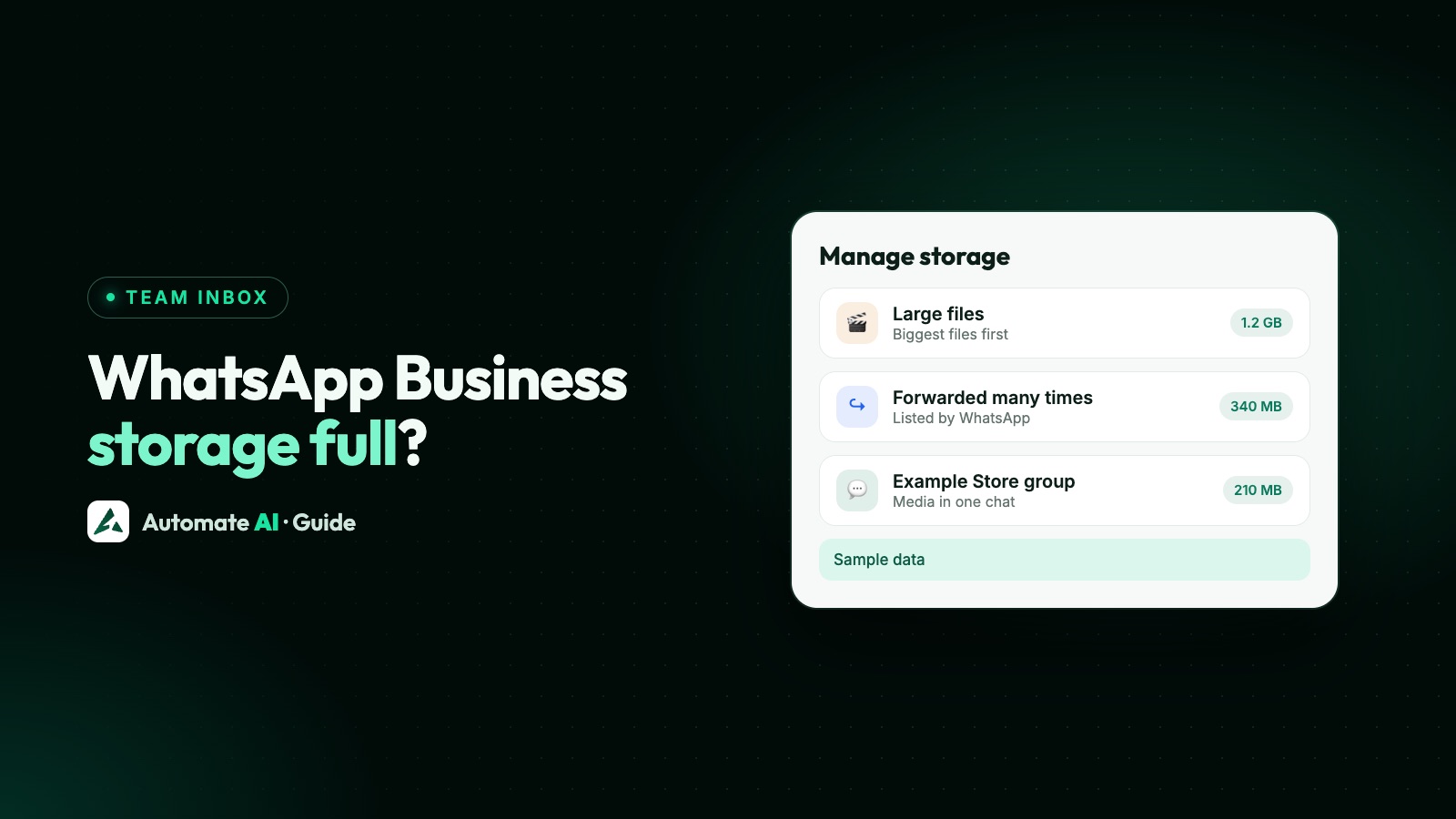
To free up space in WhatsApp Business, open Settings › Storage and data › Manage storage, delete the large and forwarded files it lists, clear photos and videos from busy chats, and turn off auto-download so new files don’t fill it again. On Android, clearing the cache also helps, and WhatsApp says it doesn’t delete your chats.
First, check which storage is full. “Not enough storage” on your phone and “backup storage full” in the cloud are different problems with different fixes. This guide covers both, what to save before you delete anything, and why a business that answers from one phone keeps running into it.
Key takeaways
- Manage storage shows what each chat uses, sorted from largest to smallest.
- Deleting a file there is permanent: you can’t download it again from the chat.
- You can clear media from one chat and keep the messages.
- Turn off auto-download and saving to your gallery to stop the problem coming back.
- WhatsApp cloud storage gives 2 GB free. When it’s full, automatic backups pause until you free space or upgrade.
Is it your phone or your backup that’s full?
The message you see tells you where to look:
| What you see | Which storage | What to do |
|---|---|---|
| A warning that your phone is low on space | Your phone | Delete files in Manage storage and clear the cache |
| The app won’t install or update | Your phone | Free space; WhatsApp suggests keeping at least 1 GB free |
| “Backup failed: You need more storage” | Your cloud backup, or the phone if it’s very low | Shrink the backup or free phone space |
| A restore skips chats or media with “There’s no space on the device” | The new phone | Free phone space, then restore again |
Most businesses hit the first one: months of product photos, voice notes, invoices and forwarded videos piling up on the phone that runs the account.
See what WhatsApp Business is using
- Open WhatsApp Business. On Android, tap ⋮ › Settings. On iPhone, tap Settings or your profile picture.
- Tap Storage and data › Manage storage. The total space the app uses is at the top.
- Look for files that are large or have been forwarded many times. WhatsApp suggests deleting these to free up space.
- To check one chat, open it, tap the chat’s name and tap Manage storage. Its files are sorted from largest to smallest.
Busy groups, where photos and videos get forwarded around, are often a good place to start. Check them before you touch customer chats.
Delete large and forwarded files
Big videos and files forwarded around groups are usually the quickest wins. In Manage storage:
- Open a suggested list or a chat.
- Sort by Largest if the option is there.
- Tap and hold one file to start selecting, then tap others, or use Select all.
- Tap the bin icon. On iPhone, if the selection includes starred items, you can choose Delete all except starred.
- If the file has copies, choose to delete the copies too, or the space won’t be freed.
You can also search for a file: tap the search bar on the chats list, choose Photos, Videos or Documents, open the file and delete it. On Android, you can tick the option to also delete the copy saved in your phone’s gallery.
Clear photos and videos from a chat, but keep the messages
A busy supplier or customer group can hold gigabytes of media. You can remove the files and keep every message:
- Android: open the chat, tap ⋮ › More › Clear chat, choose Clear media files, tick the types to remove (videos and GIFs, photos, stickers, documents, audio) and tap Clear media.
- iPhone: press and hold the chat in your list, tap Clear chat › Clear all media, choose the types and tap Clear media.
Read the screen carefully. Clear chat on its own removes the messages, links and files too, and an option to clear starred messages may be shown as well. Leave it off if you want to keep them.
Stop new files filling your phone
Clearing space only lasts if fewer files come in. Two settings make the biggest difference:
| Setting | Android | iPhone |
|---|---|---|
| Auto-download | ⋮ › Settings › Storage and data › Media auto-download: choose what downloads on mobile data, Wi-Fi and roaming | Settings › Storage and data: set each type to Never, Wi-Fi or Wi-Fi and cellular |
| Saving to the gallery | ⋮ › Settings › Chats › turn off Media visibility, or per chat in its info screen | Settings › Chats › turn off Save to Photos, or set Save to Photos to Never in a chat’s info screen |
With auto-download off, a file downloads only when you choose to download it, so you keep what you actually open. With saving to the gallery off, WhatsApp doesn’t add a second copy to your photos. Turning it off affects new files, so check your gallery for older copies.
WhatsApp also warns that auto-download when roaming can mean big charges from your mobile provider.
Clear the cache and free phone space
- Clear the cache (Android). Go to your phone’s Settings › Apps › WhatsApp Business › Storage and cache › Clear cache. WhatsApp says this won’t delete your messages or chats. Take care not to tap Clear storage instead, which wipes the app’s data on the phone.
- Keep room for updates. WhatsApp recommends keeping at least 1 GB free when installing or updating the app.
- Check the whole phone on iPhone. Go to Settings › General › iPhone Storage for Apple’s recommendations and a list of apps by size. Apple says Offload App frees the app’s space but keeps its documents and data, while deleting an app removes its data too.
- Remove what you don’t use elsewhere on the phone: old apps, downloads and duplicate videos.
When your backup storage is full
A backup that won’t finish is a separate problem from a full phone. Here’s what WhatsApp says about its own cloud storage, which it notes may not be available to everyone yet:
- 2 GB is free. Paid plans add more: WhatsApp Plus with 100 GB, or Meta One plans with 2 TB or 4 TB.
- When it’s full, automatic backups pause until you free space or subscribe. Your most recent backup is kept and can still be restored.
- Old backups expire. A backup older than 120 days may not be possible to restore, so don’t leave it full for months.
- To shrink it, go to Settings › Chats › Chat backup › Manage your storage › Review and delete media, or turn off Include videos in Chat backup.
If you back up to a Google Account or iCloud instead, free space in that account. Low space on the phone can also leave a backup stuck or incomplete. Deletions leave your phone straight away but stay in the backup until the next one runs. Moving phones? See how to move WhatsApp Business to a new phone.
Save what matters before you delete
Customer chats are business records: orders, addresses agreed, proof of payment, complaints. Before a big clean-up:
- Star the messages and files you must keep, then (on iPhone) choose Delete all except starred when deleting.
- Export the chats you need as a file. See how to export WhatsApp Business chats.
- Copy key documents such as invoices to your computer or cloud drive.
- Run a fresh backup, then clear media.
Why one phone keeps filling up, and the alternative
With the Business app, every photo and file from every customer lands on the one phone the account runs on, and on each linked device that downloads it. The busier you get, the faster it fills.
On the WhatsApp Business API, your number connects to a platform instead. In Automate AI, the app downloads each photo, video, voice note, document or sticker a customer sends and saves its own copy, so it shows in the chat in the shared team inbox. Your team opens it there, in the browser or the Android app, and downloads only the files they need, such as an invoice for your accounts.
On the API alone, that keeps customer files off staff phones, but it isn’t an archive: download anything you must keep to your own records. How files work on the API is covered in downloading media from the WhatsApp API, If you keep the WhatsApp Business app on the same number with coexistence, files still arrive on that phone, so the storage tips above still apply.
Frequently asked questions
How do I free up WhatsApp Business storage without deleting chats?
Delete files, not chats. Use Manage storage to remove large and forwarded files, clear media from busy chats while keeping the messages, and clear the cache on Android, which WhatsApp says won’t delete your chats.
Does WhatsApp Business have a storage limit?
On your phone, the limit is your phone’s free space. WhatsApp cloud storage for backups gives 2 GB free, with paid plans for more, where it’s available.
Why does WhatsApp Business say not enough storage?
Your phone is low on space. Free space in Manage storage and elsewhere on the phone. WhatsApp recommends keeping at least 1 GB free when installing or updating the app.
Can I get a file back after deleting it in Manage storage?
Not from the chat. WhatsApp says deleting there is permanent. It may still be in your last backup or your phone’s gallery if a copy was saved.
What happens when my WhatsApp backup storage is full?
Automatic backups pause until you free space or upgrade. Your most recent backup is kept, but a backup older than 120 days may not be possible to restore.
How do I stop WhatsApp Business saving photos to my gallery?
On Android, turn off Media visibility in Settings › Chats. On iPhone, turn off Save to Photos in Settings › Chats. Both can also be set chat by chat.
Sources
- WhatsApp Help Center: How to free up storage on WhatsApp
- WhatsApp Help Center: How to use WhatsApp cloud storage
- WhatsApp Help Center: How to configure auto-download
- WhatsApp Help Center: How to stop WhatsApp from saving media to your phone
- WhatsApp Help Center: Can’t download or update WhatsApp
- WhatsApp Help Center: Can’t back up or restore your chat history
- WhatsApp Help Center: Fixing issues on WhatsApp (clearing cache)
- Apple Support: How to check the storage on your iPhone and iPad
WhatsApp rules and prices change. We check these guides against Meta’s documentation, but always confirm current terms with Meta before you rely on them. Questions? Message us on WhatsApp at +91 836 977 8812.