How to Add a WhatsApp Chat Widget to Your Website
Add a free WhatsApp chat button to your website with plain HTML and CSS, no plugin or script. Steps for WordPress and Shopify, plus accessibility tips.
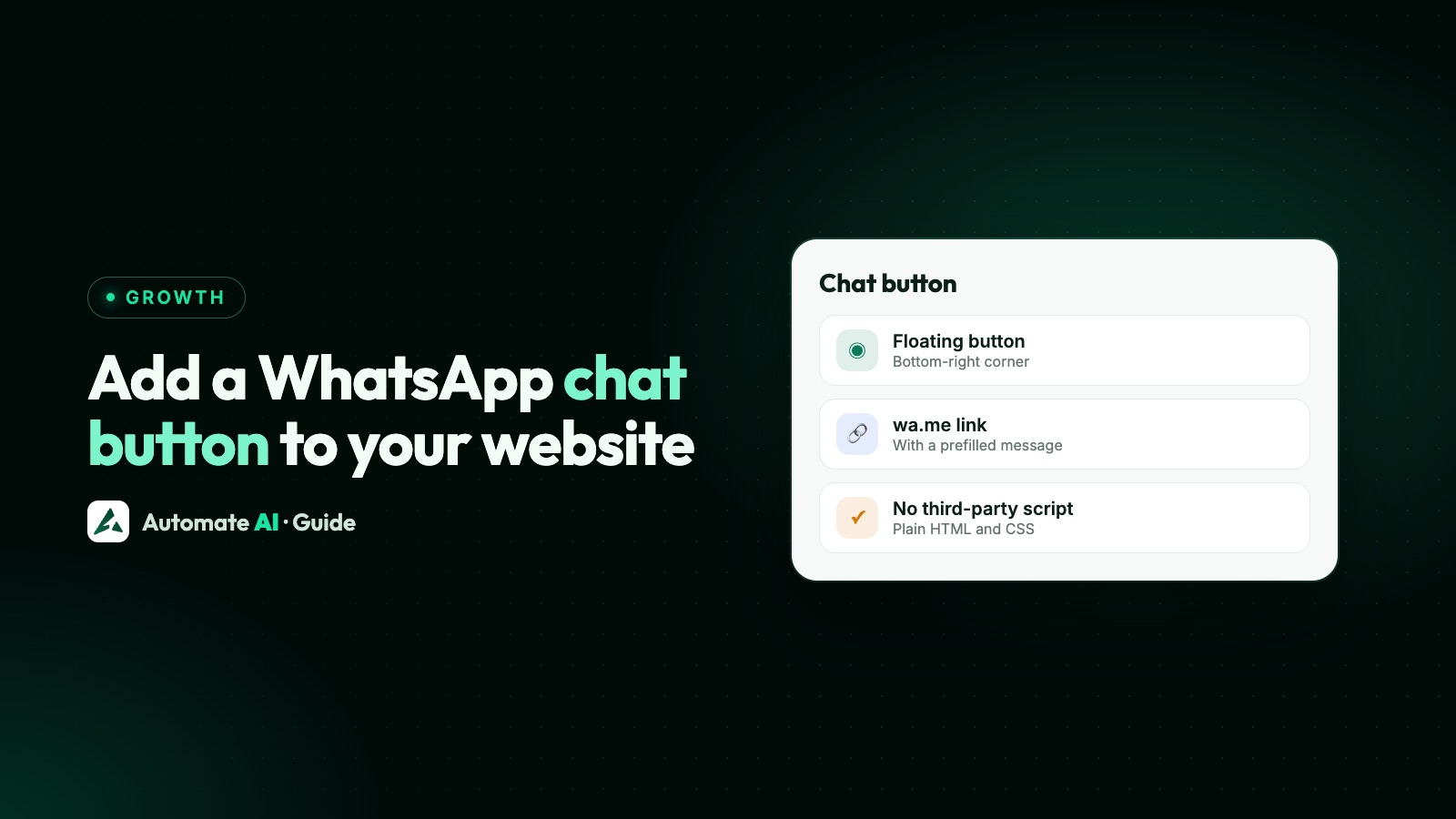
The simplest WhatsApp chat widget for a website is a floating link to your wa.me address with a pre-filled message, styled with a few lines of CSS. It’s free, needs no plugin or third-party script, sets no cookies, and opens a chat with your business on the visitor’s phone or on WhatsApp Web.
This guide gives you the code to copy, shows where to paste it in WordPress and Shopify, and covers placement, accessibility, WhatsApp’s brand rules and what happens after someone taps. For the link format itself, see how to create a WhatsApp link and QR code.
Key takeaways
- A chat “widget” is a link: https://wa.me/ + your number + ?text= and a URL-encoded message.
- Plain HTML and CSS are enough. There’s no script to load, so it doesn’t slow your pages or set cookies.
- WordPress: paste it into a Custom HTML block, in the footer template part for every page. Shopify: add it to theme.liquid after duplicating your theme.
- Use a visible text label, strong contrast and a focus style, and keep it clear of other buttons.
- A chat a visitor starts opens a 24-hour window for replies. Marketing later still needs opt-in.
What a WhatsApp chat widget actually is
Most “WhatsApp widgets” and “chat plugins” are a button that opens a wa.me link. Some add a pop-up with your photo and a greeting before the link opens, but the visitor still ends up in WhatsApp, sending the first message themselves. WhatsApp’s name for this is click to chat: it works with any number that has an active WhatsApp account, on the phone app and WhatsApp Web, and the visitor doesn’t need to save your number.
| Option | What you add | Good to know |
|---|---|---|
| Plain link in your menu or contact page | A wa.me link | Easiest, but easy to miss |
| Floating button (this guide) | HTML and CSS | Free, no script, works on any site that accepts HTML |
| WhatsApp’s official Chat on WhatsApp button | An image wrapped in a wa.me link | Must be used as it is, English only |
| A plugin or app | Third-party code | More features, but check what it loads and what data it collects |
If you use a plugin, read what it adds to your pages. Some load scripts from another company’s servers, which can affect page speed and your privacy notice. A plain link has neither problem.
Step 1: build your link
Start with your number in full international format, with no plus sign, spaces, brackets, dashes or leading zero. Then add ?text= and a short message, URL-encoded so spaces become %20 and commas become %2C:
https://wa.me/91XXXXXXXXXX?text=Hi%2C%20I%20have%20a%20question%20about%20your%20products
Replace the Xs with your number and tap the link on your own phone before you add it anywhere. Our free WhatsApp link generator does the encoding for you, and runs in your browser. The full rules and an encoding table are in our WhatsApp link guide.
Step 2: copy the HTML and CSS
This is a complete floating button. The HTML goes where your page content goes:
<a class="wa-chat" href="https://wa.me/91XXXXXXXXXX?text=Hi%2C%20I%20have%20a%20question%20about%20your%20products" target="_blank" rel="noopener">Chat on WhatsApp</a>
The CSS places it in the bottom-right corner, above other content, and, on pages set to fill the whole screen, keeps it clear of the home bar on newer phones:
.wa-chat { position: fixed; right: 16px; bottom: calc(16px + env(safe-area-inset-bottom)); z-index: 1000; display: inline-flex; align-items: center; min-height: 48px; padding: 0 20px; border-radius: 999px; background: #25D366; color: #08301f; font: 600 16px/1 system-ui, sans-serif; text-decoration: none; box-shadow: 0 4px 14px rgba(0, 0, 0, 0.2); }
.wa-chat:hover { background: #1fbe5a; } .wa-chat:focus-visible { outline: 3px solid #08301f; outline-offset: 3px; } @media print { .wa-chat { display: none; } }
- Dark text on green. White text on a bright green background is hard to read; the dark green used here has strong contrast.
- 48px tall gives a comfortable tap target on phones.
- The focus outline shows keyboard users where they are.
- Hidden when printing, so it doesn’t land on a printed invoice or page.
If your site builder only accepts HTML, put the CSS inside a <style> tag above the link. Change right to left if a cookie notice or another chat button already sits on the right.
Using the official Chat on WhatsApp button or logo
WhatsApp offers an official Chat on WhatsApp button in green and white, in small, medium and large sizes, through its click-to-chat Help Center page. Its rules are simple: use the button as it is, use the latest version, and keep it visible and easy to read. It’s currently available in English only. To use it, wrap the image in your wa.me link and give it the alt text “Chat on WhatsApp”:
<a class="wa-chat-img" href="https://wa.me/91XXXXXXXXXX" target="_blank" rel="noopener"><img src="/images/chat-on-whatsapp.png" alt="Chat on WhatsApp" width="200"></a>
If you’d rather add the WhatsApp logo to your own button, follow Meta’s WhatsApp brand guidelines:
- Use only the official logo files, and don’t change their shape or colours.
- Don’t draw your own look-alike of the WhatsApp phone logo, and don’t combine the logo with your own.
- Don’t suggest WhatsApp endorses you. “Chat with us on WhatsApp” is fine; anything that sounds like a partnership isn’t.
- Write the name as WhatsApp, with a capital W and A.
A text-only button, like the one above, avoids all of this and still makes it obvious where the tap goes.
Add it to WordPress
WordPress has a Custom HTML block for exactly this. To add the button to one page:
- Open the page in the editor and add a block with the Block Inserter, or type
/htmlin a new paragraph and press Enter. - Click Edit HTML and paste the HTML. The preview shows to the right of the code.
- From WordPress 7.0, the block has separate HTML, CSS and JavaScript panels. Paste the CSS in the CSS panel, or use the
<style>tag version. - Press Update, then save the page and check it on your phone.
On every page
With a block theme, put the button in your footer template part, because WordPress updates every template that uses a template part when you change it. Open Appearance › Editor, select the footer, choose Edit original, add the Custom HTML block inside it and press Save.
With an older classic theme, use the theme’s footer widget area or ask whoever built the site; the HTML and CSS stay the same.
Add it to Shopify
On Shopify, the default layout file every theme must have is theme.liquid, which wraps your store pages (checkout aside), so it’s the place for a button that shows everywhere. Shopify’s own advice is to only edit code if you know HTML and CSS, so follow these steps carefully:
- Duplicate your theme first (Online Store › Themes, then the three-dot menu). This gives you a backup to go back to.
- On the live theme, open the three-dot menu and choose Edit code.
- Open theme.liquid in the layout folder.
- Paste the HTML, and the CSS in a
<style>tag, just before the closing</body>tag. - Press Save (or Cmd/Ctrl + S) and check a product page and the cart on your phone.
For order updates and cart reminders on WhatsApp, which a chat button can’t do, see Shopify WhatsApp integration.
Placement and accessibility tips
| Do | Avoid |
|---|---|
| A visible text label, such as “Chat on WhatsApp” | An icon with no text or alt text |
| Bottom corner, clear of the add-to-cart and checkout buttons | Covering a sticky cart bar, cookie notice or form button |
| A pre-filled message per page or product | A blank chat with no context |
| Opening hours or reply times near the button, if replies aren’t instant | Promising instant replies you can’t keep |
| Testing on a phone, a desktop and with the keyboard (Tab key) | Only checking on your own laptop |
| One chat button | Several chat tools stacked in the same corner |
Avoid bouncing or pulsing animations: they distract people reading the page and can bother visitors sensitive to motion. On a page with a long form or checkout, consider leaving the floating button off and using a plain link in the page instead.
What happens after the click
The button only opens a chat. Nothing reaches you until the visitor taps send. When they do, Meta’s rules on the WhatsApp Business Platform (API) work like this:
- A 24-hour customer service window opens. You can reply with any message, including buttons, lists and photos, and the timer resets each time they message again.
- After 24 hours you can only send approved template messages.
- Marketing needs opt-in. Meta says you must clearly state the person is opting in to messages from your business, and name the business. Asking one question isn’t agreeing to offers.
So reply quickly, and if you want to send offers later, ask clearly in the chat or add an opt-in tick box to your website forms. More in the 24-hour window and WhatsApp opt-in.
Handling website chats with Automate AI
Automate AI doesn’t give you a separate script or widget to embed; the button above is all you need, pointing at the number you’ve connected. What changes is what happens once the chat arrives:
- Every chat lands in the shared inbox, and the contact is saved, so your team replies from one place.
- Lead Sources (in Settings) tag a new contact automatically when their first message matches words you choose. Give each page its own pre-filled message and you can see which pages bring leads.
- Keyword replies in Automation › Basic Replies, or a chatbot, can answer common questions straight away, out of hours too.
- Campaigns in Automate AI Marketing reach contacts who opted in, with Smart Links that show who tapped.
Frequently asked questions
How do I add a WhatsApp chat widget to my website for free?
Make a wa.me link with your number and a pre-filled message, put it in an a tag, and style it with CSS as a fixed button in a corner. It needs no plugin, account or script.
Do I need a plugin to add WhatsApp to my website?
No. A plugin can add extras such as a greeting pop-up, but a plain HTML link does the main job: it opens a chat with your business. Check what any plugin loads before installing it.
How do I add a WhatsApp button in WordPress?
Add a Custom HTML block (type /html), paste the HTML and CSS, and save. To show it on every page in a block theme, add the block to the footer template part in Appearance › Editor.
How do I add a WhatsApp button in Shopify?
Duplicate your theme as a backup, choose Edit code, open theme.liquid and paste the code just before the closing body tag. If you’re trying a paid theme, you need to buy it before you can edit its code.
Can I use the WhatsApp logo on my chat button?
Yes, if you use Meta’s official logo files without changing them, don’t combine them with your own logo and don’t suggest WhatsApp endorses you. WhatsApp’s official Chat on WhatsApp button must be used as it is.
Does a WhatsApp website button work with the WhatsApp Business API?
Yes. Click to chat works with any number that has an active WhatsApp account. When the visitor sends their message, a 24-hour window opens for your replies.
Sources
- WhatsApp Help Center: How to use click to chat
- Meta: WhatsApp brand guidelines
- WordPress: Custom HTML block
- WordPress: Template Part block
- Shopify Help Center: Edit theme code
- Shopify: Layouts (theme.liquid)
- Meta: Send messages (customer service window)
- Meta: Get opt-in for WhatsApp
WhatsApp rules and prices change. We check these guides against Meta’s documentation, but always confirm current terms with Meta before you rely on them. Questions? Message us on WhatsApp at +91 836 977 8812.