WhatsApp MCP Server: Connect Claude or ChatGPT to WhatsApp Business
What a WhatsApp MCP server is, why WhatsApp Web servers on GitHub risk a ban, and how to connect Claude, ChatGPT or Cursor to WhatsApp Business safely.
A WhatsApp MCP server is a connector that lets an AI tool such as Claude, ChatGPT or Cursor read and act on WhatsApp data, using the Model Context Protocol. For a business, the safe kind connects to the official WhatsApp Business API through your platform, not to your WhatsApp Web session.
This guide explains what an MCP server is, the two kinds you’ll find when you search for a WhatsApp one, why the WhatsApp Web projects on GitHub put your number at risk, and how to connect your AI tool to WhatsApp Business with every message approved by a person.
Key takeaways
- MCP is an open standard for connecting AI apps to other software. The AI tool is the client; the WhatsApp side is the server.
- Many WhatsApp MCP servers on GitHub drive a WhatsApp Web session. WhatsApp says unauthorised apps break its Terms and can get an account banned.
- A business MCP server sits on the official API, so the AI works with your contacts, chats, templates and results without touching your phone’s session.
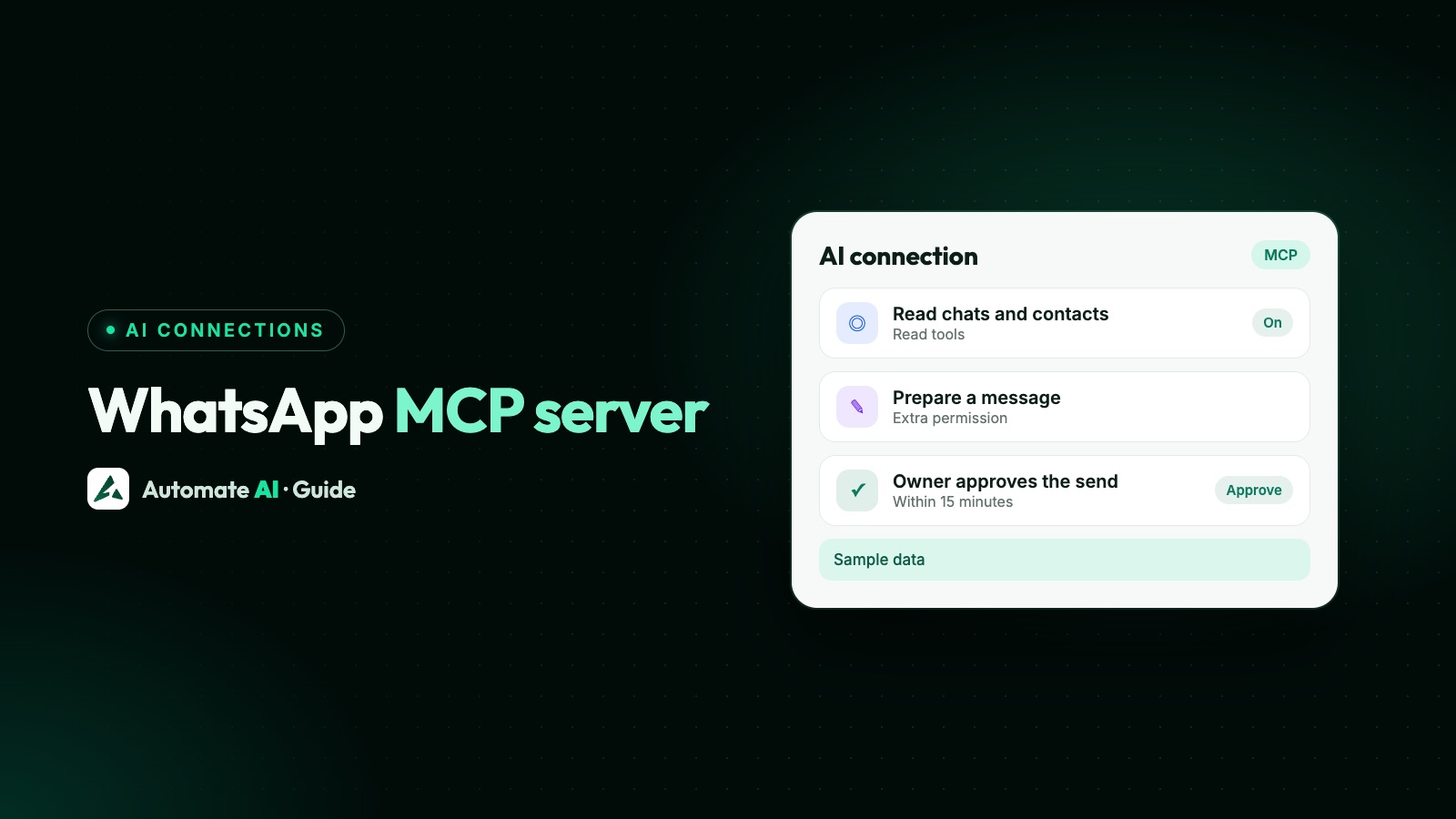
- In Automate AI, AI tools read by default, can add contacts or prepare a message if you allow it, and an owner or manager approves each send within 15 minutes.
- What an AI tool reads, including customer names, numbers and messages, goes to that AI company under its terms.
What an MCP server is
The Model Context Protocol (MCP) is an open-source standard for connecting AI applications to outside systems: data, tools and workflows. Its own site compares it to a USB-C port: one standard plug instead of a custom cable for every device.
There are two sides. The MCP client is the AI app you type into, such as Claude, ChatGPT or Cursor. The MCP server is the connector for another system. It tells the AI which tools it offers, such as “search contacts” or “list chats”, and runs them when the AI asks.
So a WhatsApp MCP server is simply a connector between your AI tool and WhatsApp. What matters is what it connects to on the WhatsApp side, because that decides whether it’s allowed and how safe your number is.
Two kinds of WhatsApp MCP server
Search GitHub for a WhatsApp MCP server and many results are personal projects built on WhatsApp Web. Business platforms offer a different kind, built on the official API:
| WhatsApp Web based (GitHub projects) | Business API based | |
|---|---|---|
| Connects to | Your WhatsApp Web session, by scanning a QR code | The WhatsApp Business Platform, through your provider |
| Allowed by WhatsApp | No: unofficial access to a personal or Business app account | Yes: it’s the official way to automate |
| Risk to your number | Temporary or permanent ban | Only for breaking WhatsApp’s policies |
| Runs on | Usually your own computer, which must stay on | Your provider’s servers |
| Sending | Often sends freely as you | Follows Meta’s rules: templates outside the 24-hour window |
| Who can use it | One person, on one machine | Owners and managers, each with their own sign-in and an activity log |
Some of these projects are well written. The problem isn’t the code. It’s that they reach WhatsApp through a route WhatsApp doesn’t allow.
Why WhatsApp Web MCP servers put your number at risk
WhatsApp’s Help Center says that using an unauthorised app breaks its Terms of Service and can get your account banned, and that a ban may come back if the account keeps breaking the terms. A WhatsApp Web MCP server is unofficial software reading and sending through your session, so it carries the same risk.
For a business, a ban hits the number your customers know. There are other problems too:
- Your whole account is exposed. The server can see every chat on the phone, including personal ones, not just the business conversations you meant to share.
- It depends on one computer. If the machine running it is off, or the WhatsApp Web session logs out, the connection stops.
- No team controls. There’s usually no approval step, activity log or per-person sign-in.
Our guide to the WhatsApp Web API explains how these unofficial libraries work and how to move to the official API.
What an official WhatsApp Business MCP server can do
Automate AI runs its own MCP server, called AI Connections, on every plan. It’s listed in the official MCP Registry as ai.theautomate/automate-ai. Each connection is signed in to one business, and the tools are grouped by permission:
| Tool | What the AI can do | Permission |
|---|---|---|
| Search contacts | Find contacts by name, phone number or email | Read (always on) |
| Contact details | One contact in full: groups, custom fields, opted out or blocked | Read |
| Chats and messages | List conversations and read the messages in one | Read |
| Templates | Your templates, with their text and the values each needs | Read |
| Campaign results | Sent, delivered, read and failed counts; replies and cost for one campaign | Read |
| Add a contact | Save one new contact | Extra permission you tick |
| Prepare a message | Prepare one approved template for one contact | Extra permission you tick |
“Prepare” is the key word. The AI can’t send anything. It gets an approval link, and an owner or manager opens it in Automate AI, checks the message and its price, and approves it within 15 minutes. The message then goes out like any other send and costs the same. Every action the AI takes shows in an activity log for 90 days.
How to connect Claude, ChatGPT or Cursor
First, an owner or manager opens Settings › AI Connections in Automate AI, reads the data notice, switches it on and copies the link. There are no API keys: you sign in to Automate AI when your AI tool asks, and choose the extra permissions.
Claude
- On a personal plan, go to Customize › Connectors, choose Add, then Add custom connector.
- Give it a name, paste your Automate AI link and continue.
- Sign in to Automate AI and choose what Claude may do.
- On Team or Enterprise, an owner adds the connector under Organization settings › Connectors, and members then connect it.
Claude’s help centre says custom connectors work on all its plans, with Free users limited to one.
ChatGPT
OpenAI’s developer docs describe adding a custom MCP server by its link, reading a risk warning and confirming. Whether you can add one depends on your ChatGPT plan and, in a workspace, your admin’s settings, so check OpenAI’s help centre. OpenAI also says ChatGPT asks you to confirm before any write action.
Cursor
Add an entry with your link as the url in mcp.json (in your project’s .cursor folder, or in your home folder for every project). Cursor supports servers that sign in with OAuth, so when you open Cursor Settings, find automate-ai and click Connect, it opens the Automate AI sign-in for you.
Where your customer data goes
This is the part to decide before you connect. Customer names, phone numbers and messages that an AI tool reads go to that AI company, and are handled under its terms, not ours. That’s why each business reads a data notice and turns AI Connections on itself.
- Check your AI tool’s plan. Business plans of AI tools often have different data terms from personal ones. Read them.
- Connect only what you need. Leave the extra permissions off if you only want answers.
- Keep sensitive chats out of it. If customers share health or financial details, think carefully before letting an AI tool read those chats.
- Review the activity log now and then, and disconnect tools nobody uses. A connection nobody uses for 30 days ends by itself.
Both Claude’s and OpenAI’s guidance advise connecting only to servers you trust and watching for prompt injection in what the tools return. Claude also says to review the permissions a server asks for, and OpenAI to review write actions before you confirm them.
Questions to ask your AI tool
Once connected, you work in plain language. Some starting points (sample data):
- “How did last week’s Diwali offer campaign do? Compare delivered, read and failed with the one before.”
- “Which chats from yesterday are still waiting for a reply?”
- “Summarise my conversation with Priya Sharma and tell me what she asked for.”
- “Which of my templates could I use to remind someone about an unpaid invoice?”
- “Add Rahul Verma, +91 98765 00000, as a contact.” (needs the add contacts permission)
- “Prepare the order_update template for Priya Sharma with order SP-1042.” (needs the prepare messages permission; you approve it in Automate AI)
For customer-facing AI that replies inside WhatsApp itself, that’s a different job. See WhatsApp AI agents for business.
Limits worth knowing
- Templates only. The AI prepares approved templates, not free-form messages. See WhatsApp template messages.
- One business per connection. If you manage several, connect each one separately.
- Not for businesses under a white-label reseller. AI Connections isn’t available for those accounts.
- Your AI tool’s own limits apply on top, depending on its plan.
If you’d rather build your own automations with code or a workflow tool, the Automate AI integrations page lists the other ways to connect.
Frequently asked questions
What is a WhatsApp MCP server?
A connector that lets an AI tool such as Claude, ChatGPT or Cursor work with WhatsApp data through the Model Context Protocol. For a business, it should connect to the official WhatsApp Business API, not to WhatsApp Web.
Is the WhatsApp MCP server on GitHub safe?
Many WhatsApp MCP servers on GitHub drive a WhatsApp Web session, which WhatsApp doesn’t allow. WhatsApp says unauthorised apps break its Terms and can get your account banned, so don’t use one on a business number.
Can Claude send WhatsApp messages for me?
With Automate AI, Claude can prepare an approved template for one contact if you allow it, but it can’t send it. An owner or manager approves each message in Automate AI within 15 minutes.
How do I connect ChatGPT to WhatsApp Business?
Turn on AI Connections in Automate AI, copy your link and add it to ChatGPT as a custom MCP server, then sign in to Automate AI. Your ChatGPT plan decides whether this is available.
Is my WhatsApp data private when I use an MCP server?
Not from the AI company. Anything a tool returns, such as a chat or a contact, is sent to the AI tool you connected and handled under that company’s terms. Give each connection only the permissions it needs.
Do I need to write code to use a WhatsApp MCP server?
Not with a hosted server like Automate AI’s: Claude and ChatGPT take its link in their connector settings, and Cursor needs a short entry in its mcp.json file.
Sources
- Model Context Protocol: What is MCP?
- Official MCP Registry: ai.theautomate/automate-ai
- Claude Help Center: Custom connectors using remote MCP
- OpenAI: MCP and connecting in ChatGPT
- Cursor: Model Context Protocol
- WhatsApp Help Center: Account bans for unofficial apps
WhatsApp rules and prices change. We check these guides against Meta’s documentation, but always confirm current terms with Meta before you rely on them. Questions? Message us on WhatsApp at +91 836 977 8812.