HubSpot WhatsApp Integration: What Syncs and How to Set It Up
How to connect WhatsApp to HubSpot: what syncs and in which direction, duplicate checks, chat notes, lead status mapping, setup steps and which option to pick.
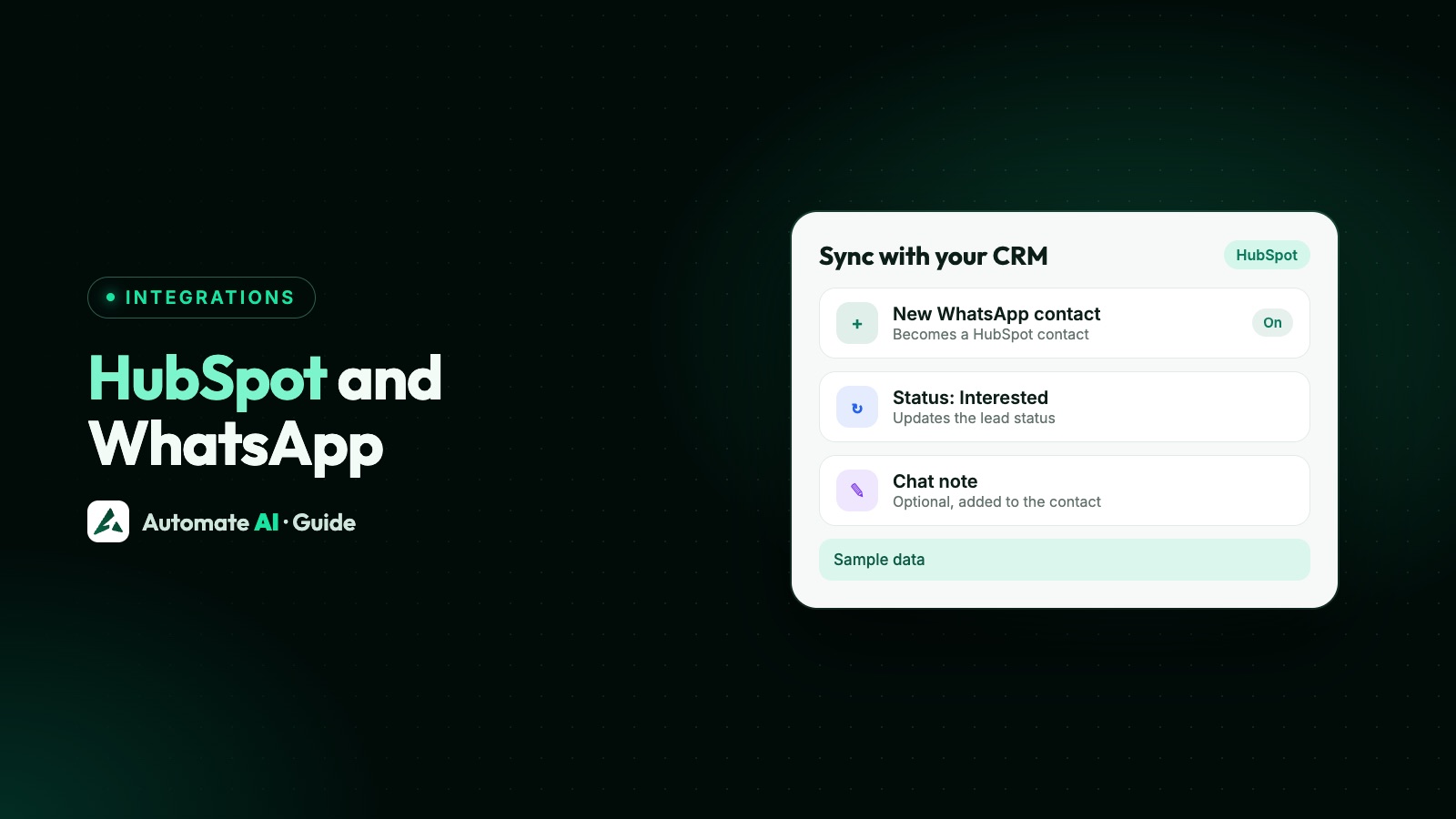
Yes, HubSpot and WhatsApp can work together in two ways: HubSpot’s own WhatsApp channel, which puts chats in HubSpot’s inbox, or a WhatsApp platform such as Automate AI that keeps chats in its own team inbox and sends contacts, notes and lead status changes to HubSpot.
This guide is about the second route. It explains exactly what Automate AI sends to HubSpot and what comes back, how duplicates are avoided, how to map your WhatsApp statuses to HubSpot’s Lead status, the setup steps, and a few workflows a sales team can use from day one.
Key takeaways
- Automate AI sends new WhatsApp contacts to HubSpot, checking phone, then email first so existing contacts are matched, not duplicated.
- An optional note is added once, when a contact is first sent: the chat summary if one exists by then, otherwise the customer’s latest reply.
- A status change in Automate AI can set HubSpot’s Lead status; changes made in HubSpot don’t flow back.
- New HubSpot contacts with a phone number can come in as WhatsApp contacts.
- Every switch starts off, and only what happens after you turn it on is synced, never your whole address book.
Two ways to connect HubSpot and WhatsApp
Decide this first, because one WhatsApp number can’t be on both. HubSpot’s knowledge base says the number you connect to HubSpot must not be connected to another WhatsApp account or another WhatsApp integration. (HubSpot also offers coexistence with the WhatsApp Business app, but that doesn’t let the same number use Automate AI as well.)
| HubSpot’s own WhatsApp channel | Automate AI with its HubSpot connection | |
|---|---|---|
| Where chats live | HubSpot’s conversations inbox | Automate AI’s team inbox |
| HubSpot subscription it needs | Marketing Hub or Service Hub, Professional or Enterprise (per HubSpot’s help page) | A HubSpot user who is a Super Admin or has App Marketplace access |
| What HubSpot gets | The conversations themselves | Contacts, an optional chat note and Lead status changes |
| WhatsApp tools | HubSpot’s inbox and templates | Campaigns and the inbox on every plan; chatbots, drip sequences and AI lead scoring on the AI Assistant + Marketing + Automation Plan and Series 4 |
| Best for | Teams that already work all day in HubSpot’s inbox | Teams that work in WhatsApp chats and report in HubSpot |
A simple test: ask where your salespeople will reply to customers. If the answer is HubSpot, look at HubSpot’s channel. If it’s a WhatsApp inbox with chatbots and campaigns, keep the number on Automate AI and let the connection keep HubSpot up to date. The rest of this guide covers that option.
What syncs, and in which direction
| Switch in Automate AI | Direction | What happens |
|---|---|---|
| Send new contacts to HubSpot | Automate AI → HubSpot | A new WhatsApp contact becomes a HubSpot contact with first name, last name, email and the WhatsApp number |
| Add a note with the chat | Automate AI → HubSpot | One note on that HubSpot contact when it’s first sent: the chat summary if one exists, else the customer’s latest reply |
| Update the Lead status when a status changes | Automate AI → HubSpot | When someone moves a contact to a mapped status, the HubSpot contact’s Lead status changes to match |
| Bring new people from HubSpot into contacts | HubSpot → Automate AI | A new HubSpot contact with a phone number is added to your Automate AI contacts |
Name, phone and email are always sent. A contact with no name is sent without one rather than under their number, and a contact with neither a phone number nor an email is skipped and listed in the activity.
What isn’t synced: the full conversation, tags, groups and deals. Editing a contact or its Lead status in HubSpot doesn’t change anything in Automate AI, and contacts added before a switch was turned on aren’t sent later.
Before you connect: a five-minute checklist
- Who connects. Only the account owner or a manager in Automate AI can connect, change, test or disconnect HubSpot. Everyone else can see the screen but not change it.
- Which phone field. Choose whether the WhatsApp number goes into HubSpot’s Phone number or Mobile phone number field, and stick to it.
- Your Lead status values. The status mapping loads the Lead status options from your own HubSpot account, so tidy those up first.
- Country codes in HubSpot. When HubSpot contacts come in, a 10-digit number without a country code is read as an Indian number. Outside India, store numbers in HubSpot with the country code, such as +44 or +971.
- Obvious duplicates. Merge them in HubSpot first. The connection links to the first match it finds.
Set it up step by step
- In Automate AI, go to Integrations › HubSpot and click Connect with HubSpot.
- Sign in to HubSpot and allow access. Automate AI asks to read and write contacts (notes are attached to contacts) and to read contact properties, for the Lead status choices.
- Back on the card, you’ll see your HubSpot account. Click Test: it makes one real read from HubSpot and tells you in plain words whether it worked.
- Under What syncs, switch on what you want. Add a note with the chat works only with Send new contacts to HubSpot on.
- Under Fields, choose where the WhatsApp number goes and a Starting Lead status for new contacts, or leave it as HubSpot sets it.
- If you turned on status updates, fill in Status → Lead status (next section) and click Save.
- Add a test contact with your own number, wait a few minutes, then check HubSpot and the activity list on the same screen.
If the card says HubSpot is “Not set up yet”, contact support to turn it on for your account.
Map your WhatsApp statuses to HubSpot’s Lead status
HubSpot’s Lead status is a standard contact property, and it’s the field the connection updates. Each status you use in the Automate AI inbox can point to one Lead status value, or stay on “Don’t change”.
Example mapping (sample data)
| Status in Automate AI | Lead status in HubSpot | Why |
|---|---|---|
| (new contact) | New (starting Lead status) | Every new WhatsApp contact starts here |
| Interested | Open | A salesperson is working it |
| Demo booked | In Progress | A next step is fixed |
| Quotation sent | Open Deal | Waiting on the customer |
| Not interested | Unqualified | Keeps reports honest |
| Wrong number | Don’t change | Nothing useful to report in HubSpot |
These Lead status values are examples: the list comes from your own HubSpot account. Three details matter in practice:
- With status updates on, a new contact that already has a mapped status when it’s sent starts at that Lead status instead of the starting one.
- If the contact already exists in HubSpot, only a mapped status is applied. The starting Lead status is never forced onto an existing record.
- If a contact changes status several times between syncs, the latest change wins.
How duplicates are avoided
Before creating anything, Automate AI searches HubSpot’s Phone number and Mobile phone number fields for the WhatsApp number in the usual spellings: with and without the plus sign, with a space or hyphen after the country code, and the last 10 digits alone. If there’s no phone match, it searches by email. A match is linked, not copied.
- Each WhatsApp contact is linked to one HubSpot contact and sent once.
- If HubSpot itself reports that the contact already exists, that record is linked instead.
- Contacts coming in from HubSpot are matched the same way, by phone and then email, so someone already in your WhatsApp contacts isn’t added twice.
The activity list says which happened for each person: added to HubSpot, matched an existing contact, Lead status set, or not sent, with HubSpot’s reason.
What the chat note looks like
With Add a note with the chat on, each contact sent to HubSpot, whether it was created or matched to an existing one, gets one note at that moment. It isn’t updated later. Contacts are usually sent within a minute or so, so the note often holds the customer’s first reply (text or a button tap) rather than a summary. If an AI summary of the chat exists by then, the note holds its overview, the customer’s need and the next step. If there’s no reply yet, no note is added. Notes are kept to 1,500 characters. For example (sample data):
| Note type | Example |
|---|---|
| Chat summary | WhatsApp chat summary: Asked about a 3-seat sofa in grey. Need: delivery to Pune before 5 December. Next step: send fabric photos and a price. |
| Last message | Last WhatsApp message from the customer: Hi, is the grey sofa still available in 3-seat? |
A note that can’t be added never stops the contact from being sent; the activity list records why. Summaries are explained in AI chat summaries and triage.
Practical workflows for a sales team
- One place to update. Salespeople change the status in the WhatsApp chat right after a call; HubSpot’s Lead status follows within minutes. Changing the Lead status by hand in HubSpot doesn’t change the chat, so agree that the chat is where status changes.
- Score first, then sync. AI Sales Center (on the AI Assistant + Marketing + Automation Plan and Series 4) scores each WhatsApp lead from the chat and suggests the next step. Use it to decide who gets a “hot” status, and the mapped Lead status carries that into HubSpot.
- HubSpot leads into WhatsApp. With Bring new people from HubSpot into contacts on, a lead added in HubSpot appears in your WhatsApp contacts. Before messaging them, make sure they agreed to hear from you on WhatsApp, and outside a 24-hour window use an approved template.
- Keep statuses few. Five or six clear statuses map cleanly to Lead status. Twenty overlapping ones don’t.
For statuses, follow-ups and reminders on the WhatsApp side, see WhatsApp CRM. For a CRM we don’t connect to directly, the n8n guide shows the API and webhook route.
Troubleshooting and disconnecting
| What you see | What to do |
|---|---|
| “HubSpot’s API limit was reached” | Nothing. Syncing pauses and carries on by itself later |
| “A permission is missing” | Disconnect, connect again and allow everything HubSpot asks |
| “Connect again” on the card | HubSpot refused or ended the login; click Connect again |
| A contact “not sent” | Read HubSpot’s reason in the activity list; the others carry on |
| A HubSpot contact didn’t come in | Check it has a phone number with country code, and that it was created after you turned the switch on |
To stop, click Disconnect. Syncing stops and the saved login is removed. Everything already in HubSpot stays there.
Frequently asked questions
Does HubSpot have a WhatsApp integration?
Yes. HubSpot has its own WhatsApp channel for its conversations inbox, and WhatsApp platforms such as Automate AI connect to HubSpot to send contacts, chat notes and Lead status changes.
Is the HubSpot WhatsApp integration free?
HubSpot’s own WhatsApp channel needs Marketing Hub or Service Hub Professional or Enterprise, per HubSpot’s help page. In Automate AI, CRM connections, HubSpot included, are part of every plan, with no add-on; Meta’s charges for template messages still apply. See our pricing page.
Does it send WhatsApp chats to HubSpot?
Not the whole conversation. It sends the contact and, if you turn it on, one note with the chat summary or the customer’s last message.
Will it create duplicate contacts in HubSpot?
It’s built not to. HubSpot is searched by phone number, in several spellings, and then by email before anything is created, and a match is linked instead.
Are my existing contacts sent when I connect?
No. Only contacts added after you turn on sending are sent, so your address book isn’t copied in one go.
Does changing the Lead status in HubSpot update WhatsApp?
No. Status changes go from Automate AI to HubSpot only. From HubSpot, only new contacts come in.
Can I use HubSpot’s WhatsApp channel and Automate AI on the same number?
No. HubSpot says the number must not be connected to another WhatsApp integration, so choose one per number.
Sources
- HubSpot Knowledge Base: Connect a WhatsApp channel to the conversations inbox
- HubSpot Knowledge Base: Collect and manage consent for WhatsApp conversations
- Meta: Get opt-in for WhatsApp
- Meta: Send messages (customer service window)
- Automate AI: WhatsApp CRM
- Automate AI: Pricing
WhatsApp rules and prices change. We check these guides against Meta’s documentation, but always confirm current terms with Meta before you rely on them. Questions? Message us on WhatsApp at +91 836 977 8812.