How to Import WhatsApp Contacts From Excel
Regular WhatsApp can’t read Excel files, but three routes work: Business app web, your phone’s address book and API platforms. Steps, sample file and limits.
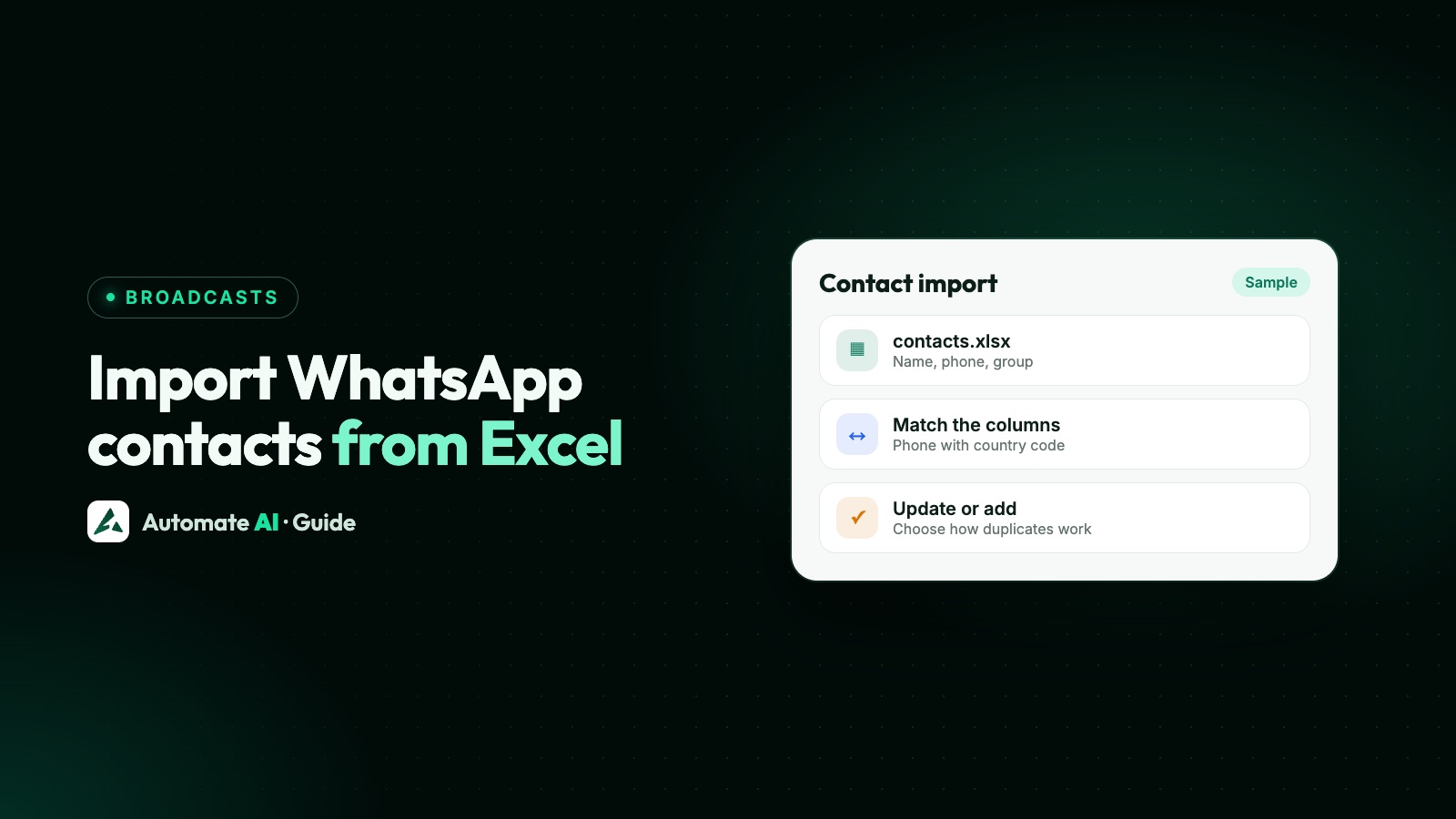
Regular WhatsApp has no Excel import, so to get a spreadsheet in you need one of three routes: upload it to the WhatsApp Business app web, put the numbers in your phone’s address book, or import it into a WhatsApp API platform. Which one fits depends on what you want to do next.
The Business app web route only feeds business broadcasts, a paid feature in select countries. The address book route gets you ordinary saved contacts. The API route is the one for large, repeat sends. This guide gives the steps for each, a sample file, how to stop Excel breaking your numbers, and the part people miss: importing a contact doesn’t give you permission to message them.
Key takeaways
- Regular WhatsApp adds contacts one at a time, or from your phone’s address book. It has no file import.
- The WhatsApp Business app web accepts CSV or XLSX with two columns, full name and phone, for business broadcasts where they’re available.
- A broadcast list can’t be built from Excel directly. It holds 256 contacts, and only people who saved your number receive it.
- Automate AI imports CSV, XLSX and XLS, matches your columns, and shows a preview before anything is saved.
- Format the phone column as Text in Excel, and include country codes.
- An import is not opt-in. Only message people who agreed to hear from your business.
Which route fits what you want?
| You want to | Route | Limits |
|---|---|---|
| Send a paid broadcast from the Business app | Upload to the Business app web | Select countries only; charged per delivered message |
| Have the numbers as saved contacts on your phone | Excel to CSV to Google Contacts, then WhatsApp reads your address book | Google advises 3,000 per file; 25,000 per account |
| Make a broadcast list | Save the contacts first, then pick them in the app | 256 per list; only people who saved your number receive it |
| Make a group | Save the contacts first, or share an invite link | Up to 1,024 members; members can see each other |
| Send campaigns to hundreds or thousands, again and again | Import into an API platform | Your Meta messaging limit; approved templates only |
WhatsApp’s help pages list three ways to add a contact in the regular app: from a new chat, from an existing chat, or from a group. None of them reads a file.
Upload a spreadsheet on the WhatsApp Business app web
This is the one direct file import in WhatsApp’s own apps. WhatsApp says it’s available only on the WhatsApp Business app web, and the contacts go into your Broadcast audience. Your file must be CSV or XLSX, with two columns: the contact’s full name and phone number.
- On your computer, open the WhatsApp Business app web and log in.
- Find and click Broadcast audience. WhatsApp’s help article shows the icon to click first.
- Save the CSV template and fill it in, or click Upload file and choose a CSV or XLSX that follows the template’s structure.
- Review your import list, then name your audience.
- Click Save audience to save the contacts to your phone. You can now send business broadcasts to this audience from your phone.
Duplicates count as errors. If a file has more than 20 errors, you’re asked to review it before going on, and you can use Delete all errors or fix entries one by one. Errors have to be corrected or removed before you can save.
Put the numbers in your phone’s address book
If you want ordinary contacts, go through Google Contacts on a computer:
- In Excel, tidy the file and save a copy as CSV.
- Open Google Contacts on your computer. Google offers a template: keep its header row, fill in the columns you need, and delete the rest.
- Choose Import, pick your file and confirm.
- On an Android phone signed in to the same Google Account, the contacts appear in your address book.
- Open WhatsApp, which needs permission to read your contacts, and start a new chat to find them.
Google says importing more than 3,000 contacts at once can cause problems, so split bigger files, and an account holds up to 25,000 contacts.
Making a broadcast list or group from those contacts
There’s no “create from Excel” button for either. Once the contacts are saved, you pick them by hand:
- Broadcast list: up to 256 contacts per list, and you can make as many lists as you like. Only people who saved your number receive the message, so a list of strangers gets nothing. Broadcast lists aren’t available on Windows, Mac or Web. See WhatsApp broadcast limits.
- Group: up to 1,024 members, added from your contacts. Everyone sees everyone’s messages and numbers, which suits a team or a community, not a customer list.
Import into a WhatsApp API platform
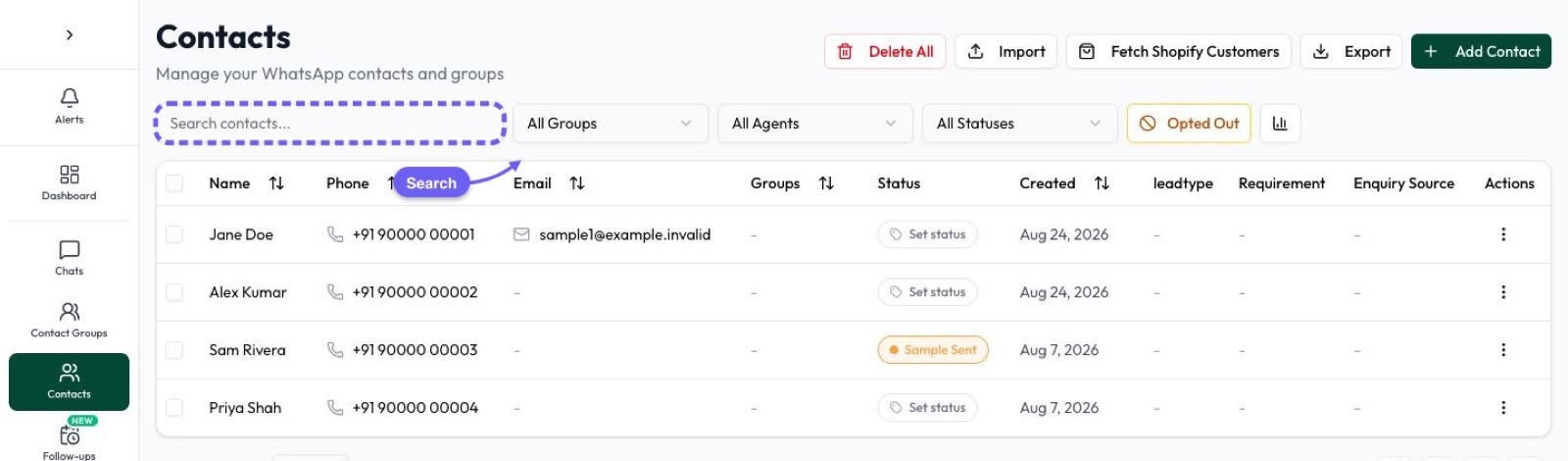
On the WhatsApp Business Platform, you don’t import into WhatsApp at all. You import into your provider’s contact list, then send approved templates to opted-in contacts. Numbers don’t need to be saved on a phone, and customers don’t need to have saved yours. In Automate AI, go to Contacts and click Import. Contacts are included on every plan, with no cap on the number.
- Upload. Drop in a CSV, XLSX or XLS file. If the workbook has several sheets, pick one, and check which row holds your headings. Sample CSV and Excel files are there if you want a starting point.
- Match your columns. Any headings in any order work. The app suggests a field for each column, from names such as “Mobile No” or “Customer Name” and from the values. Check anything marked Check, and skip columns you don’t need.
- Set the country code for 10-digit numbers. +91 India is selected by default, and there’s a list of other countries.
- Choose what to do with existing contacts (see the table below).
- Add extras if you want. Put everyone in a contact status, or assign them all to a team member. A status set this way creates no follow-ups.
- Read the preview. It runs every rule without saving anything, and shows how many contacts would be created, updated, skipped or failed, with before and after values for updates.
- Import, and keep the window open until it finishes. If rows were skipped or failed, download the report.
Columns can fill name, first and last name, phone, email, groups, address fields, date of birth, anniversary and your own custom fields. An owner or manager can create a custom field during matching, and you can ask the app to remember the matching for files with the same headings.
Set up your Excel file
This layout works for the Automate AI import. Names and numbers below are made up:
| Name | Mobile | Groups | City | Date of birth | |
|---|---|---|---|---|---|
| Asha Rao | +91 90000 00001 | asha@example.com | VIP, Mumbai leads | Mumbai | 14/05/1990 |
| Ravi Menon | 9000000002 | Mumbai leads | Pune | ||
| Sample Trader | +971 50 000 0003 | trader@example.com | Wholesale | Dubai |
Here’s how the app reads what you type:
| In the file | What the app does |
|---|---|
| Starts with + or 00 | Treats it as international and keeps that country code |
| 10 digits | Adds the country code you selected |
| 11 digits starting with 0 | Drops the 0, then adds the country code |
| 11 to 15 digits, no + | Assumes the country code is already there |
| Under 10 or over 15 digits | Marks the row not valid and leaves it out |
| Spaces, dashes or brackets | Ignores them |
- Mixed countries? Write every number with its + code. The country code setting only applies to 10-digit numbers.
- Groups: separate several with commas. A group name that doesn’t exist yet is created.
- Full names are split at the first space into first and last name.
- Dates of birth and anniversaries: an ambiguous numeric date such as 05/06/1990 is read as day, then month, then year. A date that can’t be read is left empty.
Stop Excel breaking long numbers
Excel can turn long numbers into scientific notation, such as 1.23E+15, which ruins a phone column once it’s saved as CSV. Microsoft’s advice is to format the column as Text before you enter or import the data, because changing the format afterwards doesn’t fix numbers already entered. Uploading the file as XLSX, rather than CSV, also keeps the full number in Automate AI.
Duplicates and updates
Automate AI matches contacts by phone number, whatever the format, so +91 90000 00001 and 9000000001 are the same contact. The match uses the last 10 digits. If a number appears twice in one file, the first row is used and the second is skipped. You then choose how to treat numbers you already have:
| Option | New numbers | Numbers you already have |
|---|---|---|
| Create new and update existing | Created | Updated |
| Create new only (skip duplicates) | Created | Left untouched |
| Update existing only | Skipped | Updated |
When updating, Update with the file’s non-empty values replaces saved values, and Only fill fields that are empty keeps what’s there. A blank cell never clears anything in either mode.
Importing a contact isn’t opt-in
A number in your spreadsheet tells you nothing about permission. Meta requires you to clearly state that a person is opting in to messages from your business, name the business, and follow applicable law. A list you bought, scraped or copied from a directory doesn’t meet that, and a customer who gave you their number for a delivery hasn’t agreed to offers.
- Sort before you import. Keep a column showing where and when each person agreed, and leave out anyone you can’t account for.
- Use a group for opted-in people, so campaigns go to that group and not to all contacts.
- Keep opt-outs. In Automate AI, an import doesn’t clear a contact’s opted-out mark, and campaigns skip opted-out contacts. See WhatsApp opt-out and unsubscribe.
Messaging a cold list can bring blocks and reports, and those hurt your number’s quality. WhatsApp opt-in has wording you can copy.
After the import: send your first campaign
A new contact hasn’t messaged you, so your first message must be an approved template. In Automate AI Marketing, choose the template, pick your audience by group, tag, status, date or country, then send now or schedule. New business portfolios start with a messaging limit of 250 unique people per 24 hours outside the customer service window, shared by all your numbers, so split a big list over several days if you’re at that level.
If your list changes often, a one-off file may not be the best fit. Google Sheets can keep contact details up to date, though custom fields and statuses stay out of the sheet, so use a file import for those.
Frequently asked questions
Can I import contacts from Excel to WhatsApp directly?
Not in regular WhatsApp. The WhatsApp Business app web accepts CSV or XLSX for business broadcasts where available. Otherwise, import into your phone’s address book or a WhatsApp API platform.
How do I create a WhatsApp broadcast list from Excel?
You can’t do it directly. Save the numbers as contacts first, then pick them in the app. Each list holds 256 contacts, and only people who saved your number receive the message.
How do I add Excel contacts to a WhatsApp group?
WhatsApp has no file import for groups. Save the numbers to your phone’s contacts, then add them when you create the group. Only do this with people who expect it, because members can see each other’s numbers.
What file types does Automate AI accept?
CSV, XLSX and XLS. Any headings and column order work, because you match each column to a field before importing.
Does the phone number need a country code?
WhatsApp needs one. In Automate AI you can pick a country code for 10-digit numbers. Numbers that already have a code keep it, so write every number in full if your list covers several countries.
Can I send messages to imported contacts straight away?
Only to people who opted in, and only with an approved template on the API. The import itself sends nothing and gives you no permission to message anyone.
Will importing the same file twice create duplicates?
No. Automate AI matches on phone number, so a second import updates or skips those contacts, depending on the option you choose.
Sources
- WhatsApp Help Center: How to import contacts in the WhatsApp Business App
- WhatsApp Help Center: How to create and send a business broadcast
- Microsoft Support: Keeping leading zeros and large numbers
- WhatsApp Help Center: How to use broadcast lists
- Meta: Messaging limits
- WhatsApp Help Center: How to create and invite into a group
- Google Contacts Help: Import your contacts
- Meta: Getting opt-in
WhatsApp rules and prices change. We check these guides against Meta’s documentation, but always confirm current terms with Meta before you rely on them. Questions? Message us on WhatsApp at +91 836 977 8812.