How to Announce a Product Launch on WhatsApp
How to announce a new product on WhatsApp: a teaser, launch-day and follow-up sequence, sample messages for each, who to send them to, and the rules.
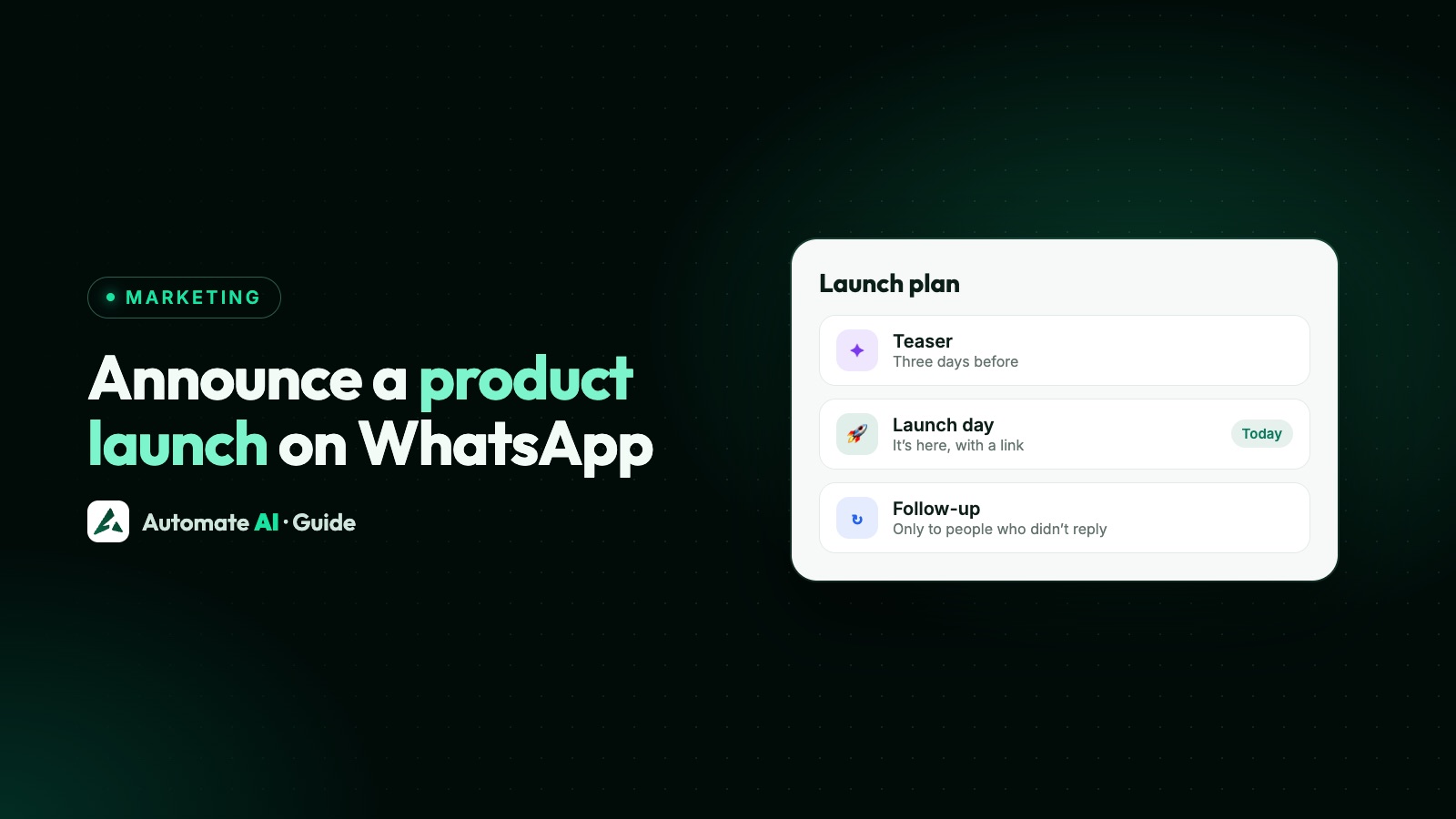
To announce a product launch on WhatsApp, send a short sequence of approved marketing templates: a teaser to your most interested customers, a launch-day message with a clear button, and one follow-up to people who showed interest. A launch message should name the product, say what’s new for the customer, and give one action.
This guide gives you that three-step plan with sample messages for each step, shows who should receive what, and covers the WhatsApp limits that catch launches out. For the basics of list building and campaigns, start with our WhatsApp marketing guide.
Key takeaways
- A launch announcement is a marketing template. Meta’s category guide uses a new opening as a marketing example.
- Use three messages at most: teaser, launch day and one follow-up, with fewer people at each end.
- A teaser that asks for a reply opens a 24-hour window, so you can answer with normal messages.
- Submit templates several days early. Meta’s review can take up to 24 hours, and a rejection needs fixing.
- Check your messaging limit before launch day. A new account can’t reach a big list in one day.
- Say “limited” only if it’s true, and be ready to answer replies on launch day.
The three-message launch sequence
Most launches need just three messages. Each has a different job and a different audience. The timing below is a starting point, so move it to fit your product.
| Message | When | Who gets it | Its job |
|---|---|---|---|
| Teaser | 3 to 7 days before | Past buyers and your most engaged contacts | Build interest and find out who wants it |
| Launch day | On launch morning | People who replied first, then the wider opted-in list | Say it’s here, with one button |
| Follow-up | 2 to 3 days after | People who tapped, or asked, and didn’t buy | Answer doubts, or give a real last call |
Each is a separate approved template. The people who replied to the teaser should hear first, because that’s the reward for replying.
Teaser messages
A teaser has one goal: get people to raise their hand. Say enough to interest them, and ask for a simple reply. These are our own samples; product names and dates are examples. {{1}} is the first name.
- New collection: Hi {{1}}, something new is coming to Example Store on 12 November, and it’s our softest cotton range yet. Want a first look before everyone else? Reply EARLY. Reply STOP to opt out
- Restaurant menu: Hi {{1}}, Example Kitchen is launching a new winter menu next week. Would you like to try it first? Reply EARLY and we’ll hold you a table. Reply STOP to opt out
- Software feature: Hi {{1}}, Example Software has a new reports feature coming next week. Reply EARLY and we’ll send you early access and a short demo. Reply STOP to opt out
- Course or batch: Hi {{1}}, Example Academy is opening a new weekend batch soon. Reply EARLY to hear the details first. Reply STOP to opt out
- Property launch: Hi {{1}}, Example Realty is launching a new project in your preferred area next month. Reply EARLY for the brochure before it’s public. Reply STOP to opt out
A reply opens the 24-hour customer service window, so you can answer with normal messages rather than a template. Marketing messages sent inside that window also don’t count toward WhatsApp’s per-person marketing limit.
Launch-day messages
Lead with the product and what’s in it for them, then give one action. An image or short video in the header does a lot of the work. Use the button for the action.
- New product: It’s here, {{1}}! The new Example Air Bottle keeps drinks cold for a full day, and it’s available now at Example Store. Tap below to see the colours. Reply STOP to opt out
- Launch offer: Hi {{1}}, our new cotton range has just landed at Example Store. Launch price is 15% off until Sunday night, then it goes back to full price. Tap below to shop. Reply STOP to opt out
- For the people on your list: Thanks for waiting, {{1}}! You’re on our launch list, so you get first access to the new range this morning, before we tell everyone else. Tap below to shop. Reply STOP to opt out
- Local shop: Hi {{1}}, the new season stock is in at Example Store, Park Street. Come in this week to try it on, or reply here and we’ll send photos. Reply STOP to opt out
- Software feature: Hi {{1}}, reports are live in Example Software. You can now see weekly sales in one view. Tap below for the 2-minute guide. Reply STOP to opt out
- Restaurant: Hi {{1}}, our winter menu starts today at Example Kitchen. The slow-cooked dal is the one to try. Reply here to book a table. Reply STOP to opt out
Make the template do more
| Launch type | Template format that suits it |
|---|---|
| One hero product | Image or video header, with a website button |
| A range or collection | A carousel of media cards (Meta allows up to 10) |
| Launch discount | A Copy offer code button |
| Service or booking | A quick-reply button or “reply here”, so you get the conversation |
| Software or course | A website button to the guide or sign-up page |
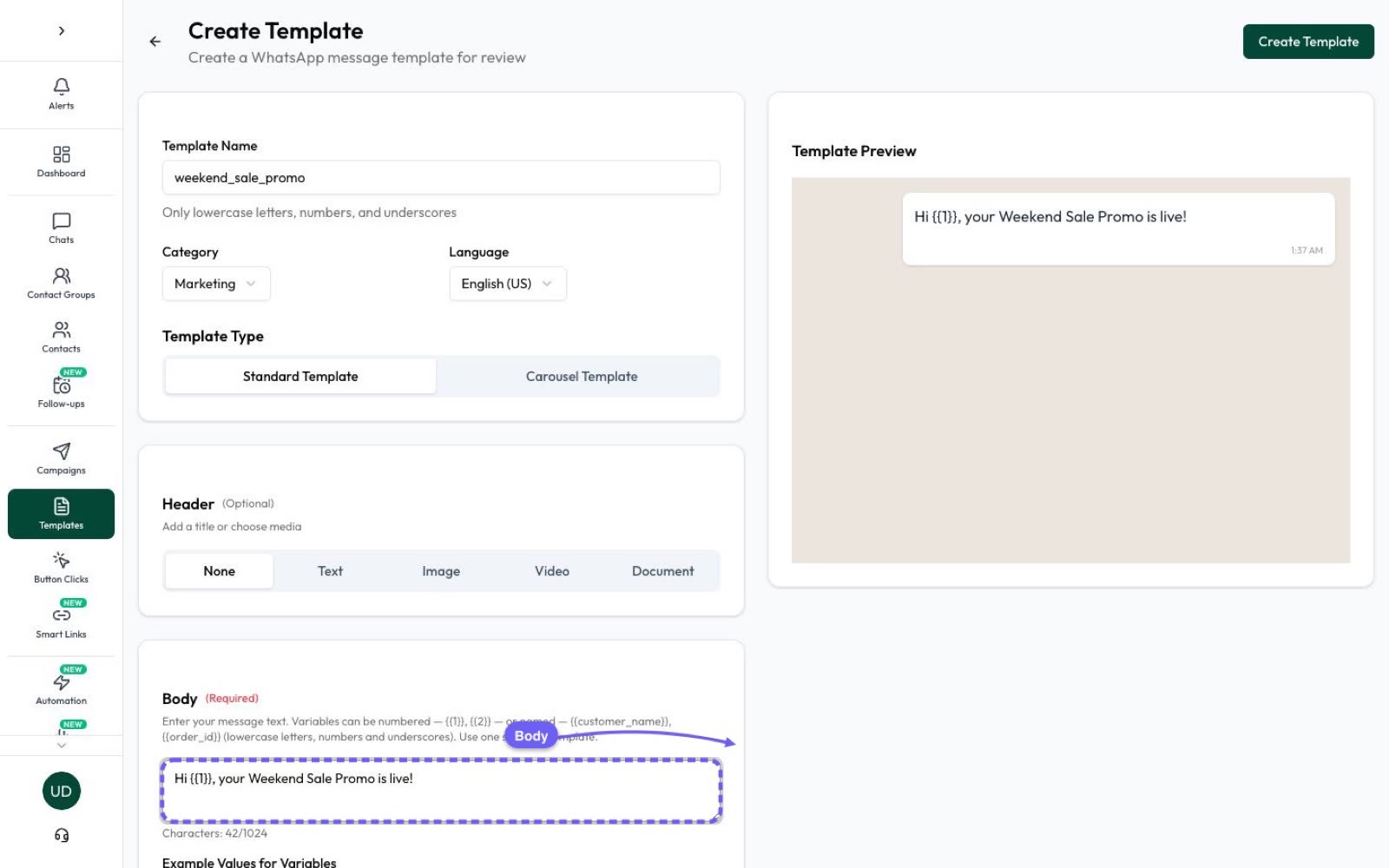
A template can have up to 2 website buttons, but one action is usually better. In Automate AI, AI Template Studio can draft the text and buttons on Series 2, 3 and 4. Build a carousel yourself in Create Template. More formats are in the template guide.
The follow-up message
Send one follow-up, and only to people who showed some interest. Don’t repeat the launch message. Help them decide instead.
- Answer a doubt: Hi {{1}}, a few people asked if the new Example Air Bottle fits a car cup holder. It does! Have a question of your own? Reply here and our team will help. Reply STOP to opt out
- Real last call: Hi {{1}}, launch pricing on the new cotton range ends tonight at Example Store. Tap below if you’d like to order at the launch price. Reply STOP to opt out
- Back-in-stock note: Good news, {{1}}! The new range sold out in two sizes, and they’re back at Example Store. Tap below to see what’s available. Reply STOP to opt out
- Software: Hi {{1}}, have you tried reports in Example Software yet? Reply with your question or tap below for a short walkthrough. Reply STOP to opt out
If you write “ends tonight” or “limited stock”, it has to be true. A false deadline teaches customers to ignore you, and they’ll see the same offer the next week. More on second messages in resending and retargeting campaigns.
Choose who hears about it
A launch isn’t a reason to message everyone you’ve ever spoken to. Every contact needs to have opted in, and sending something irrelevant is how you collect blocks. Sort your list first:
| Group | What to send |
|---|---|
| Bought something similar | Teaser, launch day, and the follow-up if they showed interest |
| Said yes to the teaser | Early access on launch day, then the follow-up if they tapped and didn’t buy |
| Opted in, bought something else | Launch day only |
| Opted in, quiet for a long time | Launch day at most, or nothing |
| No opt-in | Nothing on WhatsApp. Use an ad or your website |
| US numbers | No marketing template: Meta doesn’t deliver them there |
To reach new people, a Click-to-WhatsApp ad can bring them into a chat themselves, and a link or QR code on packaging or in-store does the same. Under Meta’s free entry point rules, messages are free for up to 7 days when someone on the Android or iOS app messages you from such an ad and you reply within the customer service window. Meta Business Agent messages are still charged.
Limits to plan around
- Category. Launch news is marketing. Meta’s examples include “our newest resort just opened”. Don’t try to send it as Utility, and don’t add a promotion to an order update: Meta treats mixed content as marketing.
- Review time. Meta’s review can take up to 24 hours. Submit at least a few days early to leave time for a rejection, and don’t start or end a template with a variable.
- Messaging limit. New business portfolios can reach 250 unique people in 24 hours. If your list is bigger, send in stages or raise the limit first. See WhatsApp broadcast limits.
- Per-person limit. WhatsApp limits how many marketing templates each person receives. A blocked send fails with error 131049. Wait at least 24 hours before trying that person again.
- Template quality. Negative feedback can lower a template’s rating, and Meta may pause or disable a low-rated template. Don’t rely on one template for your whole launch.
- Cost. Meta charges for each delivered template, and marketing is charged at the country’s rate. Check rates by country before you size the send.
- Restricted products. WhatsApp’s policy limits or bans some categories, such as alcohol, gambling, drugs and medical products. Check it before you plan a launch in one of these.
Run the launch in Automate AI
- Create your three templates in Campaigns › Templates, in the Marketing category, and wait for each to show Approved.
- Send the teaser to your chosen group from Campaigns, now or at a set date and time.
- Capture the replies. On Series 2, 3 and 4, use a keyword chatbot that adds them to a launch group, and check it with your own number. On Series 1, handle them from the inbox.
- Schedule launch day. Create it shortly before it goes out, because a campaign’s audience is fixed when you create it. Times are read in your own device’s time zone, so use one campaign per region if your customers are spread out.
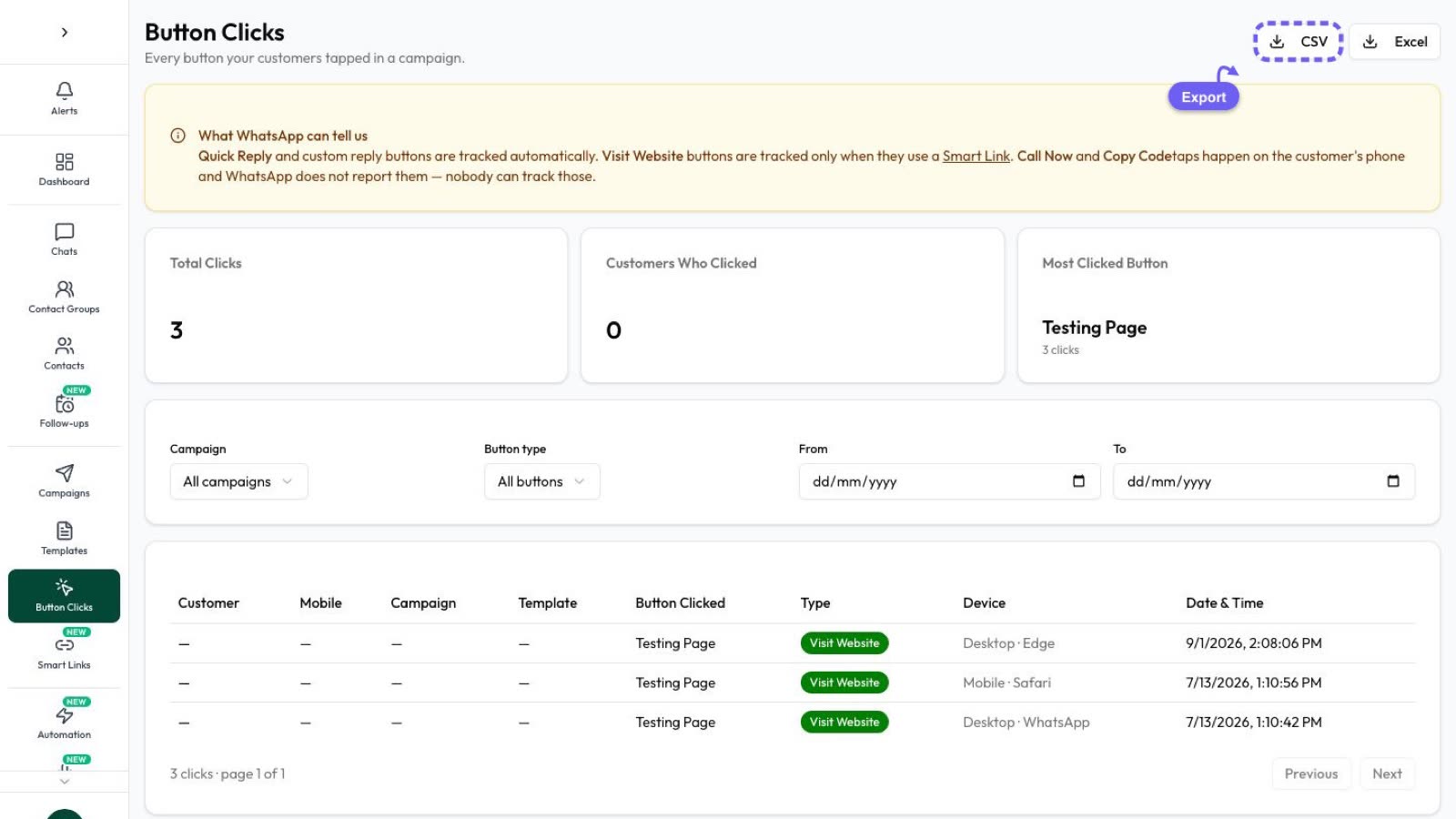
- Add a Smart Link to your website button, so you can see who tapped. Taps on a copy-code button can’t be tracked.
- Watch the replies. Keep someone on the team inbox on launch morning. An AI Assistant can answer common questions from your own documents on Series 2, 3 and 4, so add the new product’s details first.
- Follow up. In the finished campaign, click Retarget to create a new campaign for the results you pick, or export the people who tapped from Campaigns › Button Clicks.
Mistakes that waste a launch
- Leading with your news, not their benefit. “We’re excited to announce” says nothing. “Keeps drinks cold all day” does.
- Several buttons going to several pages. Pick one action.
- Sending the teaser to everyone. Save it for the people most likely to care.
- Forgetting the reply. People will ask about price, size and delivery in the chat. Have the answers ready.
- A dead link. Send the launch template to your own number and tap every button before you schedule the campaign.
- Stock you can’t back up. Make sure the product is really available at the moment the message lands.
Frequently asked questions
How do I write a new product launch message for WhatsApp?
Name the product, say what’s in it for the customer in one line, and give one action, such as a Shop now button. Add an image or short video, and end with a way to opt out.
Is a product launch message marketing or utility?
Marketing. Meta’s category guide treats news about something new as marketing, and any promotion in a template makes it marketing too.
How many WhatsApp messages should I send for a launch?
Up to three is a sensible limit: a teaser, a launch-day message and one follow-up. Send the first and last only to your most interested contacts.
How far ahead should I prepare my templates?
At least several days. Meta’s review can take up to 24 hours, and you’ll want time to fix a rejection and test every button.
Can I send a launch message to all my contacts?
Only to people who opted in to hear from your business on WhatsApp, and even then it’s better to skip anyone it isn’t relevant to. Marketing templates also aren’t delivered to US numbers.
Can I show several products in one launch message?
Yes. A carousel template shows up to 10 scrollable media cards, and each can have its own image and text. Automate AI supports carousel templates.
Sources
- Meta: Template categorization
- Meta: Messaging limits
- Meta: Per-user marketing template limits
- Meta: Template components
- Meta: Template review
- Meta: Template quality
- Meta: Pricing on the WhatsApp Business Platform
- WhatsApp Business Messaging Policy
WhatsApp rules and prices change. We check these guides against Meta’s documentation, but always confirm current terms with Meta before you rely on them. Questions? Message us on WhatsApp at +91 836 977 8812.