Meta Ads AI Connector: Manage Ads From Claude or ChatGPT
What Meta Ads AI Connectors are, how to set up Meta’s ads MCP server in Claude or ChatGPT, what the AI can change, and the rules that keep budgets safe.
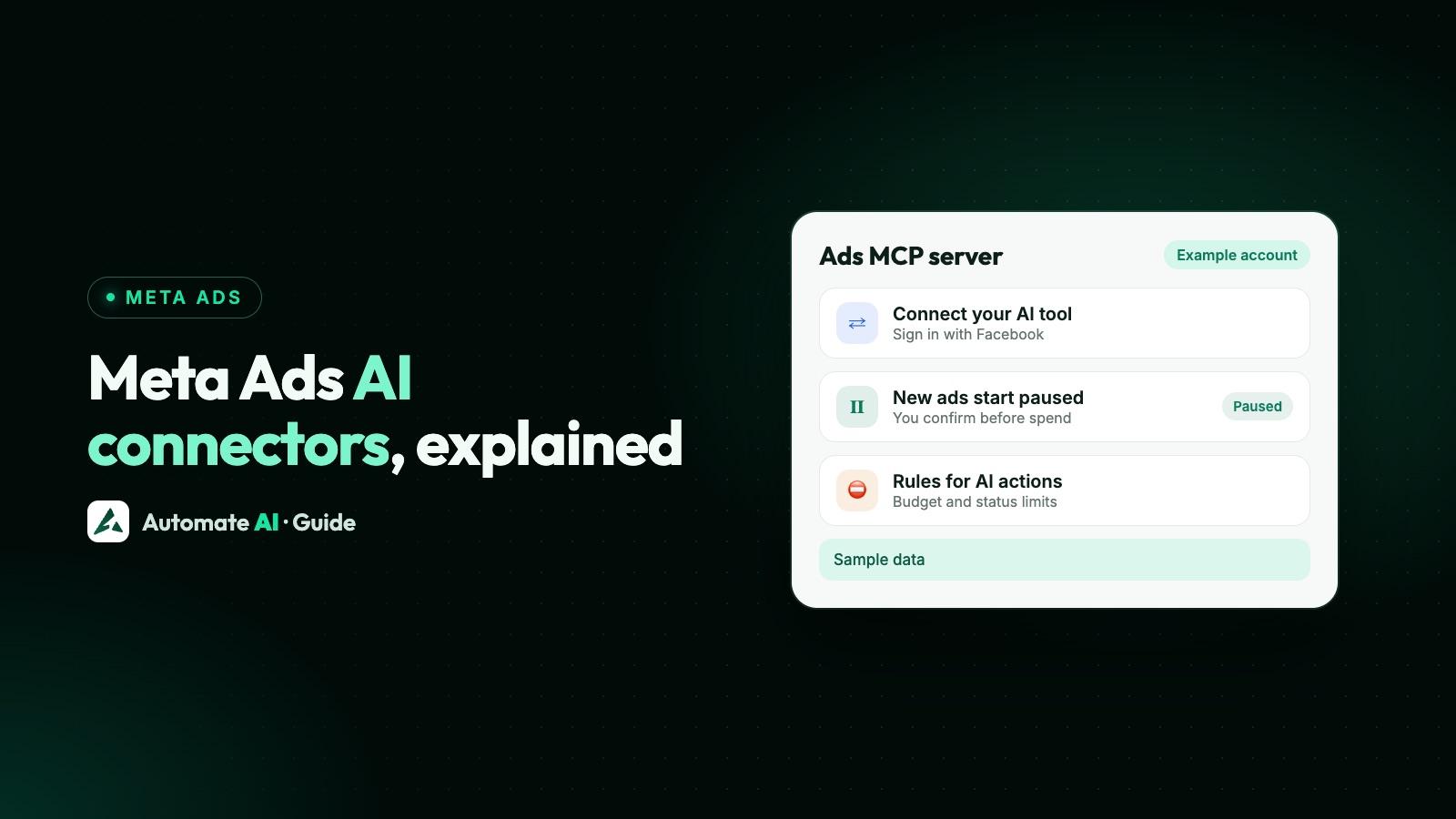
Meta Ads AI Connectors let you create, manage and analyse your Facebook and Instagram ads from an AI tool such as Claude or ChatGPT, by connecting it to Meta’s own ads MCP server at mcp.facebook.com/ads and signing in with Facebook. Meta announced them on 29 April 2026 in open beta, for businesses of all sizes across regions, and says the MCP route needs no developer credentials or coding.
This guide explains what the connector can do, how to set it up, what happens before anything spends money, the rules a business owner can set to limit an AI agent, where your data goes, and how it fits next to your WhatsApp tools.
Key takeaways
- Meta Ads AI Connectors are Meta’s ads MCP server and ads CLI. The MCP server is hosted by Meta and works with any MCP-compatible AI agent.
- An agent can report, create and edit campaigns, manage catalogues and audiences, check signals, run A/B tests and read the activity log.
- Write tools create campaigns, ad sets and ads paused. Meta says your AI client asks you to confirm before activating anything, because that starts spending.
- If you have full control of a business portfolio, you can block AI actions per ad account, such as creating campaigns or raising budgets above a cap, in Business Suite › Settings › Integrations › Ads MCP server.
- What your AI tool reads from your ad account goes to that AI company, under its terms.
What Meta Ads AI Connectors are
Meta’s announcement, “Introducing Meta Ads AI Connectors”, describes a secure, Meta-authenticated connection from your ad account to an AI agent, so you can build, run and review campaigns inside the AI tools you already use. There are two parts:
| Ads MCP server | Ads CLI | |
|---|---|---|
| What it is | A Meta-hosted Model Context Protocol server at mcp.facebook.com/ads | A command-line tool that wraps Meta’s Marketing API |
| Who it suits | Advertisers and agencies using a chat-style AI tool | Developers and automation work |
| Sign-in | Facebook login, no API setup needed | A system user access token |
MCP, the Model Context Protocol, is an open standard that lets AI tools talk to other software. Meta’s Help Centre puts it simply: an MCP server is a bridge between an AI agent and an outside system. If you’re new to the idea, our guide to the WhatsApp MCP server explains clients and servers in more detail.
Meta also offers the Meta AI business assistant inside Ads Manager. Meta positions the two as complements: the assistant for guidance and recommendations in Ads Manager, the connectors for your own AI tools and workflows. Meta notes you may not have access to every tool and feature yet.
What the AI can do through the connector
Meta’s Help Centre lists these tool groups for the ads MCP server:
| Tool group | What the agent can do |
|---|---|
| Reporting | Pull detailed reports and insights on campaign performance |
| Ad creation and management | Create and edit campaigns, ad sets and ads; create single image, video, carousel and product carousel creative; upload images and videos; request previews |
| Custom audiences | Create, update and delete custom audiences |
| Partnership ads | Create Facebook and Instagram partnership ads, boost posts and check or request creator permissions |
| Catalogues | Create a catalogue, add or delete products, build product sets and troubleshoot feeds |
| Signal diagnostics | Check signal health and quality, such as your pixel and datasets |
| Help and troubleshooting | Search Meta Business Help Centre articles |
| A/B tests and lift studies | Create and manage tests and conversion lift studies |
| Activity logs | See changes to an ad account, like the campaign history page in Ads Manager |
The developer documentation adds an Ad Library search and Instagram tools for boosting organic posts. To see exactly what your connection offers, Meta’s Help Centre suggests asking your AI agent which tools are available.
How to set up the Meta Ads AI connector
There are two routes. Most businesses use the first; the second is for developers who want the connection to run through their own Meta app.
Without a developer app
- Check you can open the ad account in Ads Manager with the Facebook profile you’ll sign in with.
- In your AI tool, add a new remote MCP connector and enter https://mcp.facebook.com/ads as the server address.
- Start the connection. The AI tool sends you to Meta’s Facebook Login for Business screen.
- Sign in with Facebook (or a Meta Managed Account) and review the permissions it asks for, then approve them.
- Back in the AI tool, test it with a read-only question such as “List my ad accounts” or “Show last week’s spend by campaign”.
Meta’s Help Centre article “Manage ads from an AI agent with Meta ads AI connectors” links to the latest setup guide. The menus in each AI tool change often, so follow that tool’s own help for adding a connector.
With your own Meta developer app
Meta’s developer guide says to create or open an app at developers.facebook.com/apps and add the use case Create & manage ads with ads MCP server. It then gives steps for two clients:
- Claude Code: run
claude mcp add --transport http --client-id <META_APP_ID> meta-ads https://mcp.facebook.com/ads, make sure your app’s redirect URL matches Claude Code in the Facebook Login for Business settings, then sign in. - ChatGPT: set your app’s redirect URL to ChatGPT’s specification, follow ChatGPT’s developer mode steps, choose OAuth, enter https://mcp.facebook.com/ads as the server URL and your Meta app ID as the OAuth client ID under Advanced OAuth Settings.
At minimum the token needs the ads_mcp_management permission plus ads_read or ads_management. Optional permissions such as catalog_management and pages_show_list unlock more tools.
What happens before anything spends money
An AI agent that can change ads can also change budgets, so it’s worth knowing Meta’s safeguards:
- New work starts paused. Meta’s developer documentation says write tools create campaigns, ad sets and ads in a paused state.
- Activation needs your yes. Turning a paused item on starts spending, and Meta says your AI client asks for confirmation first.
- Draft mode. Meta’s Help Centre says ads MCP draft mode saves new campaign work for review before publishing, and avoids pausing running campaigns automatically when you make changes.
- Your authorisation. Meta states that any actions taken on your behalf require your authorisation through the AI agent.
Does connecting put your account at risk? Meta’s Help Centre says it’s unlikely an account would be banned simply for using the ads MCP server; bans usually come from breaking Meta’s advertising standards. The ads an agent writes still have to follow those standards, so read them before you approve.
Set rules for what AI agents can do
Since a July 2026 update, anyone with full control of a business portfolio can set rules per ad account or catalogue, and Meta’s server enforces them. In Meta’s words, if you don’t see the option, you don’t have access to the feature yet; the developer documentation calls it limited availability.
- Go to Settings in Meta Business Suite.
- Under Integrations, select Ads MCP server.
- Select the ad account or catalogue.
- Allow or block specific actions, such as creating campaigns.
| Rule | What it stops |
|---|---|
| Create campaigns, ad sets or ads | An agent making new items in that ad account |
| Edit or set budget | Budget changes, or only increases above a percentage, an amount or a ceiling you set |
| Edit targeting | Changes to audiences and targeting |
| Edit creative | Changes to images, videos and text |
| Edit status | Pausing or switching delivery on |
| All | Every agent action on the account |
Meta’s example: set budgets above a maximum of $1,000 to blocked, and any agent request to set a budget over that is refused. If you give an agency access to your ad account, it can set its own rules for that account too, but those apply only to people in the agency’s business. Giving partners access safely is covered in how to give access to a Facebook ad account.
Where your ad data goes
When you connect an AI tool, everything it reads, such as campaign names, spend, audiences and results, goes to that AI company and is handled under its terms and your plan with it. Check those terms before you connect a client’s ad account, and connect only the accounts you need.
- Use an AI tool plan whose data terms your business accepts.
- Think before letting an agent handle customer lists: custom audience tools can add and change the people in your audiences.
- Set at least a budget rule before you let an agent near a live account.
- Review the ad account’s activity log after a session; the agent can read it for you too.
The connector and your WhatsApp leads
Meta’s connector works on the ads side. If your ads open WhatsApp chats, the conversations themselves live in your WhatsApp platform. Two ways Automate AI fits in:
- No AI tool needed for ads. Under Meta Ads in Automate AI’s main menu (every plan, owners and managers), you describe an offer and AI drafts a Click-to-WhatsApp ad, audience and greeting. It shows spend, chats started and new contacts for every ad in your connected ad account, including ones made in Ads Manager. See Click-to-WhatsApp Ads.
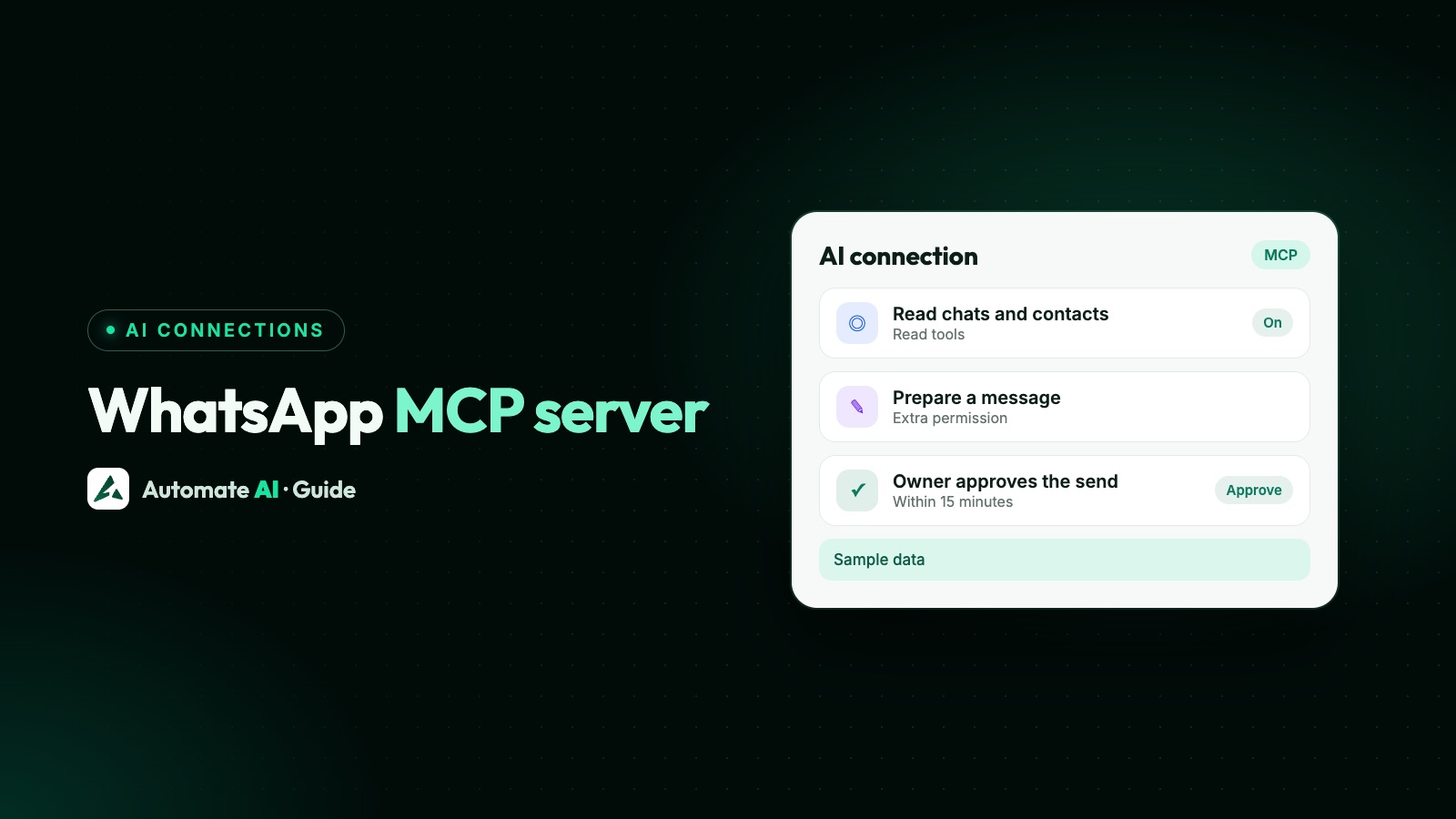
- Your own AI tool for the WhatsApp side. AI Connections is Automate AI’s own MCP server: Claude, ChatGPT or Cursor can read your contacts, chats, templates and campaign results, add contacts or prepare a message if you allow it, and an owner or manager approves each send within 15 minutes. It’s on every plan, but not for businesses under a white-label reseller.
Connected side by side, you can ask one AI tool about last week’s ad spend from Meta and about the WhatsApp chats your team handled from Automate AI. For a weekly view of the numbers that matter, see Meta ads reporting.
Frequently asked questions
What are Meta Ads AI Connectors?
Meta’s ads MCP server and ads CLI, announced in open beta on 29 April 2026. They let you create, manage and analyse Meta ads from an AI tool you already use.
How do I connect Claude to Meta Ads?
Add a remote MCP connector in Claude with the server address https://mcp.facebook.com/ads, then sign in with Facebook and approve the permissions. Meta’s developer guide also gives a Claude Code command for people using their own Meta app.
Does it work with ChatGPT?
Yes. Meta’s developer guide gives ChatGPT steps using developer mode and OAuth, with https://mcp.facebook.com/ads as the server URL. Meta says the server works with any MCP-compatible AI agent. Custom MCP connectors in ChatGPT depend on your ChatGPT plan, so check that your plan offers them.
Can the AI spend money without asking?
Meta says new campaigns, ad sets and ads are created paused and your AI client asks for confirmation before activating them. You can also block budget changes above a limit with ads MCP server rules.
Is the Meta Ads AI connector free?
Meta’s pages don’t mention a charge for the connector. You still pay Meta for the ads you run, and your AI tool’s own plan may have its own limits.
Can using it get my ad account banned?
Meta says that’s unlikely from using the ads MCP server alone. Bans usually come from breaking Meta’s advertising standards, so check every ad the AI writes before it goes live.
Sources
- Meta for Developers: Introducing Ads CLI
- Meta for Business: Introducing Meta Ads AI Connectors
- Meta Business Help Centre: Manage ads from an AI agent with Meta ads AI connectors
- Meta for Developers: Ads MCP Server overview
- Meta for Developers: Ads MCP Server, get started
- Meta for Developers: Ads MCP Server, ad creation and management tools
- Meta for Developers: Ads MCP Server, rules best practices
WhatsApp rules and prices change. We check these guides against Meta’s documentation, but always confirm current terms with Meta before you rely on them. Questions? Message us on WhatsApp at +91 836 977 8812.