How to Lock Chats in WhatsApp Business
How to lock a chat in WhatsApp Business, open the Locked chats folder, set and hide a secret code, and what to do if chat lock is missing or the code is lost.
To lock a chat, press and hold it in your chat list and tap Lock chat (on Android it’s under the ⋮ menu), then confirm with your fingerprint, face or phone passcode. The chat moves into a Locked chats folder at the top of your list, which opens only after you unlock it again.
WhatsApp’s Help Center describes chat lock in one article for WhatsApp on Android and iPhone; it doesn’t give separate steps for the Business app, so if you don’t see Lock chat, update the app first. This guide covers the steps, the secret code, what chat lock does and doesn’t protect, and how to keep customer chats private when a team shares one number.
Key takeaways
- Lock any chat, including groups, by pressing and holding it and choosing Lock chat. The other person isn’t told.
- Open locked chats by swiping down on the chat list and tapping Locked chats.
- A secret code lets you hide the folder and open locked chats on WhatsApp Web or desktop. You create it on your phone.
- Forgot the code? The only fix clears every message, photo and video in your locked chats.
- Chat lock protects chats on your phone. It doesn’t give staff their own access, and calls from locked chats still come through.
What chat lock does, and what it doesn’t
Chat lock moves chosen chats out of your main list into a separate folder behind an extra check: your phone’s passcode, Face ID, fingerprint, or a secret code. WhatsApp introduced it in May 2023. It’s useful when someone else picks up the shop phone, or when you show a screen to a customer.
| Chat lock does | Chat lock doesn’t |
|---|---|
| Hide the chat from your main chat list | Tell the customer or group that you locked it |
| Hide the name and message in notifications (they show “WhatsApp” or “WhatsApp: 1 new message”) | Block calls from that contact |
| Close locked chats when you lock your phone | Protect your other chats; use app lock for that |
| Keep chats locked after you restore a backup on a new phone | Give different staff different access |
| Work for one-to-one chats, groups and muted chats | Stop media being saved: you can still save files by hand |
How to lock a chat
- Set up a phone lock first. If your phone has no passcode, fingerprint or face unlock, WhatsApp asks you to create one before you can lock chats.
- Find the chat in your chat list.
- Press and hold it. On Android, tap ⋮ and then Lock chat. On iPhone, tap Lock chat in the menu.
- Confirm with your fingerprint, face or passcode.
The chat disappears from the main list and appears in Locked chats. To unlock it, do the same and choose Unlock chat. Unlocking also brings back the contact’s name in notifications.
How to open your locked chats
- On the chat list, swipe down and tap Locked chats.
- Unlock with your fingerprint, face or passcode, or tap Use secret code if you’ve set one.
- If you’ve hidden the folder, tap the search bar instead, type your secret code and tap Locked chats.
Locked chats close again as soon as you lock your phone, so you don’t need to remember to lock them yourself.
Set a secret code and hide the folder
A secret code is a separate password just for locked chats. It’s separate from your phone’s passcode, which can still open locked chats on the phone itself. The code is what lets you hide the folder completely and open locked chats on WhatsApp Web, the desktop app or an iPad.
- Swipe down on the chat list and tap Locked chats.
- On Android, tap ⋮ › Chat lock settings › Secret code. On iPhone, tap Settings › Secret code.
- Enter the code, tap Next, enter it again and tap Done.
- To hide the folder, go back to the same settings and turn on Hide locked chats. From then on, locked chats appear only when you type the code in the search bar.
To turn the code off, open the same settings, tap Secret code › Turn off › Continue. Pick a code you’ll remember, because there’s no reset (see below).
Chat lock not showing? Check these
| What’s happening | Likely reason | What to try |
|---|---|---|
| No Lock chat option when you hold a chat | An older version of the app, or on Android it’s inside the ⋮ menu | Update WhatsApp Business, then look under ⋮ after pressing and holding |
| WhatsApp asks you to set something up | Your phone has no passcode or biometric lock | Add a screen lock in your phone’s settings, then try again |
| The Locked chats folder has gone | You turned on Hide locked chats | Type your secret code in the search bar |
| You can’t see locked chats on WhatsApp Web or desktop | Locked chats need a secret code there | Create a secret code on your phone, then enter it on the computer |
| You can’t hide or clear locked chats from the computer | Those settings are only on the phone | Use your Android phone or iPhone |
WhatsApp’s chat lock article lists no other requirement beyond a phone lock, so if the option is still missing after an update, check again after the next update.
If you forget your secret code
There’s no way to reset a forgotten code without losing the chats. On your main phone, go to Settings › Privacy › Chat lock › Unlock and clear locked chats › Unlock and clear. This removes the code and clears every message, photo and video in your locked chats.
Chat lock, app lock or two-step verification?
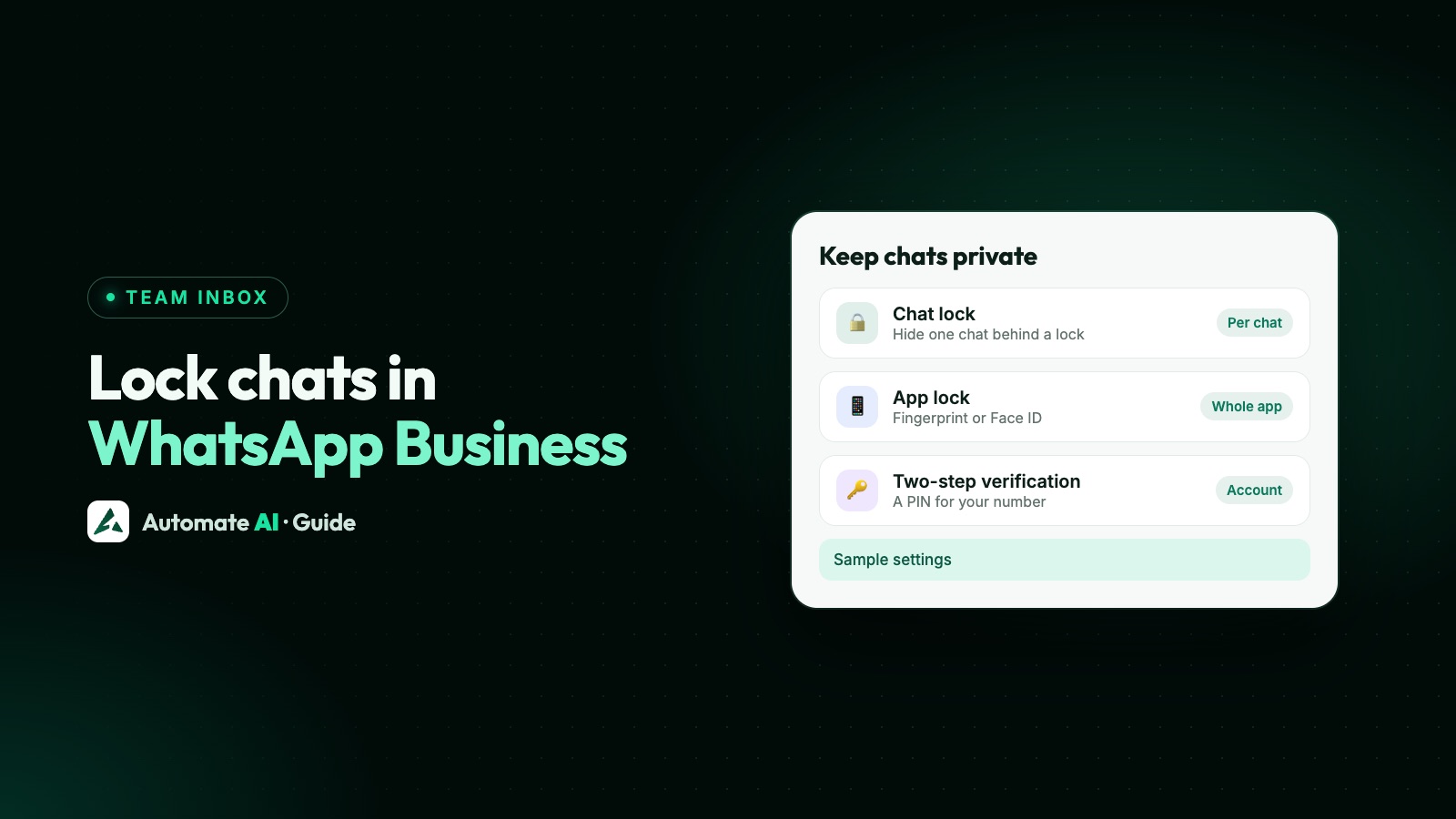
WhatsApp’s security tips recommend chat lock and app lock together. They protect against different things:
| Feature | What it protects | Where to find it |
|---|---|---|
| Chat lock | Chosen chats, from someone holding your unlocked phone | Press and hold a chat › Lock chat |
| App lock | The whole app, with your fingerprint or face | Android: ⋮ › Settings › Privacy › App lock. iPhone: Settings › Privacy › App Lock |
| Two-step verification | Your account, from someone registering your number on another phone | Settings › Account › Two-step verification |
| Linked devices check | Against a computer or phone you didn’t link | ⋮ › Linked devices on Android (Settings › Linked devices on iPhone), then Log out on anything you don’t recognise |
With app lock on, you can still answer calls, and on iPhone reply from notifications too. On iPhone you choose whether it locks immediately or after 1 minute, 15 minutes or 1 hour. WhatsApp also says never to share your registration code or password with anyone.
Keeping customer chats private in a team
Chat lock works on one phone. If several people answer your number on linked devices, they all see the same chat list, and anyone with the secret code can open every locked chat. There’s no way to give one person access to some chats and not others. More on that in WhatsApp Business on multiple devices.
On the WhatsApp Business API, your team works in a shared team inbox with their own logins instead of one shared phone. In Automate AI you control who sees what with settings rather than a folder:
- Agents see their own chats. In Settings › Auto Assignment, leave Grant agents access to view all chats not assigned to them off (it is by default), and agents see only the chats assigned to them.
- Managers see their department. Turn on Managers see only their department to keep a manager to their team’s chats and contacts, plus unassigned chats.
- Hide customer numbers. Staff see masked numbers such as +91 98••••••45 and can’t export contacts, but can still chat.
- Two-step login. Each person can add a code from an authenticator app or email after their password, in Settings › Security. For now, accounts with two-step login sign in on the website.
- Branches with a PIN. Each branch has its own number, team and PIN, asked every time anyone switches into it.
When someone leaves, you remove them from the team instead of taking back a phone. You can keep using the Business app on the same number with coexistence, and read how chats are protected on the API in WhatsApp Business API encryption.
Frequently asked questions
Can WhatsApp Business lock chats?
WhatsApp’s Help Center describes chat lock for WhatsApp on Android and iPhone without a separate Business app article. To try it, press and hold a chat and look for Lock chat (under ⋮ on Android). If it isn’t there, update the app.
Why is chat lock not showing in WhatsApp Business?
Update the app, then press and hold a chat and check the ⋮ menu on Android. If WhatsApp asks you to set up a phone lock, add a passcode, fingerprint or face unlock first. If the folder has gone, you may have hidden it: type your secret code in the search bar.
Does the customer know I locked our chat?
No. WhatsApp says locking a chat doesn’t notify the other people in it.
Can I lock a group chat?
Yes. Any chat can be locked, including groups and muted chats.
What happens if I forget my chat lock secret code?
You can unlock and clear locked chats in Settings › Privacy › Chat lock, but that deletes every message, photo and video in them. They come back only from a backup made before you cleared them.
Can I open locked chats on WhatsApp Web?
Yes, with a secret code. You have to create the code on your Android phone or iPhone first, then enter it on the computer.
Will I still get calls from a locked chat?
Yes. WhatsApp says calls from contacts in locked chats aren’t blocked.
Sources
- WhatsApp Help Center: Turn chat lock on or off (Android)
- WhatsApp Help Center: Turn chat lock on or off (iPhone)
- WhatsApp Help Center: Turn chat lock on or off (Web)
- WhatsApp Help Center: How to use app lock
- WhatsApp Help Center: Account security tips
- WhatsApp Help Center: Two-step verification
- WhatsApp Blog: Chat Lock
WhatsApp rules and prices change. We check these guides against Meta’s documentation, but always confirm current terms with Meta before you rely on them. Questions? Message us on WhatsApp at +91 836 977 8812.