Disappearing Messages on WhatsApp Business (App and API)
Does WhatsApp Business have disappearing messages? Yes in the app (24 hours, 7 or 90 days), not on the API. How to turn them on, limits and API alternatives.
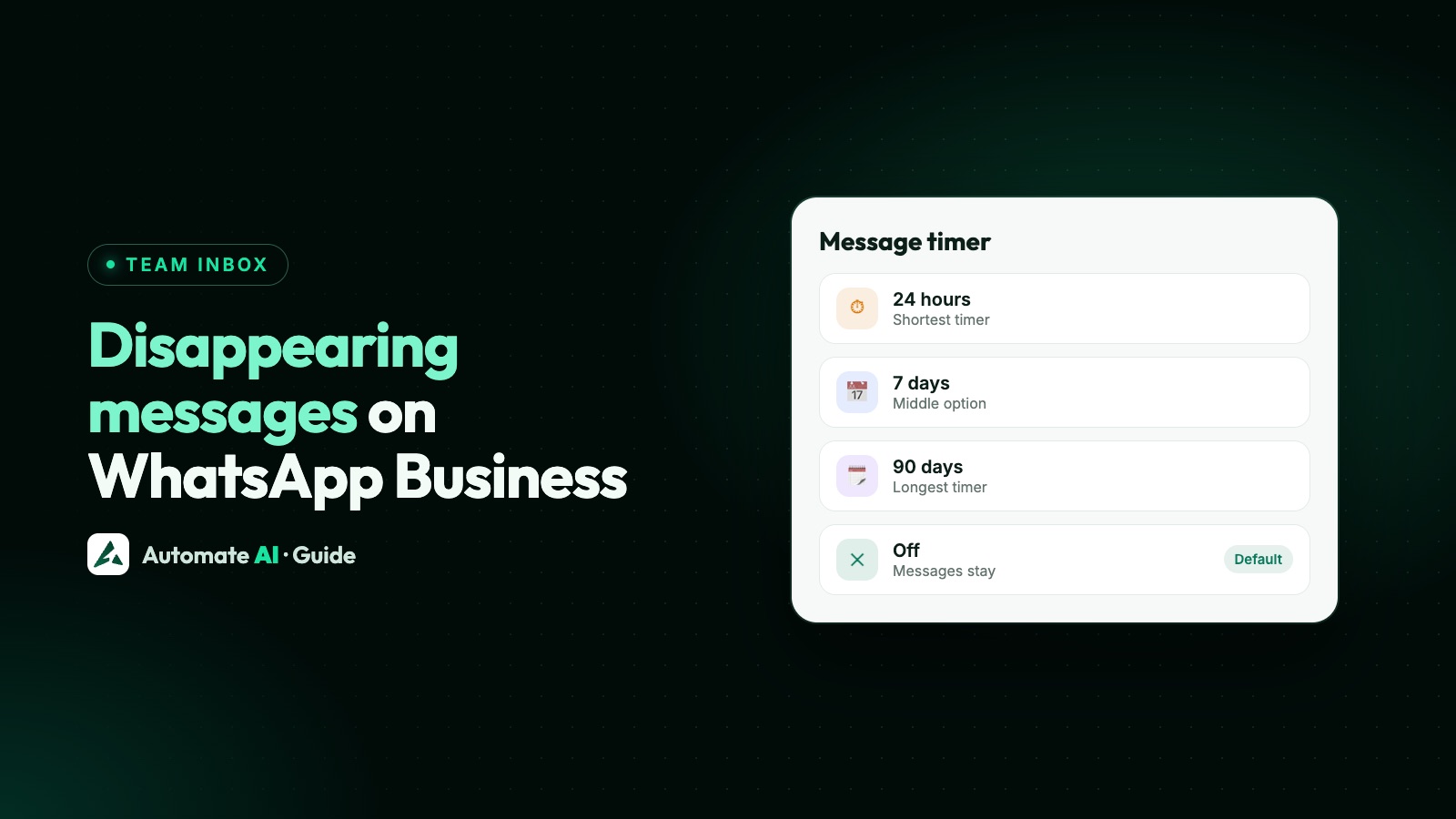
The WhatsApp Business app has disappearing messages: open a chat, tap its name, choose Disappearing messages and pick 24 hours, 7 days or 90 days. The WhatsApp Business API doesn’t: Meta lists disappearing messages as not supported on the Cloud API, and connecting a Business app number to the API turns them off in one-to-one chats.
That difference matters if you’re moving to a shared inbox or a chatbot. This guide covers how the timer works in the app, what it doesn’t delete, what changes when you connect to the API, and what to use instead when you need chats to hold less data.
Key takeaways
- In the Business app, either side of a chat can turn disappearing messages on, with a 24-hour, 7-day or 90-day timer.
- A default message timer in Settings › Privacy applies to new chats.
- Disappearing messages don’t clean everything: backups, forwards, quoted replies and kept messages can outlive the timer.
- On the Cloud API they’re not supported. With coexistence, Meta turns them off for one-to-one chats when you connect.
- On the API, keep chats safe by not asking for sensitive data, and by deleting the records you no longer need from your inbox tool.
Which WhatsApp Business setups have disappearing messages?
| Setup | Disappearing messages? | Notes |
|---|---|---|
| WhatsApp Business app | Yes | Same timers as WhatsApp: 24 hours, 7 days or 90 days |
| Business app with Meta Business Agent on | May be limited | WhatsApp says the agent can affect disappearing messages, broadcast lists, and greeting and away messages |
| WhatsApp Business API (Cloud API) | No | Meta lists the feature as not supported |
| Business app number connected to the API (coexistence) | Off in one-to-one chats | Meta turns it off for individual chats when you connect |
If you’re still deciding between the app and the API, the bigger picture is in WhatsApp vs WhatsApp Business and the WhatsApp Business app’s limitations.
How to turn on disappearing messages in the Business app
WhatsApp’s Help Center gives these steps. Labels can vary slightly between phones and versions.
For one chat
- Open the chat.
- Tap the contact’s name.
- Tap Disappearing messages, and Continue if asked.
- Choose 24 hours, 7 days or 90 days. Choose Off to turn it off.
- Tap back to apply.
For all new chats
- Tap the three-dot menu, then Settings › Privacy.
- Tap Default message timer.
- Choose a duration, or Off.
- To apply it to existing chats too, select them and tap the tick. Otherwise tap back.
In a one-to-one chat, either you or the customer can turn the timer on or off. The setting only affects new messages, not ones already sent or received.
What disappearing messages don’t delete
The timer removes messages from the chat, but WhatsApp’s Help Center lists several ways a message can outlive it:
| Case | What happens |
|---|---|
| Backups | A message that disappears after a backup was made stays in that backup, and is removed if the backup is restored |
| Forwarding | A forwarded message stays in the new chat if that chat has disappearing messages off |
| Quoted replies | The original can still show inside a reply after the timer runs out |
| Notification previews | If the app isn’t opened in time, the message goes from the chat but its preview may remain |
| Kept messages | Anyone in the chat can keep a message before it disappears, if the sender allows it |
| Media | Photos and videos are deleted with the message and aren’t saved to the phone’s gallery |
Nothing stops someone copying or photographing a message either, so disappearing messages are a way to keep chats tidy, not a way to keep secrets. WhatsApp also says that in certain countries, payment and order messages can’t be set to disappear, though people can delete them one by one.
Why the API doesn’t have disappearing messages
On the API there’s no phone app. Messages arrive at your systems through webhooks, and your platform stores them so your team, chatbots and reports can use them. Meta’s own documentation doesn’t offer a disappearing timer for Cloud API messages, and its coexistence guide lists the feature as not supported.
Meta’s docs also don’t describe what a customer sees if they set a timer in a chat with an API number, so don’t rely on one either way. Assume the business side keeps a record of the conversation, and plan your messages with that in mind.
What Meta does document is how long it keeps message content itself:
| Cloud API setting | How long Meta keeps message content at rest |
|---|---|
| Standard | 30 days |
| No Storage | Not stored at rest; messages and media are held for up to 1 hour in transit |
No Storage is set on the number before it’s registered, only a 1-hour limit is allowed, and it has trade-offs: webhooks are retried for only 1 hour instead of up to 7 days, and incoming media must be downloaded within that hour. Your provider’s copy of the chat is separate from Meta’s, so ask them how long they keep it.
What changes when you connect a Business app number to the API
With coexistence, you keep using the WhatsApp Business app on the same number while a platform uses the API. Meta’s onboarding guide lists what changes in the app when you connect:
| App feature | After connecting | On the Cloud API |
|---|---|---|
| Disappearing messages | Turned off for all one-to-one chats | Not supported |
| View once messages | Disabled for all one-to-one chats | Not supported |
| Live location messages | Disabled for all one-to-one chats | Not supported |
| Broadcast lists | Disabled; existing lists become read-only | Not supported |
If you relied on disappearing messages in the app, tell your team before you connect, because chats that used to clear themselves won’t any more. Setup, limits and fixes are in WhatsApp coexistence.
How to keep API chats private without disappearing messages
Most businesses want disappearing messages for one of three reasons: privacy, a tidy inbox or less data to look after. Each has an answer on the API:
| You want to | Do this instead |
|---|---|
| Avoid holding sensitive data | Never ask for full card, account or ID numbers in chat. WhatsApp’s Business Messaging Policy forbids it |
| Take payments or logins safely | Send a link to a secure page instead of collecting details in chat |
| Keep the inbox tidy | Archive or close finished chats rather than deleting them |
| Remove a conversation you no longer need | Remove it in your inbox tool (it doesn’t touch the customer’s phone); check whether that hides it or erases it |
| Limit what Meta stores | Ask your provider about No Storage, and accept its 1-hour limits |
| Meet data laws | Set your own retention rules and handle deletion requests |
Health businesses should keep medical details out of chat altogether: confirm a date and time, not the reason for the visit. For data rules, see WhatsApp and GDPR and WhatsApp Business API encryption. These posts aren’t legal advice; check your own obligations.
Chats in Automate AI
Automate AI uses the Cloud API, so there’s no disappearing messages timer. Conversations stay in the shared inbox so your team can pick up where a colleague left off, and so chatbots and AI replies have the history they need.
- Delete a chat: owners and managers can choose Delete Chat from the chat menu. It hides the conversation in Automate AI, and the customer keeps their copy. To handle a deletion request, delete the contact instead, which removes its chat history for good.
- Hide spam or wrong numbers: turn on Irrelevant chats in Settings › Chat Tools, then use Mark as irrelevant, which can also archive the chat or block the number in Automate AI.
- Delete your account data: follow the Data Deletion page.
Automate AI doesn’t offer Meta’s No Storage setting, so Meta’s standard storage applies to messages sent and received through it.
Frequently asked questions
Does WhatsApp Business have disappearing messages?
The WhatsApp Business app does, with 24-hour, 7-day and 90-day timers. The WhatsApp Business API (Cloud API) doesn’t support them.
Can I send disappearing messages through the WhatsApp Business API?
No. Meta’s coexistence guide lists disappearing messages as not supported on the Cloud API.
Why did disappearing messages turn off in my WhatsApp Business app?
If you connected your app number to an API platform (coexistence), Meta turns disappearing messages off for all one-to-one chats. Meta Business Agent can also limit the feature in the app.
Who can turn on disappearing messages in a chat with a business?
In the Business app, either side of a one-to-one chat can turn them on or off. The timer only applies to new messages.
Do disappearing messages delete backups?
No. A message that disappears after a backup was made stays in that backup, and is removed only if the backup is restored. Forwarded messages and quoted replies can also outlive the timer.
How long does Meta keep Cloud API messages?
Meta’s docs say message content is normally kept at rest for 30 days. With No Storage, messages aren’t stored at rest and are held in transit for up to 1 hour.
Sources
- WhatsApp Help Center: About disappearing messages
- WhatsApp Help Center: How to turn disappearing messages on or off
- WhatsApp Help Center: About using Meta Business Agent
- Meta: Onboard WhatsApp Business app users (coexistence)
- Meta: No Storage (Cloud API)
- WhatsApp Business Messaging Policy
WhatsApp rules and prices change. We check these guides against Meta’s documentation, but always confirm current terms with Meta before you rely on them. Questions? Message us on WhatsApp at +91 836 977 8812.