Messenger Ads vs WhatsApp Ads: Which Chat Should Your Ad Open?
How Messenger ads work in Meta Ads Manager, with examples, how they compare with ads that open WhatsApp, and how to choose, or let Meta pick per person.
Messenger ads are Meta ads that open a conversation with your Facebook Page in Messenger when someone taps them, set up in Ads Manager by choosing message destinations as the conversion location. The same kind of ad can open WhatsApp or Instagram Direct instead, or all three, with Meta sending each person to the app they’re most likely to use.
So the real question isn’t how to make a Messenger ad, which takes a few minutes, but which chat your ad should open. This guide shows how Messenger ads work, gives examples, compares them fairly with WhatsApp ads, and helps you choose for your business.
Key takeaways
- Ads that click to Messenger work with the Traffic, Engagement, Leads and Sales objectives.
- Messenger is linked to your Facebook Page automatically. WhatsApp needs a number connected to the Page first.
- Messenger lets you build a question-and-answer lead flow inside Meta’s ad setup. On WhatsApp, the follow-up is usually handled by your WhatsApp platform.
- Both channels give you a reply window after the ad: on Messenger, up to 7 days for a first message after the ad; on WhatsApp, a free entry point window of up to 7 days.
- Pick the app your customers actually answer on. If you use both, Meta can choose per person with multiple message destinations.
What Messenger ads are
Meta calls them ads that click to Messenger, part of a family of click-to-message ads that also open Instagram Direct or WhatsApp. The ad itself looks like any Facebook or Instagram ad, with an image or video, text and a Send message button. A tap opens Messenger with your Page, and a welcome message you set up appears.
“Messenger ads” is also sometimes used for ads shown inside Messenger. Meta offers a Messenger Stories placement, included in Advantage+ placements when you choose a compatible objective, or ticked by hand under placement controls. That’s about where the ad appears; this guide is mostly about where the tap leads.
Your objective decides who Meta shows the ad to:
| Objective | What Meta optimises for |
|---|---|
| Traffic | Sending people to a Messenger conversation |
| Engagement | People more likely to respond to your business in Messenger |
| Leads | Collecting leads in Messenger, or with an instant form and Messenger |
| Sales | People more likely to buy, or events tracked with your Meta Pixel |
For which objective suits which goal across all ad types, see Meta ads objectives explained.
How to create a Messenger ad in Ads Manager
- In Ads Manager, click Create and choose Traffic or Engagement (or Leads or Sales; the steps are similar).
- Name the campaign and click Next.
- Under conversion location, choose Message destinations. For Leads, choose Messenger or Instant forms and Messenger.
- Choose your performance goal, then your budget, schedule, audience and placements.
- Pick the ad format and add your media, text and the Send message button.
- Under Message template, create a new one or use an existing one.
- Finish the ad and click Publish. Once approved, a tap opens Messenger with your welcome message.
The message template is where Messenger ads differ from many others. Meta offers up to three kinds, depending on your setup:
- Start conversations: a greeting plus prompts people can tap, such as “What are your prices?”.
- Automated chat: a question-and-answer flow that collects details from people interested in your business.
- Customised experience: in advanced setup, a more tailored flow after the tap.
Messenger ad examples (sample data)
Our own examples, for a few kinds of business. The same ideas work on WhatsApp, with a greeting and a first message instead of tap-to-send prompts.
| Business | Ad text | Welcome message and prompts |
|---|---|---|
| Restaurant | Book a table for Saturday in one message. | “Hi! For how many people?” · “2” · “4” · “6 or more” |
| Coaching centre | Weekend maths batches for Class 10. Ask us about timings. | “Hello! Which batch are you interested in?” · “Morning” · “Evening” · “Fees” |
| Furniture shop | Custom sofas made to your size. Send us your room size. | “Hi! What size are you looking for?” · “2-seater” · “3-seater” · “L-shape” |
| Salon | Bridal packages for November. See prices in chat. | “Welcome! When is the big day?” · “This month” · “Next month” · “Just looking” |
Meta’s best practices for click-to-message ads come down to the same few points: greet people in a way that shows you’re ready to help, say clearly in the ad that tapping opens a chat (“Message us to learn more”), and keep the creative short and in line with your objective.
Messenger vs WhatsApp: how they compare
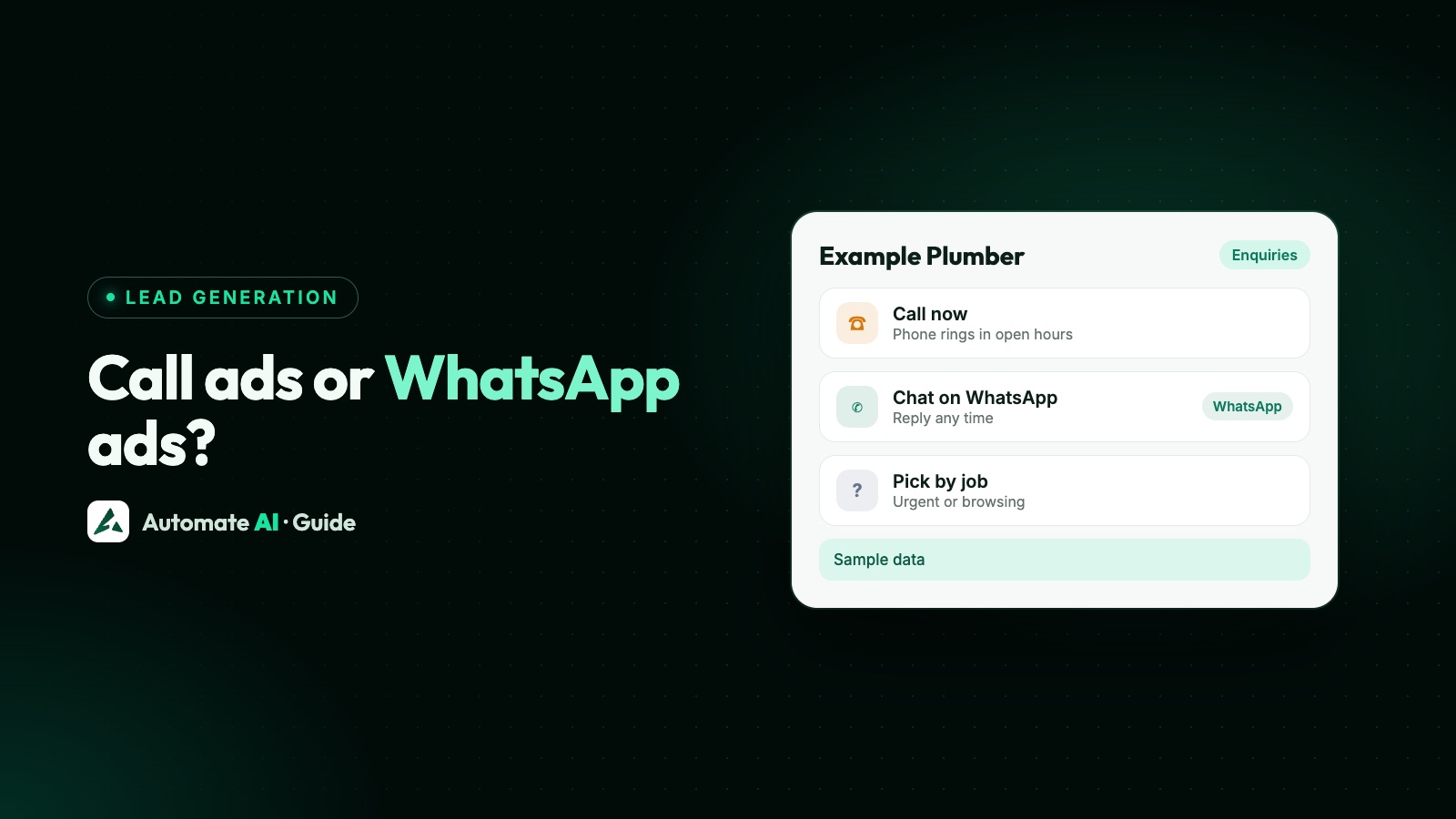
Both are click-to-message ads from the same Ads Manager. The differences are in what happens around the chat:
| Point | Messenger | |
|---|---|---|
| What you need | A Facebook Page (Messenger is linked automatically) | A WhatsApp number connected to your Facebook Page |
| Who you talk to | The person’s Messenger account | The person’s WhatsApp number |
| Lead questions | Automated chat flow built in Meta’s ad setup (mainly used for Messenger) | Greeting and first message in the ad; the rest from your WhatsApp platform or chatbot |
| Reply window after the ad | Normally 24 hours; a first message after the ad can extend it to 7 days | 24-hour customer service window; replying inside it opens a free entry point window of up to 7 days |
| Messaging later | Sponsored Messages (paid and labelled), Marketing Messages if the person opts in, or one One-Time Notification they agreed to (time-sensitive, not for general promotion) | Approved templates can be sent any time to people who opted in, charged per delivered message |
| Manual replies after the window | A person can reply for 7 days with the Human Agent tag (not for promotions) | Templates only |
| Placements | Includes Messenger Stories | Includes WhatsApp Status, where offered |
Two notes on the windows. On WhatsApp, Meta’s pricing documentation says the free entry point window only applies when the customer messages from the ad on the Android or iOS app, not WhatsApp Web or desktop, and when you reply inside the 24-hour window. Meta also says the free messaging period after click-to-message ads may not be available to every business yet.
The biggest practical difference is the follow-up. A WhatsApp chat gives you a phone number and the option, with consent, to send approved template messages later: reminders, offers, order updates. That’s why many businesses that sell over chat pick WhatsApp. Messenger is a fair choice when your customers live on Facebook, and its built-in automated chat can collect lead details without any other tool.
Which chat should your ad open?
| If this is you | Lean towards |
|---|---|
| Your customers already message your Facebook Page, and rarely use WhatsApp | Messenger |
| You want lead questions answered in the chat, without a messaging platform | Messenger (automated chat) |
| Your customers expect to reach businesses on WhatsApp | |
| You follow up over days or weeks: quotes, bookings, repeat orders | WhatsApp, for templates after the window |
| A team replies from a shared inbox with chatbots and AI | WhatsApp through the WhatsApp Business API |
| You honestly don’t know, and can answer on both | Multiple message destinations, then check the breakdown |
Answer speed matters more than the app. An ad that opens a chat nobody answers for hours wastes the tap, whichever app it is. Choose the channel your team can reply on quickly, every day the ad runs.
If you’re also weighing chat ads against your website or a lead form, that’s a separate decision: see Click-to-WhatsApp ads vs website vs lead forms.
Let Meta choose: multiple message destinations
If your business messages customers on two or more of Messenger, Instagram Direct and WhatsApp, one ad can open all of them. Each person who taps goes to the app where Meta expects them to engage most, and Meta shares the budget between destinations. Meta says this drives more results at a lower cost per result; that’s Meta’s claim, so check it against your own numbers.
- Link your Instagram account and WhatsApp number to your Facebook Page. Messenger is already linked.
- Create a campaign with Engagement (Meta’s recommendation), Traffic or Sales.
- Choose Message destinations and your Page. Automatic destination is selected by default; switch to manual only to leave one out.
- Set the audience, budget and ad, and pick a message template.
- After launch, open the campaign, click Breakdown › Action › Messaging outcome destination to see results per app.
Meta also notes that the customised experience template only works with the Messenger and Instagram Direct pair, and that you should be ready to answer on every destination you select. Meta suggests running click-to-message campaigns for 7 days or more for stable results. To compare destinations properly rather than by feel, use an A/B test: see how to A/B test Meta ads.
Making chat ads in Automate AI
Automate AI is built around WhatsApp. Its Meta Ads menu (every plan, for owners and managers) can write a Click-to-WhatsApp ad from one line about your offer (headline, text, audience and greeting) if you’ve added your own AI key in Settings; otherwise you write it yourself. You check it, add a photo and publish it from your own ad account, and the ad opens a chat with your connected WhatsApp number.
The same menu can also make other ad types, including Messenger chats, where people message your Facebook Page. A Messenger ad made there uses the Engagement objective, optimised for conversations, and lets you add an optional greeting and first message (both or neither). WhatsApp Status isn’t a placement for Messenger ads.
Every ad in your connected account, including ones made in Ads Manager, shows spend, clicks, chats started and cost per chat, so you can put a Messenger ad and a WhatsApp ad side by side. WhatsApp chats arrive in the shared inbox as contacts, where a chatbot or the AI Assistant can answer at once, and the Conversions API option sends Lead and Purchase events back to Meta.
If you collect details with lead forms, the Facebook Lead Ads integration (AI + Automation Plan and Series 4) sends each new lead an approved WhatsApp template straight away. For the full WhatsApp ad setup and costs, see Click-to-WhatsApp ads and the Click-to-WhatsApp ads feature.
Frequently asked questions
What are Messenger ads?
Facebook and Instagram ads that open a conversation with your Facebook Page in Messenger when someone taps them. The term can also mean ads shown in the Messenger Stories placement.
How do I create a Messenger ad in Ads Manager?
Click Create, choose Traffic, Engagement, Leads or Sales, select Message destinations (or Messenger for Leads) as the conversion location, set your audience and budget, build the ad, pick a message template and publish.
Are Messenger ads better than WhatsApp ads?
Neither is better everywhere. Messenger suits customers who use Facebook and needs no extra setup. WhatsApp suits customers who expect businesses on WhatsApp and lets you send approved templates later. Pick the app your customers answer on, or let Meta choose per person.
Can one ad open both Messenger and WhatsApp?
Yes. With multiple message destinations, each person goes to the app where Meta expects them to engage most. Your WhatsApp number and Instagram account must be linked to your Facebook Page.
How long can I reply after someone messages from a Messenger ad?
Meta’s Messenger Platform documentation says the standard window is 24 hours, and a first message after a Click-to-Messenger ad can extend it to 7 days. A person can also reply for 7 days with the Human Agent tag, but not with promotions.
Can I collect leads with a Messenger ad?
Yes. Choose the Leads objective with Messenger as the conversion location, and use an automated chat template to ask your questions in the conversation.
Can Automate AI create Messenger ads?
Yes. Its Meta Ads menu is built for Click-to-WhatsApp ads, and can also make Messenger chat ads and other types. Results for every ad show spend, chats started and cost per chat.
Sources
- Meta Business Help Centre: About ads that click to message
- Meta Business Help Centre: Create ads that click to Messenger in Meta Ads Manager
- Meta Business Help Centre: Create an ad that clicks to multiple message destinations
- Meta Business Help Centre: Best practices for ads that click to message
- Meta Business Help Centre: Create ads to be delivered to Messenger Stories
- Meta Business Help Centre: Connect your Facebook Page to a WhatsApp Business Platform number
- Meta for Developers: Messenger Platform, send messages (messaging window and Human Agent tag)
- Meta: Pricing on the WhatsApp Business Platform (free entry point window)
WhatsApp rules and prices change. We check these guides against Meta’s documentation, but always confirm current terms with Meta before you rely on them. Questions? Message us on WhatsApp at +91 836 977 8812.