How to Send a Quotation on WhatsApp (and Follow Up Without Nagging)
How to send a quotation on WhatsApp: a PDF in an open chat or a document template after 24 hours, what to write with it, samples and polite follow-ups.
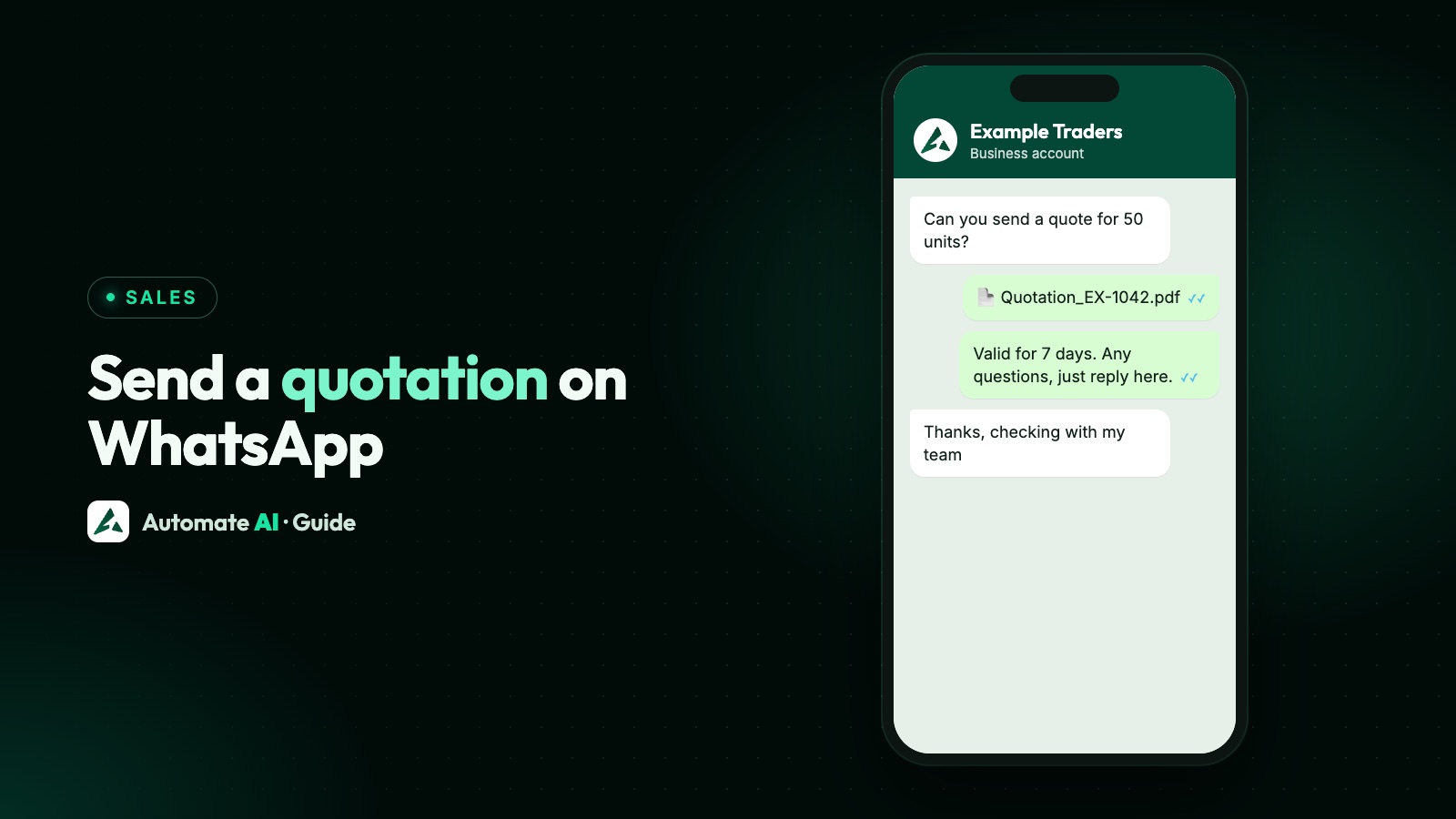
To send a quotation on WhatsApp, save it as a PDF, attach it to the chat as a document and add a two-line message with the total, what’s included and how long the price is valid. If the customer wrote to you in the last 24 hours, you can send it straight away. If not, WhatsApp only lets a business send an approved template, so use a template with a document header.
This guide covers both cases, what to put in the PDF and the message, sample wording you can copy, a follow-up plan that doesn’t annoy buyers, and how to keep every open quote on track in a team inbox.
Key takeaways
- Inside the 24-hour customer service window, send the quote as a PDF document with a short caption.
- After the window closes, send it as an approved template with a document header. A quote the customer asked for, with no offer added, fits Meta’s utility criteria, but Meta decides the category.
- Put the quote number, total, validity date and next step in the message, not only in the PDF.
- Follow up two or three times at most, each with a reason, and stop when the buyer says no.
- Never ask for card or bank account numbers in the chat. Take payment on a secure page.
Two ways to send a quote, depending on the 24-hour window
Meta’s rule is simple. When a customer messages you, a 24-hour customer service window opens, and every new message from them resets it. Inside the window you can send any message: text, images, documents, buttons. Once it closes, you can only send pre-agreed formats called templates, which Meta reviews before you can use them.
| Situation | How to send the quote | What to watch |
|---|---|---|
| The customer asked for a price today | Attach the PDF as a document, with a short caption | Nothing special: reply while the chat is open |
| You promised a quote and it took two days | An approved template with a document header and the PDF attached | The template must be approved before you need it |
| You’re sending a revised quote in an active chat | Attach the new PDF and say what changed | Give it a new quote number so nobody pays the old one |
| A walk-in or phone enquiry who never messaged you | A template, and only if they agreed to hear from you on WhatsApp | Opt-in must name your business |
Templates are a WhatsApp Business Platform (API) feature, which is also what lets several salespeople answer from one number. See the WhatsApp 24-hour window for the full rules.
Send a quote inside an open chat, step by step
This is the case most of the time: a buyer asks “what’s the price for 200 units?” and you reply with a quote.
- Export the quote as a PDF from your billing or accounting software, or from a spreadsheet. A PDF keeps your layout, logo and totals intact on any phone, and buyers can forward it to whoever signs off.
- Name the file clearly, such as
Quote-Q1042-Example-Traders.pdf. The buyer sees this name in the chat and in their downloads. - Open the chat and attach it as a document. In Automate AI’s inbox, use the document button in the chat box. You can type a caption and change the name the customer sees before you send.
- Write the caption with the total, validity date and next step (samples below), so the buyer can answer without opening the file.
- Set a follow-up for yourself or a teammate, so the quote doesn’t go quiet.
WhatsApp accepts PDF, Word, Excel, PowerPoint and plain-text documents up to 100 MB each, according to Meta’s media guide. Images are limited to 5 MB, which is one more reason to send a PDF rather than photos of each page.
Send a quote after the window has closed
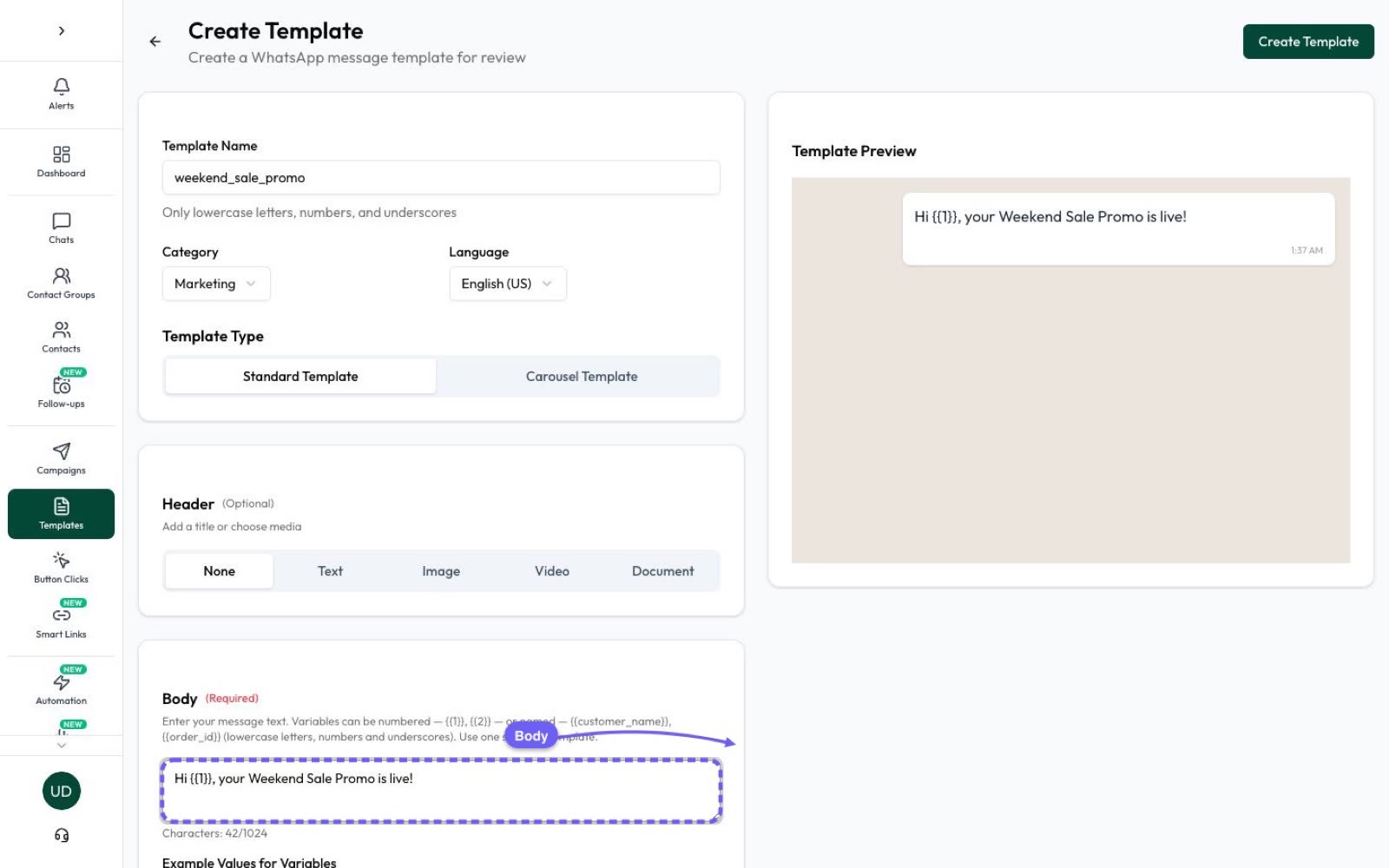
If the buyer last wrote to you more than 24 hours ago, the chat box in Automate AI asks you to choose a template. To send a PDF this way, create a template with a document header first:
- Open Templates and choose Create Template.
- Pick the Utility category if the message only delivers the quote the customer asked for.
- Choose Document as the header type and upload a sample PDF for Meta’s review.
- Write a body with variables for the details that change, then submit it.
- Once it’s approved, pick it from the chat’s template picker, upload the real quote (or choose a file from your Media Library) and set the name the customer will see.
A sample template body (your own wording will differ):
“Hi {{1}}, here is quotation {{2}} for {{3}}, as you requested. The prices are valid until {{4}}. Reply to this message if you’d like any changes.”
What to write with the quote
Some buyers will read the message and never open the file, especially on a busy day. Put the essentials in the text:
- Quote number, so both sides talk about the same version.
- What it covers, in one line: “200 steel racks, delivered to Pune”.
- The total, and whether tax and delivery are included.
- Validity: the date the price expires.
- One next step: reply to confirm, ask a question, or book a short call.
- Your name, so the buyer knows a person is handling it.
Sample cover messages
All names, numbers and prices below are made up.
| Situation | Sample message |
|---|---|
| First quote | “Hi Rakesh, here’s quote Q-1042 for 200 steel racks delivered to Pune: ₹4,80,000 plus GST, valid until 20 November. Reply YES to confirm or send me any changes. Priya, Example Traders” |
| Revised quote | “Hi Rakesh, attached is Q-1042-R1 with the lighter gauge you asked for. The new total is ₹4,35,000 plus GST, same delivery date. The earlier quote no longer applies.” |
| Options | “Hi Sana, I’ve put two options in Q-2077: Standard at ₹62,000 and Premium at ₹78,000, both with installation. Which one should I hold for you?” |
| Service quote | “Hi Arjun, your quote for the annual maintenance contract is attached: 4 visits a year, ₹18,000 in total. It’s valid for 15 days. Happy to walk you through it on a call.” |
Make the PDF easy to read on a phone
Your quote will be opened on a small screen first, often while the buyer is between meetings. A few changes help:
- Lead with a summary: items, total, validity and payment terms at the top of page one.
- Use a readable font size and avoid wide tables that need zooming sideways.
- Spell out what’s excluded, such as installation or freight, so it doesn’t become an argument later.
- Keep one file per quote. Several attachments in a row get lost in the chat.
- Keep personal data out. A quote rarely needs anything beyond the buyer’s name, company and delivery city.
If you send the same price list or brochure many times a day, save it once. In Automate AI’s AI Media Library you can add a PDF with keywords, so when a customer writes “price list” the file goes out by itself. Keyword sends need no AI, and automatic sending has its own switch, off until you turn it on.
Follow up without nagging
Quotes often need a nudge, but each follow-up should give the buyer a reason to reply. A simple plan:
| When | What to send | Message type |
|---|---|---|
| Same day | Check the file opened and offer to answer questions | Free-form, if the window is still open |
| After 2 to 3 days | One useful detail: delivery slot, sample, spec sheet | Template if the window has closed |
| 2 days before it expires | A plain reminder of the validity date | Template if the window has closed |
| After it expires | Offer to refresh the quote, then stop | Template, and only once |
A follow-up that persuades someone to buy is likely to be treated as marketing by Meta, so it needs a marketing template and the customer’s agreement to receive offers. A reply from the buyer reopens the window, and from then on you can talk freely.
If they say no or ask you to stop, stop. WhatsApp’s policy says businesses must respect every request to opt out. More wording ideas are in WhatsApp follow-up messages, and the timing logic in lead follow-ups.
When the customer says yes
A “YES, go ahead” in WhatsApp is a good start, but turn it into a clear record before you dispatch anything:
- Confirm the details back: quote number, quantity, total, delivery date.
- Send the order confirmation or proforma as a PDF in the same chat.
- Share a payment link from your gateway or invoicing tool, or your usual terms for credit customers.
- Update the contact’s status to Won, so the team stops following up.
Later reminders about an unpaid invoice follow their own rules; see payment reminder messages.
Keep every open quote on track in Automate AI
Sending one quote is easy. Keeping thirty open quotes moving across a sales team is where deals slip. In Automate AI, the shared team inbox with statuses, notes, follow-up reminders and auto-assignment is on every plan; AI Sales Center and drip sequences come with the AI + Automation Plan and Series 4:
- Statuses you define, such as Enquiry, Quote sent, Negotiating, Won and Lost, so anyone can filter for open quotes.
- A follow-up when a quote goes out. A status can be set so that moving a contact into it asks for a follow-up time and an internal note, with reminders before it’s due.
- Internal notes the customer never sees, such as “wants delivery before the 25th”.
- Auto-assignment that shares new enquiries among your team, in turn or least busy first.
- AI Sales Center reads each chat and scores the lead from 0 to 100 with the reason shown, so a buyer who asked for a quotation for 50 units rises above someone browsing. It needs your own AI key.
- Drip sequences for long sales cycles: approved templates spaced over days or weeks that stop when the customer replies.
WhatsApp messages are charged per delivered message from your wallet, by type and country, and Meta has charged for utility templates inside an open window too since 1 October 2026. See pricing.
Frequently asked questions
How do I send a quotation on WhatsApp?
Save the quote as a PDF, open the customer’s chat, attach it as a document and add a short message with the total, what’s included and the validity date. If the customer hasn’t messaged you in the last 24 hours, send it with an approved template that has a document header.
Can I send a quote to a customer who hasn’t messaged me?
Only with an approved template, and only if they agreed to receive WhatsApp messages from your business. Meta’s opt-in rules say the person must know which business they’re opting in to hear from.
Is a quotation template utility or marketing?
A plain message delivering a quote the customer asked for fits Meta’s utility criteria. Add a discount, an upsell or pressure to buy and it becomes marketing. Meta makes the final decision and can change a template’s category later.
What file types can I send as a quote?
Meta’s media guide lists PDF, Word, Excel, PowerPoint and plain text as document types, up to 100 MB each. PDF is the safest choice because it looks the same on every phone.
How many times should I follow up on a quotation?
Two or three times is usually enough: once soon after sending, once with a useful detail, and once before the price expires. Stop when the buyer says no or asks you to stop.
Can I change the file name the customer sees?
In Automate AI, yes. When you attach a document in a chat, or upload one to a template’s document header, you can set the name the customer sees. If you leave it blank, the file’s own name is used.
Sources
- Meta: Send messages (customer service window)
- Meta: Template categorization
- Meta: Template components (headers and buttons)
- Meta: Supported media types and sizes
- Meta: Pricing on the WhatsApp Business Platform
- Meta: Get opt-in for WhatsApp
- WhatsApp Business Messaging Policy
WhatsApp rules and prices change. We check these guides against Meta’s documentation, but always confirm current terms with Meta before you rely on them. Questions? Message us on WhatsApp at +91 836 977 8812.