Ads From the WhatsApp Business App: Cost and Setup
What ads from the WhatsApp Business app cost, how to create one on Android or iPhone, how to pay, and what to check when an ad isn’t delivering.
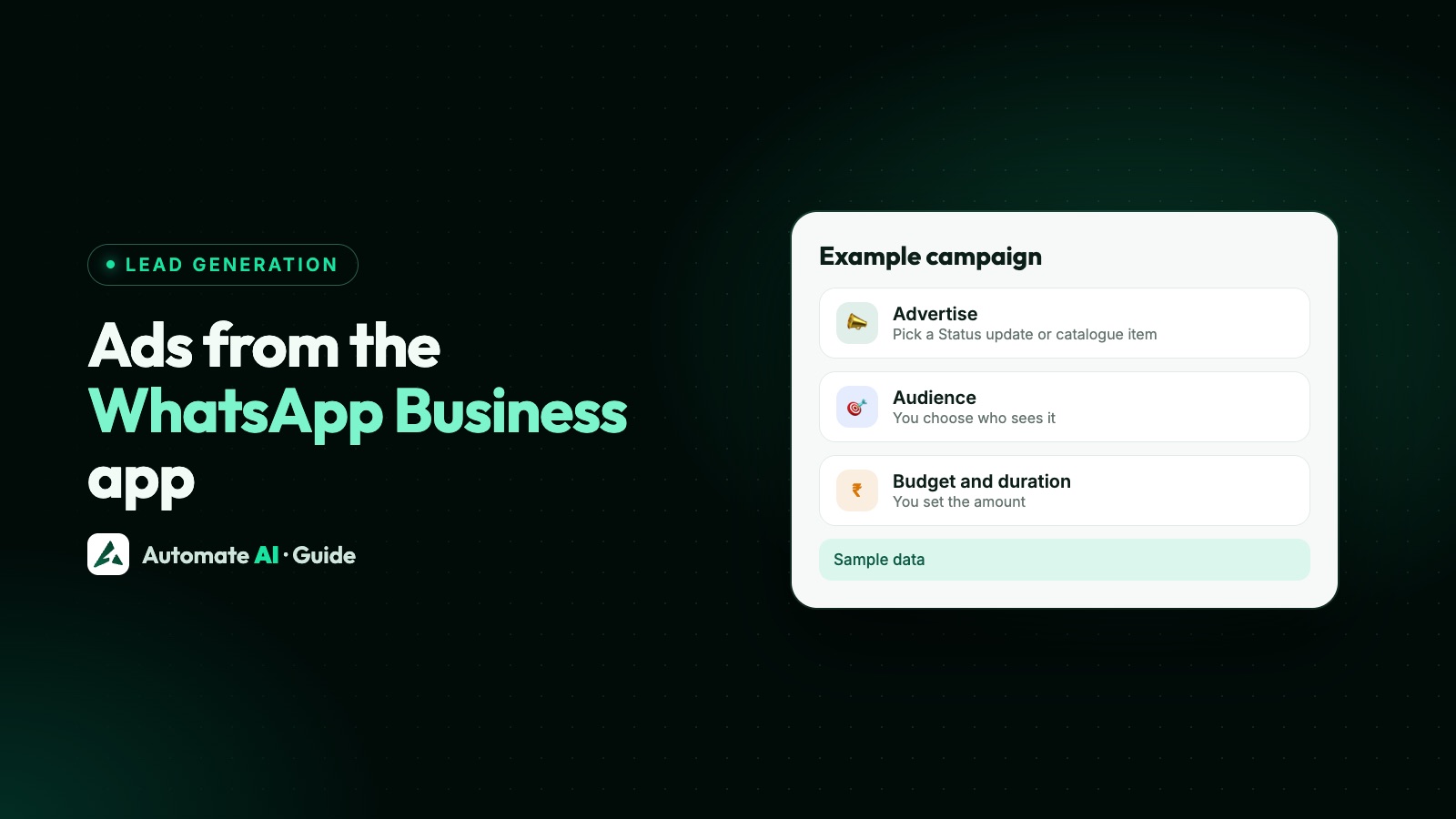
Ads from the WhatsApp Business app have no fixed price: you choose a daily budget, how many days the ad runs and who sees it, and Meta charges your payment method for what the ad spends. The ad runs on Facebook, and on Instagram too if your Facebook Page is linked, and its button opens a WhatsApp chat with your business.
This guide covers what you actually pay, how to create the ad on Android and iPhone (with or without a Facebook account), how payment works, and what to check when an ad stops or won’t go live. For ads built in Meta Ads Manager, see our Click-to-WhatsApp ads guide.
Key takeaways
- You set the daily budget, duration and audience yourself. Meta doesn’t publish a fixed cost per ad or per chat.
- You can create ads without a Facebook account, using an email address for verification and payment, or log in to Facebook to use its payment method.
- Payments live under Tools › Advertise › ⋮ › Ad account settings › Ad payments, with spending limits, a payment threshold and prepaid funds.
- Approval usually takes about 24 hours, and you can’t schedule them in advance or set them to repeat.
- An ad stops delivering when you hit your account spending limit or a payment fails.
What an ad from the WhatsApp Business app is
The WhatsApp Business app lets you build a Facebook or Instagram ad without leaving the app. You pick a photo, video, catalogue item or Status, write a short description, and set the budget, duration and audience. When someone taps the ad, a WhatsApp chat with your business opens.
- Where it runs: on Facebook. WhatsApp’s Help Center says that if your Facebook Page isn’t linked to your WhatsApp Business account, the ad runs on Facebook only; link the Page and it can run on Facebook and Instagram.
- What it can’t do from the app: ads in WhatsApp Status and Channels are created only in Meta Ads Manager.
- What Meta sees: your business profile name is shared with Meta to appear in the ad, and your profile photo too if its privacy setting is Everyone.
| Where you create the ad | Best for | Main limits |
|---|---|---|
| WhatsApp Business app | A quick ad from a photo, product or Status on one phone | No scheduling or repeats, one draft at a time, Status and Channels placements not available |
| Meta Ads Manager | Full control of objectives, placements and reporting | More set-up; you manage it on Facebook, not in WhatsApp |
| A WhatsApp Business API platform | Teams answering ad chats together, with chatbots or AI | Your number runs on the API, so you need a provider |
What WhatsApp Business ads cost
The cost is the budget you choose. Meta’s ads pricing page doesn’t give a price per ad: it says cost depends on things like ad quality, your bidding strategy, your goal, the budget type and the objective. What Meta does say about budgets:
- A daily budget is an average. On some days Meta may spend up to 75% more than your daily budget, but over the week it won’t spend more than seven times your daily budget.
- A starting point, not a minimum. Meta’s pricing page recommends starting with a budget of at least $5 and running the ad for more than six days, and setting a budget that lasts at least seven days so Meta can learn from how the ad performs.
- You can stop at any time. Meta says you can pause or cancel an ad whenever you like.
- Your currency is your ad account’s. On your first ad without Facebook you choose your country or region, currency and time zone, and the payment methods you’re offered depend on that country and currency.
A worked example (made-up numbers)
Say you set a daily budget of $10 and a duration of 7 days. On a busy day Meta might spend up to $17.50, and on a quiet day less, but across the week it won’t go over $70 (seven times $10). If you also set an account spending limit of $50, the ad stops when total spend reaches $50, even if days remain.
How to create an ad on Android
WhatsApp’s Help Center gives two ways to start. Ads must follow Meta’s advertising policies and WhatsApp’s business policies, and catalogue items must be approved before you can advertise them.
Without a Facebook account
- Tap ⋮ › Advertise › Get started, or Tools › Advertise.
- Choose photos from your phone, catalogue items or Status updates, then tap Next.
- Write the ad description and tap Next.
- Set the daily budget, duration and audience, then tap Next.
- Review the ad, tap Create ad, and accept Facebook’s non-discrimination policy.
- For your first ad, enter your email address and tap Send code, then type the six-digit code from the email.
- Choose your country or region, currency and time zone, add a payment method, enter your business information, and tap Create ad.
With a Facebook account
- Tap ⋮ › Advertise on Facebook › Get started, or Tools › Advertise.
- Choose your media (you may need to let the Facebook app access your gallery) and tap Next.
- Tap Log in to Facebook, or Continue with Facebook if you’re already logged in.
- Set the budget, duration and audience, choose a payment method from your Facebook account, review and tap Create ad.
After your first ad, the steps are shorter because your payment method is saved.
How to create an ad on iPhone
On iPhone the start is Settings › Advertise › Get started. The flow is close to Android’s:
- Choose a photo, catalogue item or Status, allow photo access, and tap Continue.
- If Facebook asks you to continue and you don’t want to use it, tap Skip. Otherwise log in, or tap Log in with Facebook in the payment section.
- Accept Facebook’s non-discrimination policy, write the description, and set the daily budget, duration and audience.
- Without Facebook: tap Add payment method, verify your email with the six-digit code, choose your country, currency and time zone, add business and payment details, and tap Create ad.
If the Facebook options don’t appear, WhatsApp says to check that the Facebook app is installed.
How to pay for WhatsApp Business ads
Payment settings are under Tools › Advertise › ⋮ › Ad account settings › Ad payments. Payments are powered by Meta Pay.
| Setting | What it does |
|---|---|
| Payment methods | Cards from American Express, Discover, Mastercard, Visa and JCB, PayPal, direct debit and local manual methods, depending on your country and currency. You can keep one primary method and backups. |
| Add funds | Prepaid funds pay for ads in advance. WhatsApp takes charges from prepaid funds before your other payment methods. |
| Payment threshold | You’re charged each time your spend reaches this amount, so a lower threshold means more frequent charges. |
| Account spending limit | A cap on total spend. When you reach it, your ads stop until you raise, reset or remove it. |
| Payment activity | Your past bills. |
| Get payment support | At the bottom of Ad payments, for refund requests. WhatsApp emails you about the status. |
Managing your ads and reading the results
- See your ads in Tools › Manage ads.
- Pause a running ad from the ⋮ menu with Pause ad, and resume it later. Delete ad removes it for good, but only for ads that are in review, not delivering or rejected: a running ad can’t be deleted, so pause it instead.
- Results: tap an ad to see its reach, how much you spent, how many conversations it started and the cost per conversion.
- Run it again: you can’t schedule ads or make them repeat. To rerun a finished ad, tap ⋮ › Recreate ad.
- Drafts: an unfinished ad is kept as a draft, but only one at a time, and drafts are deleted after 7 days.
Ads made outside the WhatsApp Business app, for example in Ads Manager, can’t be paused, edited or deleted in WhatsApp: manage them from a Facebook account that has access to the ad. If the app asks you to switch accounts, the ad isn’t connected to the account you’re using in WhatsApp.
Count the chats that turn into sales too, not just conversations started. Our guide to tracking which ads bring WhatsApp customers shows how.
WhatsApp Business ads not delivering or “something went wrong”
WhatsApp’s Help Center doesn’t explain a specific “something went wrong” message, but it does list what stops an ad being created or delivered. Work through these:
| What you see | What to check |
|---|---|
| The ad stopped running | Has total spend reached your account spending limit? Raise, reset or remove it in Ad account settings. |
| Delivery stopped suddenly | A failed payment or unpaid balance stops delivery straight away. Check Ad payments. |
| You can’t create a new ad | You can’t create ads while your ad account is in review. Wait for the review to finish. |
| A product won’t appear in the ad | Catalogue items must be approved before you can advertise them. See WhatsApp catalog not showing. |
| The ad is still waiting | Approval usually takes about 24 hours. |
| Photos won’t load, or Facebook login fails | Allow the Facebook app to access your gallery, and on iPhone check the Facebook app is installed. |
| The ad was rejected | It broke an advertising policy. See Click-to-WhatsApp ad rejected for the fixes. |
The app’s Alerts Center (the bell icon in Tools) gathers alerts about rejected ads, payment problems, spending limits and campaign status in one place. WhatsApp says it’s rolling out gradually, so you may not see it yet. For refunds, use Get payment support in Ad payments; for anything else, see how to contact WhatsApp Business support.
When to move beyond ads from the app
Ads from the app are fine for a single phone answering a few chats. They get harder when the ad works: every chat lands on one phone, and someone has to reply to each one fast. That’s where a WhatsApp Business API platform helps.
In Automate AI, account owners and managers can create Click-to-WhatsApp ads under Campaigns › Meta Ads on every plan:
- Connect your own Meta ad account and Page. Meta bills the ad spend to that account, and nothing is spent until you publish.
- Describe your offer in a line. AI drafts the headline, text, audience and the greeting customers see when the chat opens, and you check it, add a photo, set a daily budget and an end date, and publish.
- See spend, chats started, cost per chat and new contacts for every ad in the account, including ones made in Ads Manager, and pause any time.
- Each chat arrives in the shared team inbox as a new contact, ready for your team, a chatbot or the AI Assistant.
More on the feature at Click-to-WhatsApp ads in Automate AI. Want to keep using the Business app on the same number as well? Read about coexistence.
Frequently asked questions
How much do WhatsApp Business ads cost?
There’s no fixed price. You set a daily budget and a duration, and Meta charges for what the ad spends. Meta’s pricing page recommends starting with at least $5 and running for more than six days, but that’s a suggestion, not a minimum.
Can I advertise from WhatsApp Business without a Facebook account?
Yes. You can verify with an email address and add a payment method in the app. Without a linked Facebook Page, the ad runs on Facebook only.
How do I pay for WhatsApp Business ads?
Go to Tools › Advertise › ⋮ › Ad account settings › Ad payments. You can add a card, PayPal, direct debit or a local method where available, or add prepaid funds.
Why is my WhatsApp Business ad not delivering?
The most common reasons WhatsApp lists are reaching your account spending limit and a failed payment or unpaid balance. Also check that the ad has been approved, which usually takes about 24 hours.
Can I show ads in WhatsApp Status from the Business app?
No. Ads in Status and Channels are created in Meta Ads Manager by choosing the WhatsApp Status placement.
Can I schedule a WhatsApp Business ad?
No. Ads from the app can’t be scheduled in advance or set to repeat. To run a finished ad again, use Recreate ad.
How do I get a refund for a WhatsApp Business ad?
Open Ad account settings › Ad payments, scroll down and tap Get payment support, then follow the prompts. WhatsApp emails you about the refund status.
Sources
- WhatsApp Help Center: About creating ads on the WhatsApp Business app
- WhatsApp Help Center: How to create ads on WhatsApp Business (Android and iPhone)
- WhatsApp Help Center: How to pay for ads and business broadcasts on the WhatsApp Business app
- WhatsApp Help Center: How to set up a payment method
- WhatsApp Help Center: How to manage your WhatsApp Business ad or ad account
- WhatsApp Help Center: About Alerts Center
- WhatsApp Help Center: About sharing your WhatsApp Business information with Meta to create ads
- Meta for Business: Ads pricing and budgets
WhatsApp rules and prices change. We check these guides against Meta’s documentation, but always confirm current terms with Meta before you rely on them. Questions? Message us on WhatsApp at +91 836 977 8812.