WhatsApp Business Calling API: How Business Calls Work, Permission and Pricing
How the WhatsApp Business Calling API works: customers calling you, calling them with permission, call settings, per-pulse pricing, and doing it without code.
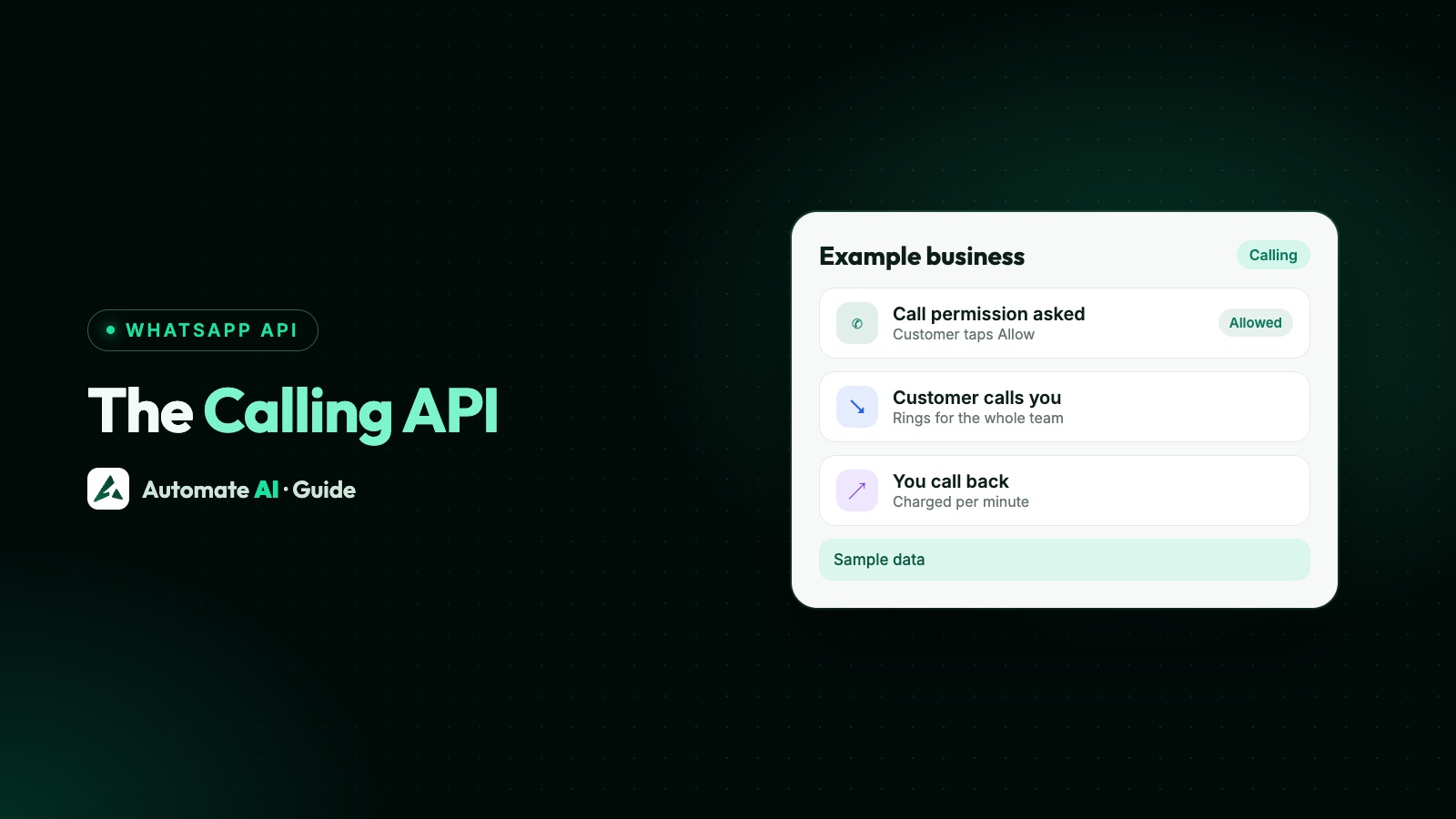
The WhatsApp Business Calling API lets a business number on the Cloud API take voice calls from WhatsApp users and, once a user gives permission, call them back over WhatsApp. Calls customers make to you are free; calls you make are charged by length, in 6-second pulses.
This guide covers what the API does, the rules Meta sets on permission and limits, how pricing works, the settings that control your call button, and how to take and make WhatsApp calls in Automate AI from a browser, without writing any code.
Key takeaways
- The Calling API works on Cloud API numbers only, and Meta asks for a messaging limit of at least 2,000 unique users a day.
- User-initiated calls are free. Business-initiated calls are billed in 6-second pulses, by the country code you call and your monthly volume tier.
- You need the customer’s permission before you call them. Meta allows at most 1 request in 24 hours and 2 in 7 days per customer.
- Temporary permission lasts 7 days; 4 unanswered calls in a row remove a permission automatically.
- In Automate AI, turn it on in Settings › WhatsApp Calling: the team answers in the browser, and every call shows in the chat.
What the WhatsApp Business Calling API does
Meta’s Calling API adds voice calls to the WhatsApp Business Platform. It covers two directions:
| Call type | Who starts it | Permission needed | Cost from Meta |
|---|---|---|---|
| User-initiated | The customer taps the call icon, a call button or a call link | No | Free |
| Business-initiated | Your team calls the customer | Yes, the customer must allow calls first | Charged per 6-second pulse |
Calls run over the internet (VoIP), not the phone network, so the customer answers inside WhatsApp. The call comes from your business number, with your business name and profile, the same as your chats.
Meta’s requirements before you can switch it on:
- A Cloud API number. It doesn’t work on a number that only runs in the WhatsApp Business app.
- A messaging limit of at least 2,000 unique users in 24 hours. Newer numbers start lower, so see WhatsApp messaging limits if yours isn’t there yet.
- An app subscribed to the
callswebhook field (not needed if you use SIP) and the messages webhooks, with thewhatsapp_business_messagingpermission for the number. - Calling turned on in the number’s settings.
How a call works under the API
If you build it yourself, a call is a short exchange of API requests and webhooks. The audio runs over WebRTC by default; Meta also offers SIP for businesses that already have a phone system. For a business-initiated call:
- Your system creates a WebRTC offer and sends
POST /<PHONE_NUMBER_ID>/callswithaction: "connect", the customer’s number and the offer insession. - Meta returns a call ID. Error
138006means the customer hasn’t given permission. - A
connectwebhook arrives with WhatsApp’s answer, which your WebRTC stack applies to start the audio. - Status webhooks report
RINGING, thenACCEPTEDorREJECTED. - Either side hangs up. You end a call with
action: "terminate", which Meta asks you to send so pricing stays accurate. - A
terminatewebhook gives the final status and, if the call was answered, the start time, end time and duration in seconds.
An incoming call is the other way round: the connect webhook carries the customer’s offer, and your system answers with pre_accept and accept, or ends it with reject. That’s why most businesses use a platform instead: someone has to run the WebRTC side, ring the right people, and save each call against the right chat.
For the webhook basics, see our guide to WhatsApp Cloud API webhooks.
Call permission: the rules Meta sets
You can’t call a customer just because you have their number. For most numbers, Meta requires the customer’s permission first, and only the customer can give it or take it away. They can give it in three ways:
- A permission request message. The customer taps to allow calls, either for now (temporary) or always (permanent).
- Calling you. If you turn on callback requests, a customer who calls you gives temporary permission automatically.
- Your business profile, where they can allow calls themselves.
| Rule | What Meta says |
|---|---|
| Temporary permission | Lasts 7 calendar days (168 hours) from the customer’s approval |
| Permanent permission | Lasts until the customer revokes it |
| Permission requests | At most 1 in 24 hours and 2 in 7 days per customer; a connected call resets both counts |
| Free-form request | Only inside an open customer service window |
| Template request | Can start a conversation outside the window, and is charged like other messages |
| 2 unanswered calls in a row | The customer gets a prompt to reconsider the permission |
| 4 unanswered calls in a row | The permission is revoked automatically |
Meta also caps connected business-initiated calls at 100 per customer in 24 hours, for temporary and permanent permission alike. Check the permissions page for the current figure before you plan a calling list.
WhatsApp Business Calling API pricing
Meta’s calling prices are separate from its message prices:
- Calls customers make to you are free. Meta says all user-initiated calls are free.
- Calls you make are charged by duration in 6-second pulses. A part pulse counts as a whole one, so Meta’s own example is a 56-second call billed as 10 pulses.
- The rate depends on the country code you call and your volume tier, based on minutes called in the calendar month. Meta publishes the rates in its rate cards.
- Permission request templates are charged like other template messages.
- Calls open the window too. A call starts or resets the 24-hour customer service window, the same as a message.
Messaging costs are a separate question, covered in Is WhatsApp API free? and on our WhatsApp API pricing page.
Call settings: button, hours and callbacks
Each business number has calling settings, which you set through the API with POST /<PHONE_NUMBER_ID>/settings or in your platform:
| Setting | What it does |
|---|---|
| Calling status | Turns calling on or off. When on, the call icon appears in chats with your business |
| Call icon visibility | Shows or hides the call icon in your chat and profile. Hiding it with DISABLE_ALL also turns off other ways to call you, such as links |
| Call hours | A time zone and weekly hours. Outside them, customers can’t call and are offered a chat instead, or a callback request if callback requests are on |
| Callback requests | Asks the customer for permission to call back after a call |
Meta notes that customers may take up to 7 days to see a settings change in their app, although the rules apply straight away on Meta’s side.
Call buttons and call links
You can also invite a call. A call button message (voice_call) can be sent in an open conversation, and tapping it calls your number. A call button template works like any other approved template. For a website, Meta supports the call link wa.me/call/<your number>, which you can put on a page or a QR code. Meta says these links don’t work on WhatsApp’s desktop apps.
How to take and make WhatsApp calls in Automate AI
Automate AI does the WebRTC, webhooks and billing for you, so calls work in the browser with no code. WhatsApp calls are on every plan. Set it up like this:
- Connect your number on the WhatsApp Business API, if you haven’t yet. See WhatsApp Business API setup.
- Open Settings › WhatsApp Calling. An owner or manager turns on WhatsApp calling.
- Choose what customers see: show or hide the call button, turn on Callback requests, and set Call hours for each day.
- Choose what your team can do: turn on Let agents call customers if you want outgoing calls, and Record calls if you want recordings, plus Transcripts if you’ve added your own AI key in Settings › AI Assistant. The page shows your call price per minute.
- Save, and take your first call. When a customer calls, every agent hears it ring in the browser and the first to answer takes it.
To call a customer, open their chat and use the Call button in the chat header:
- Ask permission to call sends an Allow calls request. You can edit the wording before it goes. It’s sent in the chat, so use it while the conversation is open.
- Send a “Call us” button lets the customer call you when it suits them.
- Call now is available once the customer has allowed calls. If they haven’t, Automate AI tells you to ask first.
Every call is saved in the chat with its length and who handled it, the recording if you turn recording on, and a transcript if you also turn on Transcripts with your own AI key. A call nobody answered shows as unread, so it doesn’t get missed. More on the inbox on the shared inbox page.
Good uses for business calls on WhatsApp
Calls work best when a chat has already started and talking is quicker than typing:
| Situation | How to use calling |
|---|---|
| A complex question in chat | Send a “Call us” button, or ask permission and call back |
| Delivery or installation problems | Call the customer who raised it, inside the chat history |
| Sales enquiries from ads | Answer in chat first, then offer a call for the details |
| Out of hours | Set call hours so customers are offered a chat, and turn on callback requests |
| Training and quality | Record calls and review them with the chat beside them |
If you record calls, tell customers that calls may be recorded, and follow the rules where you and they are. And keep the same care as in chats: never ask for full card numbers, bank details or ID numbers on a call either.
Frequently asked questions
Is the WhatsApp Business Calling API free?
Calls customers make to your business are free. Calls your business makes are charged by Meta in 6-second pulses, at a rate that depends on the country code you call. Permission request templates are charged like other templates.
Do I need permission to call a customer on WhatsApp?
Yes. The customer must allow calls first, through a permission request, by calling you with callback requests on, or from your business profile. Temporary permission lasts 7 days.
How often can I ask a customer for call permission?
Meta allows at most one request in 24 hours and two in 7 days per customer. A connected call between you resets both counts.
Can I use the Calling API with the WhatsApp Business app?
No. The number must run on the Cloud API, and Meta asks for a messaging limit of at least 2,000 unique users a day.
Can I add a WhatsApp call button to my website?
Yes. Meta supports the link wa.me/call/ followed by your business number, which you can use on a website or QR code. It doesn’t work on WhatsApp’s desktop apps.
Can my team answer WhatsApp calls on a computer?
In Automate AI, yes. Agents answer in the browser, the first to pick up takes the call, and each call is saved in the chat.
Can I call customers in the United States on WhatsApp?
Not from your business. Meta doesn’t offer business-initiated calling in the US, Canada, Egypt, Vietnam or Nigeria. Customers there can still call you.
Sources
- Meta: WhatsApp Business Calling API overview
- Meta: User call permissions
- Meta: Calling API pricing
- Meta: Call settings
- Meta: Business-initiated calls
- Meta: Call button messages and deep links
- Meta: Pricing on the WhatsApp Business Platform
WhatsApp rules and prices change. We check these guides against Meta’s documentation, but always confirm current terms with Meta before you rely on them. Questions? Message us on WhatsApp at +91 836 977 8812.