WhatsApp File Size Limits: Photos, Videos, PDFs and API Media
WhatsApp file size limits in one table: 2 GB documents in the app, 5 MB images, 16 MB video and 100 MB documents on the API, and how to fit big files.
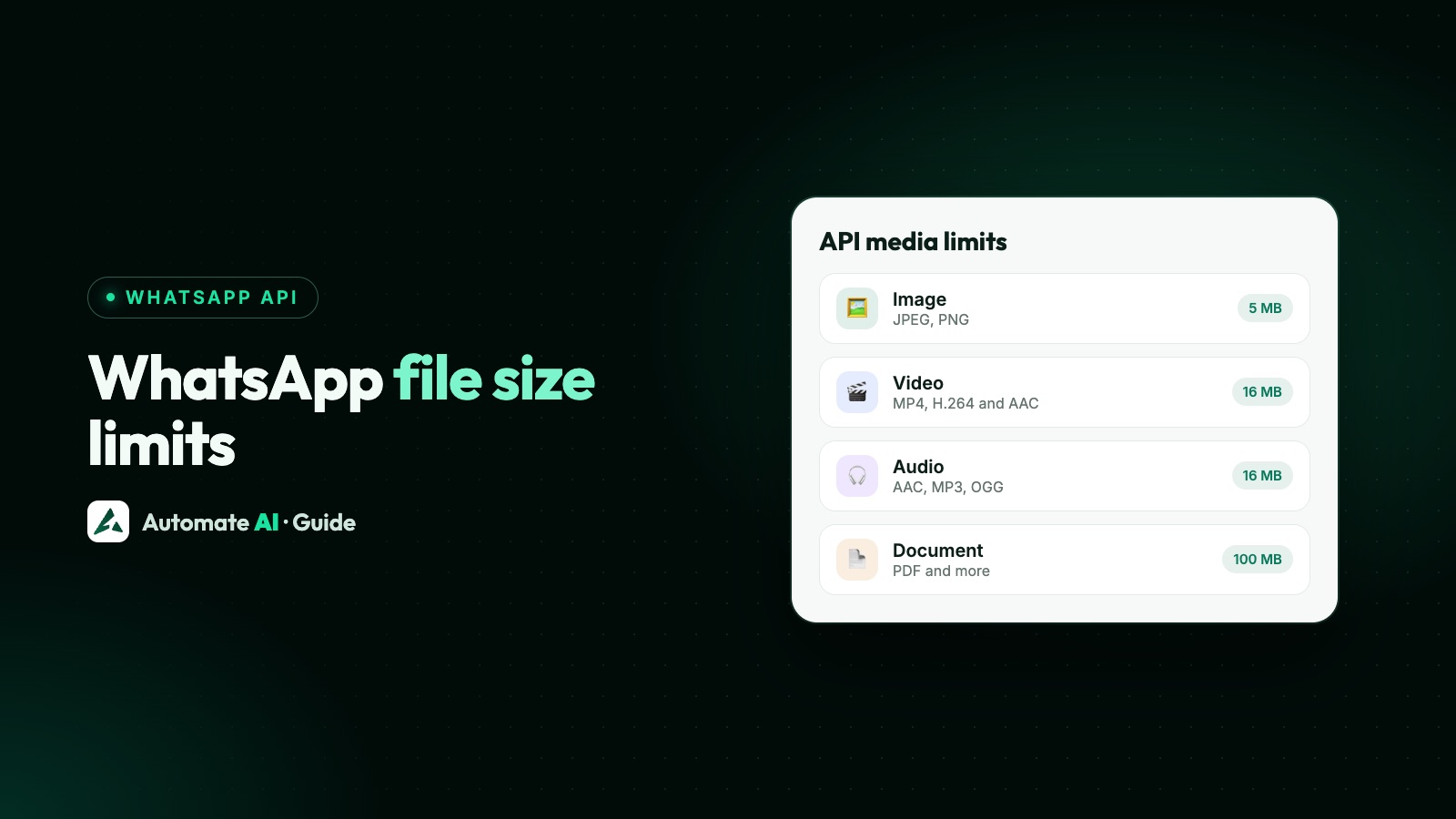
The WhatsApp file size limit depends on how you send the file. In the WhatsApp app, documents can be up to 2 GB and videos have a default limit of 100 MB on a fast connection. On the WhatsApp Business API, images stop at 5 MB, video and audio at 16 MB, and documents at 100 MB.
That’s why a file that sends fine from your phone can fail in a campaign. Below is every limit in one table, followed by what to do when a file is too big and how the errors look.
Key takeaways
- 2 GB is the limit for documents in the app. It doesn’t apply on the API, where documents stop at 100 MB.
- 16 MB is the API’s limit for video and audio. In the app, the default video limit is 100 MB at 720p, or 64 MB at 480p on a slow connection.
- Meta lists no separate limits for template header media, so the general API limits are the ones to work to.
- For video on the API, the codec matters as well as the size: H.264 video with AAC audio.
- If a file can’t be made small enough, host it and send a link.
WhatsApp file size limits at a glance
Each number comes from WhatsApp’s Help Center or Meta’s developer pages. “Not stated” means we couldn’t find a figure on the official page, so treat any number you see elsewhere with care.
| File type | WhatsApp app | Cloud API message | Template header |
|---|---|---|---|
| Photo | No MB limit stated. Up to 100 at once on Android and computers, Standard or HD quality | 5 MB. JPEG, PNG or static WebP | 5 MB. JPEG or PNG |
| Video | Default 100 MB at 720p on fast connections, 64 MB at 480p on slow ones | 16 MB. MP4 or 3GPP, H.264 and AAC | 16 MB. MP4 |
| PDF and other documents | 2 GB | 100 MB. PDF, Word, Excel, PowerPoint, TXT | 100 MB. PDF |
| Audio and voice notes | Not stated | 16 MB. AAC, AMR, MP3, M4A, OGG (OPUS) | Not a header type |
| Sticker | Not stated | 100 KB static, 500 KB animated | Not a header type |
| GIF | Not stated | Not a message type in Meta’s media list | 3.5 MB MP4, Marketing Messages API only |
| File a customer sends you | Not stated | Up to 100 MB received | Doesn’t apply |
The app column comes from WhatsApp’s “How to send media” article. It doesn’t give separate figures for the WhatsApp Business app, and we found none elsewhere, so we’ve treated them as one.
File size in the WhatsApp app
WhatsApp raised its document limit to 2 GB in May 2022, up from 100 MB. The Help Center still gives 2 GB today for documents on phones and computers.
- Videos: the Help Center calls 100 MB at 720p and 64 MB at 480p the “default” limits, depending on your connection. It accepts 3GP, AVI, FLV, MKV, MOV and MP4.
- Status videos: up to 90 seconds.
- HD: you can choose Standard or HD quality before sending, but HD isn’t available for status updates or profile photos.
- Photos and videos at once: up to 100 on Android and computers.
If you’ve seen 16 MB quoted as the app’s limit, it’s out of date for the app. 16 MB is still the API’s limit for video and audio, which is probably why the two get mixed up.
The usual way past the video limit in the app is to attach the video as a document, which puts it under the 2 GB rule. The Help Center doesn’t describe this as a feature, so send a test to yourself first.
Why 2 GB doesn’t apply on the API
The app and the Cloud API are separate products with separately published limits. Meta doesn’t explain the difference. The practical point is that a campaign or chatbot has to meet the API’s numbers, whatever your phone can send.
So plan for the smaller limits from the start. A brochure video your team shares happily in the app, at say 60 MB, can’t go out in a template as it is. And the limit is on the file, not on the viewer, so a customer on fast Wi-Fi gets no more than anyone else.
Size isn’t the only rule, either. Meta also requires:
- Images: 8-bit RGB or RGBA, with no edge over 4,096 pixels. Animated WebP is rejected.
- Video: H.264 video and AAC audio, with one audio stream or none. For Android, avoid the High profile with B-frames.
- Voice notes: OGG with the OPUS codec. The play icon only appears for files of 512 KB or less.
- Captions: up to 1,024 characters on images, video and documents.
For the requests themselves, see how to send images and media with the WhatsApp API. Voice notes have their own guide: WhatsApp voice messages on the API.
What to do when your file is too big
| File | Over the limit? | Try this |
|---|---|---|
| Photo over 5 MB | Common with phone and camera originals | Export as JPEG, RGB, with the longest edge well under 4,096 pixels |
| Video over 16 MB | Very common | Shorten it, lower the resolution, or re-encode (below) |
| PDF over 100 MB | Usually image-heavy files | Re-save with compressed images, or split it |
| Long video or big catalogue | Can’t be squeezed sensibly | Host it and send a link |
| Customer can’t send you a file | Over 100 MB on the API | Ask for a smaller copy or a link |
Fit a video into 16 MB
Work out your bitrate first. Multiply the limit by 8 and divide by the seconds of video: that’s the total megabits per second you can use. As a worked example with made-up numbers, a 60-second clip gets 16 × 8 ÷ 60, or about 2.1 Mbps for picture and sound together. Stay a little under it.
If you use ffmpeg, this produces a file that follows Meta’s video guidance. Change the 2M and try it on your own clip:
ffmpeg -i input.mov -c:v libx264 -profile:v main -bf 0 -pix_fmt yuv420p -b:v 2M -c:a aac -b:a 96k -movflags +faststart output.mp4
- Trim first. Cutting seconds saves more than any setting.
- Check the output size, then lower the
-b:vvalue if it’s still too big. - Play it on a real Android phone and an iPhone before you use it in a campaign.
Send a link instead
For anything too big, put the file on your own website or a file-sharing service and send a link, ideally in a template with a URL button. Make sure it opens without a login. Use your own domain where you can, as customers are rightly wary of unfamiliar links.
How API errors look for oversized media
Meta’s image page says a request fails if the file is over the limit or the format isn’t supported, and you get an error instead of a message ID. Meta doesn’t list one error code just for “file too large”, so read the code together with the details text. Errors look like this, with Meta’s own wording in the placeholders:
{ "error": { "message": "(#<code>) <title>", "type": "<type>", "code": <code>, "error_data": { "messaging_product": "whatsapp", "details": "<description>" }, "fbtrace_id": "<id>" } }
| Code | What Meta says | What to check |
|---|---|---|
| 131053 | Unable to upload the media used in the message | Size and type, and that the MIME type matches the file’s real type |
| 131052 | Unable to download the media sent by the user | For a customer’s file over 100 MB, the webhook title starts “Media file size too big”. Ask for a smaller file |
| 131009 | One or more parameter values are invalid | The values in your request, against Meta’s reference |
| 100 | Unsupported or misspelled parameters | Parameter names and length limits |
Some failures only arrive later, by webhook, so watch both the API response and your messages webhook. A message that was accepted can still fail. Full error handling is in WhatsApp API error codes.
Uploaded media is also temporary. Meta keeps it for 30 days unless you delete it sooner, and download URLs expire after 5 minutes. IDs from webhooks expire after 7 days, so save any customer file you want to keep.
File limits in Automate AI
Automate AI sends through the WhatsApp API, so Meta’s limits apply. The app also has a limit of its own for files you upload:
| In the shared inbox | Limit | Set by |
|---|---|---|
| Images | 5 MB | Meta |
| Video and audio | 16 MB | Meta |
| Documents | 48 MB | Automate AI’s upload limit, below Meta’s 100 MB |
The inbox checks the size before uploading and tells you what’s wrong, so you don’t wait for a file that would be refused. For a document over 48 MB, send a link. The inbox doesn’t shrink pictures or videos: it refuses ones over 5 MB or 16 MB.
Header uploads for templates and campaigns are capped at 48 MB too, documents included. Within that cap, Automate AI fits header media for you: a picture over 5 MB, or a WebP, becomes a JPEG of 5 MB or less, and a video over 16 MB, or not in WhatsApp’s format, becomes an MP4 of 16 MB or less. Compliant files and documents aren’t changed. Plans are on the pricing page.
Frequently asked questions
What is the WhatsApp file size limit?
In the app, documents can be up to 2 GB and videos have a default limit of 100 MB at 720p. On the API, images are 5 MB, video and audio 16 MB and documents 100 MB.
Is the WhatsApp limit 16 MB or 2 GB?
Both numbers are real, for different things. 2 GB is for documents in the app. 16 MB is for video and audio on the WhatsApp Business API.
What is the WhatsApp file size limit for a PDF?
A PDF can be up to 2 GB in the app and up to 100 MB on the API. In Automate AI’s inbox, documents can be up to 48 MB.
What is the WhatsApp Business API media size limit?
Images 5 MB, video 16 MB, audio 16 MB, documents 100 MB, and stickers 100 KB static or 500 KB animated.
What is the size limit for a WhatsApp template header?
Meta doesn’t list separate limits for headers, so work to the general limits: images 5 MB, video 16 MB, documents 100 MB. GIF headers are 3.5 MB, on the Marketing Messages API only.
How do I send a video that’s too big for WhatsApp?
Trim or re-encode it to fit. In the app you can try attaching it as a document. On the API, if it can’t go under 16 MB, host it and send a link.
Which error do I get if media is too large on the API?
Meta doesn’t list one code for it. Upload problems usually show as 131053, and a customer’s file over 100 MB arrives as a webhook with 131052. Read the details text in the error.
Sources
- WhatsApp Help Center: How to send media, contacts or location
- WhatsApp Blog: Reactions, 2GB file sharing, 512 groups
- Meta: Media (formats, sizes, upload and download)
- Meta: Image messages
- Meta: Video messages
- Meta: Audio messages
- Meta: Template components (header media)
- Meta: Error codes
WhatsApp rules and prices change. We check these guides against Meta’s documentation, but always confirm current terms with Meta before you rely on them. Questions? Message us on WhatsApp at +91 836 977 8812.