How to Send Invoices on WhatsApp
How to send an invoice or bill on WhatsApp: attach a PDF in the Business app, or use a utility template with a document header on the API. With sample messages.
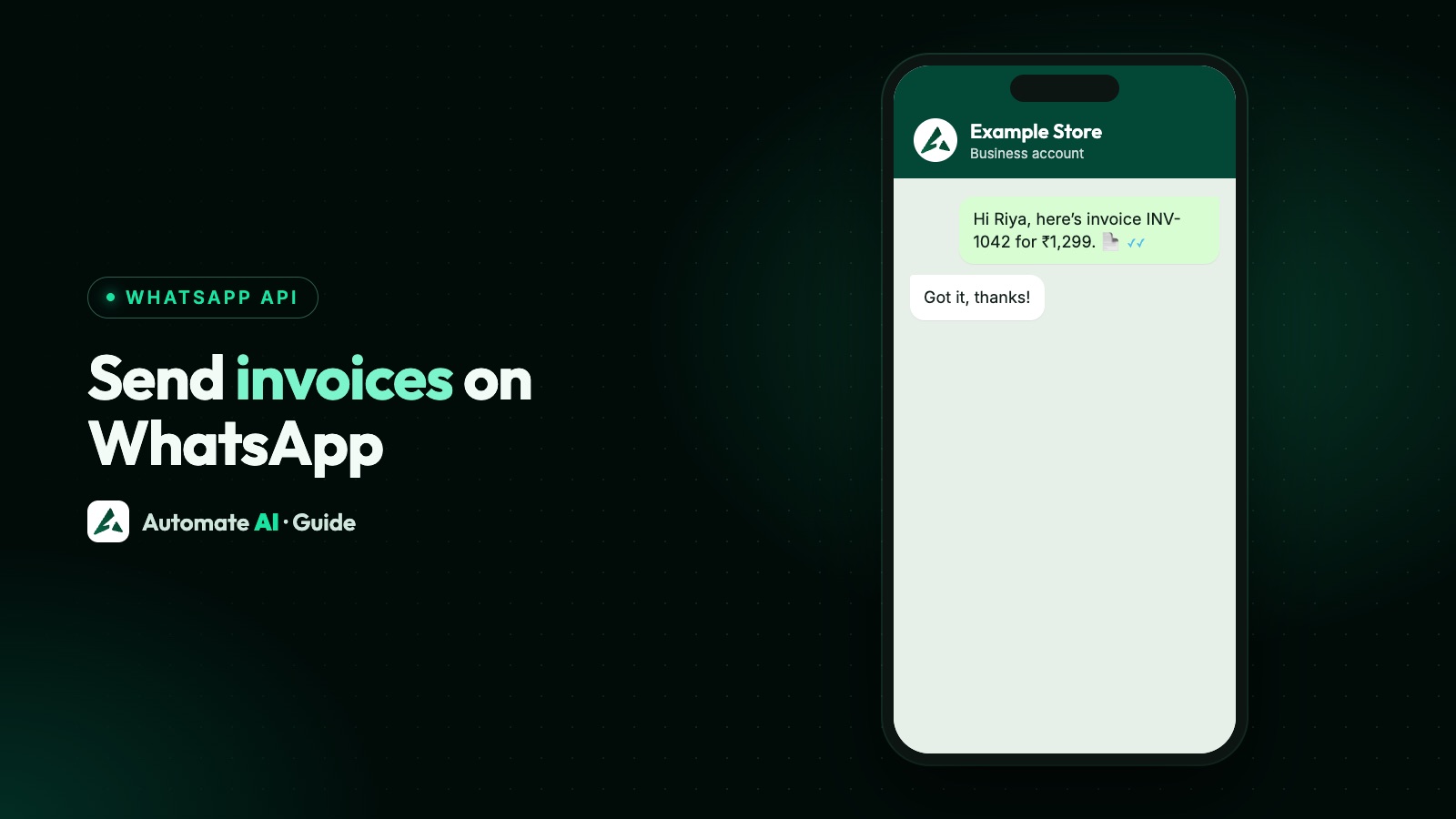
To send an invoice on WhatsApp, open the customer’s chat, attach the invoice PDF as a document and add a short note with the invoice number, amount and due date. That works in the WhatsApp Business app for a handful of bills a day.
For more than that, or to send invoices straight from your billing system, use the WhatsApp Business Platform (API) with a utility template that has a document header. This guide covers both ways, the category rules Meta applies, sample invoice messages you can adapt, and how it works in Automate AI.
Key takeaways
- In the Business app, attach the PDF from the chat’s attach menu and send it. It’s manual, one chat at a time.
- On the API, an invoice goes out as a template with a document header, so you can send it even when the customer hasn’t messaged you in the last 24 hours.
- A plain invoice or receipt about the customer’s own order fits Meta’s utility category. Add an offer and it becomes marketing.
- API documents can be up to 100 MB and include PDF, Word, Excel, PowerPoint and text files. PDF is the safe choice for invoices.
- Never ask for full card or bank account numbers in the chat. Send a payment link instead.
Two ways to send an invoice on WhatsApp
Which one you use depends on how many invoices you send and where they’re made.
| WhatsApp Business app | WhatsApp Business Platform (API) | |
|---|---|---|
| How it’s sent | You attach the PDF by hand in each chat | Your software sends an approved template with the PDF as its header |
| Volume | A few a day | Hundreds or thousands, automatically |
| Customer hasn’t messaged recently | You can still send, but it’s manual | Templates work outside the 24-hour window |
| From your billing system | Download the PDF, then attach it | Your system calls the API when the invoice is created |
| Message cost | Free in the app | Meta charges per template message by category and country |
Either way, the customer must have agreed to hear from you on WhatsApp. WhatsApp’s Business Messaging Policy asks for opt-in before you message people. See WhatsApp opt-in.
Send an invoice from the WhatsApp Business app
- Save the invoice as a PDF from your billing or accounting software. Give it a clear name, such as
INV-2041.pdf. - Open the customer’s chat in the WhatsApp Business app.
- Tap the attach icon (the paperclip on Android, + on iPhone) and choose Document.
- Pick the PDF and add a caption with the invoice number, amount and due date.
- Tap Send. On WhatsApp Web or Desktop you can also drag the file into the chat.
WhatsApp’s help centre says documents in the app can be up to 2 GB, far more than an invoice needs. The catch is time: every invoice is a separate, manual send, and there’s no report across all the invoices you’ve sent. Our guide to WhatsApp Business app limitations explains when it’s time to move to the API.
Send an invoice with the WhatsApp API
On the API, a business can message a customer freely only inside the 24-hour customer service window that opens when the customer messages you. Invoices usually go out later than that, so they’re sent as templates, which Meta reviews before you can use them.
An invoice template has three parts:
- A document header. Meta’s template components allow a media header that is an image, video or a document such as a PDF. You add a sample file when you create the template, and attach the real invoice each time you send it.
- A body with variables, such as
{{1}}for the name,{{2}}for the invoice number and{{3}}for the amount. The body can be up to 1,024 characters. - Buttons, if you want them. A URL button can open your payment page, with one variable at the end of the link so each customer gets their own. A quick-reply button such as “Question about this bill” is useful too.
When you send, you pass the document’s link (or a media ID uploaded to Meta first) and a filename, which is what the customer sees on the attachment. The full request is in how to send a template message with the API.
| Limit | What Meta allows |
|---|---|
| Document types | PDF, Word, Excel, PowerPoint and plain text |
| Document size | Up to 100 MB |
| Body text | Up to 1,024 characters |
| Footer | Up to 60 characters |
| URL buttons | Up to 2, each with one variable at the end of the link |
More on sizes in WhatsApp file size limits.
Utility or marketing? Getting the category right
Meta’s template categorisation guidelines say a utility template must be non-promotional and either specific to the customer, such as their order, account or transaction, or essential to them. Meta’s utility examples include order confirmations, refund notices and billing reminders. An invoice or receipt for the customer’s own purchase fits that description.
| Message | Likely category | Why |
|---|---|---|
| “Your invoice INV-2041 for ₹12,500 is attached.” | Utility | About the customer’s own transaction |
| “We’ve received your payment. Your receipt is attached.” | Utility | Confirms a payment they made |
| “Here is the corrected invoice that replaces the earlier one.” | Utility | Account update, no promotion |
| “Your invoice is attached. Get 10% off your next order with code SAVE10.” | Marketing | Mixes an update with an offer |
| “Your bill is attached. Have you seen our new range?” | Marketing | Promotes other products |
Sample invoice messages
Original samples with demo data. Placeholders are in {{ }}. Each one is written as a utility template with the invoice PDF as the document header, and none starts or ends with a variable, which helps approval.
New invoice
- “Hi {{1}}, thank you for your order. Your invoice {{2}} for ₹{{3}} is attached, and payment is due by {{4}}. Reply to this message if anything needs changing.” [Pay online] [Question about this bill]
Receipt after payment
- “Hi {{1}}, we’ve received your payment of ₹{{2}} for invoice {{3}}. Your receipt is attached for your records. Thank you.”
Corrected invoice
- “Hi {{1}}, here is the corrected invoice {{2}}. It replaces the invoice sent on {{3}}, so please use this one for payment.”
Monthly bill or statement
- “Hi {{1}}, your bill for {{2}} from Example Services is attached. The amount is ₹{{3}} and it’s due on {{4}}. Tap below to view your account.” [View account]
Inside an open chat (no template needed)
- “Here’s the invoice for today’s order, Priya. The total is ₹2,340. Let me know if you need it in your company’s name.” (with the PDF attached)
Chasing an unpaid bill is a different message. For due-date and overdue reminders, see payment reminder messages on WhatsApp. More samples by industry are in the WhatsApp template library.
How to send invoices from Automate AI
Automate AI has no built-in connector for accounting software. You create the invoice template once, then send invoices from your own system through the API, or by hand from a chat.
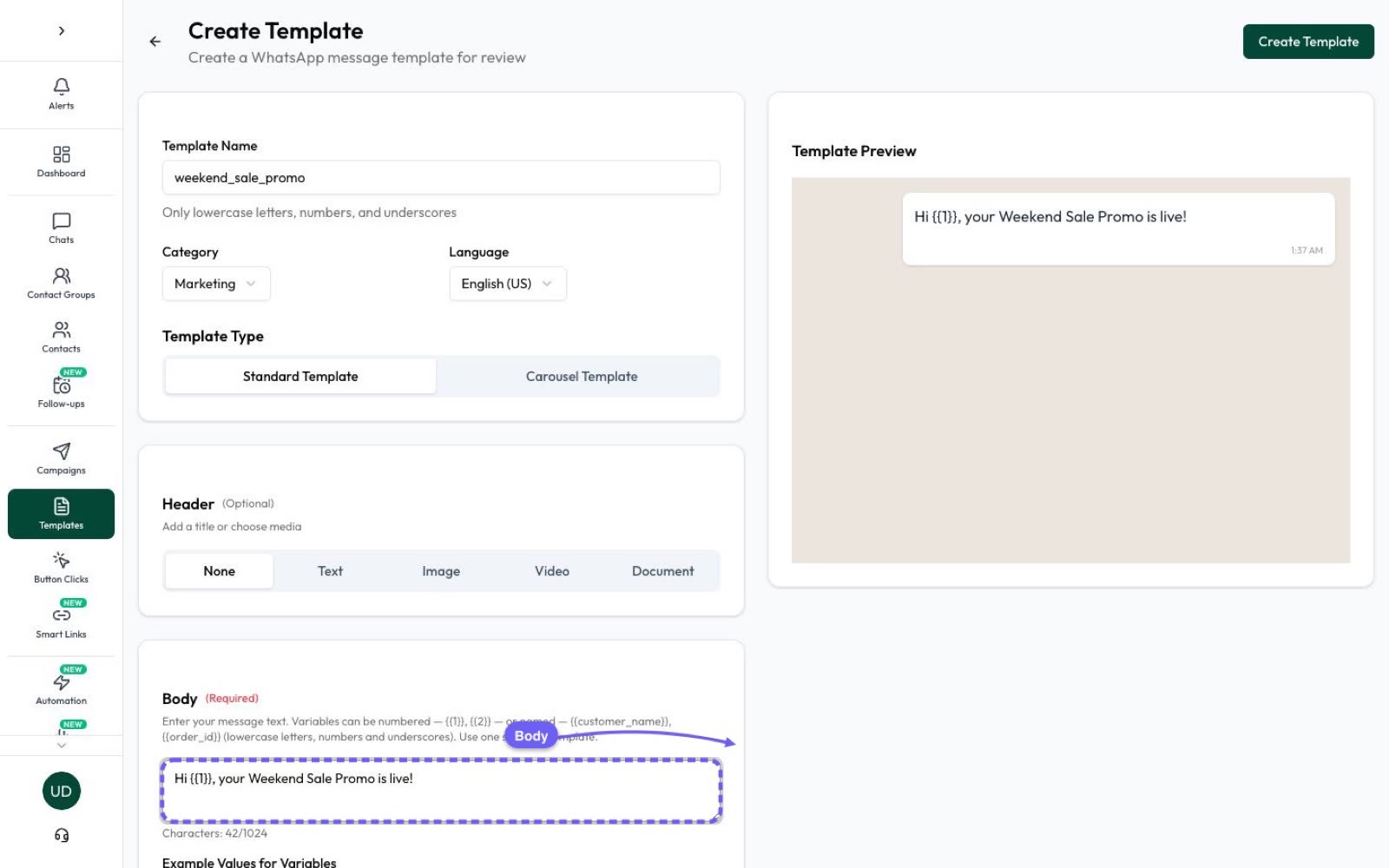
1. Create the invoice template
- Open Templates and choose Create Template.
- Pick the Utility category and your language.
- For the header, choose Document and upload a sample PDF. PDF, Word, Excel and PowerPoint files are accepted.
- Set the Document name, the filename customers see on the attachment, such as
Invoice.pdf. - Write the body with variables, add a URL button for your payment page if you want one, check the live preview and submit it to Meta.
2. Send each invoice from your billing system
With the REST API, included in the AI + Automation Plan and Series 4, your system sends the approved template to the customer’s phone number when an invoice is created. Along with the body variables it passes header_document, a link to that customer’s PDF, and optionally header_document_filename, such as INV-2041.pdf, so every customer sees their own file name. The number must already be a contact, and the API can add contacts too.
Webhooks then tell your system what happened: message.status.update events report delivery and reads, and message.received tells you when the customer replies.
3. Or send it by hand
In the shared inbox, open the chat and attach the PDF. Inside the 24-hour window that’s a normal message; outside it, send the invoice template from the chat instead. Customer questions about a bill land in the same inbox, so your team can answer them.
Keep invoice files private and safe
- Use links that are hard to guess. The PDF link has to be reachable when the message is sent, so don’t use simple, numbered addresses that anyone could try.
- Keep personal details out of the file name.
INV-2041.pdfis fine; a name with the customer’s phone number isn’t. - Never ask for card or bank details in the chat. WhatsApp’s policy says not to ask people to share full card numbers, financial account numbers or ID numbers. A URL button to your secure payment page does the job.
- Offer a person. WhatsApp’s policy asks for a clear way to reach a human when you use automation, which matters most when money is involved.
- Stop when asked. If a customer asks you to stop messaging them, respect it, as the policy requires.
What it costs to send an invoice
Meta charges for each delivered template message, by category and the customer’s country. Since 1 October 2026, Meta also charges for utility templates sent inside an open customer service window, which used to be free. Normal replies inside the window are service messages, and Meta charges for them only after the first 1,000 a month for each business number.
Keeping invoices genuinely transactional keeps them at the utility rate, which is lower than marketing. Rates by country are in WhatsApp API pricing, and Automate AI’s own rates are on the pricing page.
Frequently asked questions
How do I send a bill on WhatsApp?
Save the bill as a PDF, open the customer’s chat, tap attach, choose Document and send it with a short note. To send bills automatically, use a utility template with a document header on the WhatsApp Business Platform.
Is an invoice a utility or marketing message?
A plain invoice or receipt for the customer’s own order fits Meta’s utility category. If the same message includes an offer or promotes other products, Meta treats it as marketing.
Can I send an invoice to a customer who hasn’t messaged me?
On the API, yes, as an approved template to a customer who has opted in. Free-form messages, including a plain PDF, can only be sent inside the 24-hour customer service window.
What file types can a WhatsApp invoice be?
On the API, documents can be PDF, Word, Excel, PowerPoint or plain text, up to 100 MB. PDF is the best choice because it looks the same on every phone.
Does Automate AI connect to Tally or QuickBooks?
No, there’s no built-in connector for accounting software. Your developer can send invoices from your own system with the Automate AI REST API, passing a link to each invoice PDF.
Can the customer pay from the invoice message?
Add a URL button that opens your payment page, with a variable at the end so each customer gets their own link. Never ask for card or bank account numbers in the chat.
Sources
- Meta: Template categorization
- Meta: Template components (headers, body and buttons)
- Meta: Supported media types and sizes
- Meta: Send messages (customer service window)
- Meta: Pricing on the WhatsApp Business Platform
- WhatsApp Help Center: How to send media, contacts or location
- WhatsApp Business Messaging Policy
WhatsApp rules and prices change. We check these guides against Meta’s documentation, but always confirm current terms with Meta before you rely on them. Questions? Message us on WhatsApp at +91 836 977 8812.