How to Test the WhatsApp Cloud API With Postman
Test the WhatsApp Cloud API in Postman: Meta’s official collection, environment variables, Bearer auth, a first template message, errors and webhook testing.
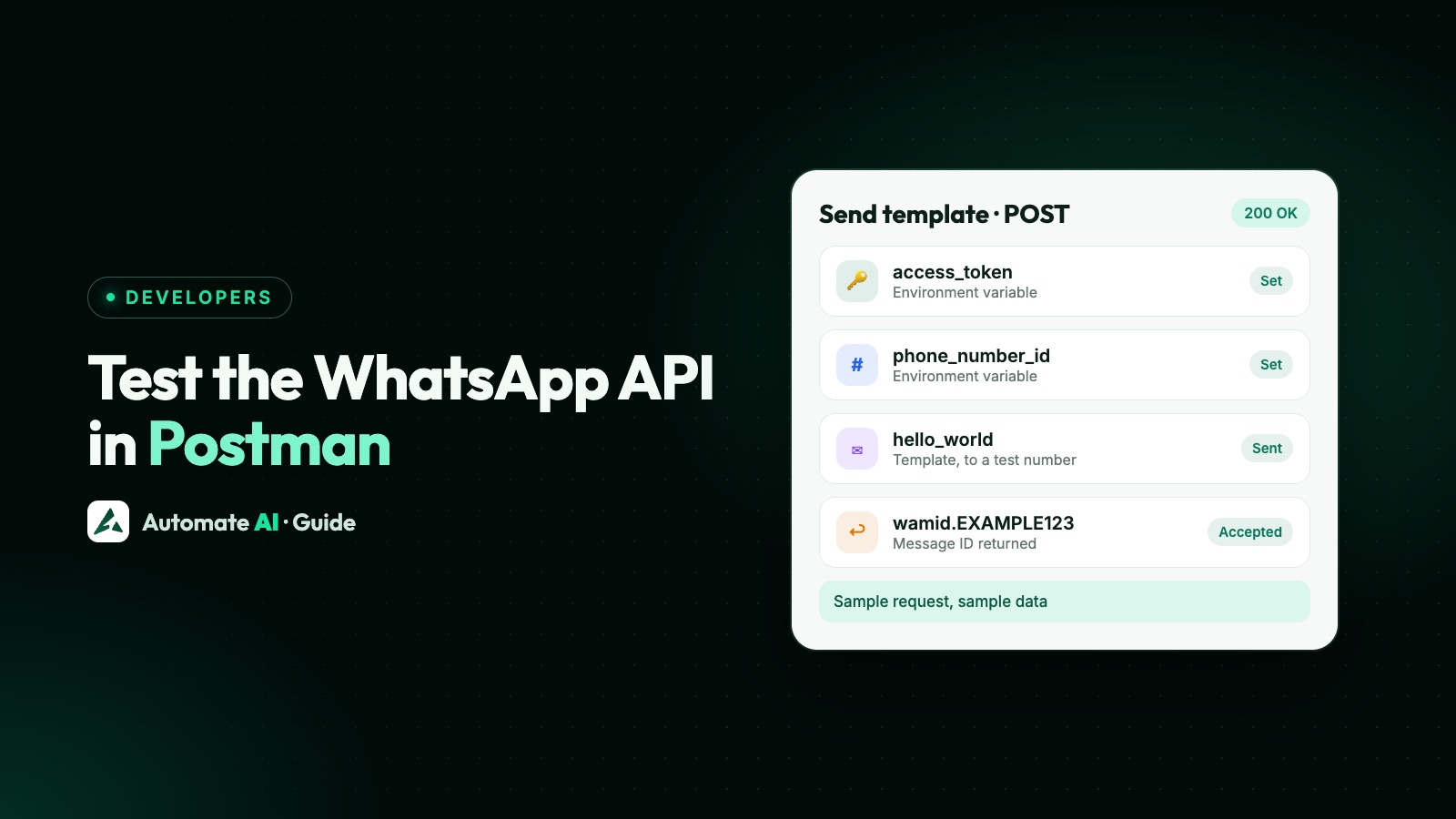
To test the WhatsApp Cloud API in Postman, save your phone number ID and access token as environment variables, set Bearer Token auth, and POST a JSON body to https://graph.facebook.com/v27.0/{{phone_number_id}}/messages. Meta also publishes an official Postman workspace you can start from, so you don’t have to build every request by hand.
This guide sets up a small, reusable Postman setup: variables, auth, a request that proves your token works, a first template message, and how to read what comes back. It also explains how to test the webhook side, because an ordinary Postman request can’t receive anything.
Key takeaways
- Meta links to an official Postman workspace from its platform overview page, so start there if you want every endpoint.
- Keep the token in a Secure environment variable and set Bearer auth once on the collection.
- A
GETon your phone number ID is the quickest way to prove the token and ID are right. - A 200 response means Meta accepted the request, not that the message was delivered.
- Build your error handling around
error.code; delivery failures can arrive later, by webhook. - A normal Postman request can’t receive webhooks. Delivery statuses and customer replies need a public HTTPS callback URL.
Is there an official WhatsApp API Postman collection?
Yes. Meta’s About the WhatsApp Business Platform page calls it “the official Postman collection” and links to Meta’s WhatsApp Business Platform workspace on Postman. Other collections you’ll find on GitHub or vendor sites are copies or cover someone else’s API, so check who publishes one before you paste a token into it.
| Option | Good for | Watch out for |
|---|---|---|
| Meta’s official workspace | Browsing every endpoint and trying less common ones | Its folders and variable names are Meta’s and can change, so use the names shown in its own overview |
| Your own small collection (this guide) | Understanding each request; keeping just the calls your project uses | You update it yourself when Meta changes a format |
| A provider’s collection, such as Automate AI’s | Testing that provider’s REST API | It’s a different API from Meta’s, with different URLs and keys |
Even if you import Meta’s collection, the steps below still apply: you need the same IDs and token, and you read responses the same way.
What you need before opening Postman
- A phone number ID and access token from API Setup in your Meta app. The ID isn’t the phone number itself; see how to find your WhatsApp Business Account ID and phone number ID.
- A number to send from. Meta’s sample number is fine for this. Its rules and problems are in how to use the WhatsApp API test number.
- Your own phone as the recipient. Don’t test on customers.
Set up your Postman environment
An environment keeps your values in one place, so requests stay clean and you can switch between a test number and a live one. In Postman, add an environment, name it something like WhatsApp test, add these variables, and select it in the environment selector at the top right.
| Variable | Example value | Notes |
|---|---|---|
base_url | https://graph.facebook.com | The Graph API host |
version | v27.0 | Meta’s changelog lists this as the latest version |
phone_number_id | 106540352242922 | Use your own ID |
access_token | EAAJB... | Click Secure next to the variable |
recipient | 919800000000 | Your own WhatsApp number, with country code |
- Keep the token as a local value. Postman doesn’t sync a local value to its cloud or share it with teammates. A shared value does sync, so leave that empty for the token.
- Keep the version in one variable. Meta’s pages don’t all show the same one: the overview page’s example still says v17.0, while the Send messages example uses v27.0. Check the Graph API changelog and change one value to upgrade.
Set authentication once
Create a collection called WhatsApp Cloud API, open its Authorization tab, choose Bearer Token and type {{access_token}} in the Token field. Postman adds it to the Authorization header after the word Bearer, so don’t type Bearer yourself.
Requests inside the collection inherit this by default. To confirm, open a request’s Authorization tab: the parent’s type appears under Inherited in the Auth type list. For POST requests, choose Body › raw › JSON, which sets Content-Type: application/json for you.
Send your first requests
Build these in order. Each one rules out a different kind of mistake.
| # | Request | What it proves |
|---|---|---|
| 1 | GET {{base_url}}/{{version}}/{{phone_number_id}} | The token and ID work. You get back id, display_phone_number, verified_name and quality_rating |
| 2 | POST {{base_url}}/{{version}}/{{phone_number_id}}/messages with the template body below | You can send a message that starts a conversation |
| 3 | The same URL with the text body below, after replying from your phone | Your 24-hour window is open and free-form messages work |
| Message | Raw JSON body |
|---|---|
| Sample template | {"messaging_product": "whatsapp", "to": "{{recipient}}", "type": "template", "template": {"name": "hello_world", "language": {"code": "en_US"}}} |
| Text | {"messaging_product": "whatsapp", "recipient_type": "individual", "to": "{{recipient}}", "type": "text", "text": {"body": "Test from Postman"}} |
| Your template with two variables | {"messaging_product": "whatsapp", "to": "{{recipient}}", "type": "template", "template": {"name": "order_update", "language": {"code": "en"}, "components": [{"type": "body", "parameters": [{"type": "text", "text": "Priya"}, {"type": "text", "text": "ORD-1042"}]}]}} |
The third body assumes an approved template called order_update with the text “Hi {{1}}, your order {{2}} has shipped.” Swap in your own name, language code and values, and if hello_world fails on its language, use the code shown in the sample request in API Setup. Headers, buttons and named parameters are in how to send a WhatsApp template message with the API, and those JSON bodies paste straight into this request.
Read the response
A successful send returns JSON like this, shown here as fields:
| Field | What it tells you |
|---|---|
messaging_product | Always whatsapp |
contacts[0].input | The number you sent |
contacts[0].wa_id | The WhatsApp ID Meta returned for it |
messages[0].id | The message ID (wamid...), which delivery statuses refer to later |
messages[0].message_status | Only on templates being paced; it reports the pacing status |
To stop copying IDs by hand, add this under the request’s Scripts › Post-response tab. Each row is one line:
| Line | What it does |
|---|---|
pm.test("Accepted", () => pm.response.to.have.status(200)); | Shows pass or fail in the Test Results tab |
const id = pm.response.json().messages?.[0]?.id; | Reads the message ID, if there is one |
if (id) pm.environment.set("last_message_id", id); | Saves it for later requests as {{last_message_id}} |
Common errors in Postman, and what to change
A failed call returns an error object. Look at code and error_data.details first: Meta says error titles will eventually be deprecated. Keep fbtrace_id in case you need Meta’s support.
| Code | Meaning | Fix in Postman |
|---|---|---|
| 190 | Access token expired | Update access_token |
| 200 | No access token was provided | Check the request inherits the collection’s Bearer auth and that access_token has a value |
| 10 | Permission not granted or removed | Check the token’s permissions in Meta’s token debugger |
| 100 | Unsupported or misspelled parameter | Compare your JSON with Meta’s reference, key by key |
| 131008 | A required parameter is missing | Add the missing field |
| 131009 | A parameter value is invalid | Check the values, such as the number format |
| 132000 | Wrong number of template variables | Give one value per variable |
| 132001 | Template doesn’t exist in that language or isn’t approved | Copy the name and language code from WhatsApp Manager |
| 131047 | More than 24 hours since the recipient last replied | Send a template, or reply from your phone first |
| 133010 | The number isn’t registered on the platform | Register it first |
{{variable}}shows up literally in an error. No environment is selected, or the variable name is misspelled.- You used the phone number in the URL. The path needs the phone number ID.
- Body sent as Text. Choose JSON in the raw dropdown.
The full list, including template and throughput errors, is in WhatsApp API error codes.
Testing webhooks: what a Postman request can’t do
A normal Postman request only sends: it gives Meta no address to call back. Postman’s separate webhook listeners (on its Solo, Team and Enterprise plans) do give you a public URL that logs events or forwards them to localhost, but Postman’s page doesn’t cover Meta specifically, so test it before relying on it. Customer replies and delivery updates are pushed by Meta to a callback URL you own, which must be public HTTPS with a valid certificate; Meta doesn’t support self-signed ones. So a send you tested in Postman can still fail later, and you’d only see that in a webhook. Meta notes that errors can arrive in the response, by webhook, or both.
Once you have an endpoint, Postman is still handy for testing your side of it:
- Verification: send
GET https://your-domain.example/webhook?hub.mode=subscribe&hub.verify_token=YOUR_TOKEN&hub.challenge=12345. It should return 200 and12345. With a wrong token, it should return an error status. - Signature: POST any JSON without a valid
X-Hub-Signature-256header. Your endpoint should reject it. If it accepts it, anyone can fake events.
Neither step proves Meta can reach you. For that, save the callback URL under WhatsApp › Configuration in your app, subscribe to messages, and send a real message. Payloads and retries are in WhatsApp Cloud API webhooks. If you’d rather test in code than in a tool, see how to send WhatsApp messages with Python.
Postman with Automate AI
If you use Automate AI, you don’t call Meta directly. Open the app’s Developer page and press Download Postman collection. Import the file and paste your API key into the collection’s api_key variable; the key isn’t stored in the file. It lists the same requests the Developer page documents, for Automate AI’s own REST API.
Automate AI hosts Meta’s webhooks for you, so replies and delivery statuses show up in your campaign reports and inbox without you running an endpoint. The API and developer webhooks are included on the AI + Automation Plan and Series 4; see pricing and the WhatsApp Business API page.
Frequently asked questions
Does Meta have an official Postman collection for WhatsApp?
Yes. Meta’s About the WhatsApp Business Platform page links to its official workspace at postman.com/meta/whatsapp-business-platform.
What URL do I use to send a WhatsApp message from Postman?
POST https://graph.facebook.com/v27.0/<PHONE_NUMBER_ID>/messages, with a Bearer token and a raw JSON body.
Why does Postman show 200 but no message arrives?
A 200 only means Meta accepted the request. Delivery is reported later by webhook. Check the recipient is allowed on your test number and has WhatsApp, and look for a failed status.
Why do I get error 190 in Postman?
The access token has expired. Temporary tokens from API Setup expire quickly, so generate a new one or use a system-user token.
Can I test WhatsApp webhooks in Postman?
A normal request can only call your endpoint, which tests verification and signature checks. Meta’s events need a public HTTPS callback URL; Postman’s separate webhook listeners provide one on some plans, but its docs don’t cover Meta specifically.
Where should I keep the access token in Postman?
In a Secure environment variable, as a local value, referenced as {{access_token}}. Don’t put it in a shared value or in a collection you export.
Sources
- Meta: About the WhatsApp Business Platform
- Meta: Send messages
- Meta: Error codes
- Meta: Create a webhook endpoint
- Meta: Graph API changelog
- Postman: Manage environments
- Postman: Authorization types
- Postman: Webhook listeners
- Postman: Test scripts
WhatsApp rules and prices change. We check these guides against Meta’s documentation, but always confirm current terms with Meta before you rely on them. Questions? Message us on WhatsApp at +91 836 977 8812.