WhatsApp for Lawyers and Law Firms: Uses, Sample Messages and Confidentiality
How lawyers and law firms can use WhatsApp for enquiries, consultation booking, date reminders and documents, while keeping client details confidential.
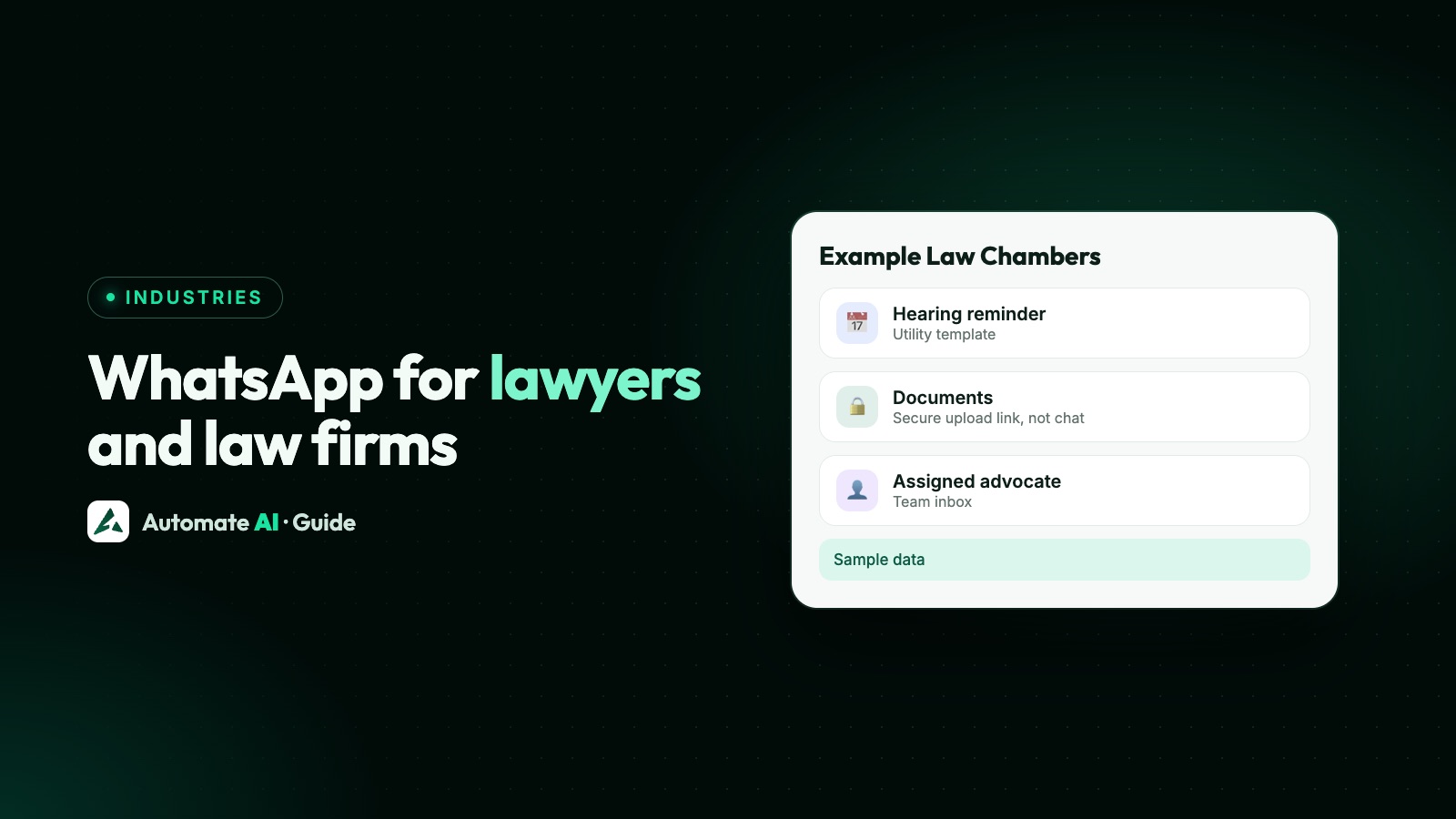
Lawyers and law firms can use WhatsApp for the practical side of a practice: answering new enquiries, booking consultations, reminding clients of meetings and dates, sending document checklists and fee reminders. The facts of a matter and the advice itself are better kept to meetings, calls and secure channels, because a WhatsApp chat can be read on a shared or unlocked phone.
This guide covers what WhatsApp suits in a legal practice, whether you need the Business app or the API, an intake bot that books consultations without giving advice, reminder samples, how to collect documents safely and who can read chats on the API. It explains how the tools work; it isn’t legal advice, and your own professional rules come first.
Key takeaways
- Use WhatsApp for enquiries, bookings, reminders and checklists, not for the details of a case.
- A chatbot can book a consultation by asking the area of law, city and a preferred time, then hand over to a person.
- Reminders sent more than 24 hours after a client’s last message must be approved templates. Keep matter details out of them.
- WhatsApp’s policy says not to ask people to share ID card numbers, card numbers or account numbers in a chat. Use a secure upload page.
- On the API, messages are decrypted for your business, so limit who on your team can read them.
What WhatsApp suits in a law practice, and what it doesn’t
Some clients would rather send a quick message than phone the office about routine things. Draw a clear line between those and the confidential work:
| Good fit for WhatsApp | Better kept to meetings or secure channels |
|---|---|
| New enquiries and the first reply | The facts of the case and the legal advice |
| Booking and rescheduling consultations | Anything you wouldn’t want read on a family phone |
| Reminders of meetings, filing deadlines and dates | Opposing parties’ details and evidence |
| Checklists of documents to bring | Copies of ID cards, bank statements or medical records |
| Fee and invoice reminders with a payment link | Card, bank account or ID numbers |
| Office timings, location and directions | Settlement figures and strategy |
Tell clients at the start what you will and won’t discuss on WhatsApp, and say in your privacy notice that you use it and who processes the data.
WhatsApp Business app or the API?
A solo practitioner answering a few messages a day can manage with the free WhatsApp Business app on one phone. It has quick replies and labels, but it runs on one phone plus up to four linked devices, with no chat assignment (except with a paid Meta Verified multi-agent plan) or chatbots, as covered in our guide to its limits.
Firms with several lawyers, a front desk or junior staff usually need the WhatsApp Business Platform (API) through a provider. That gives you:
- One firm number that stays with the firm when someone leaves, instead of clients messaging an associate’s personal phone.
- A shared inbox where the front desk answers first and passes chats to the right lawyer.
- Chatbots and scheduled reminders that run without someone at the desk.
- Roles and access controls that decide who can read which chats.
Already using the Business app on your office number? With coexistence you can keep the app on the same number and use Automate AI as well. See WhatsApp coexistence and WhatsApp Business app limitations.
An intake bot that books consultations, not one that gives advice
People search for a “WhatsApp bot for lawyers” hoping it will handle new enquiries. It can, as long as it collects booking details and leaves the law to you. In Automate AI’s chatbot builder (AI + Automation Plan and Series 4):
- Trigger the flow for new contacts, or on keywords such as “consultation” or “appointment”.
- Greet and set expectations: who you are, that the chat is for booking, and that advice is given in the consultation.
- Ask the area of law with a list message, such as Family, Property, Employment, Company, Criminal, Other. Meta allows up to 10 rows.
- Ask the city or court if it matters for who handles the matter, with Add to group to record the choice.
- Ask for the client’s name and a preferred time as typed answers, each followed by an Update Contact step, which saves the next typed reply to the contact.
- Hand over to the front desk or the right lawyer, and tell the client who will confirm and by when.
A sample intake chat
Made-up names throughout:
- Client: Hi, I need help with a property dispute
- Bot: Thank you for contacting Example Law Chambers. This chat is for booking a consultation; please don’t share case details or documents here. Which area is it about? [Choose area]
- Client taps: Property
- Bot: Thanks. What name should we book under?
- Client: Meera Shah
- Bot: And which day and time would suit you this week? Our office is open 10am to 6pm, Monday to Saturday.
- Client: Thursday afternoon
- Bot: Thank you, Meera. Our front desk will confirm a Thursday slot and the consultation fee here by 6pm today.
Reminders for meetings, deadlines and dates
Reminders usually go out days after the client last wrote to you, outside the 24-hour customer service window, so they must be approved templates. A reminder about an appointment the client booked fits Meta’s utility category, which covers messages triggered by a user’s request and without promotional content.
Keep them short and generic. A lock screen can show the first lines of a message to anyone nearby. Samples you can adapt, where {{1}} is the client’s name:
| Reminder | Sample template |
|---|---|
| Consultation | “Hi {{1}}, a reminder of your consultation with Example Law Chambers on {{2}} at {{3}}. Reply 1 to confirm or 2 to change the time.” |
| Documents to bring | “Hi {{1}}, for your meeting on {{2}}, please bring the documents on the checklist we gave you. Reply here if you have questions.” |
| A date in your matter | “Hi {{1}}, your matter has a date on {{2}}. Please call the office on {{3}} if you haven’t discussed it with us yet.” |
| Signing appointment | “Hi {{1}}, your documents are ready to sign at our office on {{2}}. Please bring an original photo ID.” |
In Automate AI, a scheduled automation can send a template on a date saved in a contact’s custom fields, such as next_meeting_date, on the day or 1, 3 or 7 days before, at a time you choose. One field holds one date, so for clients with several matters, update it after each date or use your practice software with Automate AI’s REST API (AI + Automation Plan and Series 4). More timing ideas in WhatsApp appointment reminders.
Collect documents without putting clients at risk
Legal work runs on documents, and WhatsApp makes it easy to send them. That’s the risk. WhatsApp’s Business Messaging Policy says businesses shouldn’t share or ask people to share full payment card numbers, financial account numbers, personal ID card numbers or other sensitive identifiers.
- Send the checklist on WhatsApp, and collect the documents in person, by your firm’s secure portal or upload page.
- Don’t ask for photos of ID cards in the chat. If a client sends one anyway, move it to your file system and tell them a safer way next time.
- Send your own documents carefully: a draft agreement as a PDF is fine if the client agreed to receive it there, but check the number before you press send.
- Never forward one client’s chat or file to another person. The policy forbids sharing information from one customer’s chat with another customer.
Confidentiality: who can read the chats
This matters more for lawyers than for most businesses. Chats with a business on the API aren’t end-to-end encrypted in WhatsApp’s sense. Meta’s data privacy page explains that Cloud API decrypts incoming messages and forwards them to the business, encrypts messages at rest, and keeps messages for a maximum of 30 days. Your provider then stores the conversation so your team can read it. Our guide to WhatsApp Business API encryption explains the route in full.
So access control is what protects client confidences. In Automate AI:
- Give each person their own login and the smallest role they need: Owner, Manager or Agent.
- Keep managers to their own department, such as Family or Corporate, so they see only those chats and contacts plus unassigned ones.
- Hide customer numbers from staff who don’t need them. They see masked numbers and can’t export contacts.
- Use internal notes for team comments. Clients never see them.
- Ask everyone to turn on two-step login in Settings › Security, and remove people the day they leave.
Fees, invoices and newsletters
Fee reminders for an invoice already raised are utility messages when they stick to the facts: amount, due date and a link to pay on a secure page. Never ask for card or bank details in the chat. Samples and timing are in payment reminder messages.
Newsletters and updates on changes in the law: expect Meta to treat them as marketing, even when they’re informative. They need the client’s agreement to receive them, with your firm’s name in the opt-in, and an easy way out such as “Reply STOP to opt out”. In Automate AI a typed STOP opts the contact out automatically.
Before you send any promotional message, check whether your bar council or law society limits how lawyers advertise or seek work. Rules differ by country, and it’s often simpler to use WhatsApp to serve existing clients than to find new ones.
Set it up in Automate AI
- Connect your firm’s number and invite your team, with roles and departments by practice area.
- Turn on auto-assignment so new enquiries go to the front desk or the right department, in turn or least busy first.
- Save quick replies for office timings, directions and the consultation fee.
- Build the intake chatbot and publish it after testing it from your own phone.
- Create reminder templates and wait for Meta’s approval before you need them.
- Add date fields to contacts, such as
next_meeting_date, and a scheduled automation for each reminder.
The shared team inbox is on every plan; chatbots and scheduled automations come with the AI + Automation Plan and Series 4. See pricing for plans and per-message WhatsApp rates.
Frequently asked questions
Can lawyers use WhatsApp with clients?
Yes, for routine contact such as bookings, reminders and checklists. Whether it suits a particular matter depends on your professional rules, data protection law and the client’s wishes. Keep case details and advice to meetings and secure channels.
Is there a WhatsApp bot for lawyers?
Any WhatsApp Business API chatbot can work for a law firm. In Automate AI, a chatbot can ask the area of law, city, name and preferred time, save the answers to the contact and hand the chat to your team. It shouldn’t give legal advice.
Are WhatsApp Business API chats end-to-end encrypted?
Not in WhatsApp’s sense. Meta’s Cloud API decrypts messages and forwards them to your business (through your provider), and the provider stores them for your team. Meta encrypts messages at rest and keeps them for a maximum of 30 days.
Can I ask clients to send ID documents on WhatsApp?
Avoid it. WhatsApp’s policy says not to ask people to share personal ID card numbers or other sensitive identifiers. Collect identity documents in person or through a secure upload page.
Can I send hearing or meeting reminders automatically?
Yes, with approved templates, because they usually go out more than 24 hours after the client’s last message. In Automate AI a scheduled automation can send one on a date saved on the contact, on the day or 1, 3 or 7 days before.
Can my whole firm use one WhatsApp number?
Yes, on the WhatsApp Business API. Everyone logs in to one shared inbox with their own account and role, and you can keep managers to their own department and hide client numbers from staff.
Sources
- Meta: Cloud API data privacy and security
- Meta: Send messages (customer service window)
- Meta: Template categorization
- Meta: Interactive list messages
- Meta: Get opt-in for WhatsApp
- WhatsApp Business Messaging Policy
WhatsApp rules and prices change. We check these guides against Meta’s documentation, but always confirm current terms with Meta before you rely on them. Questions? Message us on WhatsApp at +91 836 977 8812.