How to Use WhatsApp Polls for Business
How to create a WhatsApp poll in the Business app for groups and channels: limits, settings and sample questions, plus what to use instead on the WhatsApp API.
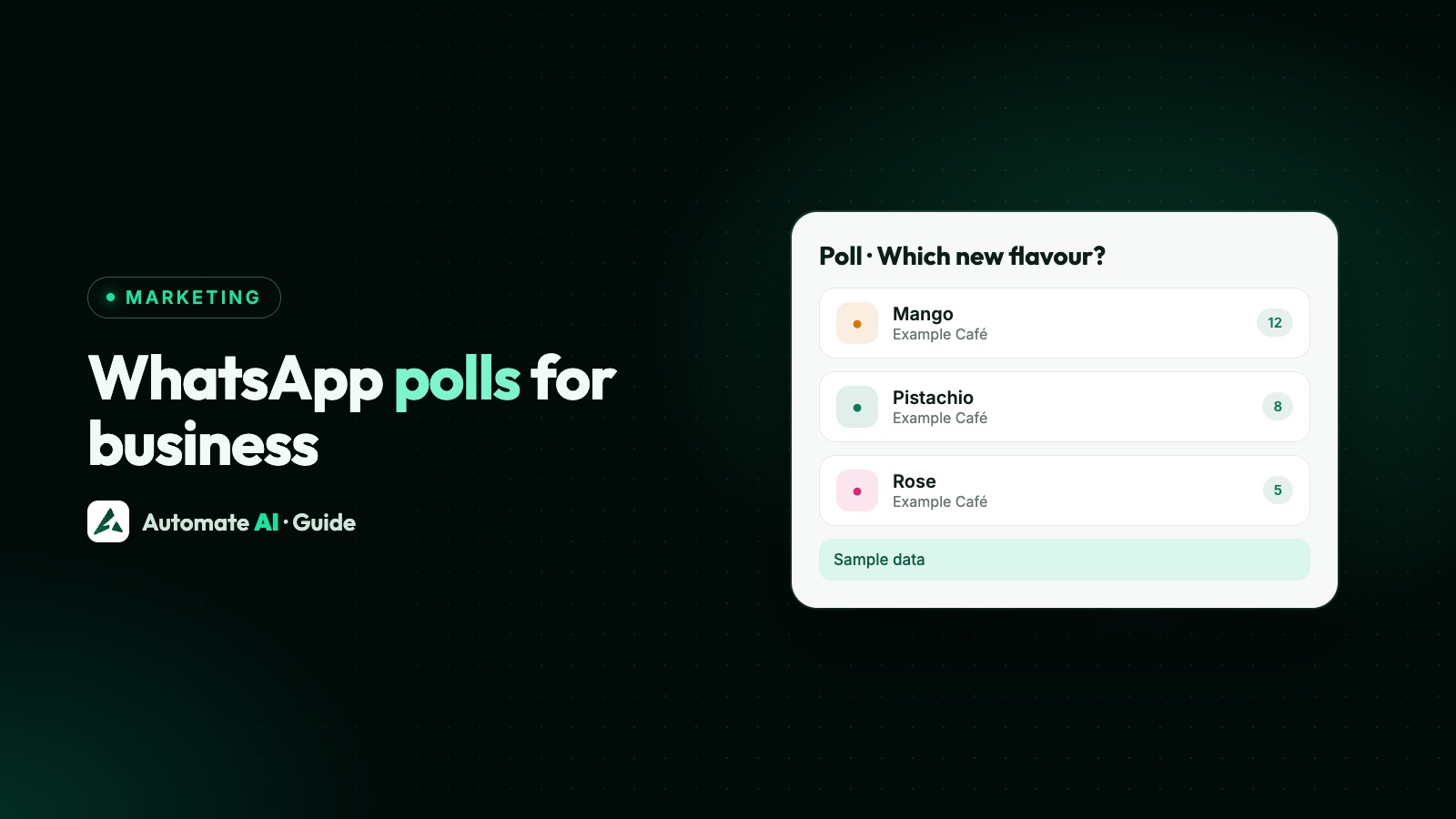
To create a WhatsApp poll, open a group chat or your channel in the WhatsApp Business app, tap the attach icon, choose Poll, type a question of up to 255 characters and up to 12 options, then send. Members or followers tap to vote, and you see the results live.
Polls are a feature of the WhatsApp and WhatsApp Business apps. The WhatsApp Business API has no poll message, so businesses that message customers through a platform use reply buttons, lists or Flows instead. This guide covers both: how to run polls in the app, what to use on the API, and sample questions you can copy.
Key takeaways
- Polls allow up to 12 options, each up to 100 characters, and a question of up to 255 characters.
- Multiple answers are on by default. Turn it off for a single-choice poll before you send, because settings can’t be changed later.
- You can set an end time, hide voter names and edit the question within 15 minutes.
- In a channel, followers can vote but can’t reply, and they don’t see your number.
- The WhatsApp Business API has no poll message: use reply buttons, lists, template quick replies or Flows.
Where WhatsApp polls work
WhatsApp describes polls as a simple way to ask a question and get answers in real time in a group chat. Channel admins can share polls as channel updates too. For a business, that gives two main places to use them:
| Where | Who votes | Good for |
|---|---|---|
| A group you run in the Business app | Group members, who can also chat | Clubs, classes, residents, wholesale buyers, staff |
| Your WhatsApp channel | Followers, who can vote and react but not reply | Quick opinions from a wide audience |
| Chats through the WhatsApp Business API | Not available as a poll | Use buttons, lists or Flows instead (see below) |
Not sure whether a group or a channel suits you? See WhatsApp channels vs communities vs groups.
How to create a poll in the WhatsApp Business app
- Open the group or channel where you want to ask.
- Tap the attach icon (the paperclip or plus sign) and choose Poll.
- Type your question under Question, up to 255 characters.
- Add your options under Options: up to 12, each up to 100 characters. Drag an option to change the order.
- Choose the settings: turn off Allow multiple answers if people should pick one option, and set an end time or hide voter names if you want to.
- Tap Send.
| Limit or setting | What WhatsApp allows |
|---|---|
| Question length | Up to 255 characters |
| Number of options | Up to 12 |
| Option length | Up to 100 characters each |
| Multiple answers | On by default; turn off for one vote each |
| End time | Optional; voting closes at the time you choose |
| Voter names | Can be hidden; everyone still sees the vote counts |
| Editing | Only the question, within 15 minutes of creating the poll |
| Changing settings | Not possible after sending; delete and create a new poll |
Votes, results and settings
People tap an option to vote and tap it again to remove their vote. In a single-choice poll, tapping a new option clears the earlier one. To see results, find the poll in the chat and tap View votes, which shows how many people voted for each option.
- Hide voter names when people might feel awkward being seen, such as feedback on a teacher or a price change. It only changes what the results screen shows: counts stay visible.
- Set an end time for anything with a deadline, such as choosing an event date, so late votes don’t change the decision.
- Fix a typo fast. You have 15 minutes to edit the question. Options and settings can’t be edited, so read them before sending.
- Delete a poll by tapping and holding the question, then the bin icon, and choosing Delete for everyone or Delete for me.
- Notifications: keep WhatsApp notifications on to hear about new votes.
Polls in a WhatsApp channel
A channel is a one-way feed. Followers can’t reply to updates or message the admins, but they can react with an emoji or vote in a poll, which makes polls the easiest way to hear from them. Admins see poll vote results in an update’s details.
- Privacy: followers don’t see your WhatsApp profile name, picture or phone number.
- Keep the poll short and answerable at a glance; followers scroll past long updates.
- Close the loop: post the result and what you’ll do about it, so the next poll gets votes too.
More ideas for channel and Status posts are in WhatsApp Status for business.
Can you send polls with the WhatsApp Business API?
No. Meta’s list of messages you can send through the Cloud API includes text, media, location, contacts, reactions and several interactive types, but no poll. If your customers chat with you through an API platform, use one of these instead:
| Option | Limits | When it reaches people |
|---|---|---|
| Reply buttons | Up to 3 buttons, 20 characters each | Inside an open 24-hour window |
| List message | Up to 10 rows in up to 10 sections; row titles up to 24 characters | Inside an open 24-hour window |
| Template with quick-reply buttons | Up to 10 buttons; the template is reviewed by Meta | Any time, to opted-in contacts; charged per delivered message |
| WhatsApp Flow | A short form on one or more screens | As a Flow message or a template button |
When a customer taps a reply button, your system receives the button’s ID and label, so you know exactly which option they chose. That’s actually more useful than a group poll: the answer belongs to one known customer, privately. Details and examples are in WhatsApp buttons and list messages, longer surveys in WhatsApp Flows, and rating questions in how to collect customer feedback on WhatsApp.
Run a poll-style question in Automate AI
Automate AI doesn’t send WhatsApp polls, because the API has none. Two setups give you the same result, one vote per customer, in a private chat:
- To ask people who haven’t messaged you recently, create a template with quick-reply buttons, one per option, and send it as a campaign to an opted-in group. If you ask about offers or new products, it’s a Marketing template.
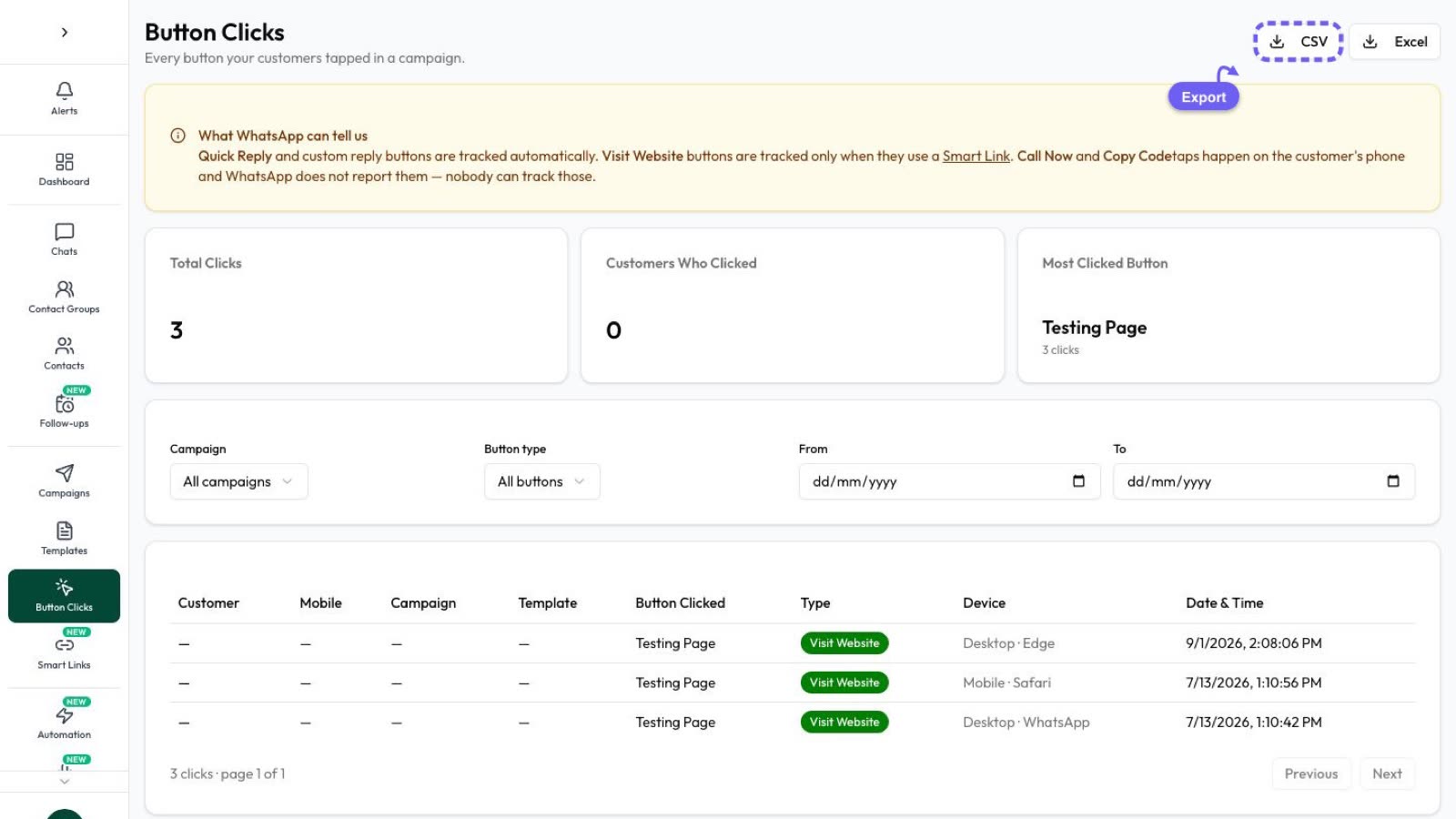
- See the votes: Campaigns › Tracking › Button clicks shows total clicks and the most-clicked button, and inside the campaign the taps filter shows who tapped. You can export the list.
- To ask people already chatting, use reply buttons or a list in a chatbot at Automation › Flows, and add an Add to Group step on each branch to record the choice.
- Thank them and share the result, so voting feels worth it.
Sample poll questions for business
Our own examples to adapt. In the app, use up to 12 options; for API buttons, keep to 3 short labels or use a list.
| Business | Question | Options |
|---|---|---|
| Café | Which new flavour should we add next month? | Hazelnut / Mango / Masala chai |
| Tuition classes | Which time suits you for the weekend batch? | Saturday 10 AM / Saturday 4 PM / Sunday 10 AM |
| Clothing shop | What should our next drop focus on? | Kurtas / Denim / Kidswear |
| Gym | Should we open at 5 AM on weekdays? | Yes, I’d come / Maybe / No |
| Residents’ group | Which date works for the society meeting? | Sat 14 / Sun 15 / Sat 21 |
| Restaurant | How was your last order? | Loved it / It was okay / Not great |
| Event organiser | Which workshop would you join? | Social media basics / Pricing your products / Hiring your first staff |
A sample marketing template with quick-reply buttons, for an opted-in list:
“Hi {{1}}, we’re choosing next month’s new flavour at Example Café and would love your vote. Tap one below. Reply STOP to opt out.” [Hazelnut] [Mango] [Masala chai]
Tips and rules for business polls
- One question per poll, with options that don’t overlap.
- Add “Other” or “None of these” when your list might miss the answer; in the app you have room for it.
- Only message people who opted in. A group or channel is people who chose to join; a template campaign needs opt-in. See WhatsApp opt-in.
- Don’t ask for sensitive details in a poll or a button reply: no health conditions, card numbers or ID numbers.
- Polls aren’t a statistically fair survey. The people who vote are the ones who care most, so treat results as a signal, not a measurement.
- Act on the answer and say so. That’s what earns votes next time.
Frequently asked questions
How do I create a poll in WhatsApp Business?
Open a group or your channel, tap the attach icon, choose Poll, enter a question and up to 12 options, pick the settings and tap Send.
How many options can a WhatsApp poll have?
Up to 12 options, each up to 100 characters. The question can be up to 255 characters.
Can I make a WhatsApp poll with only one answer per person?
Yes. Turn off Allow multiple answers before you send it. Settings can’t be changed after the poll is created.
Can people see who voted in my poll?
By default, View votes shows who voted for what. You can hide voter names when you create the poll; vote counts stay visible to everyone.
Can I send a WhatsApp poll through the Business API?
No. The Cloud API has no poll message. Use reply buttons (up to 3), a list (up to 10 rows), a template with quick-reply buttons, or a WhatsApp Flow.
Can I edit a WhatsApp poll after sending it?
You can edit the question within 15 minutes of creating it. Options and settings can’t be changed, so delete the poll and send a new one if they’re wrong.
Sources
- WhatsApp Help Center: How to use polls
- WhatsApp Blog: Better polls, @all and more (August 2026)
- WhatsApp Blog: New updates to polls (May 2023)
- WhatsApp Help Center: About creating a WhatsApp Channel
- Meta: Send messages (message types and the 24-hour window)
- Meta: Interactive reply buttons messages
- Meta: Interactive list messages
WhatsApp rules and prices change. We check these guides against Meta’s documentation, but always confirm current terms with Meta before you rely on them. Questions? Message us on WhatsApp at +91 836 977 8812.