WhatsApp Template Buttons: Every Type and Its Limits
Every WhatsApp template button type Meta allows: quick reply, URL, dynamic URL, phone, copy code, OTP, Flow and product buttons, with counts and text limits.
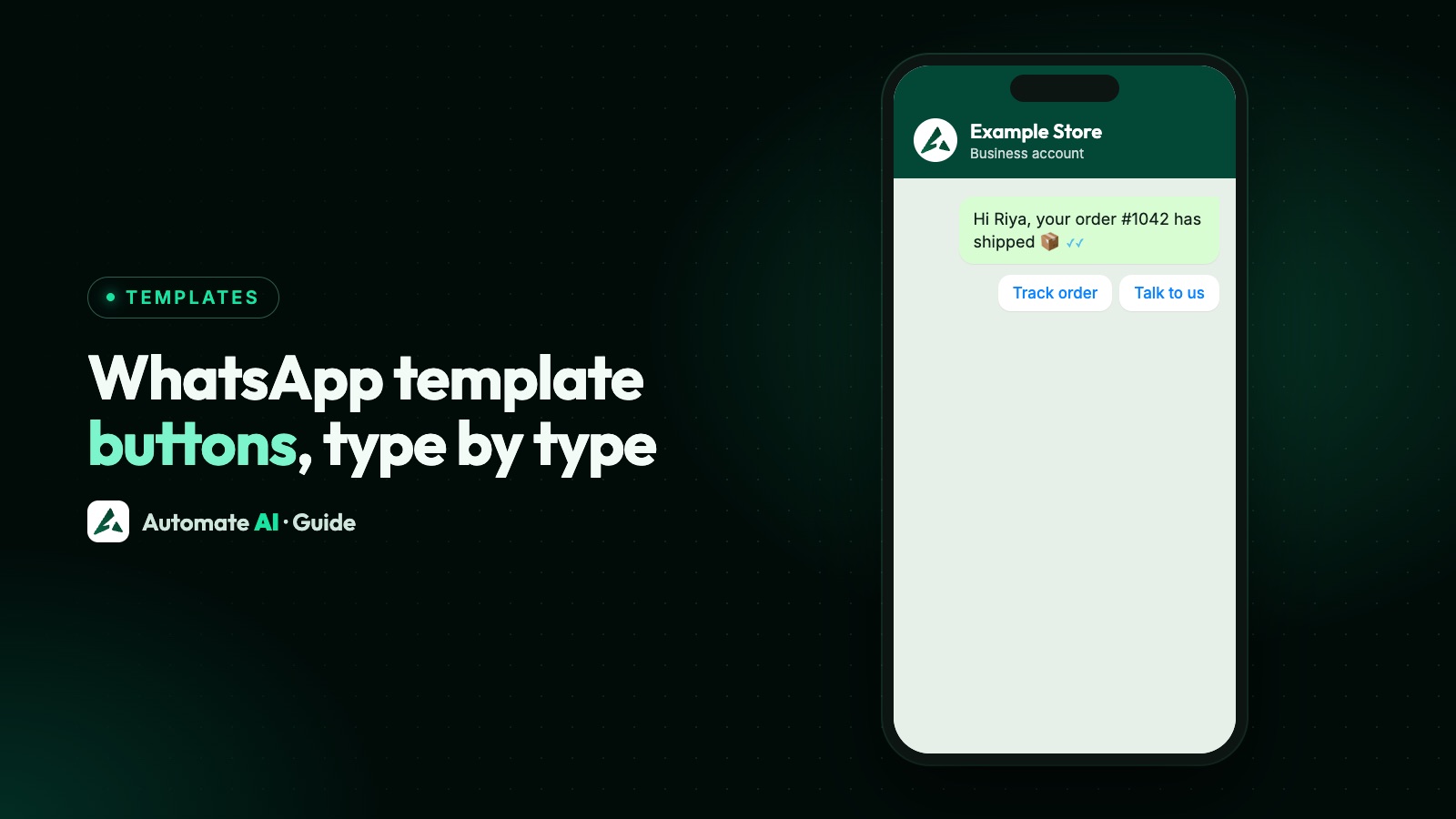
A WhatsApp template can have up to 10 buttons, and Meta offers more types than most people use: quick reply, website (URL, fixed or dynamic), phone number, copy code, WhatsApp voice call, one-time password, Flow, and product buttons for catalogues. Each type has its own count limit and character limit, and some can only be used in certain template categories.
This is a reference for those buttons: what each one does, the numbers Meta sets, what you can change each time you send, and which ones Automate AI’s template builder can add. Buttons inside a live chat (reply buttons, lists) are a different feature, covered in WhatsApp buttons and lists.
Key takeaways
- Up to 10 buttons in total: 10 quick replies, 2 URL buttons, 1 phone number and 1 copy code at most.
- Most button labels can be 25 characters; the WhatsApp call button allows 20.
- A URL button can have one variable, at the end of the link, so each customer gets their own link.
- Button text, phone numbers and fixed links are locked at approval. The main things that change per send are a URL ending, a copy code and the products shown.
- Quick replies must sit together, all before or all after the other buttons, or Meta rejects the template.
Every template button type at a glance
Meta lists these button types for message templates. Limits are from Meta’s developer documentation:
| Button | What a tap does | Max per template | Key limits |
|---|---|---|---|
| Quick reply | Sends the button text back to you as a message | 10 | Label 25 characters |
| Website (URL) | Opens a link in the phone’s browser | 2 | Label 25, link 2,000 characters, one variable at the end |
| Phone number | Opens the phone dialler for your number | 1 | Label 25, number 20 characters |
| Copy code | Copies a code to the clipboard | 1 | Code 20 characters (15 on limited-time offers) |
| WhatsApp voice call | Starts a WhatsApp call to the business | Not stated | Label 20 characters; on the template, live 1 to 30 days |
| One-time password | Copies or autofills a login code | 1 (authentication only) | Label 25 characters |
| Flow | Opens a WhatsApp Flow (an in-chat form) | Not stated | Label 25 characters |
| Catalogue | Opens your product catalogue | One button | Fixed label “View catalog” |
| Multi-product | Shows chosen products in sections | One button | 30 products, 10 sections, section titles 24 characters |
| Single product | Opens one product | One button | Fixed label, body text 160 characters |
Across all types, a template can hold up to 10 buttons. If it has more than three, WhatsApp shows two and puts the rest behind a See all options button.
Quick reply buttons
A quick reply sends its label back to you as a normal customer message, so your chatbot or team can answer it. That also makes it the one template button whose taps you always see: Meta sends a webhook every time someone taps one.
- Up to 10 per template, label up to 25 characters.
- Group them. Quick replies must sit together, before or after the other buttons. “Quick reply, Quick reply, URL, Phone” is fine; “Quick reply, URL, Quick reply” is rejected.
- Use them for decisions, such as “Confirm”, “Reschedule” or “Talk to someone”.
Website (URL) buttons, fixed and dynamic
A URL button opens a page in the customer’s browser. You can have two per template, each with a label of up to 25 characters and a link of up to 2,000 characters.
Dynamic URLs
A link can contain one variable, and it must be at the very end, such as https://example.com/track/{{1}}. When you submit the template you give a sample value. When you send, you fill in the ending for each customer, so one approved template can open a different order, booking or cart for each person.
| Allowed | Not allowed |
|---|---|
https://example.com/order/{{1}} | https://example.com/{{1}}/details (variable not at the end) |
https://example.com/offer?code={{1}} | https://{{1}}.example.com (variable in the domain) |
| One variable per link | Two variables in one link |
Meta asks you to percent-encode special characters in the value you send. A space becomes %20 and a colon %3A. If you don’t, the link can fail validation and the whole message fails to send.
Phone number and WhatsApp call buttons
These look alike but work differently:
| Phone number button | WhatsApp voice call button | |
|---|---|---|
| What a tap does | Opens the dialler to ring the number on the button | Starts a WhatsApp call to the number that sent the message |
| Per template | 1 | Not stated by Meta |
| Label | Up to 25 characters | Up to 20 characters, “Call Now” by default |
| Other limits | Number up to 20 characters | On the template, active for 1 to 30 days; a send can override it with anything from 1 minute to 30 days (7 days by default) |
| Needs | Any phone number | Meta’s Cloud API calling features set up on your number |
One catch with phone number buttons: in countries where numbers have a zero right after the country code, Meta strips that zero. If your number doesn’t work without it, use another number or put it in the message text instead.
Copy code buttons
A copy code button puts a code on the customer’s clipboard, ready to paste at checkout. A template can have one, and the code can be up to 20 characters. The code itself is set each time you send, so the same template can carry this week’s code or a code unique to each customer.
On a limited-time offer template, the offer code is capped at 15 characters, and the copy code button comes before a URL button. The details are in limited-time offer templates.
Sample (marketing): “Hi Asha, your member price is back this weekend. Tap Copy code and use it at checkout. Reply STOP to opt out.” Buttons: [Copy code: WEEKEND10] [Shop now]
One-time password (OTP) buttons
Authentication templates have their own buttons, and the message text is fixed by Meta (for example “123456 is your verification code.”). URLs, media and emojis aren’t allowed in them. There are three styles:
- Copy code: the customer taps to copy the code and pastes it into your app or site. Label up to 25 characters.
- One-tap autofill: on Android, the tap opens your app and fills the code in. Your app’s package name and signature hash are needed.
- Zero-tap: Android only, with no button at all. Your app reads the code automatically.
You can add an expiry line from 1 to 90 minutes and Meta’s security line, “For your security, do not share this code.” Delivery limits and setup are in WhatsApp OTP.
Flow and product buttons
A Flow button opens a WhatsApp Flow, a form with one or more screens inside the chat. The label can be 25 characters, and the template points to a published Flow by its ID or name, or by passing the Flow JSON (the name and JSON options are Cloud API only). See WhatsApp Flows and WhatsApp forms.
Product buttons need a catalogue with products connected to your WhatsApp Business Account, and they’re used in marketing templates:
- Catalogue template: a fixed View catalog button that opens your whole catalogue, with a product picture of your choice as the header.
- Multi-product template: a View items button showing up to 30 products in up to 10 sections, each section title up to 24 characters. These can’t be forwarded.
- Single-product template: a View button for one product, with body text up to 160 characters.
- Product carousel template: up to 10 product cards, each with a View button or a URL button.
Customers need WhatsApp version 2.22.24 or later to see single- and multi-product templates.
What you can change each time you send
Meta approves the template as a whole, buttons included. After approval, most of a button is locked:
| Fixed when the template is approved | The main things set each time you send |
|---|---|
| Every button label | The ending of a dynamic URL ({{1}}) |
| The number on a phone number button | The code on a copy code button |
| A website link with no variable | Which products a catalogue or multi-product button shows |
| The type and number of buttons | The one-time password in an authentication template |
So plan ahead. If you might want different landing pages later, use a dynamic URL from the start. Changing a fixed link means editing the template, and edits go back through Meta’s review.
Template buttons in Automate AI
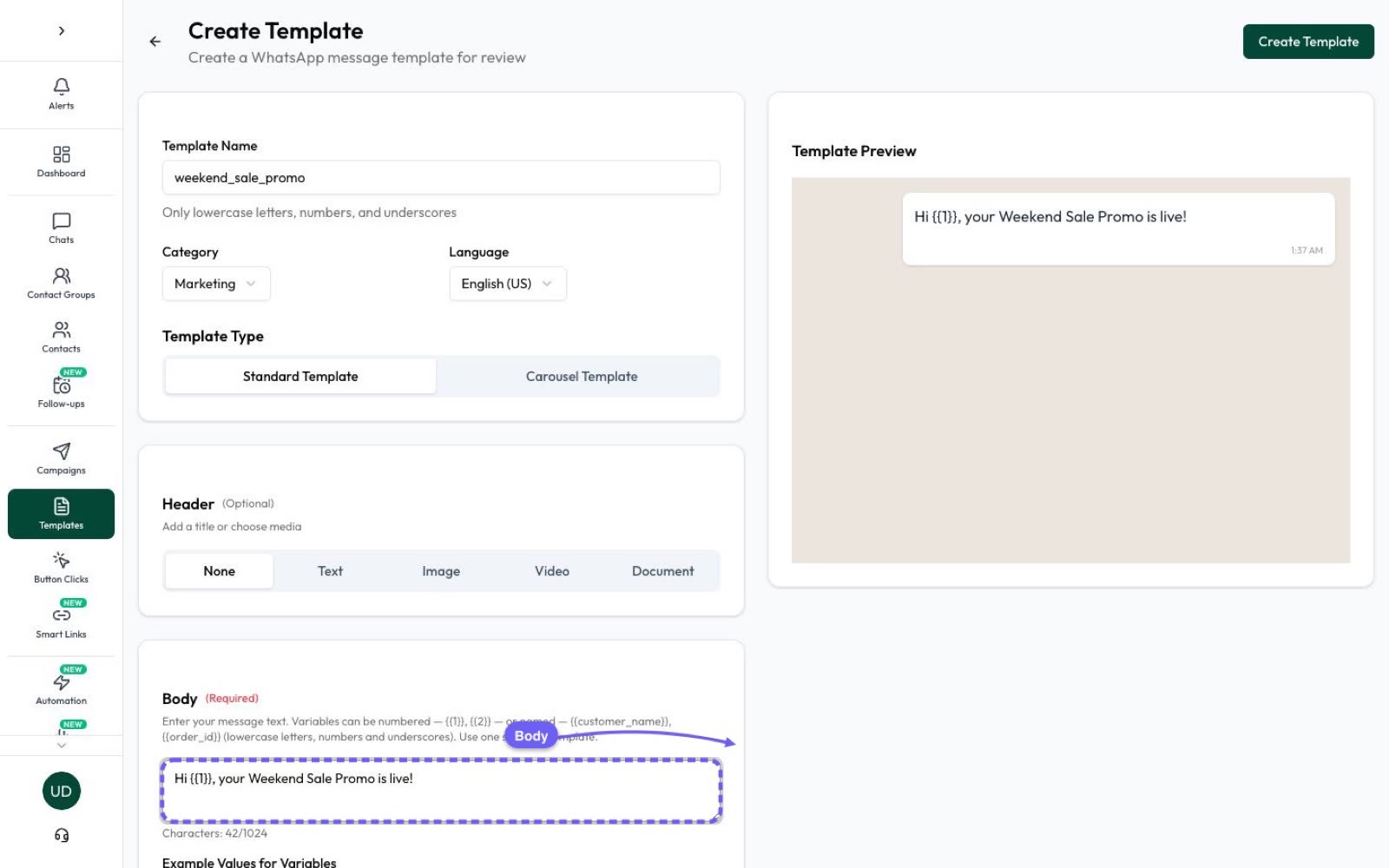
In Templates › Create Template, the Buttons section adds up to 10 buttons: Custom button (quick reply), Call phone number, Visit website and Copy offer code. The builder keeps labels to 20 characters, a little under Meta’s limit. A few more options:
- Track clicks with a Smart Link on a website button sends the tap through a tracked link, so you can see who clicked under Campaigns › Tracking.
- Authentication templates offer Copy code, One-tap and Zero-tap buttons.
- Utility templates can add a form: a Meta Flow by its Flow ID, or a simple Name, Email and Phone form.
- Carousel templates take up to 2 buttons per card: website, phone or quick reply.
When you create a campaign, Automate AI lists the template’s buttons. You fill in the link ending for a dynamic URL and the offer code for a copy code button, and buttons WhatsApp keeps fixed are shown as fixed. The builder doesn’t create catalogue or multi-product templates, or WhatsApp call buttons. Approved catalogue and multi-product templates already on your WhatsApp account come in with Sync from WhatsApp (templates also sync every hour), and you can send them from campaigns, picking the products from your catalogue each time. That only works once an owner or manager turns on Share products in Settings › WhatsApp › WhatsApp Shop, which is off by default.
More on sending templates to a list is on the WhatsApp campaigns page.
Frequently asked questions
How many buttons can a WhatsApp template have?
Up to 10 in total. Within that, at most 10 quick replies, 2 URL buttons, 1 phone number button and 1 copy code button.
What is the character limit for WhatsApp template buttons?
Most button labels can be up to 25 characters. The WhatsApp voice call button allows 20. A URL can be up to 2,000 characters and a phone number up to 20.
Can a WhatsApp template button have a dynamic URL?
Yes. A URL button can have one variable at the end of the link, such as https://example.com/order/{{1}}, and you fill it in each time you send.
Can I mix quick reply and website buttons?
Yes, as long as all quick replies sit together, before or after the other buttons. Templates mixing them can’t be viewed on WhatsApp desktop, so customers are asked to open them on a phone.
Why do only two buttons show on my template?
When a template has more than three buttons, WhatsApp shows two and puts the rest behind a See all options button.
Can I change a button after the template is approved?
Not without editing the template, which goes back through review. The main things that change per send are a dynamic URL ending, a copy code and the products on a product button.
Can I track who taps a template button?
Quick-reply taps come back to you as messages. Website button taps aren’t reported by WhatsApp, so you need a tracked link, such as Automate AI’s Smart Links.
Sources
- Meta: Template components (buttons)
- Meta: Limited-time offer templates
- Meta: Authentication templates
- Meta: Copy code authentication templates
- Meta: Call button messages and deep links
- Meta: Send a Flow message
- Meta: Multi-product template messages
- Meta: Catalog template messages
WhatsApp rules and prices change. We check these guides against Meta’s documentation, but always confirm current terms with Meta before you rely on them. Questions? Message us on WhatsApp at +91 836 977 8812.