“WhatsApp Number Required” in Meta Ads Manager: How to Fix It
Why Meta Ads Manager says a WhatsApp number is required, and how to fix it: connect the number to your Page, approve API requests and sort out portfolio issues.
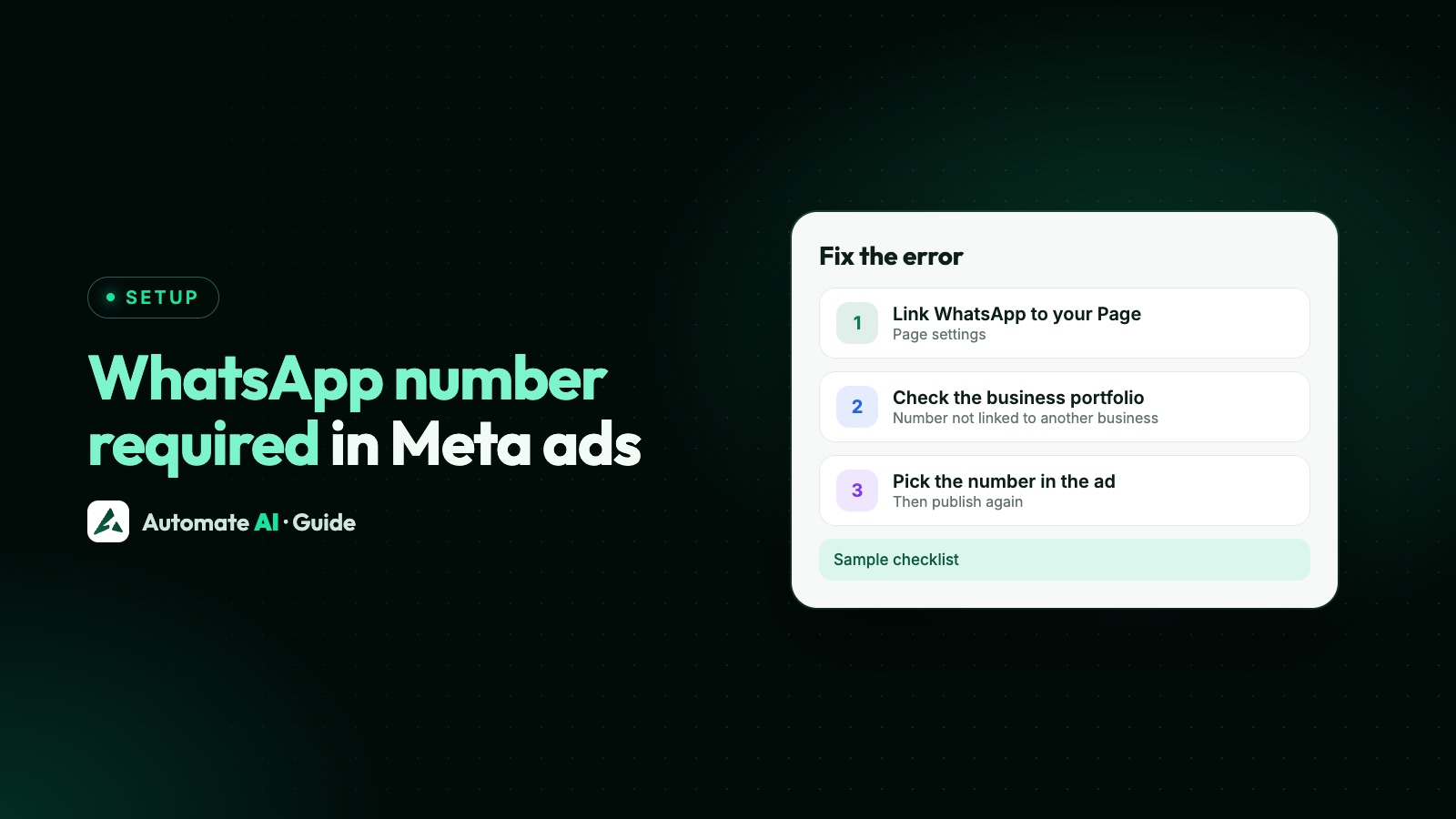
Meta Ads Manager asks for a WhatsApp number when your ad sends people to WhatsApp but the Facebook Page chosen for the ad has no WhatsApp number connected, or the connection was removed. To fix it, connect your WhatsApp Business number to that Page: click Connect account under Message destinations in the ad set, or go to the Page’s Settings › Linked accounts › WhatsApp. If the number is on the WhatsApp Business Platform (API), the business that owns it must also approve the request.
Meta’s Help Centre says the number connected to the Page you choose is the one the campaign uses, so the Page is where most fixes happen. The wording of the warning varies, and sometimes you only see WhatsApp greyed out, but the cause is the same. Below: the quick checks, each fix in Meta’s own steps, business portfolio problems, Instagram, more than one number, and what to check when the ad comes from Automate AI.
Key takeaways
- A Click-to-WhatsApp ad uses the WhatsApp number connected to the Facebook Page you pick in the ad set.
- If WhatsApp is greyed out, click Connect account, enter the number and verify it with the code.
- API numbers need a request from the Page and an approval in the Requests tab of the business that owns the number.
- “Linked to another Facebook business” means the number must be removed from that business portfolio first.
- If you delete every number from the Page, Meta pauses all ads that click to WhatsApp.
What the message means
Meta lets you create ads that click to WhatsApp if your number is connected to your Facebook Page or to your business portfolio. When you choose WhatsApp as the destination, Ads Manager looks at the Page you selected for a connected number. No number means nothing for the button to open, so the ad can’t be published.
| What you see | Likely cause | Fix |
|---|---|---|
| Number required on a new ad | This Page has no WhatsApp number | Connect account in the ad set, or link it in Page settings |
| WhatsApp greyed out under Message destinations | Same: no number on this Page | Click Connect account and verify the number |
| An old ad suddenly needs a number | The number was removed from the Page | Connect it again, then check the ad set |
| Number entered, still not available | API number waiting for approval | Approve it in the owning business’s Requests tab |
| “WhatsApp number linked to another Facebook business” | Number belongs to another portfolio | Remove it from that portfolio, then connect again |
| Ad from an Instagram boost won’t offer WhatsApp | Instagram, Page and number aren’t connected | Link the Page to the number, and Instagram to WhatsApp |
Five checks before you change anything
Most cases are solved by one of these, and none of them changes your setup:
- Is the right Page selected? Under Facebook Page in the ad set, pick the Page your WhatsApp number is connected to. A second Page, or a Page for another brand, often has no number.
- Is the number on that Page? Open the Page’s Settings › Linked accounts and look at WhatsApp. If no number is shown, connect one.
- App or API? If you read your chats in the WhatsApp Business app, use the app steps. If your messages go through a platform such as Automate AI, it’s a WhatsApp Business Platform (API) number and needs the request-and-approve steps.
- Is a request still pending? For API numbers, the Page shows the request’s status until the business that owns the number approves or declines it.
- Is it a business Page? Meta says you can only connect WhatsApp from a Facebook Page for your business, not from a personal profile.
Also make sure you’re an admin of the Page. Meta’s steps for ads that click to WhatsApp ask you to connect the number to your Page and make yourself the admin of it, or to connect the number to your business portfolio.
Fix it from Ads Manager
You can connect the number without leaving the ad. For the Traffic or Engagement objective, Meta’s Help Centre gives these steps:
- In the ad set’s Conversion section, choose Message destinations.
- Under Facebook Page, choose your business Page.
- Under Message destinations, tick WhatsApp. If it’s greyed out, click Connect account.
- Choose your country code, enter your WhatsApp Business number and click Continue.
- Read the message about WhatsApp Business and click Continue again.
- Finish the ad set and the rest of the ad, then publish.
With the Leads objective, choose WhatsApp in the Conversion section and pick the Page. With Awareness, the WhatsApp choice is at the ad level, under Destination › Messaging apps, with the same Connect account option if it’s greyed out. Meta’s steps for Sales match Traffic and Engagement.
A code is sent to the WhatsApp number you enter, so have the phone with that number to hand. If your number is on the API and it doesn’t become available, use the request-and-approve route below.
Fix it from your Page settings
WhatsApp Business app numbers: switch into the Page, open Settings › Linked accounts › WhatsApp, enter the number and confirm the code WhatsApp sends. Then go back to the ad set and choose the Page again so Ads Manager picks up the number. The full steps, including linking from the app, are in how to add WhatsApp to your Facebook Page.
API numbers: the same Linked accounts screen sends a connection request, and someone with full control of the business portfolio that owns the number approves it from the Requests tab in Settings. Until then, the Page has no number and the warning stays. Automate AI connects numbers through Embedded Signup, so Meta sends that request to your own business; the steps are in the same guide.
Business portfolio problems
If connecting fails with “WhatsApp number linked to another Facebook business”, the number is already an asset of a different business portfolio. Someone with full control of that portfolio has to remove it in Meta Business Suite:
- Go to Meta Business Suite and select the portfolio the WhatsApp Business account is in.
- Click Settings, and under Accounts click WhatsApp accounts.
- Click the WhatsApp Business account, then the three dots on the right.
- Click Remove from business portfolio, then connect the Page again.
Before you remove anything, check what else depends on that account, such as an agency’s campaigns or a platform that sends your messages. Removing a working API account can disrupt more than your ads.
Meta also lets you add a WhatsApp Business account to your own portfolio under Settings › WhatsApp accounts › Add, which needs full control of the portfolio. Its rules: only WhatsApp Business accounts can be added, each one can be in only one portfolio, the same number can be on your Page and in your portfolio, and numbers connected to the API are added to your portfolio automatically. If you can’t see WhatsApp accounts in Settings, you may not have full control. For a restricted portfolio, see Meta business portfolio restricted.
Ads for Instagram, and Instagram boosts
Instagram ads that click to WhatsApp still use the Facebook Page’s number, so the fixes above apply. Two extra cases:
- Boosting an Instagram post to WhatsApp. Meta’s Business Help Centre says your Instagram professional account must be linked to your WhatsApp Business account. So link your Instagram account to WhatsApp (and your Page to the number). Then boost the post and pick WhatsApp as the messaging app; Meta’s two articles label the goal differently (Message you, or More messages).
- Linking Instagram to the WhatsApp Business app. In the app, open Tools › Facebook & Instagram › Instagram › Continue and log in. WhatsApp’s Help Center says that if linking fails, check you’re an admin of the Business Manager, that the Instagram profile and catalogue are in the same Business Manager, and that you have the Page and catalogue permissions.
For the button on your Instagram profile itself, see how to add WhatsApp to your Instagram profile. Ads created inside the WhatsApp Business app have their own setup: see ads from the WhatsApp Business app.
More than one number on a Page
A Page can have several WhatsApp numbers, for example one per branch, and you can use any of them for ads. When you create an ad, you can choose Connect another number under WhatsApp in the Destination or Ad type section, enter the number and confirm the code.
- Primary number: one number is the Page’s primary. You can choose it when you connect another number, or later from the Page’s settings.
- Deleting the primary: another connected number becomes the primary automatically.
- Deleting every number: the Page is no longer connected to WhatsApp, and Meta pauses any ads clicking to WhatsApp.
That last point explains many “it worked yesterday” cases: someone tidied up the Page’s linked accounts, and every running ad that opens WhatsApp stopped. Reconnect the number, then check each ad set still points at it.
If your ad comes from Automate AI
Automate AI creates Click-to-WhatsApp ads under Meta Ads on every plan, and each ad opens a chat with the WhatsApp number connected to your Automate AI account. A few checks in the app’s code match the problems above:
- No number yet: you can’t connect an ad account until your WhatsApp number is connected in Settings, because ads open a chat with it.
- Typed IDs: if you enter the ad account and Page IDs by hand, the ad account (and the Page, where Meta shows its owner) must belong to the Meta Business that owns your WhatsApp number.
- Continue with Facebook: you can pick an ad account from any business you can use, such as an agency’s. Meta still needs the chosen Page linked to your WhatsApp number when the ad is published.
- Number removed from the Page: the app tells you “The WhatsApp number is no longer connected to the Facebook Page. Connect it in the Page settings.”
Chats from the ad arrive in the shared inbox as new contacts. If the ad publishes but Meta rejects it in review, that’s a different problem: see Click-to-WhatsApp ad rejected.
Frequently asked questions
Why does Meta Ads Manager say a WhatsApp number is required?
Your ad sends people to WhatsApp, but the Facebook Page chosen in the ad set has no WhatsApp number connected. Connect your number to that Page with Connect account in the ad set or in Page settings under Linked accounts.
Why is WhatsApp greyed out in Ads Manager?
Usually because the selected Page has no connected WhatsApp number. Click Connect account, enter your WhatsApp Business number, click Continue and verify it.
Can I use a WhatsApp Business API number for Click-to-WhatsApp ads?
Yes. Request the connection from your Page’s Linked accounts, confirm the code, and have someone with full control of the business that owns the number approve it in the Requests tab.
Can I use a personal WhatsApp number?
Meta’s steps are for WhatsApp Business numbers, on the WhatsApp Business app or the API. Move the number to WhatsApp Business first.
My ads that click to WhatsApp stopped. Why?
If every WhatsApp number was removed from the Page, Meta pauses all ads clicking to WhatsApp. Reconnect the number in the Page’s Linked accounts and check each ad set.
What does “WhatsApp number linked to another Facebook business” mean?
The number belongs to a different business portfolio. Someone with full control of that portfolio removes it in Meta Business Suite under Settings › WhatsApp accounts, and then you connect it to your Page.
Sources
- Meta Business Help Centre: Create ads that click to WhatsApp in Ads Manager
- Meta Business Help Centre: Connect or disconnect your Page and WhatsApp
- Meta Business Help Centre: Connect your Page to a WhatsApp Business platform number
- Meta Business Help Centre: Connect multiple WhatsApp numbers to your Facebook Page
- Meta Business Help Centre: Troubleshoot connecting your WhatsApp number to your Page
- Meta Business Help Centre: Add a WhatsApp Business account to your business portfolio
- Meta Business Help Centre: Create an ad that clicks to WhatsApp from Instagram
- WhatsApp Help Center: Add a WhatsApp Business account to an Instagram profile
WhatsApp rules and prices change. We check these guides against Meta’s documentation, but always confirm current terms with Meta before you rely on them. Questions? Message us on WhatsApp at +91 836 977 8812.