How to Create WhatsApp Templates in Several Languages
How multi-language WhatsApp templates work: one name per language, the language codes, what Meta doesn’t translate, sending the right version and rules to know.
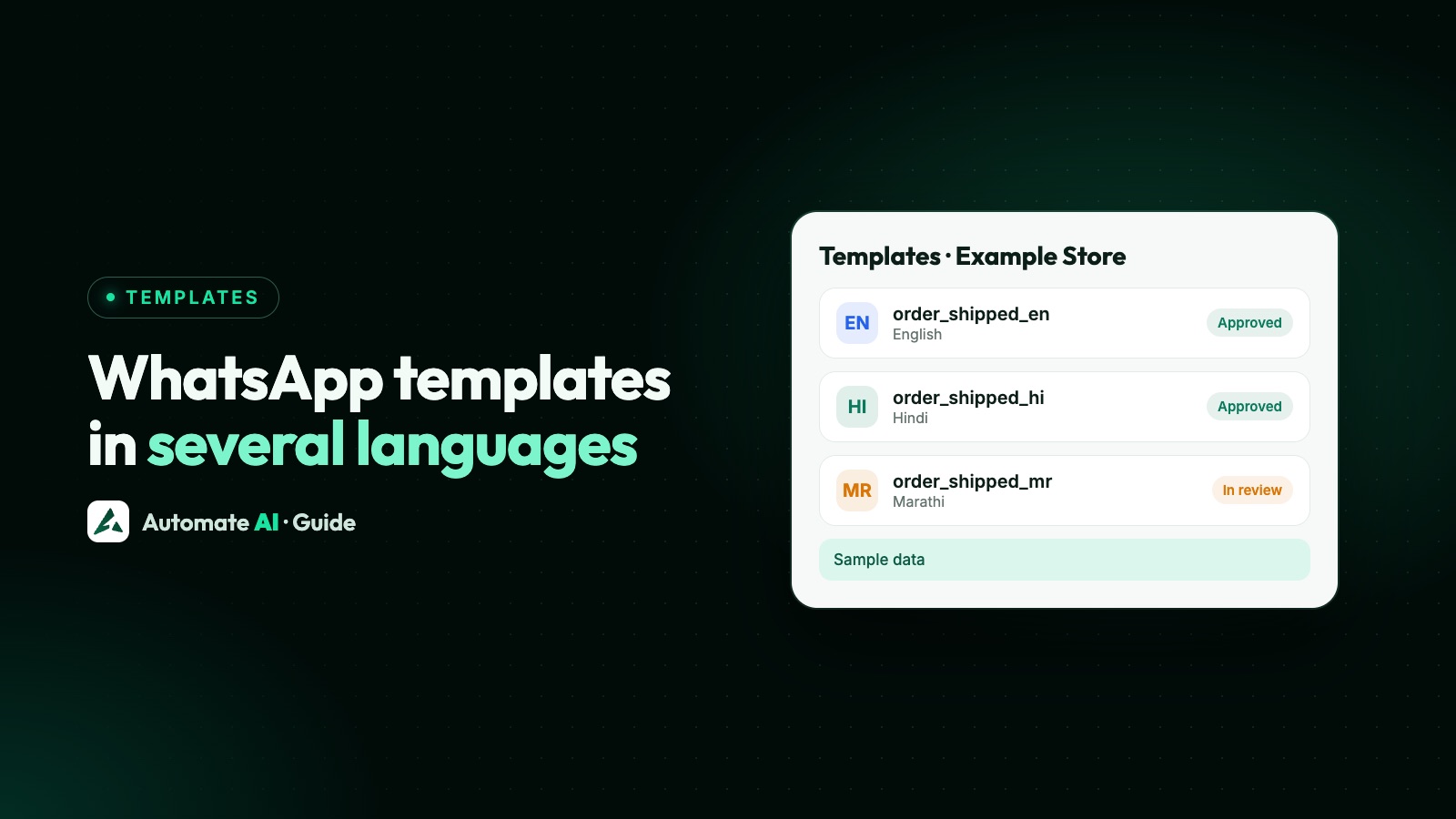
To send a WhatsApp template in several languages, create a separate template for each language, each with its own language code and your own translated text. Meta lets these versions share one name as long as their languages differ, but it doesn’t translate anything: you write every version, each is reviewed on its own, and when you send, you choose the version you want.
This guide explains how language versions work on the WhatsApp Business API, the codes to use, how to write a translation that gets approved, how to send each customer the right one, and the traps around editing and deleting. It’s about message templates, not translating the WhatsApp app or your website.
Key takeaways
- A language version is a separate template. Meta lets versions share a name, one per name and language code, or you can give each its own name.
- Meta doesn’t translate templates or variables. You supply the text and sample values in each language.
- Every language version counts towards your template limit: 250 per account, or 6,000 once your business is verified with an approved display name.
- The language can’t be changed after creation, and deleting a template by name deletes every language with that name.
- When sending, the
language.codemust match an approved version exactly, or the message fails.
How WhatsApp template languages work
Meta’s template guide says every template must have a name, but names aren’t unique, so you can create several templates with the same name in different languages. You must assign a language code when you create each one. What you can’t do is create two templates with the same name and the same language: Meta returns error code 100, subcode 2388024, “Content in This Language Already Exists”.
So “one template in three languages” is really three templates:
| Name | Language code | What it is |
|---|---|---|
| order_shipped | en | English version |
| order_shipped | hi | Hindi version |
| order_shipped | es | Spanish version |
Each has its own text, its own review and its own status. One can be approved while another is still pending or was rejected. And because Meta counts each one against your template limit, three languages for 50 templates means 150 templates.
Same name, or a name for each language?
Sharing a name is Meta’s design, but it isn’t required. You can also give each version its own name, such as order_shipped_en and order_shipped_hi, still with the right language code on each. Which suits you depends on how you send:
| Same name for every language | A name for each language | |
|---|---|---|
| Suits | Developers sending through the API, who swap only the language code | Teams choosing templates from a list in a dashboard |
| Telling versions apart | Only by the language code | At a glance, from the name |
| Deleting by name | Removes every language at once | Removes only that version |
In Automate AI we suggest a name for each language: the campaign screen lists approved templates by name, so versions that share a name look identical there, and deleting is done by name (more on that below).
WhatsApp template language codes
Meta’s supported languages list has more than 100 entries, including regional versions of English, Spanish, Arabic, French and others. A few of the codes businesses use most:
| Language | Code |
|---|---|
| English (generic, UK, US, India) | en, en_GB, en_US, en_IN |
| Hindi | hi |
| Marathi, Gujarati, Punjabi | mr, gu, pa |
| Tamil, Telugu, Kannada, Malayalam | ta, te, kn, ml |
| Bengali (generic, India) | bn, bn_IN |
| Urdu | ur |
| Arabic (generic, UAE, Egypt) | ar, ar_AE, ar_EG |
| Spanish (generic, Spain, Mexico) | es, es_ES, es_MX |
| Portuguese (Brazil, Portugal) | pt_BR, pt_PT |
| French, German | fr, de |
| Indonesian, Swahili, Filipino | id, sw, fil |
| Chinese (China, Hong Kong, Taiwan) | zh_CN, zh_HK, zh_TW |
Use a code from Meta’s supported languages list. The code is a label you choose, so en and en_US are two different versions: a message sent with en_US won’t find a template approved only as en.
Pick one English code and stick to it. If most customers are in one country a regional code is fine, but a generic code such as en is simpler when you sell in several.
How to create a template in another language, step by step
In WhatsApp Manager or any API platform the steps are the same. In Automate AI:
- Get the first version approved, for example
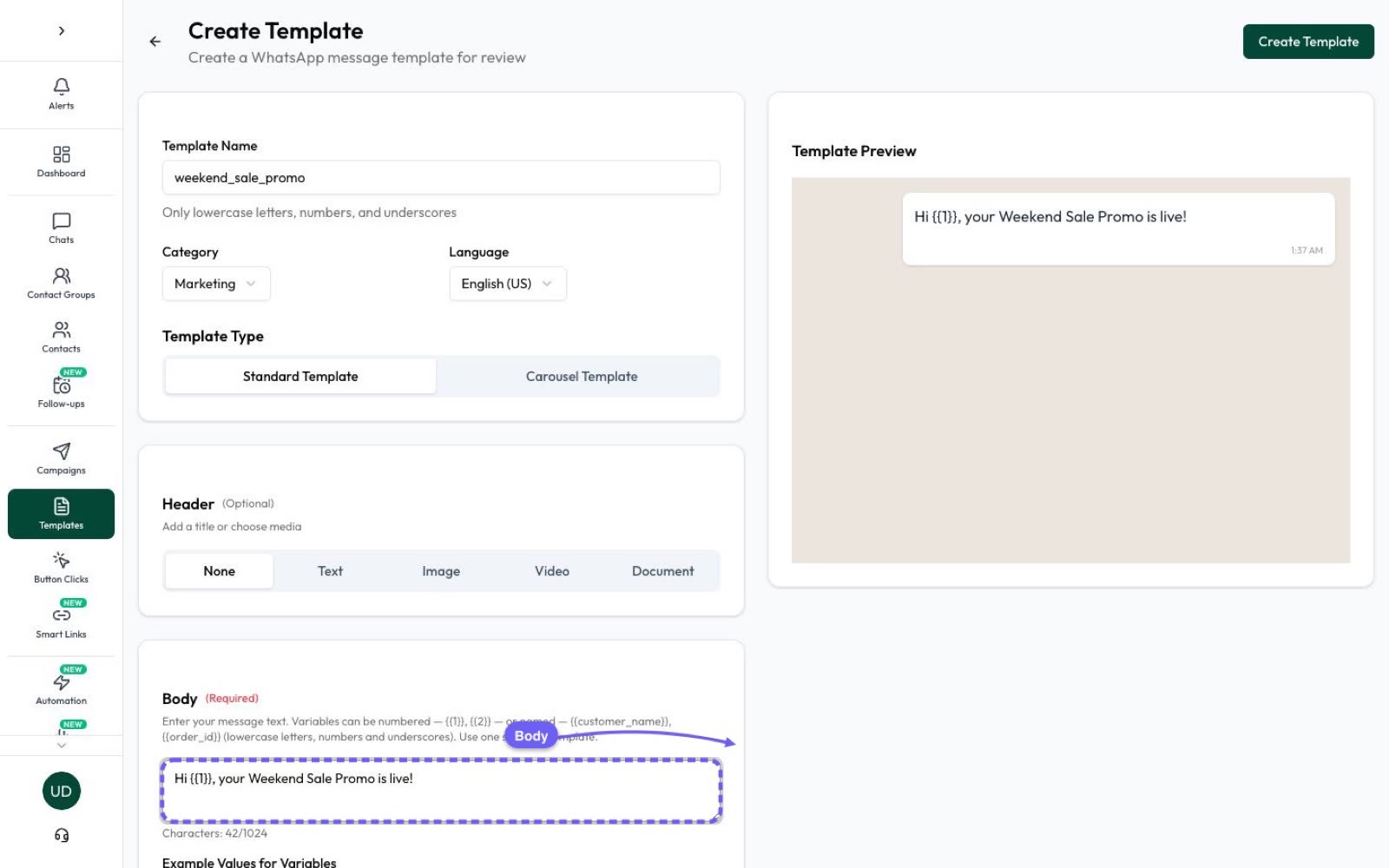
order_shippedin English. Fixing wording once is easier than fixing it in every language. - Open Templates, find it and choose Duplicate Template. The create form opens filled in with the same category, header, body, footer and buttons. If the header is an image or video, upload it again.
- Rename it. Duplicating adds
_copyto the name. Change it to a name with a language ending, such asorder_shipped_hi, or back to the original name if you want every version to share one. - Choose the new language in the Language list.
- Translate every part: header text, body, footer and button labels, and give sample values in the new language.
- Check the preview and submit to Meta. Meta says review can take up to 24 hours.
- Repeat for each language, then check the Language column on the Templates page to see which versions you have.
Automate AI’s Language list covers the main codes, but not every regional variant on Meta’s list: regional codes such as en_IN or bn_IN are missing, so use en or bn. If you’d rather not translate by hand, AI Template Studio can write a template in English, Hindi, Marathi, Gujarati, Tamil and many more, which you then check and edit before submitting.
Writing translations that get approved
Each language version goes through the same review as any template, so the usual rules apply in every language. A few matter more when you translate:
- Translate, don’t paste. Meta rejects a template whose body and footer repeat the wording of one you already have, so submitting identical English text as both
enanden_USrisks a rejection. - Keep the same variables and buttons in every version, so one campaign set-up or integration works for all of them.
- Use named variables if word order changes. Meta rejects positional variables that aren’t in sequence, and it lets named variables such as
{{first_name}}appear in any order when you send. If Hindi needs the date before the order number, named variables are the safer choice. - Don’t start or end with a variable, in any language. Sentence structure differs, so check the first and last words of each translation.
- Keep the category honest. A translated order update is still utility; adding an offer in one language makes that version marketing.
- Have a fluent speaker read it. A clumsy translation reads like spam, and negative feedback from customers lowers your template’s quality rating.
Sample: one utility template in three languages
| Code | Body (sample data) |
|---|---|
| en | Hi {{first_name}}, your order {{order_id}} has been shipped and should arrive by {{date}}. |
| hi | नमस्ते {{first_name}}, आपका ऑर्डर {{order_id}} भेज दिया गया है और {{date}} तक पहुँच जाना चाहिए। |
| es | Hola {{first_name}}, tu pedido {{order_id}} ya fue enviado y debería llegar antes del {{date}}. |
Button labels need translating too: “Track order” might become “ऑर्डर ट्रैक करें” in Hindi. Keep each label within 25 characters.
End every marketing version with a line telling customers to reply STOP, such as “Reply STOP to opt out”. In Automate AI a typed STOP opts a contact out automatically, whatever the template’s language. An owner can add their own opt-out words in Settings › General, but only words in Latin letters or numbers (such as BAND) are recognised, so in a Hindi or Tamil footer ask customers to type STOP.
Sending the right language to each customer
WhatsApp doesn’t pick a language for you. When you send a template through the API, the request names the template and its language.code, and that exact version goes out. If no approved template has that name in that language, the message fails, usually with error 132001. Our guide to sending a template message with the API shows the full request.
That means you need to know which language each customer wants. Two simple ways:
- Ask once. A welcome message with buttons such as “English” and “हिंदी” lets the customer choose, and you record the choice.
- Use what you already know. If your shop, CRM or sign-up form stores a language, bring it in when you import contacts.
In Automate AI
A campaign sends the same template to its whole audience (an A/B test splits people at random, not by language), so it can’t pick a language per customer. To reach a mixed audience, put customers in a group for each language, such as “Hindi speakers”, and create one campaign per group with the matching version. Contacts don’t have a built-in language field, so groups do the job:
- From a chatbot: in the chatbot builder, a buttons message can branch on each choice, and an Add to Group step records it. Add to Group replaces a contact’s main group, so plan your groups with that in mind.
- From a spreadsheet: when you import contacts from Excel, a groups column can put each contact in the right language group.
Then, in Automate AI Marketing, choose the template version, pick the language group as the audience and send now or schedule. The chatbot builder is included in the AI + Automation Plan and Series 4 (see pricing).
Editing and deleting language versions
Meta’s rules here catch people out, because language versions share a name:
| Action | Meta’s rule |
|---|---|
| Change the language | Not possible. Only the category, components or time-to-live can be edited, so create a new version instead |
| Edit an approved version | Up to 10 times in 30 days, or once in 24 hours, and it’s reviewed again |
| Edit a rejected or paused version | Any number of times |
| Delete by name | Deletes every template with that name, in every language |
| Reuse a deleted name | Not for 30 days after deleting an approved template |
Automate AI follows the same edit rules: on an approved template the name, language and category stay locked, and you can change the header, body, footer and buttons. If a version is rejected, see why WhatsApp templates get rejected for the fixes.
Is a template in several languages worth it?
More versions mean more work: every change to the offer or wording has to be made, and reviewed, in each language. A few questions help you decide:
- Do customers reply in another language? Your inbox is the best evidence. If many chats are in Hindi or Tamil, a template in that language will read more naturally to them.
- Is the message important? Order, payment and appointment updates are worth translating first, because a customer who misunderstands them calls or complains.
- Can you keep it up? Two well-kept languages beat five that drift out of date.
A sensible start is your main language plus the one your customers use most, for your most-sent utility templates. Add more once that runs smoothly. For ready-made wording to translate from, browse the WhatsApp template library, and for the basics of categories and approval, see WhatsApp templates: types and examples.
Frequently asked questions
Can one WhatsApp template have several languages?
Not inside one template. You create a separate template for each language, with its own language code. Meta lets the versions share a name, or you can name each one, and each is reviewed and approved on its own.
Does WhatsApp translate my template automatically?
No. Meta says template strings and variables are not translated, so you must write the text and sample values in each language yourself.
What is the language code for a WhatsApp template in Hindi?
The code is hi. English can be en, en_GB, en_US or en_IN, among others. Use exactly the code the template was approved with when you send it.
Why does my template fail to send in a language?
Usually because no approved template has that name in that language code, often a mix-up such as en against en_US. The error is typically 132001. Check the name, code and status.
Can I change the language of an approved template?
No. Meta only allows edits to the category, components and time-to-live. Create a new template with the same name in the language you need.
Do language versions count towards my template limit?
Yes. Meta counts each language version as a template, against the limit of 250 per account, or 6,000 once your business is verified and has an approved display name.
How do I send each customer their own language?
Record each customer’s language, for example in a contact group per language, then send each group the matching template version. In Automate AI that means one campaign per language group.
Sources
- Meta: Template fundamentals (names, languages and limits)
- Meta: Supported languages
- Meta: Template management (edit and delete rules)
- Meta: Template review
- Meta: Template quality rating
WhatsApp rules and prices change. We check these guides against Meta’s documentation, but always confirm current terms with Meta before you rely on them. Questions? Message us on WhatsApp at +91 836 977 8812.