Meta Ad Errors When You Publish: What Each One Means and the Fix
The Meta errors that stop an ad before it runs: WhatsApp or Instagram not linked, a spending limit too low, a small audience, payment or access, and each fix.
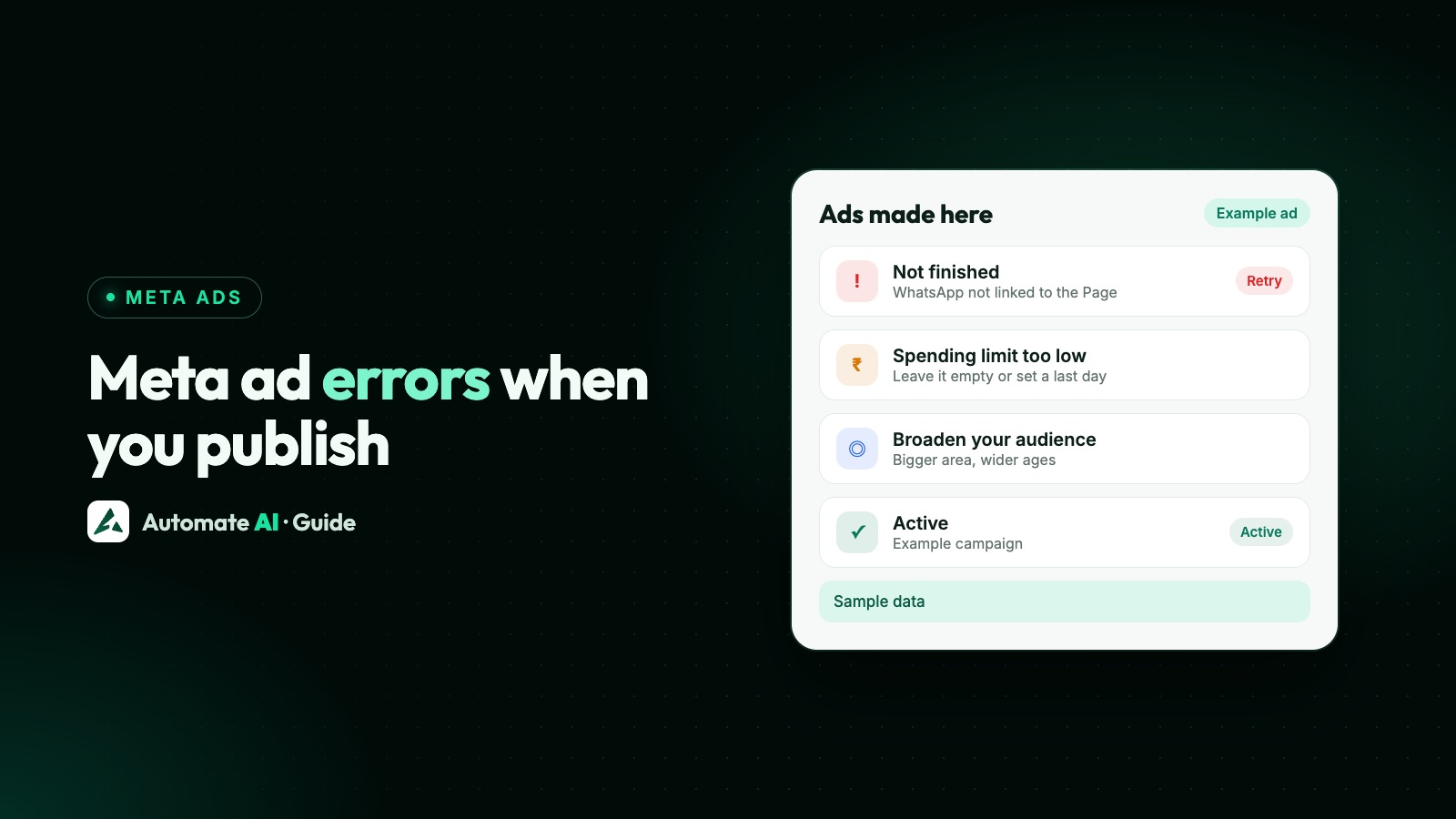
Common Meta errors at publish time come from a few places: the WhatsApp number or Instagram account isn’t linked to your Facebook Page, the campaign spending limit is below Meta’s minimum, the audience is too small or missing a special ad category, or the ad account has a payment, limit or access problem. Each one has a short fix, and most are made in Meta, not in your ad.
These errors are different from a rejection. A rejected ad was made and then failed Meta’s review. The errors below stop the ad from being made at all. This guide explains each message in plain words, where to fix it, and how to try again, as of November 2026.
Key takeaways
- “This WhatsApp phone number is not linked to your account” means the Page has no WhatsApp link: link it in the Page’s Settings › Linked accounts › WhatsApp, then retry.
- Ads that open Instagram chats need a professional Instagram account linked to the same Page.
- Meta’s developer guide sets the smallest campaign spending limit at US$100 or about the same in your currency. Leave the limit empty or set a last day instead.
- “Broaden your audience” means too few people: widen the area or ages. Ads about credit, jobs, housing or politics also need the right special ad category, or Meta may reject them.
- Payment, the ad account spending limit, a restricted account and missing access stop every ad until they’re fixed in Meta.
Errors before an ad runs, at a glance
When you publish an ad, Meta makes three things in order: the campaign, the ad set and the ad. If Meta refuses one of them, or a check before it fails, the ad isn’t made and you see an error. Find yours in the table, then read its section below.
| Message or problem | What it means | Where to fix it |
|---|---|---|
| This WhatsApp phone number is not linked to your account | The Page has no WhatsApp number linked | Your Facebook Page: Settings › Linked accounts › WhatsApp |
| Instagram account not linked to the Page | The ad opens Instagram chats, but no Instagram account is linked | Your Page’s Linked accounts, or Meta Business settings › Instagram accounts |
| A campaign spending limit below Meta’s smallest | The limit for the whole campaign is too low | In your ad: leave the limit empty or give it a last day |
| Broaden your audience | Too few people match your targeting | In your ad: bigger area, wider ages, right category |
| No payment method, or a failed payment | Meta has nothing to charge | Meta Billing › Payment settings |
| Account spending limit reached | The ad account’s own limit is used up | Meta Billing › Payment settings › Account spending limit |
| Ad account restricted or disabled | Meta has stopped the account | Account Quality |
| No permission for the ad account or Page | Your login can’t create ads there | Meta Business settings › Ad accounts or Pages › People |
If the ad was made but then rejected in review, that’s a different problem with its own fixes: see Click-to-WhatsApp ad rejected.
“This WhatsApp phone number is not linked to your account”
An ad that opens WhatsApp chats runs from your Facebook Page, and Meta needs to know which WhatsApp number belongs to that Page. If no number is linked, or a different one is, Meta refuses the ad with this message. Meta’s help centre describes linking the two from the Page’s settings.
- Open your Facebook Page and switch into it.
- Go to Settings › Linked accounts › WhatsApp. On a computer, Settings sits under Settings and privacy, and Linked accounts can be under Permissions.
- Enter your WhatsApp number and tap Send code.
- Enter the code WhatsApp sends to that number.
- Go back to your ad and publish it again, or press Retry.
If WhatsApp is greyed out in Ads Manager instead, see “WhatsApp number required” in Meta Ads Manager, which covers that screen step by step.
Instagram isn’t linked to your Page
Ads that open Instagram chats, and ads that send people to your Instagram profile, run from the Instagram account linked to your Facebook Page. Without one, there is nowhere for the chat to start, so the ad can’t be made.
- The Instagram account must be a professional account (business or creator). Meta’s Instagram tools work with professional accounts only.
- Link it from your Page: Settings › Linked accounts › Instagram › Connect account.
- Or link it in Meta Business settings › Instagram accounts: click Add and choose your Page.
- If you don’t need Instagram in this ad, take it out of the ad’s chat apps and publish again.
Full steps, and how to check the right account is linked, are in how to link Instagram to a Facebook Page for ads.
Campaign spending limit below Meta’s minimum
A campaign spending limit stops the whole campaign for good once it has spent that much in all. It’s optional. Meta’s Marketing API reference gives it a minimum of US$100, or about the same in your ad account’s currency. Each ad account has its own exact figure, and Meta refuses any campaign with a lower limit.
That catches people who want to test with a small amount. If you only want to spend a little, there are better ways than a limit:
| You want to | Use this instead |
|---|---|
| Spend a small amount per day | A daily budget, with no campaign spending limit |
| Stop after a few days | A daily budget and a last day |
| Spend an exact total | A total (lifetime) budget with a start and last day |
| Keep a hard ceiling anyway | A campaign spending limit at or above Meta’s minimum for your account |
Your daily or total budget still controls what Meta spends, so leaving the campaign spending limit empty doesn’t mean unlimited spending. Budgets are explained in how Meta ads budgets work.
“Broaden your audience” and special ad categories
Meta says “Broaden your audience” when too few people match your targeting. Make the area bigger, widen the age range, or remove interests that narrow it a lot.
Separately, if your ad is about credit, jobs, housing, or social issues, elections or politics, choose the matching special ad category. Meta’s developer guide says ads may be rejected without the right category.
| Your ad is about | Meta’s category |
|---|---|
| Loans, credit cards, insurance or investing | Financial products and services |
| Job openings or hiring | Employment |
| Homes, flats, plots or rentals | Housing |
| Politics, elections or social issues | Social issues, elections or politics |
For housing, jobs and financial ads, Meta limits the targeting where its rules apply, such as ads in or aimed at the US, Canada and Europe: all ages from 18 to 65, every gender, a wide radius around any place (15 miles or 25 km in the US and Canada), and no postcodes. Ads about politics follow different rules and need you to be authorised by Meta. The details are in Meta special ad categories.
Payment, spending limits, restricted accounts and access
These problems sit on the ad account or the Page, so they stop every ad, not just one. Only Meta can change them.
- No payment method or a failed payment: open Meta Billing › Payment settings and add a card, UPI or prepaid funds, or pay what’s due. More in Meta ads payment threshold and spending limits.
- Account spending limit reached: in Payment settings, raise, reset or remove the account spending limit. It covers every ad in the account and is not the same as the campaign spending limit above.
- Restricted or disabled ad account: open Account Quality to see why, and ask for a review if it’s a mistake. See Meta ad account disabled.
- Missing access: in Meta Business settings › Ad accounts (or Pages) › People, give the login full control or Advertise access. See how to give someone access to your ad account.
- Unpublished Page: ads can only run from a published Page. Publish it in the Page settings.
When Meta makes the ad but doesn’t confirm it
Tools that make ads through Meta’s API wait for Meta to answer each step with the new item’s ID. Now and then Meta makes the ad but its answer carries no ID. The tool then can’t tell whether the ad exists, and older versions simply stopped with a message like “Meta did not return the ad”.
Pressing retry blindly can make a second copy. The safe fix is to look inside the ad set for an ad with the same name before trying again, and use it if it’s there. If nothing was made, try again, and contact your ad tool’s support if it keeps happening.
How Automate AI catches these before you publish
Automate AI makes Click-to-WhatsApp ads from Meta Ads in the main menu. Since 28 and 29 November 2026 it handles each problem above:
- Setup check: right after Continue with Facebook, it reads from Meta your payment method, ad account state and spending limit, your access to the ad account and Page, whether the Page is published, and the WhatsApp number and Instagram account linked to the Page. Each problem shows the steps to fix it, with buttons that open the right Meta page, and Check again reads it again.
- WhatsApp and Instagram: the steps above are shown with the error. For an API number, Meta’s code arrives in Chats. An ad that opens Instagram chats checks for the Instagram account before the campaign is made, so nothing half-made is left in your ad account.
- Spending limit: it asks Meta for your ad account’s exact minimum before making the ad. An ad that already stopped on the limit has Retry without the limit; its daily or total budget still applies.
- Audience: “Broaden your audience” comes with what to change, and the audience step asks “Is this ad about any of these?” for the special categories.
- Unconfirmed ads: when Meta doesn’t confirm an ad, Automate AI looks for it by name in the ad set and finishes it, so a retry never makes it twice. If nothing was made, the message suggests a wider audience if it happens again.
- Check with AI: in the last step, the AI reads your texts and pictures against Meta’s advertising rules, with one-click fixes and Undo.
Every ad then shows Meta’s own live status words, such as Active, Off, In review, Rejected and Completed. Step-by-step guides for each error are in our help center, and new features are listed on What’s new.
Frequently asked questions
What does “This WhatsApp phone number is not linked to your account” mean?
The Facebook Page your ad runs from has no WhatsApp number linked, or a different one. Link the number in the Page’s Settings › Linked accounts › WhatsApp, enter the code WhatsApp sends, then publish the ad again.
Where does the code arrive for a WhatsApp Business API number?
If the number is used only on the API, there is no WhatsApp app on a phone, so the code arrives as a WhatsApp message in the tool that runs the number. In Automate AI it appears in Chats.
What is the minimum campaign spending limit on Meta?
Meta’s Marketing API reference gives a minimum of US$100, or about the same in your ad account’s currency. The exact amount depends on the ad account. To spend less in all, use a daily budget with a last day, or a total budget.
Why does Meta ask me to broaden my audience?
Too few people match your targeting. Make the area bigger, widen the ages or remove narrow interests. Separately, if the ad is about credit, jobs, housing or politics, choose the matching special ad category, or Meta may reject it.
Is a campaign spending limit the same as an account spending limit?
No. A campaign spending limit covers one campaign and is set on the campaign. An account spending limit covers every ad in the ad account and is set in Meta Billing › Payment settings.
Do I need an Instagram account for Click-to-WhatsApp ads?
Not for ads that open WhatsApp only. You need a professional Instagram account linked to your Page when the ad opens Instagram chats or sends people to your Instagram profile.
Sources
- Meta Business Help Centre: Connect or disconnect your Page and WhatsApp
- Meta Business Help Centre: Connect your Page to a WhatsApp Business platform number
- Facebook Help Centre: Connect or disconnect an Instagram account and your Page
- Meta for Developers: Ad Campaign reference (spend_cap)
- Meta Business Help Centre: How to choose a Special Ad Category
- Meta for Developers: Special Ad Categories
- Meta Business Help Centre: About ad account spending limits
- Meta Business Help Centre: Troubleshoot a disabled or restricted account
- Meta Business Help: Ad account permission roles in Meta Ads Manager
- Automate AI help: Meta Ads setup check, live status and Check with AI
WhatsApp rules and prices change. We check these guides against Meta’s documentation, but always confirm current terms with Meta before you rely on them. Questions? Message us on WhatsApp at +91 836 977 8812.