Meta Lead Ads API: Get Leads by Webhook and the Graph API
How the Meta Lead Ads API works: subscribe a Page to the leadgen webhook, fetch each lead with the Graph API, the permissions you need, and a no-code route.
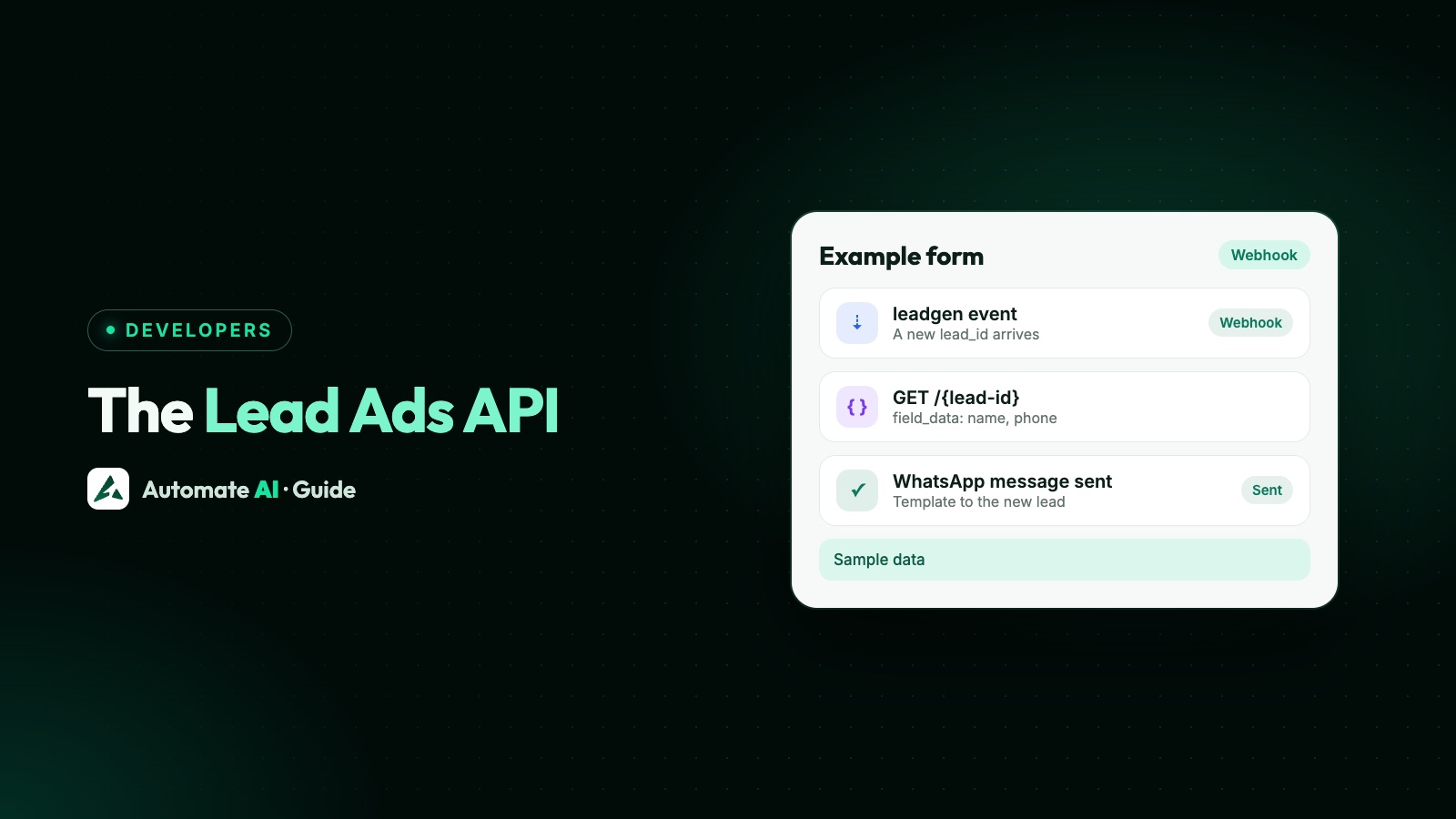
To get Meta lead ads in real time, subscribe your app to the Page’s leadgen webhook field, then use the leadgen_id in each notification to fetch the lead with GET /<LEAD_ID> on the Graph API. For leads you missed, or a nightly check, read them in bulk from /<FORM_ID>/leads.
This guide is for developers and technical marketers. It walks through the webhook, the permissions and tokens, the lead data you get back, testing, and the no-code route in Automate AI that saves each lead as a contact and sends it a WhatsApp message.
Key takeaways
- The webhook tells you a lead exists; it carries IDs, not the answers. You fetch the answers with the Graph API.
- Install your app on each Page with
POST /<PAGE_ID>/subscribed_apps?subscribed_fields=leadgen, using a Page access token. - Bulk reads need
leads_retrieval; webhooks also needpages_manage_metadata. Live apps need App Review and Business Verification. - Meta retries failed webhooks for up to 36 hours, so answer
200 OKfast and deduplicate byleadgen_id. - Automate AI’s Facebook Lead Ads integration does all of this without code and can send each lead an approved WhatsApp template.
Two ways to get leads from the API
Every lead from a Facebook or Instagram lead form belongs to the Facebook Page that ran the ad. Meta gives you two API routes to it, plus Leads Center in Meta Business Suite for people who just want a download:
| Route | How it works | Best for |
|---|---|---|
| Leadgen webhook | Meta calls your endpoint when a lead is created; you fetch it by ID | Real-time follow-up and CRM pushes |
| Bulk read | GET /<FORM_ID>/leads or GET /<AD_ID>/leads, filtered by time | Back-filling, checks a few times a day |
| Leads Center or download | Meta Business Suite and Ads Manager | Manual work, no code |
Most systems use both API routes: the webhook for speed, and a bulk read now and then to catch anything a webhook missed. If you only need a spreadsheet, see where to find and download your Facebook leads instead.
What you need before you start
- A Meta app with the Webhooks product added, and the Facebook Page that runs the lead ads.
- Permissions:
leads_retrievalandpages_manage_adsfor reading leads;pages_show_list,pages_read_engagementandads_managementare also listed; webhooks needpages_manage_metadata. - App Review and Business Verification before the app can go Live. In Development mode the app can’t retrieve real leads; for testing, people with a role on the app can read leads submitted by others with a role on it.
- The right person’s token. The Page access token must come from someone who can advertise on the Page. Meta suggests one long-lived Page token for webhooks, so you don’t have to worry about it expiring.
- Leads access. If business admins have customised Leads Access Manager, that decides who can read leads; if not, Page admins have access.
- An HTTPS endpoint with a valid certificate. Meta doesn’t accept self-signed certificates.
Set up the Facebook lead ads webhook, step by step
- Build the endpoint. It must answer Meta’s verification
GETby checkinghub.verify_tokenagainst the token you chose and returninghub.challenge. - Configure Webhooks in the App Dashboard. Choose the Page object, enter your callback URL and verify token, and subscribe to the leadgen field.
- Install the app on the Page. Send
POST /<PAGE_ID>/subscribed_apps?subscribed_fields=leadgenwith the Page access token. A successful call returnssuccess: true. - Check the install with
GET /<PAGE_ID>/subscribed_apps. An emptydatalist means no app is installed. - Keep the App platform on in the Page’s settings. Meta only sends notifications if the Page has installed the app and hasn’t turned that off.
- Repeat for every Page that runs lead ads.
Each notification has object: "page" and an entry list. Inside, a change with field: "leadgen" carries a value like this:
| Field | What it is |
|---|---|
leadgen_id | The lead’s ID, which you use to fetch it |
page_id | The Page that owns the form |
form_id | The lead form that was filled in |
ad_id and adgroup_id | The ad the lead came from, when there was one |
created_time | When the lead was submitted |
Retrieve the lead with the Graph API
With the leadgen_id, read the lead: GET /<LEAD_ID>?fields=created_time,id,ad_id,form_id,field_data. The answers come back in field_data, an array where each item has a name (the question’s field ID, such as full_name, email or phone_number) and a values array.
A few details save debugging time:
- Custom questions come back in
field_datawith the names you gave them, so map them in your code, not just the standard fields. - Consent checkboxes from a custom disclaimer aren’t in
field_data. Ask forcustom_disclaimer_responses. - No ad ID? Meta says this can mean an organic lead, a submission from an ad preview, or a token without advertiser access to the ad account.
- Bulk reads use
/<FORM_ID>/leadsor/<AD_ID>/leadswith afilteringparameter ontime_created, such asGREATER_THANa Unix timestamp. A form can be used by several ads, so reading by form can return far more leads than reading by ad. - Rate limit: Meta allows 200 × 24 × the number of leads the Page created in the past 90 days, per 24 hours.
Facebook pre-fills the form from what people have shared with it, so check phone numbers before you rely on them, and normalise them to international format before matching them to existing records.
Test it before the ad goes live
Meta’s Lead Ads Testing Tool, at developers.facebook.com/tools/lead-ads-testing, creates a test lead on a form and shows whether the webhook was delivered:
- Pick the Page and form, then click Create lead. It fills in dummy data, or use Preview form to type your own values, such as your own phone number.
- Click Track status until it changes from pending. A success shows the payload Meta sent; a failure shows an
error_code. - Delete the test lead before making another. You can create one test lead per form.
The tool doesn’t work while your app is in Development mode, and test leads are organic, so they have no ad ID. You can also create one through the API with POST /<FORM_ID>/test_leads. Our Facebook Lead Ads Testing Tool guide covers fixing leads that don’t arrive.
Connect lead ads to a CRM or WhatsApp
Once a lead is in your system, the useful part starts: getting back to the person while they still remember the ad. A typical pipeline looks like this:
| Step | What your code does |
|---|---|
| Receive | Answer the webhook, queue the leadgen_id |
| Fetch | Read the lead and its field_data |
| Match | Find the person by phone or email, or create them |
| Act | Assign an owner, start a follow-up, send a first message |
| Report back | Send outcomes to Meta with the Conversions API so it can optimise for quality leads |
If the first message goes on WhatsApp, remember the lead hasn’t messaged you, so it must be an approved template, and the form should say you’ll contact them on WhatsApp. See WhatsApp opt-in.
The no-code route: Facebook Lead Ads in Automate AI
If the goal is to message every lead on WhatsApp, you don’t need to build the pipeline. Automate AI’s Facebook Lead Ads integration, part of the AI + Automation Plan and Series 4, uses the same webhook and Graph API calls:
- Continue with Facebook and tick the Pages that run your lead ads. Automate AI asks for the Page and
leads_retrievalpermissions and installs itself on each Page for theleadgenfield. - Each new lead with a phone number becomes a contact, or its details are added to the contact that already has that number, with every form answer saved, custom questions included.
- A first WhatsApp message goes out automatically: an approved template, or a separate template for each ad. A plain message only reaches people with an open 24-hour window, which new leads rarely have, so a template is the safe choice.
- An activity log shows each lead, its form and what happened, so you can see failures.
The step-by-step setup and sample first messages are in Send Facebook Lead Ads leads to WhatsApp automatically. If you’d rather skip the form, Click-to-WhatsApp ads open a chat directly, and you can create them from Meta Ads in Automate AI on every plan.
Frequently asked questions
Does the leadgen webhook include the lead’s name and phone number?
No. It sends IDs: the leadgen_id, Page, form, ad and time. You fetch the answers with GET /<LEAD_ID> on the Graph API.
What permissions does the Facebook Lead Ads API need?
leads_retrieval and pages_manage_ads to read leads, plus pages_manage_metadata for webhooks. Meta also lists pages_show_list, pages_read_engagement and ads_management. A Live app needs App Review and Business Verification.
Why is my Facebook lead ads webhook not firing?
Check that the app is installed on the Page with subscribed_fields=leadgen, that the Page hasn’t turned off the App platform, that the token belongs to someone who can advertise on the Page, and that Leads Access Manager allows it. Then create a test lead and use Track status.
How do I get leads I missed?
Read them in bulk from /<FORM_ID>/leads or /<AD_ID>/leads, filtered on time_created, and skip any leadgen_id you already have.
Can I get Instagram lead ads through the same API?
Yes. Lead forms belong to the Facebook Page that ran the ad, so leads from Instagram placements arrive the same way.
Can I send Facebook leads a WhatsApp message without code?
Yes. Automate AI’s Facebook Lead Ads integration saves each lead as a contact and can send an approved WhatsApp template straight away.
Sources
- Meta Marketing API: Lead ads
- Meta Marketing API: Lead ads webhooks integration
- Meta Marketing API: Retrieving leads
- Meta Marketing API: Lead ads testing and troubleshooting
- Meta Graph API: Getting started with webhooks
WhatsApp rules and prices change. We check these guides against Meta’s documentation, but always confirm current terms with Meta before you rely on them. Questions? Message us on WhatsApp at +91 836 977 8812.