WhatsApp API Rate Limits: Throughput, Pair Limits and Error 130429
WhatsApp Cloud API rate limits explained: 80 messages a second per number, 1 every 6 seconds per person, hourly API limits, and fixes for 130429 and 131056.
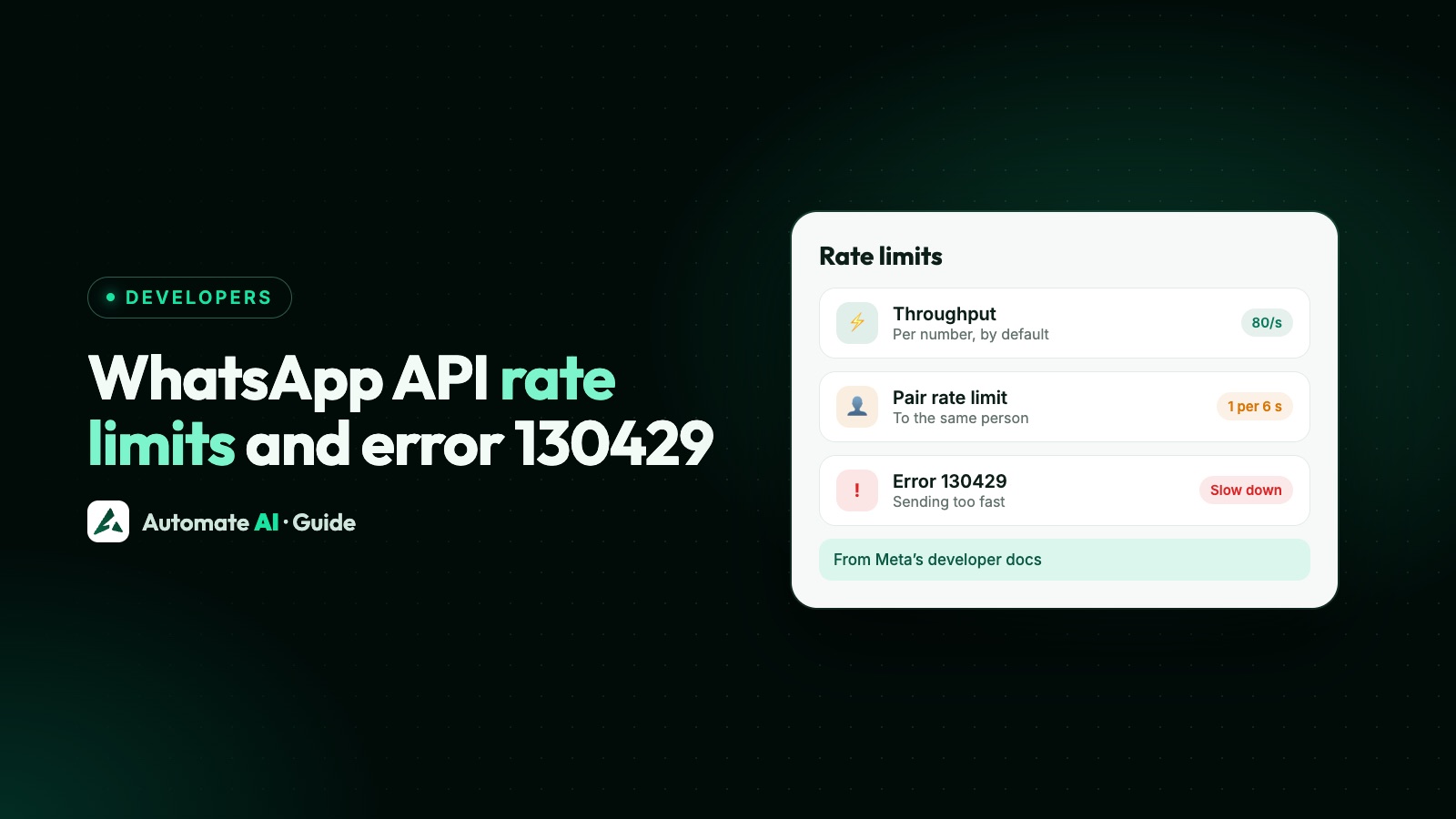
The WhatsApp Cloud API lets each business phone number send up to 80 messages per second by default, rising to 1,000 by automatic upgrade; go faster and Meta returns error 130429. To any one customer, a number can send 1 message every 6 seconds, and going faster returns error 131056. Separate hourly limits apply to management API calls, such as reading templates or phone numbers: 200 requests an hour per app per account by default, or 5,000 for active accounts with at least one registered number.
None of these is the messaging limit, which caps how many different people you can reach outside a 24-hour window each day. Below: each rate limit with Meta’s numbers, its error codes, and how to send and retry without hitting them.
Key takeaways
- Throughput: 80 messages per second per number by default, counting inbound and outbound messages of every type. Over it, you get 130429.
- Coexistence numbers (on the WhatsApp Business app and the API together) have a fixed 20 messages per second.
- Pair rate limit: 1 message every 6 seconds to the same person, about 600 an hour. Over it, you get 131056, but other recipients aren’t affected.
- API call limits: 200 or 5,000 requests an hour per app per WhatsApp Business account on management endpoints. Over it, you get 4 or 80007.
- Rate limits are about speed. Messaging limits are about how many people per 24 hours, and raising one doesn’t raise the other.
The WhatsApp API rate limits at a glance
Meta’s platform overview lists several limits that work side by side. Each one counts something different and has its own error code:
| Limit | What it counts | Meta’s number | Error when exceeded |
|---|---|---|---|
| Throughput | Messages per second per business phone number, in and out | 80 by default, up to 1,000 by automatic upgrade; 20 for coexistence numbers | 130429 |
| Pair rate limit | Messages from one business number to one WhatsApp user | 1 every 6 seconds (about 10 a minute, 600 an hour), bursts up to 45 | 131056 |
| API call limit (app) | Your app’s Graph API calls in a rolling hour | Depends on the app and token type | 4 |
| API call limit (account) | Calls to WhatsApp Business account endpoints, per app | 200 an hour by default, 5,000 for active accounts with a registered number | 80007 |
| Registration | Register requests, and separately deregister requests, per business number | 10 each in a moving 72 hours | 133016 |
| Messaging limit | Unique people reached outside a customer service window | 250, 2,000, 10,000, 100,000 or unlimited per 24 hours | Not a rate limit; see below |
Throughput: 80 messages per second, up to 1,000
Meta’s throughput page says Cloud API supports up to 80 messages per second (mps) for each registered business phone number by default. That figure includes inbound and outbound messages and all message types, so a busy inbox shares the same capacity as a campaign. Send more than your level allows and the API returns 130429 until you’re back within it. In error responses, the message reads “(#130429) Rate limit hit”.
Numbers on the WhatsApp Business app too
If your number uses coexistence, so it runs on the WhatsApp Business app and Cloud API at the same time, Meta fixes its throughput at 20 mps to stay compatible with the app. Plan campaign speed around that lower figure.
The automatic upgrade to 1,000 mps
Meta upgrades a number to 1,000 mps automatically, at no cost, when all three of these are true:
- The business portfolio that owns the number has an unlimited messaging limit.
- The number is used to message 100,000 or more unique WhatsApp users outside a customer service window, within a moving 24-hour period.
- The number’s quality is Yellow (Medium) or higher.
Meta says higher throughput doesn’t change pricing. The upgrade itself can take up to a minute, during which the number can’t be used and requests return 131057 (account in maintenance mode). Afterwards a phone_number_quality_update webhook arrives with the event THROUGHPUT_UPGRADE, and later increases happen without downtime. To check a number’s current level, request GET /<PHONE_NUMBER_ID>?fields=throughput.
Pair rate limits: one message every 6 seconds per person
Throughput is meant for messages to many different people. For one person, Meta sets a pair rate limit: a business number can send 1 message every 6 seconds to the same WhatsApp user, which is 0.17 a second, about 10 a minute or 600 an hour. Go over it and you get 131056 until you’re back within the rate.
Short bursts are allowed. Meta says you can send up to 45 messages in a 6-second burst, but that borrows from your future allowance: afterwards you must wait as long as those messages would have taken at the normal rate. Meta’s example is a burst of 20, which needs a wait of about 2 minutes before sending more to that person.
This matters most for chatbots that send a greeting, a menu and a picture in a row. Combine them where you can.
For retries after a burst, Meta suggests waiting 4^X seconds, starting with X = 0 and adding 1 after each failure. That gives waits of 1, 4, 16 and 64 seconds. The error only blocks that one recipient: Meta’s error list says you can still message other numbers without waiting.
Graph API call limits and error 80007
Sending messages isn’t the only thing that’s limited. Calls your app makes to manage a WhatsApp Business account are counted per app, per account, over a rolling hour. Meta lists these endpoints:
GET /<WABA_ID>andGET /<WABA_ID>/phone_numbersGET,POSTandDELETEon/<WABA_ID>/message_templates,/assigned_usersand/subscribed_appsGETon the account-to-number current status object
Your app gets 200 requests an hour per account by default, and 5,000 an hour for active accounts with at least one registered phone number. Credit line endpoints get 5,000 an hour. Go over and Meta returns 80007 (“The WhatsApp Business Account has reached its rate limit”). Meta’s Graph API rate-limiting page lists 80008 for the WhatsApp Business Management API, so handle both codes. Error 4 is different: your whole app has hit its API call rate limit, which you can see in the App Dashboard’s Application Rate Limit section.
Reading the usage header
Responses limited this way carry an X-Business-Use-Case-Usage header. Its call_count, total_cputime and total_time values are percentages of your allowance, and calls may be throttled when CPU or total time reach 100. When you’re blocked, estimated_time_to_regain_access gives the wait in minutes. Log this header and slow down well before it reaches 100.
The usual cause is polling: asking for template status or phone number details on a timer. Use webhooks instead, and cache what changes rarely. Our WhatsApp Cloud API webhooks guide covers setting them up.
Rate limits vs messaging limits
Both stop messages going out, but they answer different questions:
| Rate limits | Messaging limit | |
|---|---|---|
| Question it answers | How fast? | How many different people per day? |
| Set for | Each phone number (throughput), each number and user pair, each app and account (API calls) | The whole business portfolio, shared by all its numbers |
| Time window | Per second, per 6 seconds or per hour | A moving 24 hours |
| What counts | Every message or API call | Unique users reached outside a customer service window |
| How it rises | Throughput upgrades automatically for very large senders | Verification or 2,000 good-quality messages, then automatic scaling |
Meta’s messaging limits start at 250 for new portfolios and step up to 2,000, 10,000, 100,000 and unlimited. How to move up is in how to increase your WhatsApp messaging limit. WhatsApp also caps how many marketing messages one person receives (error 131049), and the WhatsApp Business app has its own broadcast caps: see WhatsApp broadcast limits.
Rate limit error codes and what to do
These come from Meta’s error code list. Cloud API errors can come back in the API’s response or in webhooks, so check both. Our WhatsApp API error codes guide covers the rest.
| Code | Meaning | Retry? | What to do |
|---|---|---|---|
| 130429 | Cloud API message throughput reached | Yes, with backoff | Queue sends per number and slow down |
| 131056 | Too many messages to the same recipient in a short time | Yes, to that person later | Wait, combine messages; other recipients can still be messaged |
| 80007 | WhatsApp Business account reached its rate limit | Yes, later | Cut polling, cache, read the usage header |
| 4 | The app reached its API call rate limit | Yes, later | Check Application Rate Limit in the App Dashboard |
| 131048 | Restricted, often because too many earlier messages were blocked or flagged as spam | Not until quality improves | Check quality in WhatsApp Manager and fix what you send |
| 131057 | Account in maintenance mode, for example a throughput upgrade | Yes, shortly | Wait a minute or so and send again |
| 133016 | Too many register or deregister attempts | After 72 hours | Stop retrying and fix the cause first |
| 132069 | Flow throttled: 10 messages with it in the last hour | Not until fixed | Correct the Flow |
What “spam rate limit hit” means
Only one throttling error on Meta’s list mentions spam: 131048, sent when there are restrictions on how many messages a number can send, which Meta says may be because too many earlier messages were blocked or flagged as spam. Sending slower won’t fix it. It’s a quality problem: check your number’s rating, pause marketing to people who didn’t ask for it, and read WhatsApp quality rating and WhatsApp opt-in.
How to send without hitting rate limits
- Queue per phone number. Keep one sending queue for each number, paced below its throughput: 80 mps, or 20 for a coexistence number. Remember replies to incoming chats use the same capacity.
- Pace per recipient too. Leave about 6 seconds between messages to the same person, and merge back-to-back bot messages.
- Retry the right errors. Retry 130429, 131056 and 131057 with growing waits, such as Meta’s 4^X seconds. Don’t blindly retry 131048 or 133016.
- Upload media once. Meta suggests uploading media and sending media IDs rather than links to your own server, or using media caching if you host files yourself.
- Size your webhook server. Meta says to handle 3 times your outgoing message rate in status webhooks plus your expected incoming messages, with median response under 250 ms and under 1% over 1 second.
- Stop polling. Use webhooks for template and number changes, and watch the
X-Business-Use-Case-Usageheader. - Check your daily limit. Before a big send, make sure your messaging limit covers the number of people you’re reaching outside an open window.
A worked example (made-up example numbers)
Say you want to send a template to 30,000 opted-in customers from a standard number. At 80 mps that takes about 375 seconds, roughly 6 minutes. But if your portfolio’s messaging limit is 10,000, only 10,000 of those people can be reached in 24 hours, however fast you send.
How Automate AI paces campaigns
When you send through Automate AI, campaign messages go out at a speed per business that our team sets, and it never goes above Meta’s standard 80 messages a second. If Meta answers with 130429 while a campaign is sending, the app waits a few seconds and tries that message again.
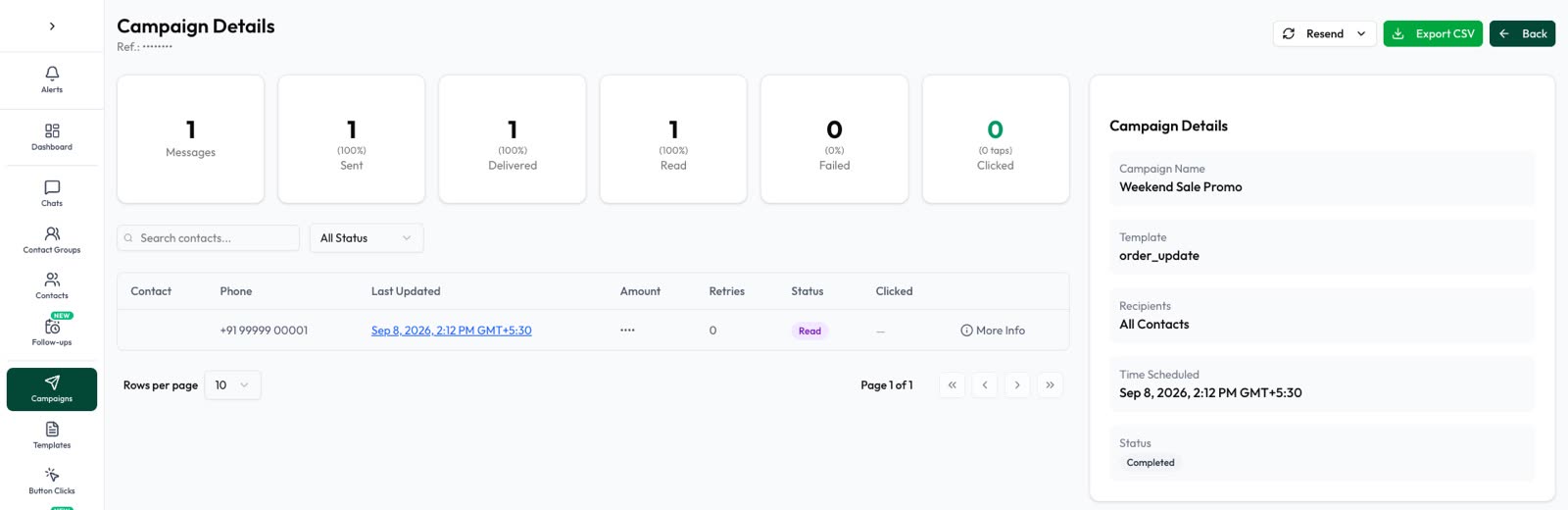
For messages that still fail, turn on Enable Campaign Resend in Settings › General, then switch on auto-retry for the campaign from its menu or its page. Failed messages are sent again later, after 1, 3 and 6 hours by default, and you can change the timing under Campaign Retry Settings. Messages that failed for being sent too fast are retried; opted-out contacts, numbers not on WhatsApp and template problems are not. Each campaign’s Retries box shows why messages failed and what will be tried when.
Automate AI also shows how much of your daily WhatsApp limit is left, and can pause automatic template sends while your number’s quality is Yellow or Red. See WhatsApp marketing.
Frequently asked questions
What is the WhatsApp API rate limit?
Each business phone number can send up to 80 messages per second on Cloud API by default, up to 1,000 after Meta’s automatic upgrade. To one person, it’s 1 message every 6 seconds.
What does WhatsApp error 130429 mean?
Your number has reached its Cloud API throughput, 80 messages a second by default. Slow down, queue messages per number and retry with backoff.
What does error 131056 mean?
You sent too many messages to the same person too quickly. Wait before messaging them again; you can keep messaging other people.
How do I get 1,000 messages per second?
Meta upgrades automatically when your portfolio has an unlimited messaging limit, the number messages 100,000 or more unique users outside a service window in 24 hours, and its quality is Yellow or higher.
Is the rate limit the same as the messaging limit?
No. Rate limits control speed. The messaging limit controls how many different people your portfolio can reach outside a customer service window in 24 hours.
What is the throughput of a coexistence number?
Meta fixes it at 20 messages per second for numbers used on the WhatsApp Business app and Cloud API together.
What does error 80007 mean?
Your app has made too many calls to WhatsApp Business account endpoints in the past hour: 200 by default, or 5,000 for active accounts with a registered number. Reduce polling and try again later.
Sources
- Meta: Throughput
- Meta: About the WhatsApp Business Platform (rate limits and pair rate limits)
- Meta: Error codes
- Meta: Graph API rate limiting
- Meta: Registration (limitations)
- Meta: Messaging limits
WhatsApp rules and prices change. We check these guides against Meta’s documentation, but always confirm current terms with Meta before you rely on them. Questions? Message us on WhatsApp at +91 836 977 8812.