WhatsApp Business Verification Code Not Received? How to Fix It
WhatsApp Business verification code not arriving? Fixes for the Business app code (SMS, call, email) and the API number code in Meta’s signup window.
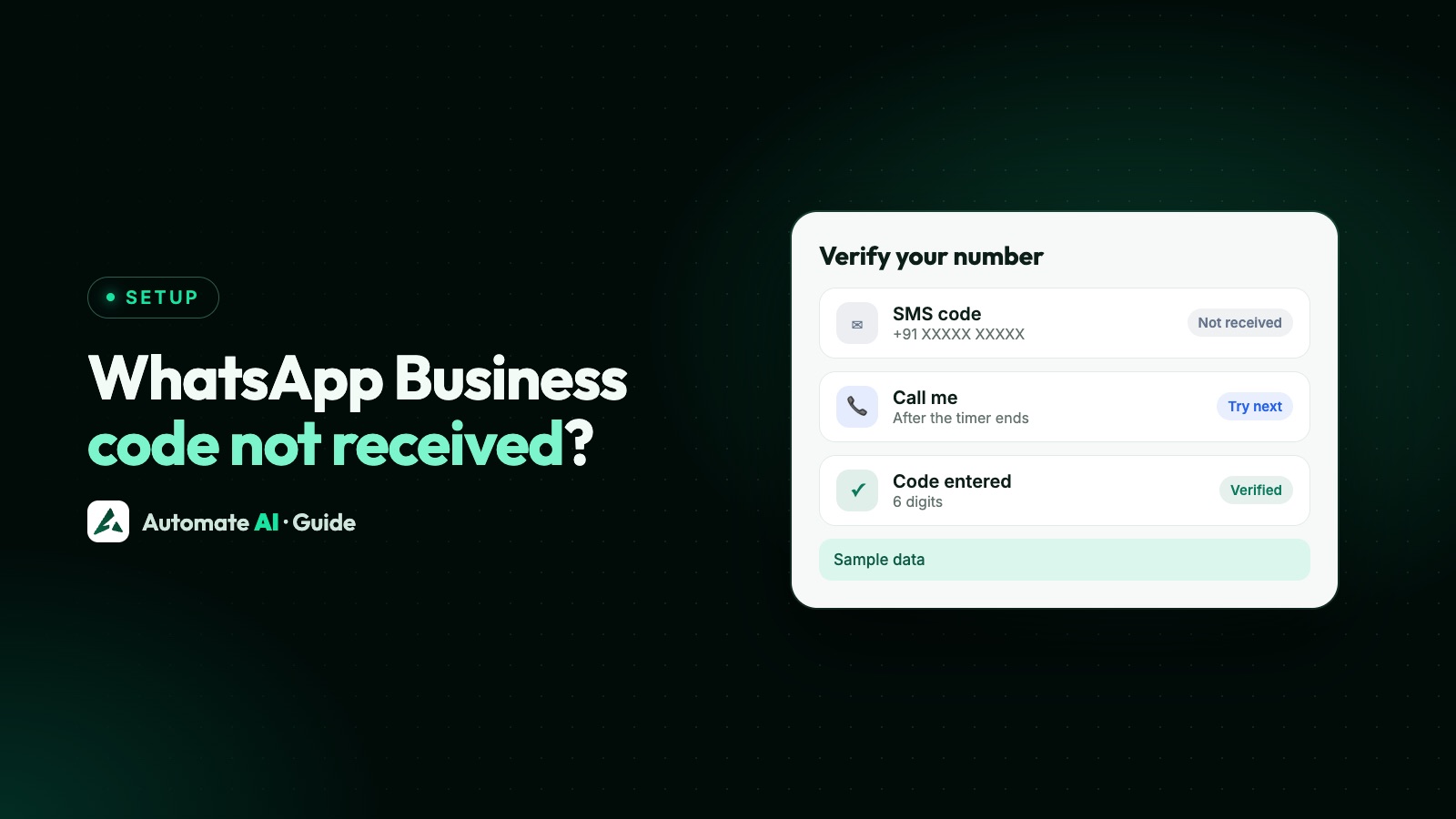
If your WhatsApp Business verification code hasn’t arrived, wait for the timer to finish, check the number is in full international format with no leading 0, then choose “Call me” to get the code by voice call. Don’t guess codes or keep restarting, because both can lock you out for longer.
This guide covers the two codes people mean: the 6-digit registration code for the WhatsApp Business app, and the code Meta sends when you connect a number to the WhatsApp Business Platform (API). It also explains the email option, what to do on an iPhone, and the codes that are easy to mix up with these.
Key takeaways
- WhatsApp’s Help Center says to wait for the progress bar, which can take up to 10 minutes, then request a phone call.
- Guessing codes or starting a new attempt during a wait can lock you out for longer. WhatsApp says there’s no way to speed it up.
- A code by email only works when re-registering an account that already has a verified email. Not for a first registration.
- For the API, choose voice call for landlines and toll-free numbers, and make sure the line accepts international calls.
- Connecting a Business app number with coexistence doesn’t use an SMS: you confirm in the app itself.
First, which code are you waiting for?
Several different things get called a “WhatsApp Business verification code”. Find yours first, because the fix is different for each:
| Where you are | What the code is | How it’s sent |
|---|---|---|
| Setting up the WhatsApp Business app on a phone | 6-digit registration code | SMS or phone call; email only when re-registering |
| Connecting a number to an API platform in Meta’s pop-up | Phone number verification code | SMS or voice call, chosen in the pop-up |
| Connecting a Business app number with coexistence | A code shown in Meta’s window | Confirmed in the WhatsApp Business app, not by SMS |
| WhatsApp asks for a PIN after the code | Two-step verification PIN or password | Not sent: someone on your team set it |
| Meta Business Suite › Security Centre | Business verification contact check | Email, call, text, WhatsApp message or domain check |
The last row isn’t about your phone number at all. Meta business verification confirms that your company is real, and the code there only checks that your business email or phone works. If that’s the one stuck, the fixes below won’t help: go back to Security Centre and choose another way to confirm.
WhatsApp Business app: code not received
These steps come from WhatsApp’s Help Center pages on registering and on registration problems. Work through them in order:
- Check the number. Pick your country from the list and enter the number without a leading 0 or any exit code. A sample Indian mobile, 098765 43210, is entered as 98765 43210 after +91.
- Check the SIM. The SIM for that number must be active, in the phone and able to receive SMS and calls. On prepaid, make sure there’s enough balance.
- Wait for the progress bar to finish. WhatsApp says this can take up to 10 minutes. Requesting again early doesn’t help.
- Tap “Call me”. When the timer runs out, choose the call option and an automated voice reads the code. In some regions, if voicemail is on, the code is left as a voicemail.
- Fix the phone. Turn off task killers and SMS blockers, and update WhatsApp Business to the latest version.
- Try another network. Move somewhere with better coverage, or turn on Wi-Fi Calling in your phone’s settings.
- Call your mobile operator. They can tell you whether SMS or calls to your number are being blocked or delayed.
If everything above checks out and the code still doesn’t come, waiting and trying again later is the right move.
Getting the code by email
Searching for “WhatsApp Business verification code email”? WhatsApp can send a registration code by email, but only in one situation:
- You’re re-registering an existing account, for example on a new phone, and
- you already added and verified an email address in WhatsApp before.
Then, on the Choose how to verify screen, tap Email, then Continue, and enter the 6-digit code from the email. WhatsApp says email verification isn’t available for a first registration, so a brand new number always needs SMS or a call.
- Use the newest code. If you asked more than once, only the most recent email is valid, and codes expire after a short time.
- Use the same phone. Enter the code on the device where you started.
To be ready next time, add an email now. In WhatsApp on Android, the Help Center’s path is ⋮ › Settings › Account › Email address, and you confirm it with a code.
Code not received on an iPhone
WhatsApp’s Help Center gives the same steps for iPhone and Android: no separate iPhone fix is listed. The points that matter most on an iPhone are the same ones above:
- Wait for the full timer, then use Need help getting a code? and Call me.
- Turn on Wi-Fi Calling in the phone’s settings if mobile coverage is weak where you are.
- Check the SIM for that number is active, in the phone and able to receive texts and calls.
- Update WhatsApp Business from the App Store before trying again.
- Travelling? Turn on roaming (your operator may charge for it), or WhatsApp suggests using a local number that can receive a call or SMS.
If you see “Login or registration temporarily unavailable”, that’s a temporary hold, not a phone problem. WhatsApp says starting a new attempt before the wait ends may begin a new wait instead of shortening it.
Landlines and other numbers on the Business app
The WhatsApp Business app accepts a landline you own, but the code can only come by call: tap Call me, and the call goes to the landline you’re registering. Extension numbers can’t be used. WhatsApp’s Help Center lists VoIP, toll-free, premium-rate and universal access numbers as numbers that can’t be registered in its apps, so no amount of waiting will bring a code to them there.
Those numbers can often work on the API instead. Which number works where, and how to get the call through an office line, is in using a landline or virtual number for WhatsApp Business.
API number: code not received in Meta’s signup window
When you connect a number to a platform such as Automate AI, Meta’s Embedded Signup pop-up asks you to verify it by SMS or voice call. It’s the same SMS or voice choice as Meta’s API. If the code doesn’t come:
- Pick the right method. Meta rates SMS as not recommended for landlines, toll-free and most number types other than mobile. Choose voice call for those.
- Allow international calls and SMS. Meta’s advice for mobiles is to enable international reception and keep the phone on the cellular network. For a VoIP number, check the provider supports international calls or SMS for codes.
- Get past any IVR. Meta says the registration call can’t navigate an IVR menu. Switch it off while you verify, or allow-list the numbers WhatsApp’s call comes from and redirect that call to a person or a mailbox.
- Check the number isn’t on WhatsApp. Meta won’t register a number that’s in use on WhatsApp or the Business app until it’s deleted there, unless you connect a WhatsApp Business app number with coexistence (Use my app number in Automate AI). A banned number has to be unbanned through an appeal first.
- Don’t keep requesting. If you see “You have requested your code too many times” or “You’ve tried too many invalid verification codes”, wait for the time shown, then restart the flow and pick your existing account and number.
The full add, verify and register sequence is in phone numbers on the WhatsApp Cloud API, and the window itself is explained in what WhatsApp Embedded Signup is.
Messages Meta shows during API verification
These come from Meta’s list of Embedded Signup errors. The fixes are Meta’s, in plain words:
| Message | What to do |
|---|---|
| You have requested your code too many times | Come back later and request a new code. If it keeps failing, contact Meta through Business Support Home |
| You’ve tried too many invalid verification codes | Wait for the time shown, then verify again |
| Code couldn’t be verified: you tried to register this number too many times | Try again later |
| An error occurred while requesting your phone number verification code | Try again; if it continues, contact Business Support Home |
| This number is registered to an existing WhatsApp account | Deregister it from the existing account, or use a different number |
| Your phone number doesn’t appear to be valid | Check the number works and is issued by a telecom provider. IVR numbers aren’t supported |
| Phone Number has been blocked | Check the alert in WhatsApp Manager or Business Support Home |
If the number connects but then shows pending or not registered, see WhatsApp phone number status. If registration asks for a PIN, that’s the two-step verification PIN, which Meta never sends to you.
Connecting with Automate AI
In Automate AI, open Connect WhatsApp from the dashboard or Settings › WhatsApp. There are two cards, and the code works differently for each:
| Card | How the number is confirmed |
|---|---|
| New number (Connect a new number) | Meta’s window sends a code by SMS or voice call. Enter it in the window, and we register the number for you |
| WhatsApp Business App number (Use my app number) | No SMS. Meta’s window shows a code, a message from Facebook’s official account appears in your WhatsApp Business app, you tap Connect and Confirm, then paste the code back |
So if you chose the WhatsApp Business App number card and you’re waiting for a text, look in the WhatsApp Business app instead. More on keeping the app with the API in WhatsApp coexistence.
Stuck on the code? Use Get help setting up on the Connect WhatsApp screen and our team will help you connect. Once it’s done, Settings › WhatsApp shows your number, display name, messaging limit and quality rating.
Frequently asked questions
Why am I not getting my WhatsApp Business verification code?
Usually the number is entered with a leading 0, the SIM can’t receive SMS, or the network is weak. Wait for the timer, then choose Call me. If it still doesn’t come, ask your mobile operator whether SMS or calls to your number are blocked.
How long should I wait for the code?
WhatsApp’s Help Center says the wait can take up to 10 minutes. Let the progress bar finish before you ask again, because there’s no way to speed it up.
Can I get my WhatsApp Business verification code by email?
Only when re-registering an account that already has a verified email address. For a first registration, the code comes by SMS or phone call.
Can I register a landline on WhatsApp Business?
Yes, on the WhatsApp Business app, using Call me to get the code. On the API, choose voice call and make sure the line accepts international calls with no IVR in the way.
I connected my Business app number and no SMS came. Is that a problem?
No. With coexistence, Meta doesn’t send an SMS. You confirm in the WhatsApp Business app, through a message from Facebook’s official account, and paste the code shown back into Meta’s window.
What happens if I enter the wrong code too many times?
You’re locked out for a while and have to wait before requesting another code. In Meta’s signup window, wait for the time shown before trying again.
Is the verification code the same as Meta business verification?
No. The phone code proves you own the number. Meta business verification checks your company’s details in Security Centre, and is a separate step.
Sources
- WhatsApp Help Center: Can’t complete registration
- WhatsApp Help Center: How to register for the WhatsApp Business app
- WhatsApp Help Center: About email verification codes
- WhatsApp Help Center: Add your email to your WhatsApp account
- WhatsApp Help Center: I’m travelling and can’t get my WhatsApp code
- Meta: Phone numbers (verification codes and number types)
- Meta: Embedded Signup errors
- Meta: Onboarding WhatsApp Business app users (coexistence)
WhatsApp rules and prices change. We check these guides against Meta’s documentation, but always confirm current terms with Meta before you rely on them. Questions? Message us on WhatsApp at +91 836 977 8812.