How to Send a Newsletter on WhatsApp
How to send a WhatsApp newsletter: opt-in, marketing template rules, how often to send, sample newsletter templates and the tool to send it as a campaign.
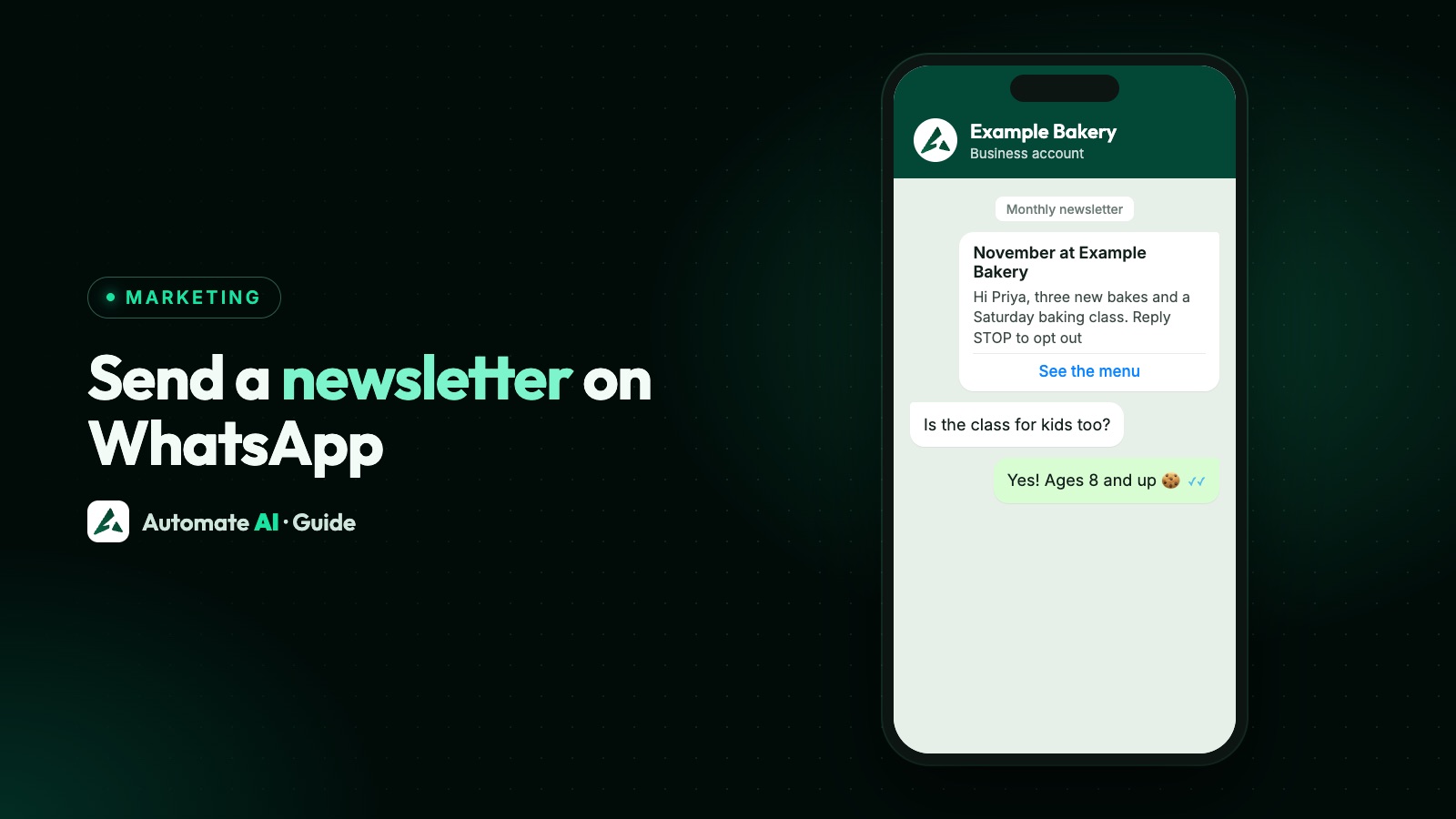
To send a newsletter on WhatsApp, collect opt-in from subscribers, write the issue as an approved marketing template, and send it as a campaign through the WhatsApp Business API. Each subscriber gets it as a personal message they can reply to, unlike a Channel, which is one-way.
A WhatsApp newsletter has to be much shorter than an email one: a template body holds up to 1,024 characters, so think of it as a teaser with one or two links. This guide covers opt-in, the template rules, how often to send, three sample newsletter templates and how to send one in Automate AI.
Key takeaways
- A newsletter is a marketing template: it isn’t tied to anything the subscriber did, so it can’t go out as utility.
- Meta requires opt-in that names your business and makes clear the person is opting in to receive messages from you.
- Keep each issue short: 1,024 characters of body, a header, a 60-character footer and up to 2 link buttons.
- WhatsApp limits how many marketing messages each person gets, based on engagement, so fewer, better issues reach more people.
- End every issue with “Reply STOP to opt out” and remove people who ask, straight away.
Channel or API newsletter: which do you need?
There are two official ways to send regular updates on WhatsApp, and they suit different newsletters:
| WhatsApp Channel | Newsletter campaign on the API | |
|---|---|---|
| How people join | They follow your channel | They opt in to messages from your business |
| Where it shows | The Updates tab | A personal chat with your business |
| Can readers reply? | No, only react or vote in polls | Yes, and you can answer in the chat |
| Personalised | No, everyone sees the same post | Yes, with variables such as first name |
| Cost to send | Free | Per delivered marketing message |
| Good for | Large public audiences and news | Customers you want to hear back from |
Many businesses use both: a Channel for anyone who wants to follow along, and an API newsletter for customers. The full comparison, including groups, Communities and broadcast lists, is in WhatsApp Channels vs Communities vs groups vs broadcasts. The rest of this guide is about the API newsletter.
Step 1: Collect opt-in for the newsletter
The WhatsApp Business Messaging Policy says you may only message people who gave you their number and opted in to hear from you. Meta’s opt-in page adds two must-haves: say clearly that the person is opting in to messages, and name the business they’ll come from. Meta also recommends separate opt-in for each message category, so a newsletter tick box beats a vague “we may contact you”.
Sample wording for a sign-up form (adapt it to your business):
- On your website: a WhatsApp field and the tick box above on your sign-up form.
- At the till or on packaging: a QR code that opens a chat with a message such as “Newsletter please” typed in.
- In a chat: ask customers who already message you, and save their yes.
- In your email newsletter: invite readers to get a short WhatsApp version instead.
Keep a record of when and how each person joined. More wording and record-keeping tips are in WhatsApp opt-in.
Step 2: Write the issue as a marketing template
Outside the 24-hour customer service window, the only messages you can send are approved templates, so each issue is a template that Meta reviews. Meta’s categories leave no doubt here: utility templates must be non-promotional and tied to something the user did or needs, so a newsletter is Marketing. Templates with mixed or unclear content are treated as marketing too.
| Part | Meta’s limit | Newsletter tip |
|---|---|---|
| Header | Text up to 60 characters, or an image, video or document | An image for the issue, or a PDF if the full newsletter is a document |
| Body | Up to 1,024 characters | Three short items, not ten |
| Footer | Up to 60 characters | “Reply STOP to opt out” |
| Buttons | Up to 10 in total, at most 2 URL buttons, labels up to 25 characters | One “Read more” link and one quick reply |
| Carousel | Up to 10 media cards | A product or story per card |
Use a variable for the subscriber’s first name, but not at the very start or end of the body. Write a new template for each issue, or keep one template with variables for the parts that change. The rules for approval are in WhatsApp template messages.
WhatsApp newsletter examples
Three sample templates to adapt. They’re our own, with demo names; {{1}} is the subscriber’s first name.
Monthly roundup (a café or shop)
- Header (image): this month’s new bake.
- Body: Hi
{{1}}, here’s November at Example Bakery. New this month: cinnamon buns every Saturday. Our baking class is back on the 22nd, with 12 places. And the loyalty card now gives a free coffee after 8 visits. Tap below for the full menu. - Footer: Reply STOP to opt out
- Buttons: “See the menu” (URL), “Book the class” (quick reply)
Weekly tip (a service business)
- Header (text): This week’s tip from Example Fitness
- Body: Hi
{{1}}, this week’s tip: warm up for 5 minutes before any run, even a short one. We wrote up three easy warm-ups on our blog. Want a coach to check your form? Reply COACH and we’ll find you a slot. - Footer: Reply STOP to opt out
- Buttons: “Read the tips” (URL)
Event digest (a school, venue or community group)
- Header (document): the term calendar as a PDF.
- Body: Hi
{{1}}, the Example Academy calendar for next term is attached. Highlights: open day on 6 December, the winter showcase on 13 December and new weekend batches from January. Reply with a question and our team will answer here. - Footer: Reply STOP to opt out
- Buttons: “Register for open day” (URL)
Each sample asks for a reply. That matters: once a subscriber replies, you have 24 hours to answer freely, and marketing messages sent inside that window don’t count towards their per-user limit. For more ready-made samples by industry, see the WhatsApp template library.
How often to send a WhatsApp newsletter
The policy sets no number, but it does say not to spam or surprise people, and that WhatsApp may limit how much a business can send based on feedback such as blocks and reports. Two Meta mechanisms make frequency matter more than on email:
- Per-user marketing limits. WhatsApp may cap how many marketing templates a person receives from all businesses over a period, based on things like their recent read rate for marketing. Meta doesn’t publish the numbers. A capped message fails with error 131049; wait at least 24 hours before trying again, because repeated retries can block further attempts to that person for up to 24 hours.
- Subscriber controls. People can rate marketing messages and stop them from your business. A message to someone who stopped them is accepted by the API but not delivered (error 131050).
A sensible starting point is the frequency you promised at sign-up, often monthly or weekly. Watch replies, blocks and opt-outs after each issue, and send less if they rise. Bigger lists and pacing are covered in WhatsApp broadcast limits and WhatsApp marketing without getting banned.
What a WhatsApp newsletter costs
Meta charges per delivered message, and the rate depends on the category and the subscriber’s country. Every issue is a marketing message, so the cost is roughly your number of subscribers times your country’s marketing rate. Messages people send you are free, and replies inside the 24-hour window are service messages, with 1,000 free per number each month; after that they’re charged.
Your provider’s software fee is separate. Rates by country are on our WhatsApp API pricing page, and the Automate AI plans are on pricing.
How to send a newsletter in Automate AI
Newsletters go out as campaigns, which are on every plan. The steps:
- Add your subscribers in Contacts, one by one or by CSV upload, and put them in a group such as “Newsletter”. Only add people who opted in.
- Create the template in Templates › Create Template, choose the Marketing category, add the header, body, footer and buttons, and check the live preview. Wait for Meta’s approval.
- Start a campaign in Campaigns › New Campaign. Under Message, pick the approved template and fill in the variables.
- Choose the audience: your Newsletter group, or several groups, statuses and countries at once.
- Review & send: choose Send now, Schedule for later, or send to each person at the hour they usually read.
- Check the results by tab: Sent, Delivered, Read, Replied, Failed and Clicked. Export any tab, or resend to people it missed.
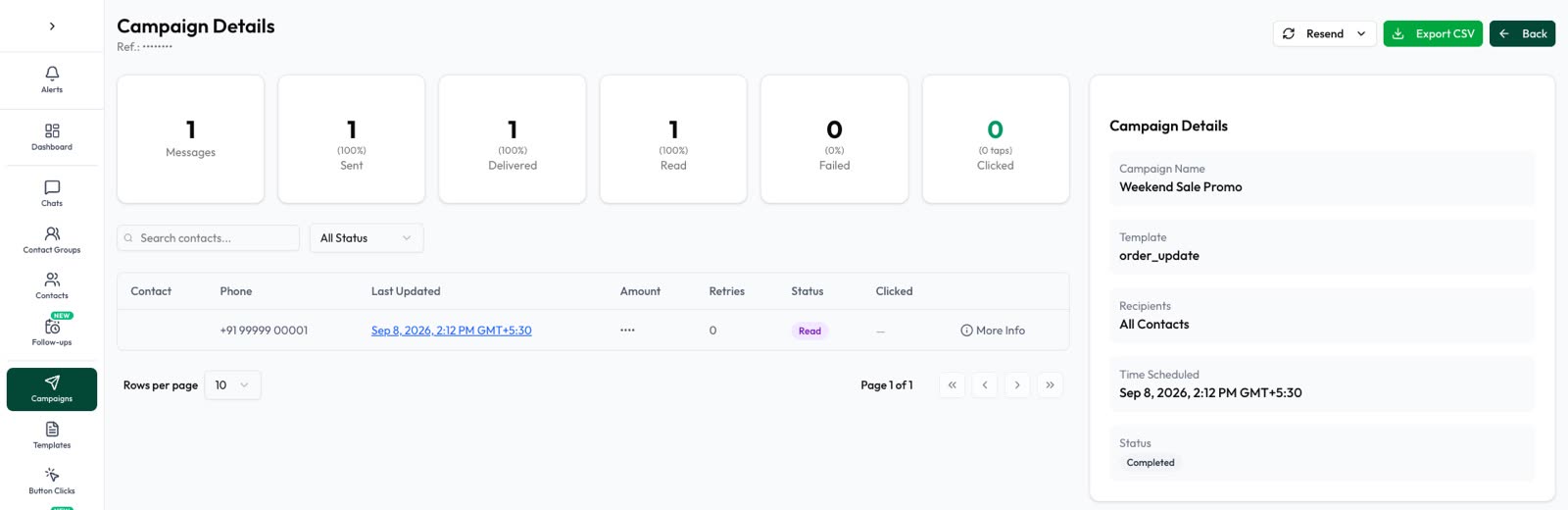
A few options suit newsletters well. An A/B test sends a second template to half the list, so you can compare two subject lines or layouts. You can test on a random group first (10% by default), and the campaign pauses if too many people opt out or WhatsApp warns about spam. With quality protection on, automatic sends pause while your number’s quality is Yellow or Red.
Frequently asked questions
Can you send a newsletter on WhatsApp?
Yes. Either post it in a WhatsApp Channel, which is one-way and free, or send it to opted-in subscribers as an approved marketing template through the WhatsApp Business API.
Is a WhatsApp newsletter a marketing or utility template?
Marketing. Utility templates must be non-promotional and tied to something the person did or needs, and a newsletter isn’t.
How long can a WhatsApp newsletter be?
The template body holds up to 1,024 characters, with a header, a 60-character footer and buttons. Link to your website or attach a PDF for anything longer.
How often should I send a WhatsApp newsletter?
As often as you promised at sign-up, usually weekly or monthly. WhatsApp limits marketing messages per person based on engagement, so frequent issues people ignore reach fewer people.
Do I need permission to send a WhatsApp newsletter?
Yes. WhatsApp’s policy requires opt-in, and Meta says it must name your business and make clear the person is opting in to receive messages from you.
What tool do I need for a WhatsApp newsletter?
A WhatsApp Business API platform that can manage contacts, get templates approved and send campaigns. In Automate AI that’s Campaigns, on every plan.
Sources
- WhatsApp Business Messaging Policy
- Meta: Get opt-in for WhatsApp
- Meta: Template categorization
- Meta: Marketing templates
- Meta: Template components
- Meta: Per-user marketing template limits
- Meta: Pricing on the WhatsApp Business Platform
WhatsApp rules and prices change. We check these guides against Meta’s documentation, but always confirm current terms with Meta before you rely on them. Questions? Message us on WhatsApp at +91 836 977 8812.