How to Ask for Google Reviews on WhatsApp (Samples and Rules)
How to ask for Google reviews on WhatsApp: when to send, sample review request messages, how to get your review link, and the Google and Meta rules to follow.
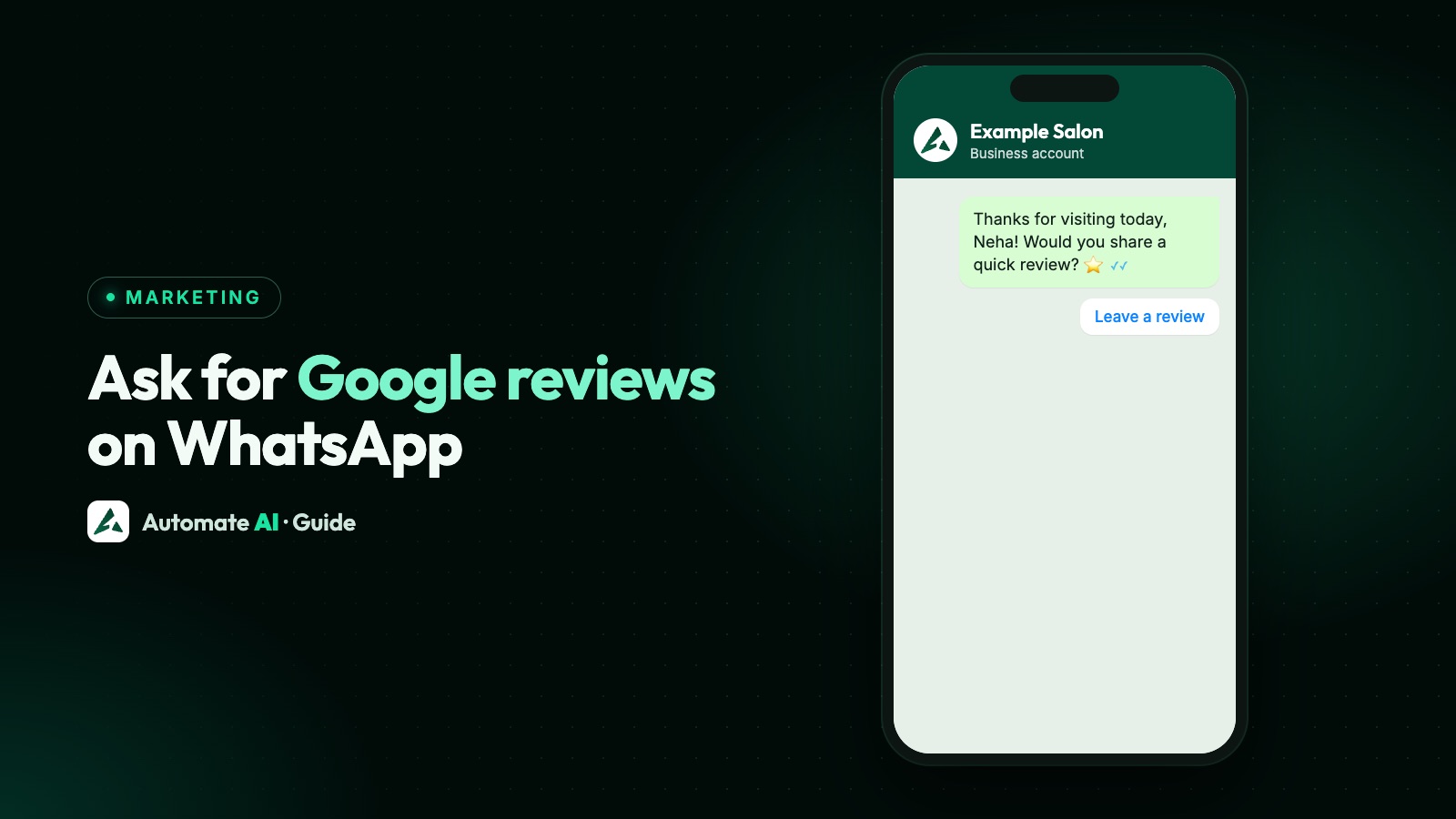
A good WhatsApp review request message thanks the customer for one specific order or visit, asks for an honest Google review, and gives them your review link in a single tap. Send it to every customer, never only the happy ones, and never offer anything in return.
This guide covers when to ask, how to get your Google review link, sample messages you can adapt for shops, salons, clinics, restaurants and service businesses, which WhatsApp template category to use, and the Google and Meta rules that can get reviews removed or your number limited. Collecting private ratings is a different job, covered in how to collect customer feedback on WhatsApp.
Key takeaways
- Get your link from your Google Business Profile: Read reviews, then Get more reviews, then copy the link.
- Inside an open 24-hour window, a normal message is enough. After it closes, you need an approved template.
- Google prohibits incentives and selectively asking happy customers, and says not to request specific content or pressure people.
- Meta’s category rules don’t mention review requests. Treat them as marketing unless the message is clearly about one order, and keep offers out of it.
- Ask once per order or visit, only people who opted in, and end marketing templates with “Reply STOP to opt out”.
When to send a review request
Ask after the customer has had the experience, while they still remember it. Google itself suggests asking at the end of a chat interaction, on receipts and in thank-you messages. The Google and Meta pages we checked set no timing rule, so these are starting points to adjust:
| Business | Good moment to ask | How to send |
|---|---|---|
| Any business, after a helpful chat | Right after you’ve solved their question | A normal message, inside the 24-hour window |
| Restaurant or café | The evening of the visit, or the next morning | Template, if they haven’t messaged you in the last 24 hours |
| Salon, spa or gym | A few hours after the appointment | Template naming the visit |
| Clinic | The day after the visit, without naming the treatment | Template naming the visit only |
| Online order | After delivery, once they’ve had time to use it | Template naming the order |
| Home service or repair | After the job is signed off | Template naming the job |
The easiest moment is often inside an open chat. If a customer has just written “thanks, that fixed it”, you can reply with the review link in a normal message, because the 24-hour customer service window is open and no template is needed.
Get your Google review link
Google gives every Business Profile a link that opens the review form for your business. Its help page lists these steps:
- Go to business.google.com on a computer and open your Business Profile.
- Select Read reviews, then Get more reviews.
- Copy the link with the copy icon. You can also share it straight away, including by WhatsApp.
- Save the QR code if you want one for your counter or receipts: right-click it and choose Save image as.
Google says review QR codes can only be generated in a computer browser, not on a phone, so do this step at a desk. Customers need a Google Account to post a review, and Google notes they can create one with an email address that isn’t Gmail.
A link that starts a chat with you is different: see WhatsApp links and QR codes.
Sample review request messages
These are our own samples with demo data. Change the wording to sound like you. Each template one has a Visit Website button that opens your review link, and ends with an opt-out line because we’ve written them as marketing templates (more on that below).
Inside an open chat (normal message, no template)
After an online order (template)
Sample values: Ananya, 4182, 6 November.
After a salon or spa visit (template)
After a clinic visit (template)
Keep health details out: name the visit, not the treatment or condition.
After a restaurant visit (template)
After a home service job (template)
Sample values: Rohan, AC service.
Don’t hold back the review link because someone complained: fix the problem, and they get the same request as everyone else. Meta allows 25 characters for a button label and 60 for a footer, so keep both short. More samples are in our template library.
Google’s rules for asking for reviews
Google says businesses may ask customers to post reviews that reflect a genuine experience. Its Maps content policy then lists what businesses must not do:
| Don’t | What it looks like on WhatsApp |
|---|---|
| Offer incentives | “Leave a 5-star review and get 10% off”, a free drink, a lucky draw entry, or cashback for a screenshot |
| Selectively ask for positive reviews | Sending the link only to people who tapped “All good” on a feedback survey |
| Discourage negative reviews | “If you’re not happy, please message us instead of reviewing” |
| Ask for specific content | “Please mention our fast delivery and say 5 stars” |
| Pressure people on the premises | Asking customers to write the review at the counter before they leave |
| Set staff review targets | Telling staff to collect a set number of reviews, or reviews that say certain things |
| Post with a conflict of interest | Asking employees, former employees or family to review the business |
Google removes reviews that break these rules. It can also restrict the profile: blocking new reviews for a while, hiding existing ones, and showing a warning that fake reviews were removed.
Which template category? Utility or marketing
Once the 24-hour window has closed, you can only message a customer with an approved template, in one of three categories: marketing, utility or authentication. Meta’s categorisation rules say a utility template must be non-promotional and specific to the customer or requested by them. They list feedback surveys about a specific order as a utility use, but they don’t mention requests for public reviews.
| Your message | How to treat it | Why |
|---|---|---|
| Review request naming one order, no offer | Marketing is the safe choice; utility only if Meta accepts it | Meta’s rules don’t cover review requests, and Meta decides |
| Review request that also mentions a sale or new range | Marketing | Mixed content counts as marketing |
| “Review us and get a discount” | Don’t send it | Google prohibits incentives |
| A general “please review us” to your whole list | Marketing | Not tied to anything the customer did |
Meta regularly checks approved templates and can move a utility template to marketing, usually with a day’s notice. A recategorised template keeps working but is charged at the marketing rate, so don’t submit something borderline as utility to save money. Rates are on our WhatsApp API pricing page, and category basics are in WhatsApp template messages.
Meta’s rules: opt-in, opt-out and expectations
- Opt-in first. WhatsApp’s Business Messaging Policy only lets you message people who gave you their number and agreed to hear from you. Meta says the opt-in must name your business. See WhatsApp opt-in.
- Honour every stop request, whether it comes on WhatsApp or anywhere else. Our marketing samples end with “Reply STOP to opt out” because in Automate AI a typed STOP opts the contact out automatically. Button taps don’t.
- Don’t surprise people. Meta advises that users should expect the messages they get. A review request from a shop they bought from last week is expected; one from a shop they visited a year ago isn’t.
- Offer a person. The policy requires clear escalation paths, such as handing the chat to a person, so an unhappy customer who replies reaches your team, not a loop.
- Don’t mislead. Don’t write as if the message comes from Google, and don’t use Google’s logo in your template.
Send review requests with Automate AI
Here’s a simple setup, using features that are in the app today:
- Create the template under Templates: pick the category, write the body with variables, and add a Visit Website button with your Google review link. Tick Track clicks with a Smart Link and pick a link you made under Campaigns › Tracking, or let the app create one from the URL. Submit it for approval.
- Why a Smart Link? WhatsApp doesn’t tell you which customer tapped: Meta’s template analytics only give total and unique click counts for a website button. Meta also locks a button’s URL once the template is approved, so to add tracking to an existing template you need a new one.
- Pick who gets it. Keep recent customers in a contact group or status, such as “Visited this week”, so you only ask people with a real, recent experience.
- Send it. Run a Campaign to that group, now or on a schedule. Or set up a drip sequence under Campaigns › Drip Campaigns, with the review request as its only step, sent when a contact joins the audience. Each contact goes through a sequence once, which suits “ask once”. If you add a thank-you as step 1 instead, remember that with Stop on reply on, anyone who answers it never gets step 2. Drip campaigns are included in the AI + Automation Plan and Series 4.
- See who tapped under Campaigns › Tracking, where Button Clicks lists each tap with the customer, campaign and template.
- Reply to everyone who answers in the shared inbox. A reply opens a 24-hour window, so you can carry on with normal messages.
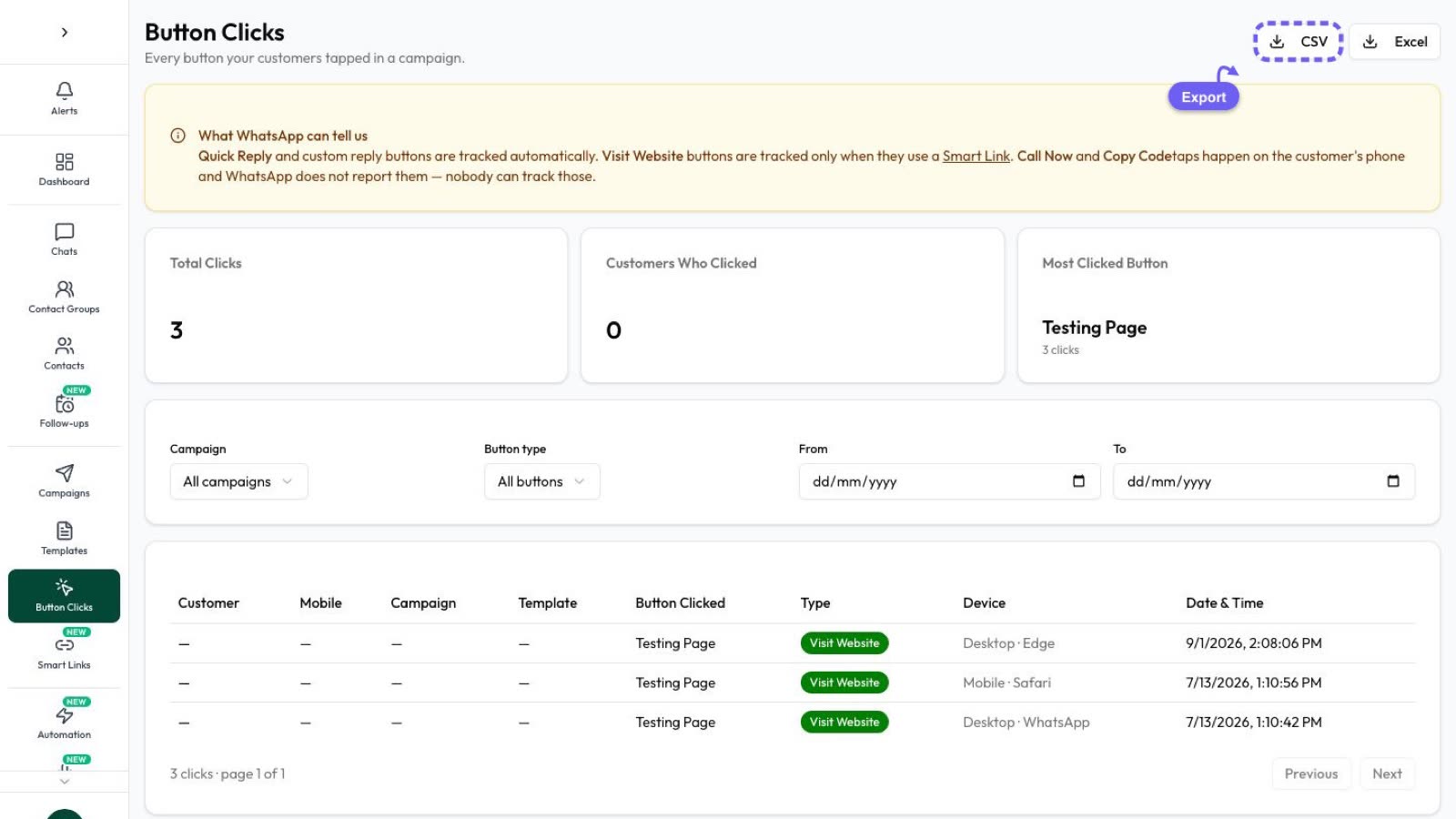
Button Clicks shows who tapped the link, not who posted a review: Google doesn’t tell anyone which customer wrote which review. Don’t chase people from the tap list, or ask for a screenshot of their review. Drip details, such as delays and stop on reply, are in the drip campaign guide, and campaign sending is on the Marketing feature page.
After the reviews come in
Google’s tips for replying to reviews are worth following, and they apply to every review, not just the ones that came from WhatsApp:
- Reply to good and bad reviews, briefly and politely, and avoid the same generic thank-you every time.
- For a negative review, acknowledge what went wrong, say what you’ll do, and invite the person to contact you by phone or email for anything complex.
- Don’t push offers in replies, and never share a reviewer’s private details.
Google notes that a mix of reviews, including some negative ones, can make a profile look more trustworthy.
Frequently asked questions
What should a WhatsApp review request message say?
Thank the customer for one specific order or visit, ask for an honest review, and add a button with your Google review link. Keep it short, don’t offer anything in return, and don’t ask for a star rating or particular words.
Is a Google review request a utility or marketing template?
Meta’s category rules don’t mention review requests, and Meta makes the final call. Submitting it as marketing is the safe choice. Anything promotional in it makes it marketing anyway.
Can I offer a discount for a Google review?
No. Google prohibits payment, discounts and free goods or services in exchange for a review, and removes reviews posted because of an incentive.
Can I send the review link only to happy customers?
No. Google doesn’t allow businesses to selectively ask for positive reviews or discourage negative ones. If you send review requests, send them to all recent customers.
How do I get my Google review link?
On a computer, open your Business Profile at business.google.com, select Read reviews, then Get more reviews, and copy the link. You can download a QR code from the same screen.
Can I see who left a review from my WhatsApp message?
No. In Automate AI, a Smart Link on the button shows who tapped it, but Google doesn’t tell you which customer posted which review.
Can I ask for reviews on the free WhatsApp Business app?
Yes, you can paste your review link into a chat by hand. Approved templates, tracked links and sending to people outside the 24-hour window need the WhatsApp Business Platform (API).
Sources
- Google: Maps user contributed content policy (prohibited and restricted content)
- Google Business Profile Help: Create a Google link or QR code to request reviews
- Google Business Profile Help: Tips to get more reviews
- Google Business Profile Help: Business Profile restrictions for policy violations
- Meta: Template categorization
- Meta: Analytics (template button clicks)
- Meta: Get opt-in for WhatsApp
- WhatsApp Business Messaging Policy
WhatsApp rules and prices change. We check these guides against Meta’s documentation, but always confirm current terms with Meta before you rely on them. Questions? Message us on WhatsApp at +91 836 977 8812.