Connect Facebook Lead Ads to Your CRM, Then Follow Up on WhatsApp
How to connect Facebook lead ads to a CRM: Meta’s own options, HubSpot, LeadSquared or Zoho Bigin via Automate AI, and a WhatsApp follow-up that updates it.
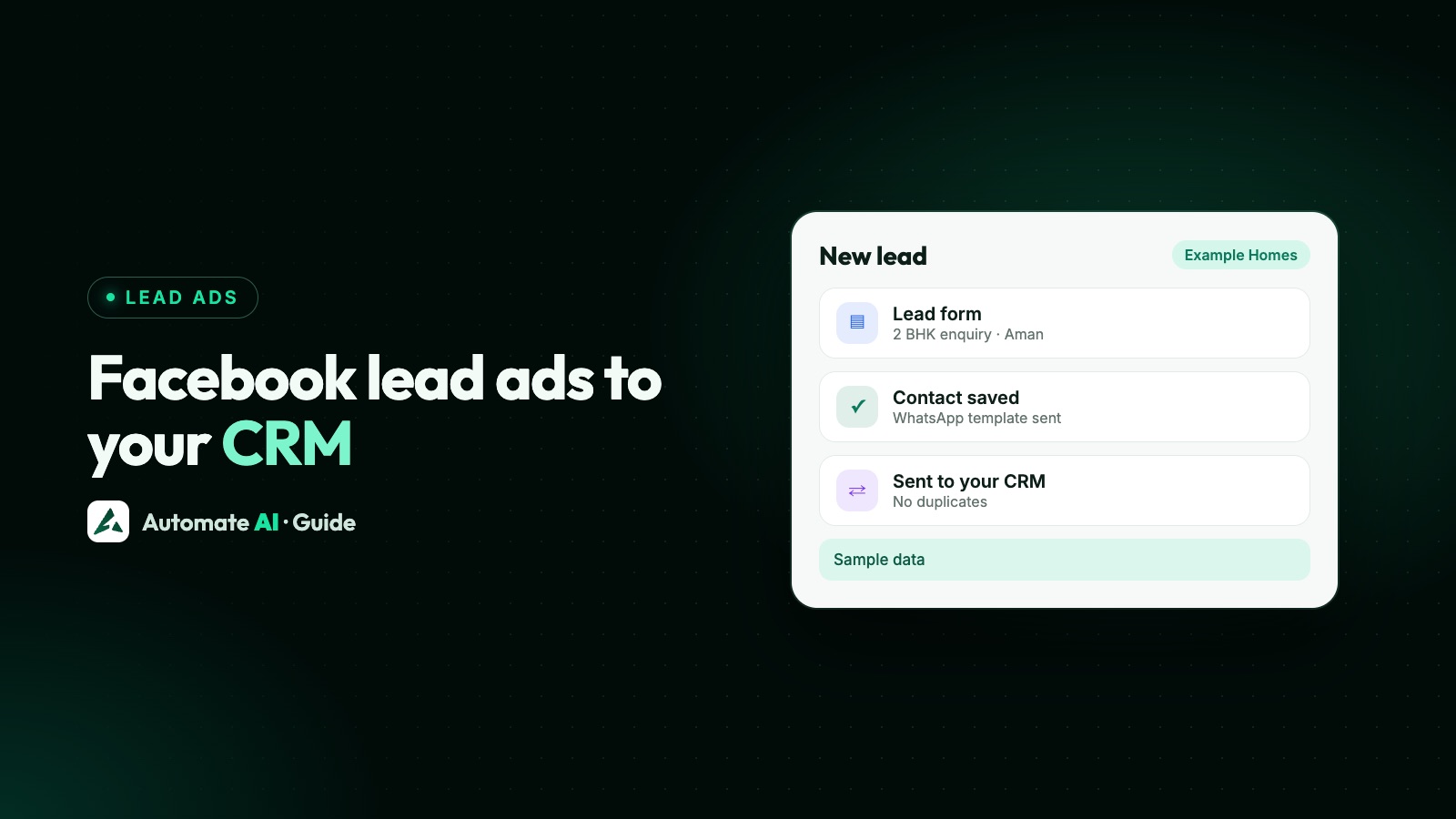
To connect Facebook lead ads to a CRM, you either use one of Meta’s CRM integrations (direct, through a tool such as Zapier, or your own webhook), or you send leads to a platform that saves them and passes them on. In Automate AI, each lead becomes a contact, gets a WhatsApp message in seconds if you want, and goes on to HubSpot, LeadSquared or Zoho Bigin without duplicates.
The CRM part is only half the job. A lead sitting in a CRM still needs a reply, and the reply that gets read is usually on WhatsApp. This guide covers the routes Meta offers, what Automate AI sends to each CRM, what to do if you use Salesforce, Pipedrive or Zoho CRM, and how to set up the follow-up so the CRM stays up to date.
Key takeaways
- Meta offers direct, third-party and custom CRM integrations for lead ads, and keeps leads for download for only 90 days.
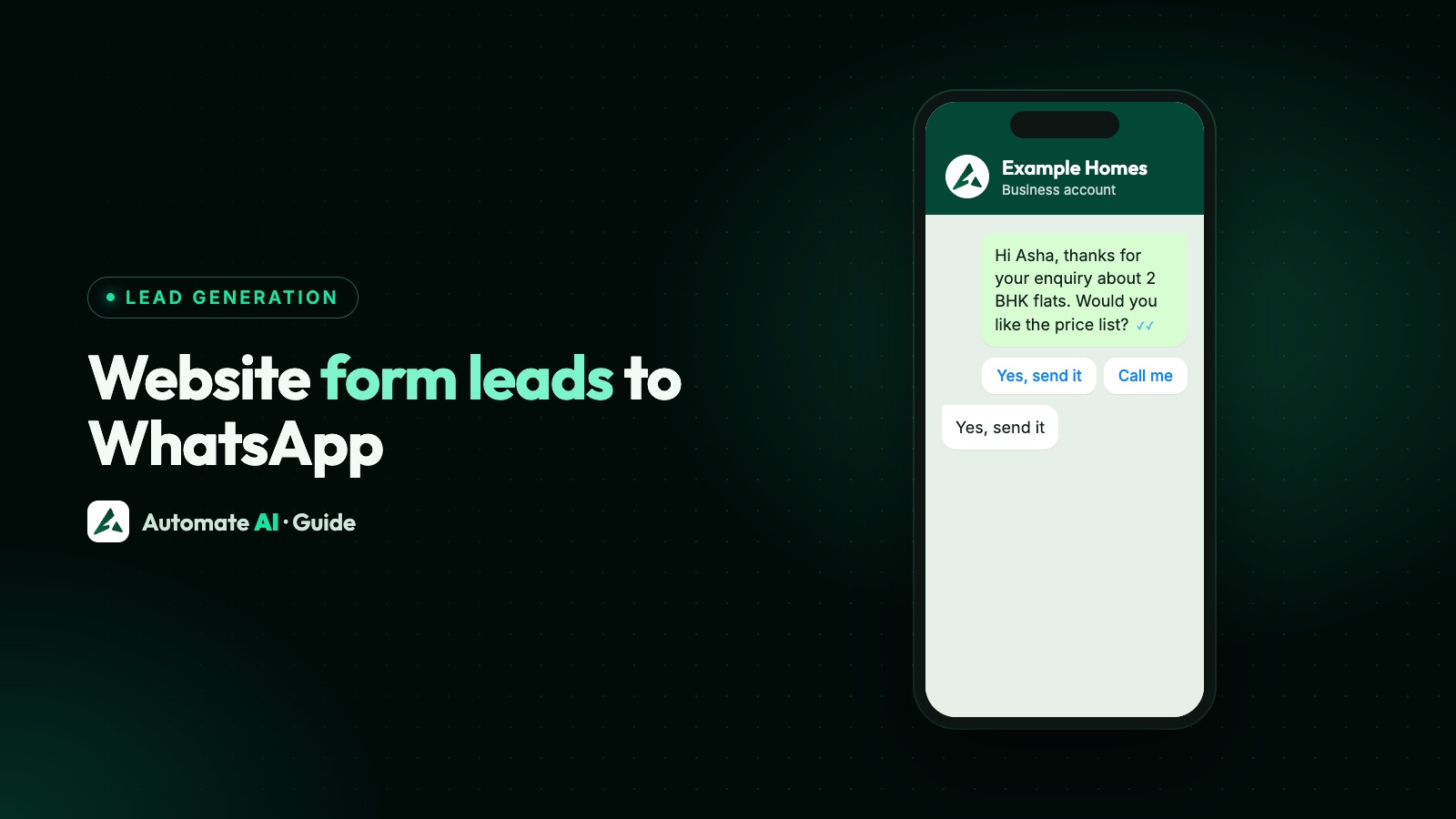
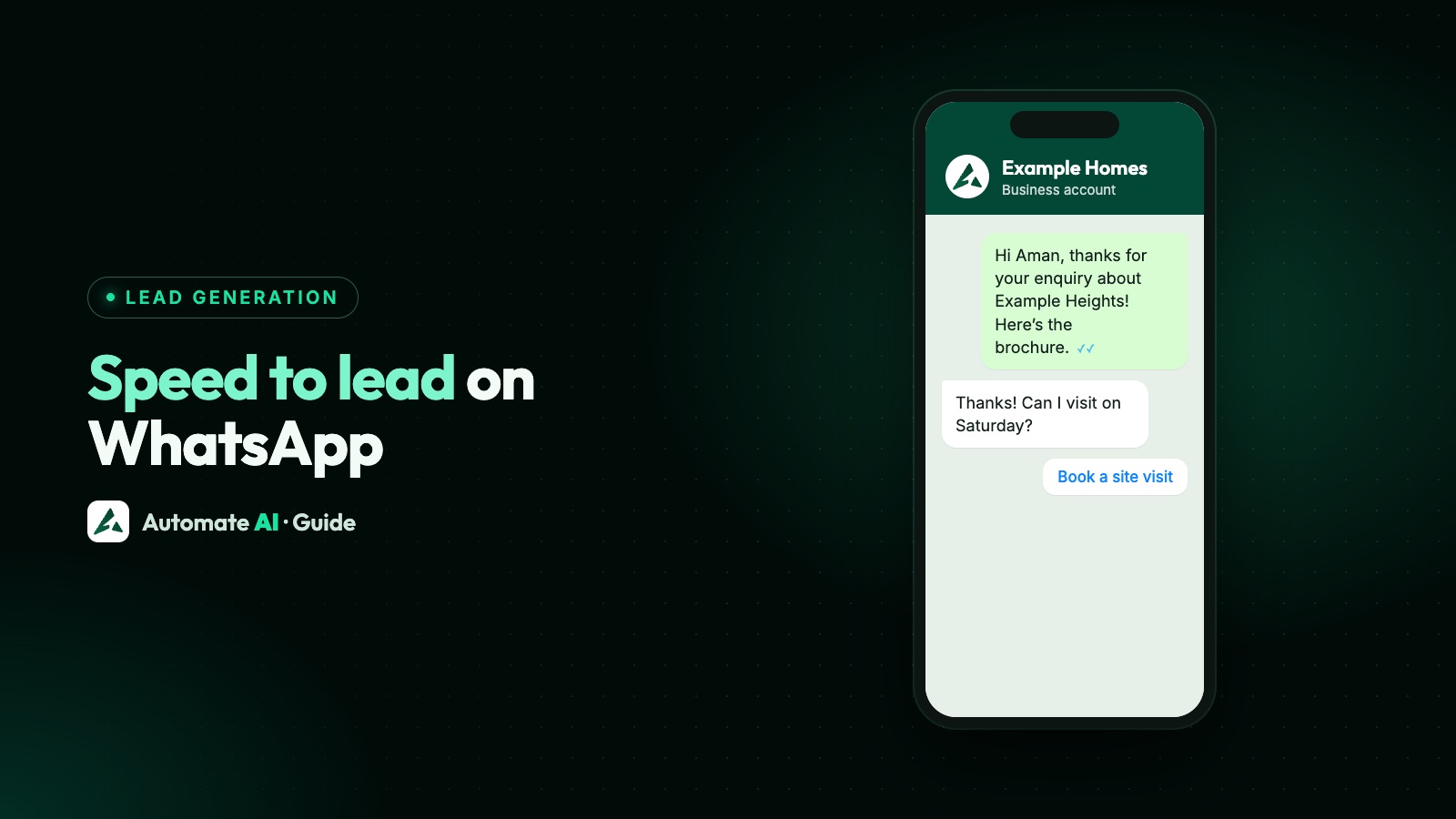
- Automate AI saves every lead with a phone number as a contact, and can send an approved WhatsApp template straight away.
- New contacts, lead-ad contacts included, can go to HubSpot, LeadSquared or Zoho Bigin, matched by phone or email so nothing is duplicated.
- There are no Salesforce, Pipedrive or Zoho CRM connectors in Automate AI. Use Meta’s own CRM options for those, and Automate AI for WhatsApp.
- Change a contact’s status in Automate AI and the CRM’s lead status, lead stage or Bigin deal stage can follow.
Three ways to get lead ads into a CRM
Meta’s help pages describe three kinds of CRM integration for lead ads:
| Route | How it works | Good for |
|---|---|---|
| Direct integration | Your CRM connects to Meta Business Suite. Meta names Salesforce and Mailchimp among the systems in its list. | CRMs that appear in Meta’s list |
| Third-party integration | A tool such as Zapier or LeadsBridge passes each lead to your CRM, with no coding | CRMs without a direct integration, such as Pipedrive through Zapier |
| Custom integration | Your developer receives leads through Meta’s webhooks and the Graph API | In-house systems |
There’s a fourth, practical route: send leads to a platform that does something with them first. Automate AI receives each lead through Meta’s webhook, saves it as a contact, messages the lead on WhatsApp and then passes the contact on to your CRM.
If you’re a developer building the custom route, see our guide to the Meta Lead Ads API.
What Automate AI sends to each CRM
Every lead from a connected Facebook Page that has a phone number becomes a contact in Automate AI. Then the CRM connection takes over. It picks up new contacts in small batches about every minute, so a lead usually reaches the CRM within a few minutes.
| CRM | How you connect | What it sends | What follows a status change |
|---|---|---|---|
| HubSpot | Connect with HubSpot (sign in and allow access) | Name, email and the WhatsApp number as a contact, with an optional note of the chat | The HubSpot Lead status you map |
| LeadSquared | Paste the access key, secret key and API host from LeadSquared’s Settings › API and Webhooks | A lead with name, email, number and a lead source you type, with an optional chat note | The lead stage you map |
| Zoho Bigin | Connect with Zoho Bigin (sign in to Zoho) | A Bigin contact, and optionally a deal in the pipeline you choose | The deal stage you map |
- No duplicates. Before creating anything, Automate AI looks for the same phone number, then the same email, in the CRM. A match is linked instead of copied, and each contact is sent once.
- The chat note (HubSpot and LeadSquared) is the chat summary if one exists, or else the customer’s last WhatsApp message. It’s added once, when the contact is first sent, which for a new lead is usually before they reply, so most lead-ad contacts get no note.
- Custom form questions stay with the contact in Automate AI. The CRM gets the name, number, email and status, not every answer on the form.
- Every plan. CRM connections are on every plan. Facebook Lead Ads capture is on the AI + Automation Plan and Series 4.
Each CRM has its own guide: HubSpot WhatsApp integration and Zoho Bigin. The wider picture is on our WhatsApp CRM page.
If you use Salesforce, Pipedrive or Zoho CRM
Automate AI has no Salesforce, Pipedrive or Zoho CRM connector, and Zoho Bigin is a separate Zoho product from Zoho CRM. If one of those is your CRM, run two connections side by side:
- Lead ads to your CRM, through Meta. In Meta Business Suite, open All tools › Instant forms › CRM setup and search for your CRM. If it isn’t there, Meta’s help page explains the Zapier route from the same screen.
- Lead ads to WhatsApp, through Automate AI. Connect the same Facebook Page under Integrations › Facebook Leads, so every lead also becomes a contact and gets your first WhatsApp message.
Both connections read the same leads from Meta, so neither one waits for the other. The catch is that status changes in Automate AI won’t reach those CRMs, so agree which system your team updates. One simple option is to update the CRM and use Automate AI only for the WhatsApp conversation.
Set it up in Automate AI, step by step
Only the account owner or a manager can connect Pages and CRMs. Connect the CRM before the ads run, because only contacts created after you switch on sending new contacts are sent:
- Get a template approved. Write a short first message in Templates, such as a thank-you with the brochure, and wait until it shows Approved. A new lead hasn’t messaged you, so the first message must be a template.
- Connect your Pages. Open Integrations › Facebook Leads, switch it on, click Continue with Facebook and tick the Pages that run your lead ads.
- Choose the first message. Pick the template for all leads, and if you like a different template for particular ads.
- Connect the CRM. Open Integrations › HubSpot, LeadSquared or Zoho Bigin and connect it.
- Choose what syncs. Switch on sending new contacts, and if you want them, status updates and (HubSpot and LeadSquared only) the chat note. In Zoho Bigin, stages follow status changes only when creating a deal is on, with a pipeline and starting stage chosen.
- Map your statuses to the CRM’s lead status, lead stage or deal stage (next sections).
- Test with your own number. Submit a test lead, then check the Facebook Leads activity log, the contact in Automate AI and the record in your CRM.
The full Facebook Leads walkthrough, including per-ad templates and troubleshooting, is in Send Facebook Lead Ads leads to WhatsApp.
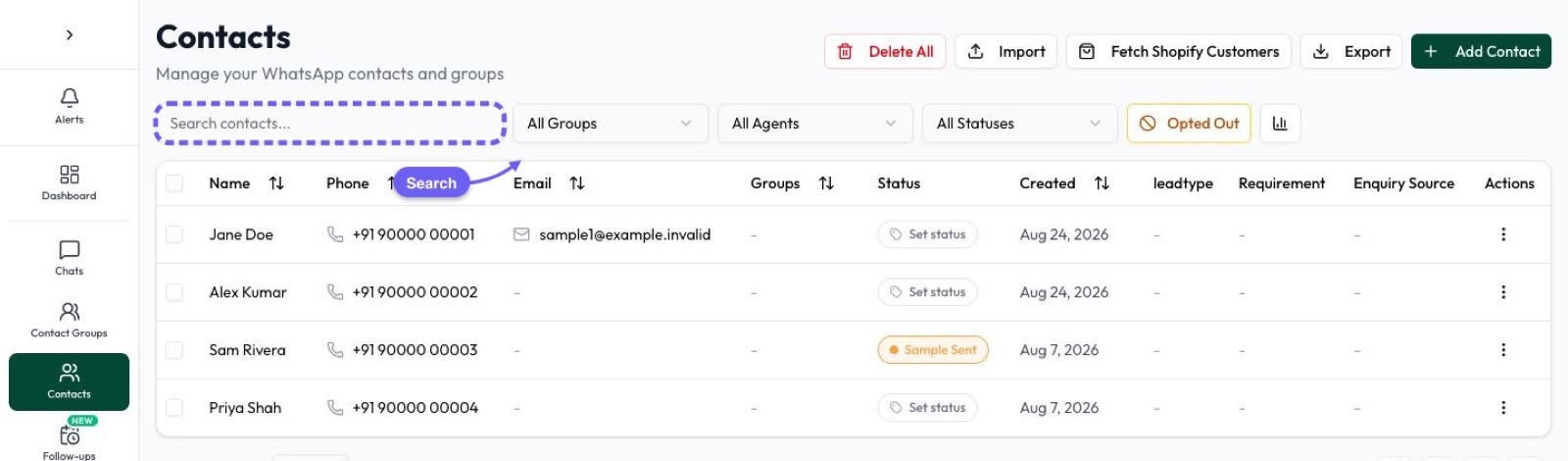
The WhatsApp follow-up that keeps the CRM current
Here’s a follow-up plan that keeps the CRM current without anyone retyping anything:
| When | What happens on WhatsApp | What changes in the CRM |
|---|---|---|
| Seconds after the form | The lead gets your approved template | Within a few minutes, a new record appears, at the starting stage if you chose one |
| The lead replies | A 24-hour window opens and your team, a chatbot or the AI Assistant answers | Nothing. The chat note is added only once, when the contact is first sent, so a brand-new lead usually has none |
| Your team qualifies the lead | They set a status such as “Interested” | The mapped lead status or deal stage changes |
| No reply after the first message | A drip campaign aimed at a “New lead” status sends two or three helpful templates | Nothing until the status changes |
| The lead buys or drops out | Your team sets “Won” or “Not interested” | The record moves to the matching stage |
Lead-ad contacts don’t get a status by themselves, so have your team set a status such as “New lead” on each lead as it arrives, whether or not they reply. Then build the drip campaign under Campaigns › Drip Campaigns, with the status as its audience. Keep Stop on reply on, so the sequence ends as soon as the lead answers. Drip campaigns are on the AI + Automation Plan and Series 4. Ideas for the messages are in WhatsApp drip campaigns.
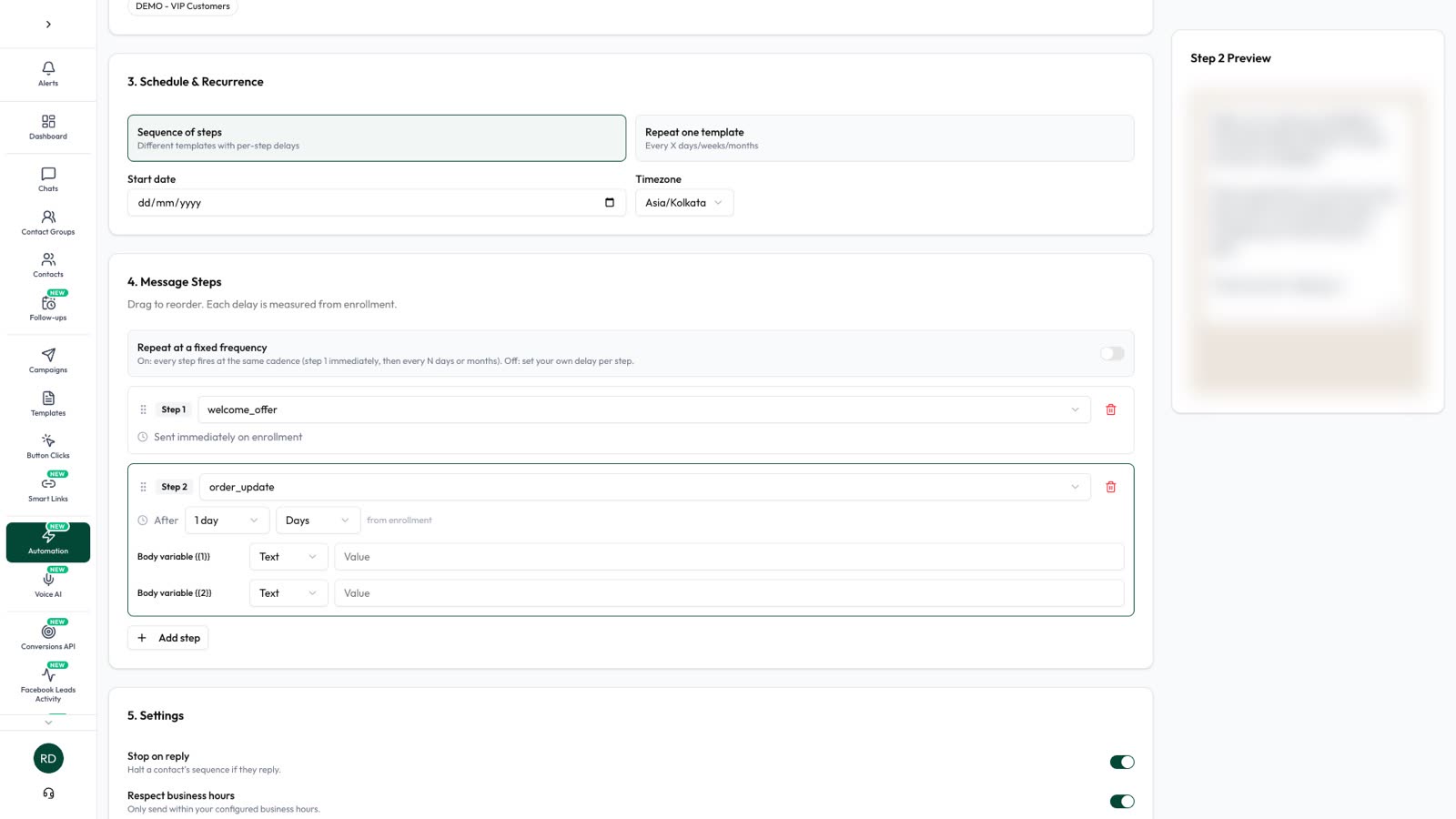
A sample status map
Use the statuses your team already uses. This is a made-up example for a property business; the CRM column stands for whatever your own CRM calls each step:
| Automate AI status | Meaning | CRM stage it maps to (example) |
|---|---|---|
| New lead | Came in from the form, not yet spoken to | New |
| Interested | Replied and wants details | Qualified |
| Site visit booked | Has a date | Visit scheduled |
| Won | Booked or bought | Won |
| Not interested | Said no, or the wrong fit | Lost |
Your CRM’s own lists decide the choices: Automate AI reads HubSpot’s lead statuses, LeadSquared’s lead stages and Bigin’s pipelines from the CRM when you map. Statuses you leave unmapped don’t change anything in the CRM.
What trips people up
- No phone number, no contact. Automate AI matches people by phone number, so a lead who left the phone field empty isn’t saved. Make phone a required question on the form.
- Repeat leads update, not duplicate. If the number already belongs to a contact, Automate AI fills in only the empty fields instead of making a second contact, and the CRM connection never sends the same contact twice.
- One Page, one account. A Facebook Page can be connected to only one Automate AI account.
- Plain messages rarely deliver. A non-template message reaches a lead only if they messaged you in the last 24 hours. Use a template as the first message.
- One route per CRM. If HubSpot, LeadSquared or Bigin also gets leads from Meta directly, two systems are writing the same people. Pick one route per CRM so your team knows where each record came from.
- Check the activity lists. Both the Facebook Leads screen and each CRM screen show what happened to each person, including anything that failed.
Consent on the form
Meta’s WhatsApp rules say a person must opt in before you message them, and the opt-in must name your business and say they’re agreeing to hear from it. A lead form is a good place to collect it. Add a line such as: “By submitting, you agree that Example Homes may contact you on WhatsApp about your enquiry.”
Keep sensitive details out of both the form and the chat: no card numbers, account numbers or ID numbers. If you’ll send offers later, ask for that separately. More in WhatsApp opt-in.
Frequently asked questions
How do I connect Facebook lead ads to my CRM?
Use Meta’s CRM setup in Meta Business Suite (All tools › Instant forms › CRM setup), a tool such as Zapier, your own webhook, or a platform like Automate AI that saves each lead and passes it to HubSpot, LeadSquared or Zoho Bigin.
Can Facebook lead ads go to Zoho CRM?
Not through Automate AI, which connects to Zoho Bigin but not Zoho CRM. Check Meta’s list of CRM integrations, or use a third-party tool such as Zapier.
Will a lead be duplicated in my CRM?
Not through Automate AI. It looks for the same phone number, then the same email, in the CRM before creating a record, and links a match instead of copying it.
How fast does a lead reach the CRM?
The lead is saved and messaged as soon as Meta sends it. The CRM connection picks up new contacts about every minute, so allow a few minutes.
Do all the form answers go to the CRM?
No. The CRM gets the name, phone number, email and status. Answers to custom questions stay with the contact in Automate AI.
What happens to leads after 90 days on Meta?
Meta stops making them available for download. Leads already saved in Automate AI or your CRM stay there.
Which plans include this?
CRM connections are on every Automate AI plan. Facebook Lead Ads capture and drip campaigns are on the AI + Automation Plan and Series 4. See the pricing page.
Sources
- Meta Business Help: About CRM system integrations for lead ads
- Meta Business Help: Available CRM system integrations for lead ads
- Meta Business Help: Connect your CRM system to Meta via Zapier
- Meta Business Help: Download or retrieve your leads data from Meta
- Meta Business Help: About expired leads
- Meta: Get opt-in for WhatsApp
WhatsApp rules and prices change. We check these guides against Meta’s documentation, but always confirm current terms with Meta before you rely on them. Questions? Message us on WhatsApp at +91 836 977 8812.