How to Send a Broadcast Message on WhatsApp Business (Step by Step)
How to send a broadcast message on WhatsApp Business: broadcast lists on Android and iPhone, paid business broadcasts and API campaigns, with sample messages.
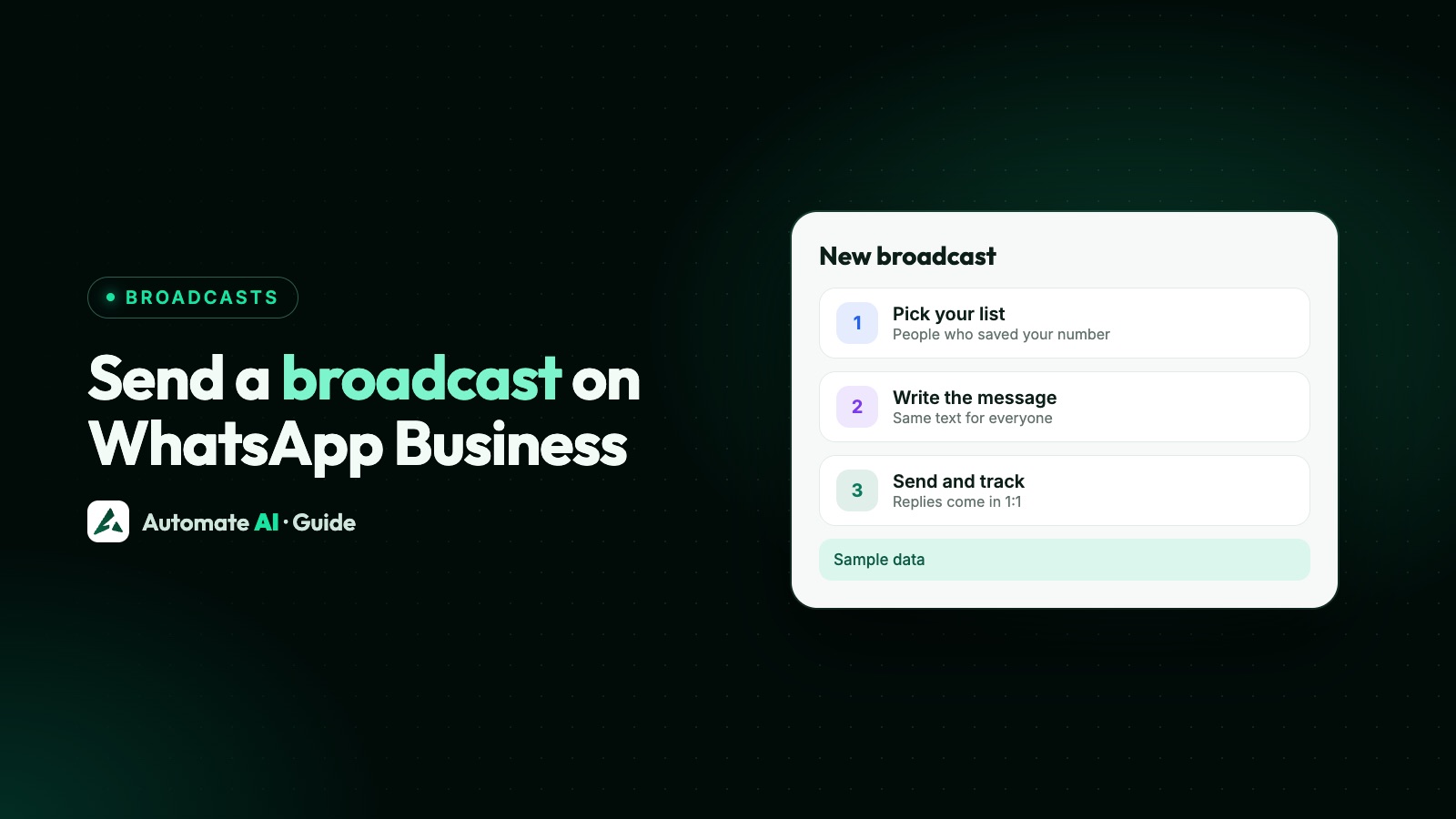
To send a broadcast message on WhatsApp Business, create a broadcast list, add up to 256 contacts, type your message and send it: each person gets it as a private chat from you. On Android that’s Chats › three-dot menu › Broadcast lists; on iPhone it’s Settings › Broadcast messages › New List. Only people who saved your number will receive it.
To reach people who haven’t saved your number, the Business app has paid business broadcasts in some countries, and for larger or regular sends there’s the WhatsApp Business API. This guide gives the steps for all three, how to write a broadcast people answer, sample messages, and a checklist before you send.
Key takeaways
- Broadcast lists are free, up to 256 contacts each, phone only, and reach only people who saved your number.
- In some countries WhatsApp allows up to 35 free broadcast messages a month in total, not per list. It doesn’t say whether that applies in the Business app, so check Settings › Broadcasts.
- Business broadcasts (Tools › Business broadcasts) reach customers who haven’t saved you, with a picture or file and a button, and are paid per delivered message.
- API campaigns use approved templates, can include each customer’s name, and can be scheduled and tracked.
- Whatever the route, send only to people who agreed to hear from you, and make the reply easy.
Three ways to broadcast from a business number
| Broadcast list | Business broadcast | API campaign | |
|---|---|---|---|
| Who receives it | Contacts who saved your number, up to 256 per list | Customers you pick, saved or not | Opted-in customers, up to your messaging limit |
| Cost | Free (in some countries up to 35 free broadcast messages a month in total) | Paid per delivered message | Paid per delivered template, plus the platform |
| Scheduling | No | Yes | Yes |
Start with a broadcast list if you have a small circle of regular customers. Move up when you need to reach people who haven’t saved you, or when broadcasting becomes a weekly job. What the paid options cost is in WhatsApp Business broadcast pricing.
How to create a broadcast list on Android
- Open WhatsApp Business and tap Chats.
- Tap the three-dot menu, then Broadcast lists.
- Tap the checkmark icon to start a new list.
- Search for or select the contacts to add, up to 256.
- Tap the checkmark again to save the list, then open it from Chats and send your message as you would in any chat.
To edit a list, open it from Chats, tap the three-dot menu › Broadcast list info. There you can rename it (three-dot menu › Change broadcast list name) or tap Edit recipients to add or remove people. To delete it, go to Broadcast list info › Delete broadcast list › Delete.
How to create a broadcast list on iPhone
- Tap Settings or your profile picture.
- Tap Broadcast messages, then New List.
- Search for or select the contacts you want.
- Tap Create, then open the list and send your message.
To edit a list, go to Settings › Broadcast messages and tap the i next to it: tap the name to rename it, or Edit list to add or remove people. To delete it, swipe left on the list and tap Delete.
Limits, the monthly cap and other reasons broadcasts fail are covered in WhatsApp broadcast limits.
How to send a business broadcast
Business broadcasts are available only in limited countries and are still rolling out, so you may not see them yet. Where you do:
- Go to Tools › Business broadcasts (or start from a chat, or from the new chat icon › Business broadcasts). The first time, read the introduction and tap Continue.
- Select the audience. You’ll see lists built from your address book, plus any audience you imported on WhatsApp Business web. Add a whole list in one tap, or pick people one by one.
- Add an attachment if you want: an image, video or document.
- Add an action button (optional): Catalog opens a product or your whole catalogue, Custom reply sends you a pre-filled message, Phone call calls your business, Website opens a link.
- Preview the message as customers will see it. Meta reviews broadcasts before they’re delivered.
- Check the price and recipients, then tap Send now or Schedule. You’re charged at that point, only for messages delivered within five days.
WhatsApp says processing usually takes a few seconds but can take up to three hours. Importing an audience from a spreadsheet is explained in how to import WhatsApp contacts from Excel, and costs in WhatsApp Business broadcast pricing.
Turn a broadcast list into a business broadcast
If part of a list never gets your broadcasts because they haven’t saved your number, WhatsApp lets you send them a paid version: open your latest broadcast list, tap the marketing message banner at the top, edit the draft and add a button if you like, tap Next to review, then Send now or Schedule. The audience is set to the customers who didn’t receive your broadcast.
How to send a broadcast with the WhatsApp Business API
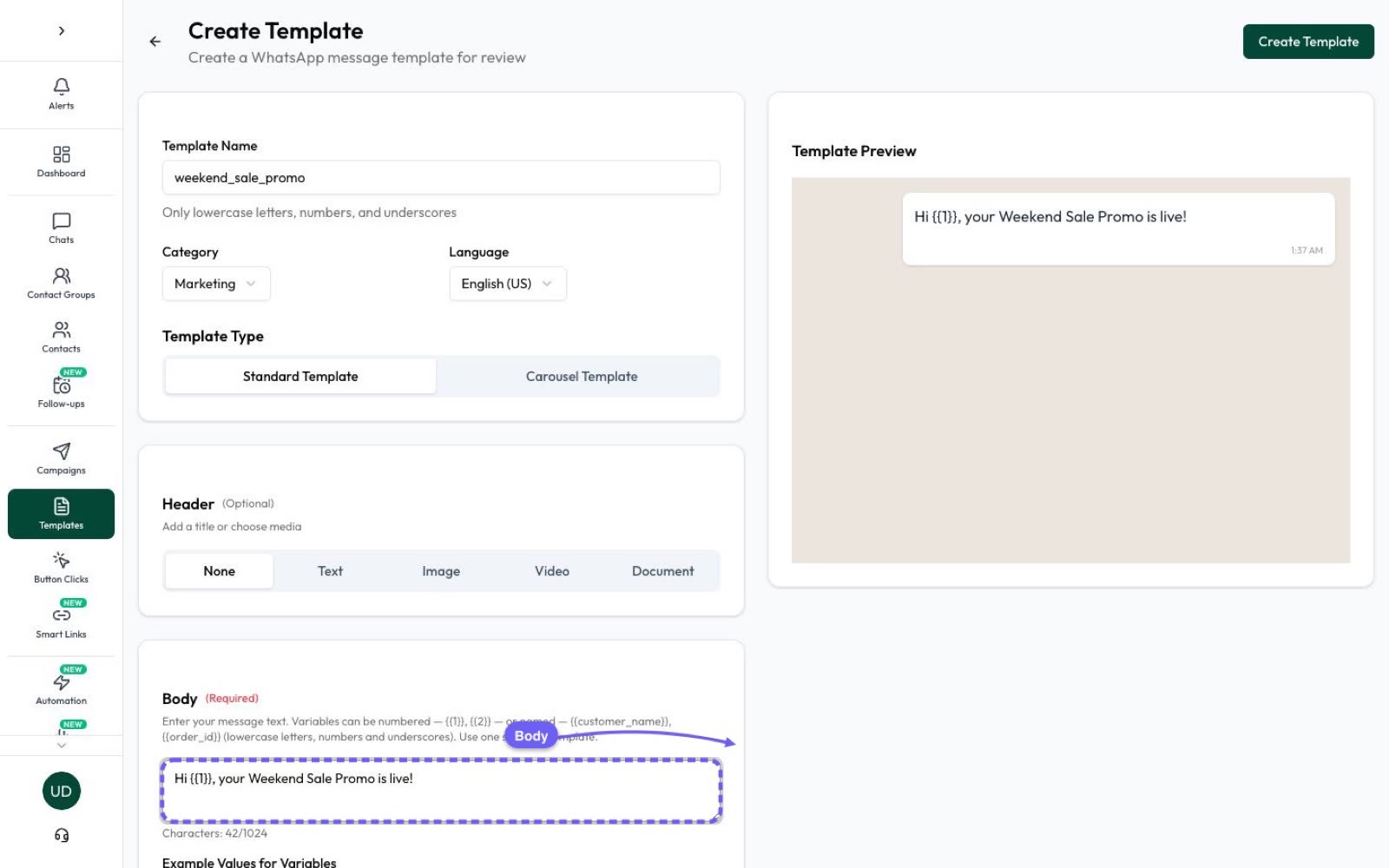
On the API, a broadcast is a campaign: one approved template sent to each customer separately. It suits businesses with hundreds or thousands of opted-in customers, a team answering replies, or regular sends. In Automate AI it takes four steps:
- Create a template, from a ready-made one for your industry or your own, with an image, video or document header, buttons or a carousel, and submit it to Meta for approval.
- Import your contacts by CSV, with the opt-in you collected, and put them in groups.
- Choose the audience: all contacts, groups, ready-made audiences such as people quiet for 60 days, or several groups, statuses and countries at once.
- Send now, schedule a date and time, or send to each person at the hour they usually read. You can send to a random 10% first: if too many opt out or WhatsApp warns about spam, the campaign pauses and shows why.
Results come in tabs: sent, delivered, read, replied, failed and clicked, each with who it was, and you can resend to people a campaign missed. Template rules are in WhatsApp templates: types and examples.
How to write a broadcast message people answer
- Say who you are in the first line. On a broadcast list, people may have saved you under a nickname or not remember the shop.
- One message, one point. One offer or one update, not three.
- Give a reason to reply. End with a single question or a button, such as “Reply 1 for Tuesday or 2 for Thursday”.
- Keep it short enough to read without tapping “Read more”. Put the detail behind the reply.
- Say how to stop. For promotions, end with a line such as “Reply STOP to opt out”, and act on it.
- No names on a list. A broadcast list sends identical text to everyone, so don’t write “Hi Priya”. API templates can add each customer’s name with a variable.
Sample broadcast messages (sample business names)
- New stock: “Example Store here 👋 New cotton kurtas are in, from ₹799, in 6 colours. Want photos of your size? Reply with S, M, L or XL. Reply STOP to opt out.”
- Weekend offer: “Hi from Example Café! Our set lunch is back this Saturday and Sunday. Shall we keep you a table? Reply with a time. Reply STOP to opt out.”
- Service visit: “Example Cooling is servicing ACs in your area next week. Reply 1 for Tuesday or 2 for Thursday and we’ll confirm a slot. Reply STOP to opt out.”
- Update for enrolled students: “Example Academy: tomorrow’s maths class moves to 5 pm, same room. Reply OK if you’ve seen this.”
Want more? The WhatsApp template library has samples by industry, written to Meta’s template rules.
A checklist before you press send
- Everyone agreed to hear from you on WhatsApp. WhatsApp’s Business Messaging Policy requires opt-in, and you must honour every opt-out, on or off WhatsApp. See WhatsApp opt-in.
- The right list: no one who opted out, no wrong numbers, and no one who already bought what you’re offering.
- Test it on yourself or a colleague to see how the picture and line breaks look.
- Send at a sensible hour for your customers, and when someone can answer replies.
- Plan the replies: who answers, and what you do with “STOP”. See can people reply to a WhatsApp broadcast?.
- Don’t overdo it. Spam reports can get business broadcasts suspended for three days. On the API, Meta rates each template’s quality from customer feedback and read rates, and a YELLOW or RED template may be paused or disabled.
Frequently asked questions
How do I send a broadcast message on WhatsApp Business?
Create a broadcast list (Android: Chats › three-dot menu › Broadcast lists; iPhone: Settings › Broadcast messages › New List), add contacts, then type and send your message. Each person gets it as a private chat.
How many people can I add to a WhatsApp Business broadcast list?
Up to 256 per list, and you can make as many lists as you like. Only people who saved your number receive the broadcast.
Can I send a broadcast to people who haven’t saved my number?
Not with a broadcast list. Use business broadcasts in the Business app where they’re available, which are paid per delivered message, or campaigns on the WhatsApp Business API.
Can I schedule a broadcast on WhatsApp Business?
Not a broadcast list. Business broadcasts can be scheduled, and API platforms can schedule campaigns for a date and time.
Can I broadcast from WhatsApp Web?
Broadcast lists work only on Android and iPhone, not on WhatsApp Web, Windows or Mac. On WhatsApp Business web you can import an audience for business broadcasts, which you then send from the Business app.
Is there a limit on free broadcasts?
In some countries WhatsApp allows up to 35 free broadcast messages a month in total, rolling out gradually. It doesn’t say whether that applies in the Business app, so check Settings › Broadcasts.
Sources
- WhatsApp Help Center: How to use broadcast lists
- WhatsApp Help Center: About broadcast limits
- WhatsApp Help Center: How to create and send a business broadcast
- WhatsApp Help Center: How to turn broadcast lists into marketing messages
- WhatsApp Help Center: Can’t send business broadcasts
- WhatsApp Business Messaging Policy
- WhatsApp Terms of Service
- Meta: Template quality
WhatsApp rules and prices change. We check these guides against Meta’s documentation, but always confirm current terms with Meta before you rely on them. Questions? Message us on WhatsApp at +91 836 977 8812.