Can You Edit or Delete a Message Sent With the WhatsApp API?
No: the WhatsApp Cloud API can’t edit or unsend a sent message. What you can do instead, how customer edits and deletes reach you, and how to fix a mistake fast.
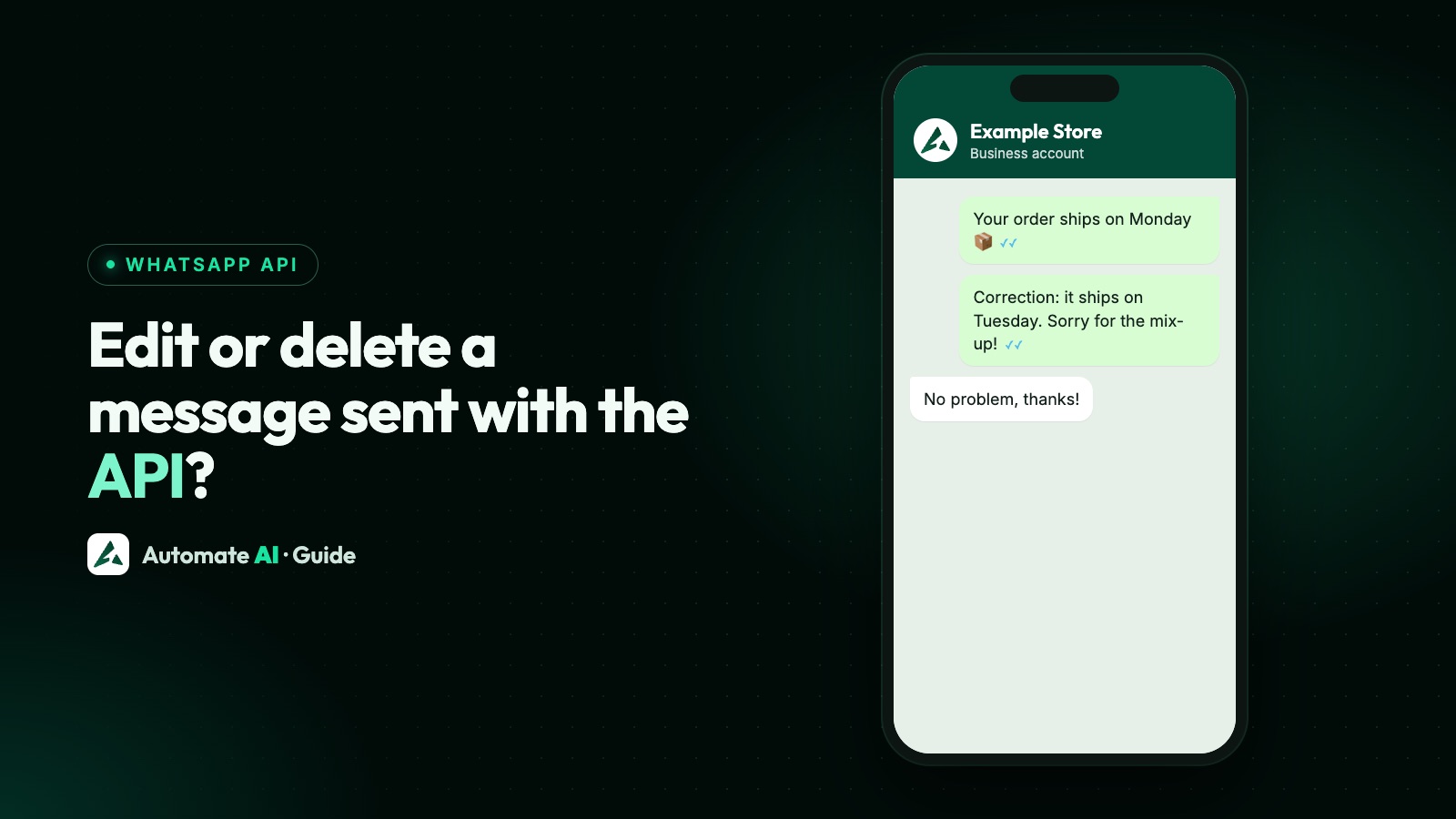
No. The WhatsApp Cloud API has no way to edit or delete a message once you’ve sent it. Meta’s sending docs cover text, media, buttons, lists, Flows, locations, contacts, stickers and reactions, but nothing that changes or unsends a message already on its way.
The “edit” and “revoke” parts of Meta’s docs are webhooks: they tell you when a customer edits or deletes a message, and only on numbers connected through coexistence. This guide explains what each side can do, what reaches your inbox, and the quickest way to put a mistake right.
Key takeaways
- The Cloud API can’t edit or unsend a message. Plan for “send a correction”, not “undo”.
- In the WhatsApp Business app, you can edit a text message for 15 minutes and delete it for everyone for two days.
- Meta’s edit and revoke webhooks report a customer’s changes, and are available only for coexistence numbers.
- You can edit an approved template for future sends: once in 24 hours, up to 10 times in 30 days.
- In Automate AI, pause the campaign first, then send a short correction to the people it reached.
What you can and can’t change after sending
| Action | WhatsApp Cloud API | WhatsApp Business app | Automate AI |
|---|---|---|---|
| Edit a sent message | No | Text and captions (not the photo or video itself), within 15 minutes | No |
| Delete a message for everyone | No | Within two days | No |
| Edit an approved template for future sends | Yes, with limits | Not applicable | Yes, Edit Template |
| Stop the rest of a broadcast | Stop sending requests | Not applicable | Pause Campaign |
| Send a correction | Yes | Yes | Yes |
The app’s limits come from WhatsApp’s Help Center: an edit updates for everyone in the chat and shows edited next to the time, and photos and videos can’t be edited. A deleted message is replaced with “This message was deleted”, but recipients may already have seen it.
Why the API can’t take a message back
Meta doesn’t give a reason, but its docs explain how sending works. When you call the messages endpoint, a successful response only means Meta accepted the request. Meta then keeps trying to deliver the message for its time-to-live: 30 days by default, or 10 minutes for authentication templates.
Two practical consequences:
- There’s no recall window. A mistaken message to a phone that’s switched off can still arrive days later.
- Short TTLs help for time-sensitive messages. Meta lets you set a custom TTL on authentication and utility templates (and on marketing templates sent through its Marketing Messages API), so an expired reminder or code isn’t delivered late.
Developers: if you need to change content after sending, the only option is a new message. Keep the message ID (wamid) from each send so you know exactly what went to whom.
When a customer edits or deletes a message
Customers can edit and delete messages they send you, and Meta tells your system in different ways depending on how the number is connected:
| Number connected | Customer edits a message | Customer deletes a message |
|---|---|---|
| Coexistence (Business app plus API) | An edit messages webhook, within 15 minutes of sending, with the original_message_id and the new content | A revoke messages webhook, within two days of sending, with the original_message_id |
| API only | An unsupported messages webhook, where unsupported.type can be edit (error 131051, message type not supported) | Not described in Meta’s webhook docs |
Meta notes that the edit and revoke webhooks identify people by user_id and from_user_id as well as phone number, because the phone number is left out for people who use a username. Build on the user ID if you handle these yourself. More in WhatsApp Cloud API webhooks.
In Automate AI, the original message stays as it was. The edit or deletion shows as a separate line without the new text, and if you’ve set an auto-reply for unsupported messages (Settings › General), that reply goes out. If a customer says “I edited my address”, ask them to send it again in a new message.
Editing and deleting on a coexistence number
With coexistence, the WhatsApp Business app keeps working on the same number as the API. On the phone, you can still edit a text within 15 minutes and delete for everyone within two days, for messages sent from the app.
Meta passes those changes to your provider through its message echoes webhook, which covers edits and deletes made in the Business app. Automate AI keeps the original and adds a separate “[edit]” or “[revoke]” line without the new text. If you corrected something on the phone, add an internal note saying what you changed.
Sent a mistake? What to do in the first 10 minutes
- Stop further sends. In Automate AI, go to Campaigns, open the ⋮ menu next to the running campaign and choose Pause Campaign. Messages not yet sent wait, and you can resume later.
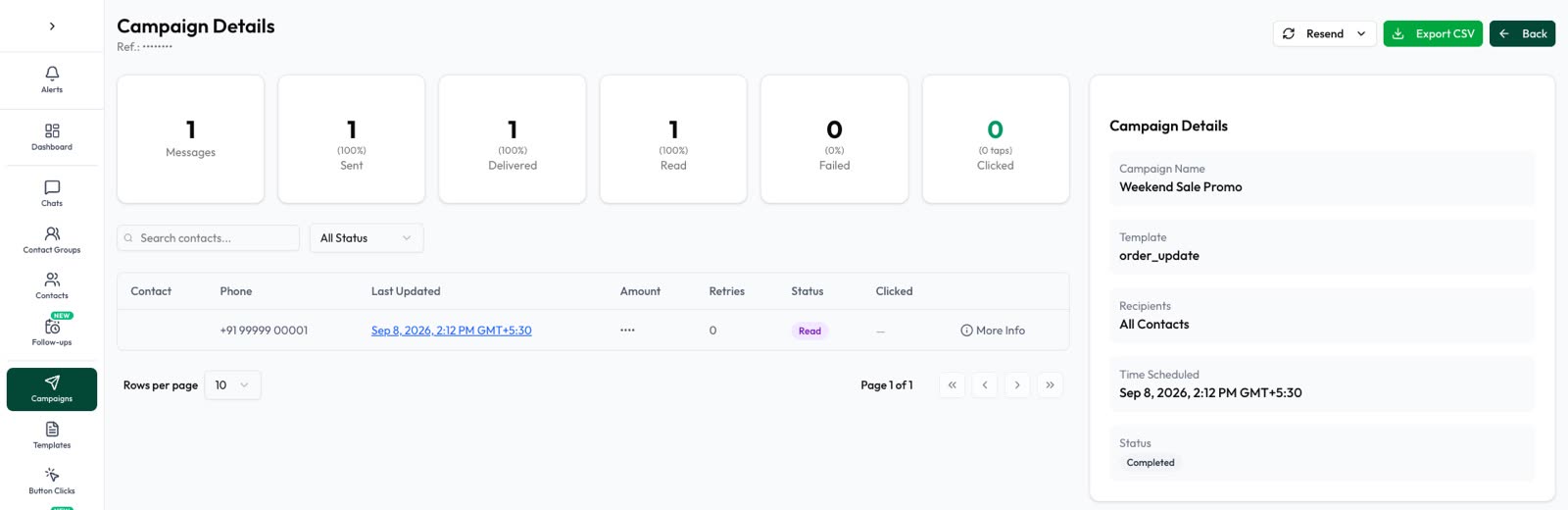
- Work out who received it. The campaign’s Sent, Delivered and Read tabs list exactly who got it, and you can export any tab.
- Fix the cause. Correct the template, the variable or the audience before anything else goes out.
- Send one short correction. Say what was wrong and what’s right, in one or two lines. Don’t resend the whole offer.
- Reply to questions in the inbox. A customer who replies opens a 24-hour window, so you can answer freely.
- Resume or stop the campaign once the fix is in.
To reach people with the correction, you need an approved template unless their 24-hour window is open. In Automate AI, use Retarget on the campaign: pick who to reach by result (sent, delivered, read or failed), choose your correction template, check the recipients and estimated cost, then send. Don’t use Resend, which sends the same campaign again.
Sample correction messages
Short, calm and specific works best. These samples use made-up details; adapt them and submit them as templates if they go outside the 24-hour window. A correction to a promotion is itself marketing, so it ends with an opt-out line.
| Mistake | Sample correction |
|---|---|
| Wrong sale date | “Hi {{1}}, a quick correction: our Weekend Sale runs Saturday 14 to Sunday 15 November, not Friday. Sorry for the mix-up! Reply STOP to opt out” |
| Wrong price or code | “Hi {{1}}, sorry, the code in our last message was wrong. Please use EXAMPLE10 for 10% off until Sunday. Reply STOP to opt out” |
| Broken link | “Hi {{1}}, the link we sent earlier didn’t open. Here’s the right one: example.com/sale. Reply STOP to opt out” |
| Wrong appointment time | “Hi {{1}}, we made an error in your reminder. Your appointment is on Tuesday at 4:30 PM. Reply here if that doesn’t suit you.” |
| Sent to the wrong person | “Hello, our earlier message reached you by mistake. Please ignore it, and sorry for the trouble.” |
Keep corrections rare. Every extra marketing message is another chance for people to block or report you, which affects your quality rating.
Fix the template for next time
You can’t change messages already sent, but you can change the template so future sends are right. Meta’s template management rules:
- Which templates: only Approved, Rejected or Paused templates can be edited.
- How often: an approved template up to once in 24 hours and 10 times in 30 days. Rejected or paused templates have no limit.
- What you can change: the content (header, body, footer and buttons) and the time-to-live. You can’t change the category of an approved template.
- Review: an edited template goes back through review, and Meta approves it again unless it fails.
In Automate AI, open Templates and choose Edit Template. If you’ve used up your edits for the day, create a new template with the corrected wording instead. The rules for writing and approval are in WhatsApp templates.
How to avoid needing an edit
- Preview with real values. Check every variable with a sample contact, including names with spaces or emoji.
- Send to yourself first. Add your own number to a small test group and send there before the full list.
- Test on a small group. Automate AI’s campaigns can send to a random 10% first, and pause if too many people opt out or WhatsApp warns about spam.
- Schedule rather than send now. A scheduled campaign gives a teammate time to check dates, prices and links. See how to schedule WhatsApp messages.
- Use stable links. Point buttons at a page you can update, so a wrong detail on the page can be fixed after sending.
- Have one person approve offers, prices and dates before anything goes out to customers.
Frequently asked questions
Can you edit a message sent with the WhatsApp API?
No. Meta’s Cloud API has no way to edit a message after it’s sent. Send a short correction instead, and edit the template so future sends are right.
Can you delete or unsend a WhatsApp API message?
No. There’s no delete-for-everyone option on the Cloud API. Meta keeps trying to deliver a message for its time-to-live, 30 days by default, so it may still arrive later.
Can I edit messages in the WhatsApp Business app?
Yes. You can edit a text message for up to 15 minutes after sending, and delete a message for everyone for up to two days. Photos and videos can’t be edited.
What is the WhatsApp edit message webhook?
It tells your system when a customer edits a message they sent, within 15 minutes of sending. It includes the original message ID and the new content, and is available only for numbers connected with coexistence.
What happens when a customer deletes a message they sent me?
On a coexistence number, Meta sends a revoke webhook within two days of the original message. In Automate AI, the original message stays in the inbox, with a separate line showing it was deleted.
Can I edit an approved WhatsApp template?
Yes, up to once in 24 hours and 10 times in 30 days. You can’t change the category of an approved template, and the edit goes back through review.
How do I stop a WhatsApp campaign I sent by mistake?
In Automate AI, go to Campaigns, open the ⋮ menu next to the campaign and choose Pause Campaign. Messages not yet sent wait until you resume, but messages already sent can’t be taken back.
Sources
- Meta: Send messages (types, message IDs and time-to-live)
- Meta: Edit messages webhook
- Meta: Revoke messages webhook
- Meta: Unsupported messages webhook
- Meta: smb_message_echoes webhook
- Meta: Template management
- WhatsApp Help Center: How to edit messages
- WhatsApp Help Center: How to delete messages
WhatsApp rules and prices change. We check these guides against Meta’s documentation, but always confirm current terms with Meta before you rely on them. Questions? Message us on WhatsApp at +91 836 977 8812.