Zapier WhatsApp Integration: Triggers, Actions and Example Zaps
Connect WhatsApp to Zapier through Automate AI: the 4 triggers and 2 actions, how to connect with an API key, example Zaps for leads and Meta’s template rules.
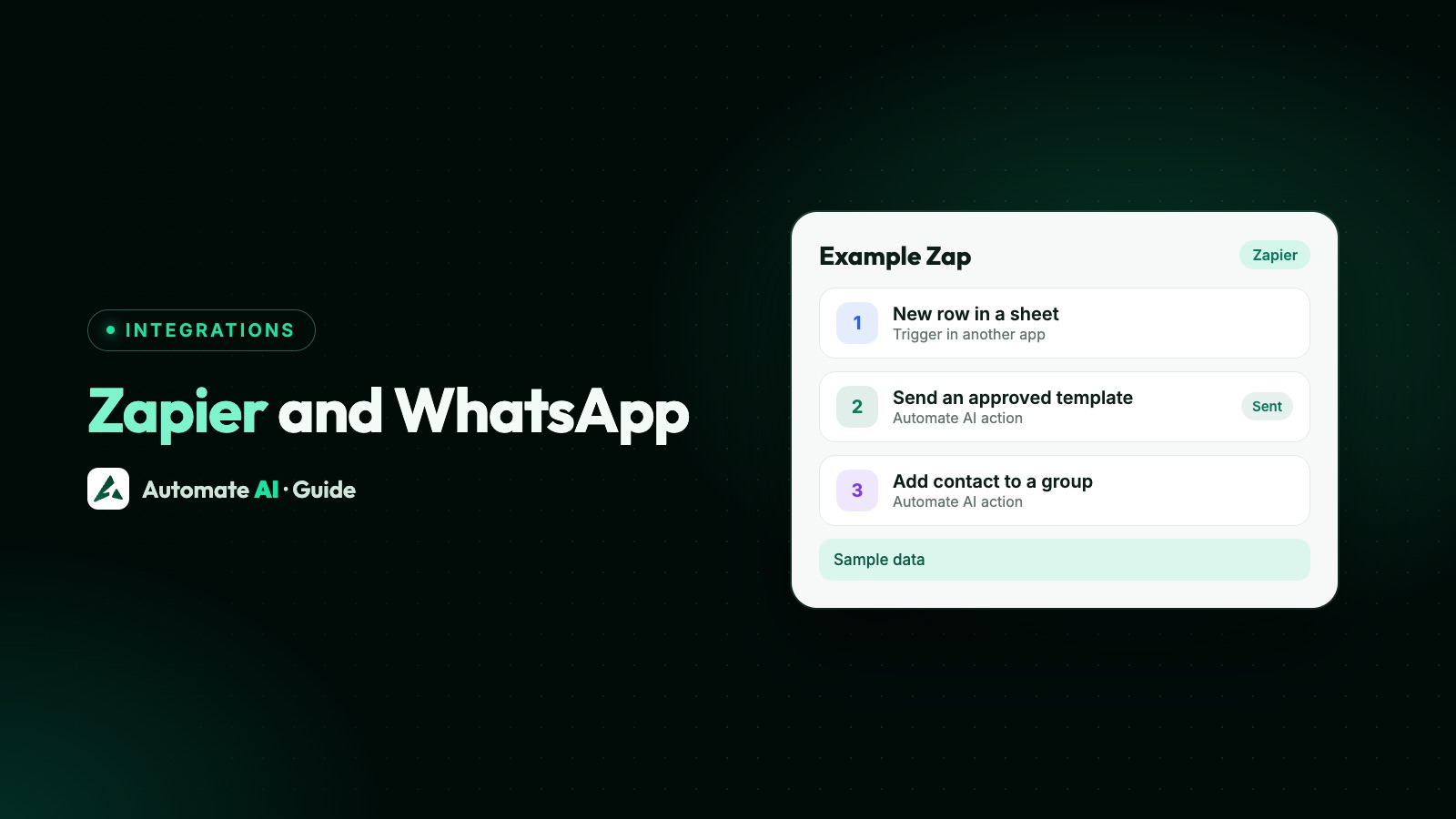
To connect WhatsApp to Zapier, you need a WhatsApp Business API platform that Zapier can sign in to. With Automate AI, a Zap can start on a new incoming WhatsApp message, a message status change, a new contact or an updated contact, and a Zap can send an approved WhatsApp template or create or update a contact.
That covers the most common jobs: a lead from a form or ad tool gets a WhatsApp message (within seconds if that app’s trigger is instant), replies land in a spreadsheet, and failed messages alert the team. This guide lists exactly what’s supported, how to connect, four Zaps to copy and the Meta rules every Zap has to follow.
Key takeaways
- Automate AI gives Zapier 4 triggers and 2 actions, and nothing more: see the tables below.
- Zapier signs in with an API key from the Developer page. Only owners and managers can set it up.
- If the Automate AI app isn’t offered on Integrations › Zapier yet, Webhooks by Zapier does the same job.
- Zapier’s Free plan allows one trigger and one action; filters, multi-step Zaps and webhooks need a paid Zapier plan.
- A Zap can only send approved templates. Sending only to people who opted in, and skipping anyone who typed STOP, is up to your Zap.
What the Automate AI Zapier connection can do
In Zapier’s words, a trigger is the event that starts a Zap, and an action is what the Zap does next. These are the ones Automate AI supports:
| Trigger | Starts the Zap when |
|---|---|
| New incoming WhatsApp message | A customer writes to your WhatsApp number |
| Message status changed | A message you sent is delivered, read or fails |
| New contact | A contact is added by hand, through the API, or when a new number messages you or is messaged (imports, lead forms and the Zap’s own contact action don’t start it) |
| Updated contact | A contact is changed |
| Action | What it does | Fields |
|---|---|---|
| Send WhatsApp template message | Sends an approved template to a phone number; the contact is created if new | Phone number (with country code), Name (used only for a new contact), Template, and one field per template variable |
| Create or update contact | Adds a contact by phone number, or updates it if it exists | Phone number, First name, Last name, Email, Add to group (a new name creates the group; other groups stay) |
The triggers are instant: Automate AI sends each event to Zapier as it happens, rather than Zapier checking every few minutes. There’s no action for free-form text messages, which keeps Zaps inside Meta’s template rules.
How to connect Automate AI to Zapier
- In Automate AI, open the Developer page and create an API key. Copy it straight away: it’s shown only once.
- Go to Integrations › Zapier. If you see Open Automate AI on Zapier, click it, choose Automate AI as the trigger or action app in your Zap, and paste the API key when Zapier asks.
- If the page says the Automate AI app on Zapier is on its way, use Webhooks by Zapier instead, as shown further down. It does the same things.
- Test the Zap with your own phone number before you turn it on.
Only the account owner or a manager can create API keys and connect Zapier. A key acts for your whole business, so keep it in Zapier’s connection settings, never in a shared document, and delete it on the Developer page if it leaks.
Zapier basics that shape your Zap
From Zapier’s help pages, checked on 19 November 2026:
- Tasks. Zapier counts a task each time an action in your Zap completes successfully. The Free plan has 100 tasks a month.
- Two steps on Free. The Free plan allows one trigger and one action. A Zap with more than one action, or with a filter, is multi-step, which needs a paid plan.
- Filters. A filter lets the Zap carry on only if the data meets your condition, such as “consent is Yes”. Zapier lists filters on its Professional, Team and Enterprise plans.
- Webhooks by Zapier. Also listed on Professional, Team and Enterprise, not Free.
So a Free plan can run “new form lead → send template” on its own, but “new form lead → check consent → add to group → send template” needs a paid Zapier plan. Check Zapier’s pricing page for current plans and prices.
Example Zap 1: a new lead gets a WhatsApp template
This is the lead-generation Zap most people want. A form tool, landing page builder or event app sends a new lead, and WhatsApp greets them. How fast depends on the form app’s trigger: instant triggers fire straight away, while polling triggers check every 15 minutes on Zapier’s Free plan and more often on paid plans.
- Trigger: your form app’s “new submission” or “new lead” event.
- Filter (paid Zapier plans): continue only if the WhatsApp consent checkbox is ticked and a phone number is present.
- Action: Automate AI, Create or update contact, with Add to group set to “Website leads”.
- Action: Automate AI, Send WhatsApp template message, choosing your approved template and mapping its variables from the form.
Make the form ask for the phone number with its country code, or add it in a formatter step. Automate AI rejects a number without enough digits with “A phone number with country code is required.” It only counts digits, so a local number with no country code can still get through and go to the wrong country: always map the full international number.
Sample templates (your own wording, demo data)
| Use | Template body |
|---|---|
| Enquiry reply | Hi {{1}}, thanks for your enquiry about {{2}}. A member of our team will message you here shortly. You can reply to this message with any questions. |
| Offer to a past lead (marketing) | Hi {{1}}, our {{2}} demo slots for December are open. Reply YES and we’ll book a time that suits you. Reply STOP to opt out. |
You pick each template’s category when you submit it, and Meta reviews it and can change it, so an enquiry reply worded as a promotion can be treated as marketing. Use a template with a text header or none: the Zap fills only the text variables, so a template with an image, video or document header can’t be sent from it. More on writing and getting templates approved: WhatsApp template messages. Leads from Facebook forms can also come in without Zapier, through the Facebook Lead Ads integration.
More Zaps to copy
| Zap | Trigger | Then |
|---|---|---|
| Log every enquiry | New incoming WhatsApp message | Add a row to a spreadsheet with the number, name and text |
| Alert on failures | Message status changed, filtered to failed | Post in your team chat or send an email |
| Keep another tool in step | New contact or Updated contact | Create or update the person in your email or support tool |
| Shop order to WhatsApp | New order in your shop or billing app | Send WhatsApp template message with an approved order update template |
| Event sign-ups | New registration in your event app | Create or update contact into an “Event” group, then send a confirmation template |
Two direct connections may save you a Zap: HubSpot, LeadSquared and Zoho Bigin connect directly and send new contacts across (see the HubSpot WhatsApp integration), and Google Sheets has its own integration.
Using Webhooks by Zapier instead
Integrations › Zapier shows the exact addresses to copy. This route needs a Zapier plan with webhooks.
Start a Zap from Automate AI
- In Zapier, choose Webhooks by Zapier › Catch Hook and copy the address it gives you.
- In Automate AI, open Developer › Webhooks, add that address and tick the events you want, such as
message.received. - Press Test there. Zapier receives a sample, and you map its fields in the next steps.
Send from a Zap
- Add a Webhooks by Zapier action with the event POST and payload type JSON.
- Paste the Send a template URL from Integrations › Zapier (it ends in
/zapier/send-template). - Add a header
Authorizationwith the valueBearer YOUR_API_KEY. - For the body, the simplest route is a Custom Request action with the JSON body shown on Integrations › Zapier:
phone,name,template_idand avariablesobject with one value per template variable.
To find a template’s id and its variables, the same page lists a Template ids and their variables address to call with GET. For contacts, POST to the Create or update a contact URL with phone, first_name, last_name, email and group.
Meta’s rules every WhatsApp Zap must follow
- Templates outside the 24-hour window. Meta lets you send any message type for 24 hours after a customer’s last message. After that, only approved templates. A Zap usually writes to people who haven’t just messaged you, which is why it sends templates. See the 24-hour window.
- Approved templates only. The template list in the Zap shows only templates Meta has approved, and an unapproved one is refused.
- Opt-in first. Meta requires the person’s number and their permission, with opt-in wording that names your business. See WhatsApp opt-in.
- Honour STOP yourself. Marketing templates should end with “Reply STOP to opt out”. In Automate AI, a typed STOP marks the contact as opted out (a button tap doesn’t), but the Zapier send action doesn’t check that mark. Keep your own opt-out list in the source app and skip those people with a filter, or send marketing from Campaigns, which leave opted-out contacts out.
- Watch your quality. Meta can limit businesses whose messages get blocked or reported, so don’t point a Zap at an old, cold list.
Planning bigger sends than a Zap handles well? Use campaigns in Automate AI, which add audiences, scheduling and reports.
When something doesn’t work
| Message or symptom | Likely cause and fix |
|---|---|
| A phone number with country code is required | Map a full number such as +44 7700 900123, or add a formatter step |
| Choose a template | The template field is empty or not a number; pick the template again |
| Template is not approved | Use an approved template, or wait for Meta’s review |
| The hook address must be a Zapier https address | The Zap’s trigger address isn’t a Zapier one; rebuild the trigger step |
| Trigger never fires | Check the Zap is on, the API key still exists, and you tested with a real event |
| Template has a media header | The Zap can’t add an image, video or document; use a template with a text header or none |
| New contact Zap doesn’t fire for imported or lead-form contacts | Those don’t start it; use a trigger in the source app instead |
| Message sent but not delivered | Add a Zap on Message status changed to see failures and their reasons |
If you prefer building on an open-source tool you host yourself, the n8n guide covers the same API and webhooks from n8n.
Frequently asked questions
Does Zapier work with WhatsApp?
Yes, through a WhatsApp Business API platform. With Automate AI, Zaps can start on WhatsApp messages, message statuses and contacts, and can send approved templates or add contacts.
Can Zapier send WhatsApp messages?
Yes, as approved template messages. Automate AI’s Zapier action sends a template to a phone number and fills in its variables.
Can I connect the WhatsApp Business app to Zapier?
Not on its own. Zapier works with your number once it’s connected to Automate AI, which uses the official WhatsApp Business Platform (API).
Is the Zapier WhatsApp integration free?
Zapier’s Free plan runs two-step Zaps with 100 tasks a month. Filters, multi-step Zaps and Webhooks by Zapier need a paid Zapier plan. Meta charges for template messages separately.
How do I connect Automate AI to Zapier?
Create an API key on the Developer page, then use the Zapier link on Integrations › Zapier, or Webhooks by Zapier if the app isn’t offered there yet.
Can a Zap send a WhatsApp message to any number?
Meta’s rules allow it only to people who opted in to WhatsApp messages from your business, and outside a 24-hour window only with an approved template. Automate AI refuses unapproved templates, but checking opt-in and opt-outs is up to your Zap.
Sources
- Zapier Help: Learn key concepts in Zap workflows
- Zapier Help: What’s included in Zapier’s Free plan
- Zapier Help: Add conditions to Zap workflows with filters
- Zapier Help: How to get started with Webhooks by Zapier
- Zapier Help: Send webhooks in Zap workflows
- Meta: Get opt-in for WhatsApp
- Meta: Send messages (customer service window)
WhatsApp rules and prices change. We check these guides against Meta’s documentation, but always confirm current terms with Meta before you rely on them. Questions? Message us on WhatsApp at +91 836 977 8812.