How to Get Meta Ads Leads on WhatsApp: Chat Ads and Instant Forms in One Funnel
A playbook for Meta ads WhatsApp leads: run Click-to-WhatsApp and instant-form ads together, route both to one inbox, follow up and see which ads sell.
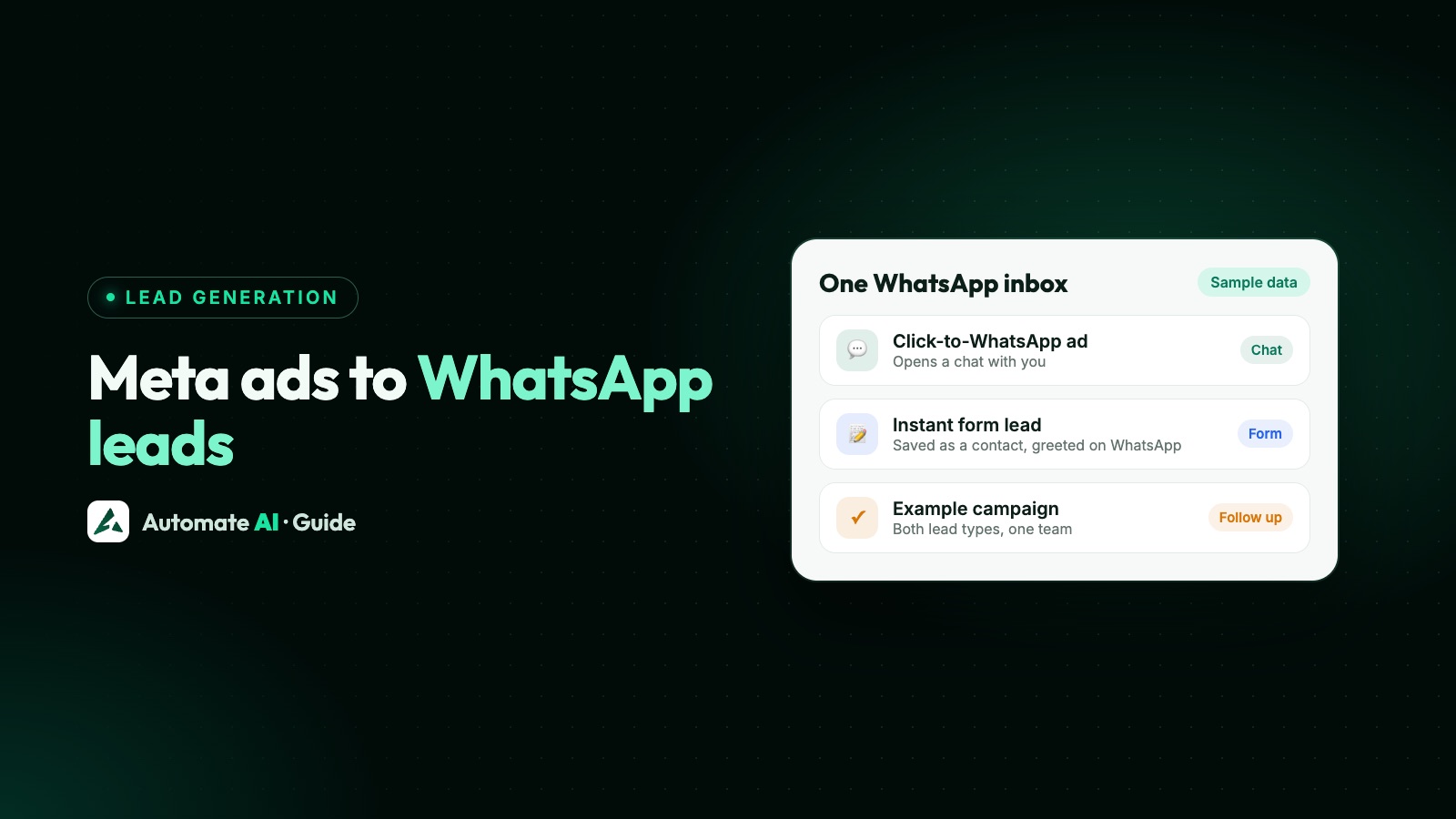
To get Meta ads leads on WhatsApp, run two ad types side by side: Click-to-WhatsApp ads, which open a chat the customer starts, and instant-form (lead) ads, whose leads you greet with an approved WhatsApp template seconds after they submit. Both end up in one shared inbox once the form lead gets your welcome template, so every lead gets the same follow-up and is judged on the same thing: which ads bring customers.
This playbook covers running the two together, with a setup checklist in Automate AI. For one side on its own, read Click-to-WhatsApp ads or Facebook Lead Ads to WhatsApp.
Key takeaways
- Chat ads suit people ready to ask a question now; instant forms suit people who’d rather leave details and hear back.
- Give each form ad a welcome template that asks the same next question as the matching chat ad’s greeting, so both routes merge into one conversation.
- Automate AI matches leads by phone number, so a person who taps a chat ad and fills in a form stays one contact.
- Use one set of statuses for both routes, and a Lead Source for each chat ad, so the inbox shows where every lead came from.
- Measure each route where its numbers live: Meta Ads for chat ads, Lead activity for forms, and statuses for sales.
Two ad types, one funnel
The two ad types differ at the start and behave the same from the first reply, which is why they fit together.
| Click-to-WhatsApp ad | Instant-form (lead) ad | |
|---|---|---|
| What the person does | Taps the ad and a WhatsApp chat opens with a message ready to send | Fills in a short, mobile-friendly form that uses details they’ve already shared with Facebook |
| Who writes first | The customer | You, with an approved template |
| Messages after the ad | Free in the entry point window if you reply within 24 hours | Normal template charges, then a 24-hour window once they reply |
| How it reaches Automate AI | The chat arrives in the inbox as a contact | The Facebook Lead Ads integration saves the lead as a contact |
| What you learn first | Their question, in their words | The answers to your form questions |
Running both reaches people who like to chat and people who don’t, with one follow-up process. If you’re still choosing between them, see Facebook lead ads vs WhatsApp ads.
When each ad type fits
| Situation | Lean towards | Why |
|---|---|---|
| People usually have a question before buying (price, size, stock) | Click-to-WhatsApp | They can ask straight away and your team or a chatbot answers in the chat |
| You need a few details before anyone can help (city, budget, course) | Instant form | A form can ask your own questions up front |
| Your team can reply within minutes during working hours | Click-to-WhatsApp | Chat leads cool quickly if nobody answers |
| Leads come in at night and you get back to them the next day | Instant form, with an instant template | The lead hears from you at once and a person follows up later |
| Forms bring many leads that never answer | Click-to-WhatsApp, or a higher-intent form | Starting a chat takes more effort than tapping submit |
Meta’s higher-intent form setting adds a step where people confirm their answers before submitting, and Meta’s lead ads page mentions phone verification by SMS passcode.
Start with a similar budget on each route, then move money slowly towards the one with the lower cost per qualified lead and, later, per sale. How to run that comparison fairly is in Facebook lead ads vs WhatsApp ads.
Make both routes ask the same next question
A chat lead has written to you, so you can reply with any message, and replying in time opens Meta’s free entry point window of up to 7 days. A form lead hasn’t, so your first message must be an approved template. Meta checks the category at review and can change it later. Template details are in Facebook Lead Ads to WhatsApp.
When you run both, make them arrive at the same next step. Pair each chat ad with a form ad for the same offer, and have the form’s welcome template ask the question the chat ad’s greeting asks. From the first reply, your team, chatbot and follow-ups handle both alike.
| Offer (sample data) | Chat ad greeting | Form ad welcome template |
|---|---|---|
| Weekend batch at Example Academy | “Thanks for asking! Which class is your child in?” | “Hi {{1}}, thanks for your enquiry about the weekend batch. Which class is your child in?” |
| 2 BHK at Example Heights | “Is it for you to live in or to invest?” | “Hi {{1}}, here’s the Example Heights brochure. Is it for you to live in or to invest?” |
| AC service by Example Cooling | “Which day suits you for a visit?” | “Hi {{1}}, we’ve got your AC service request. Which day suits you for a visit?” |
In Automate AI, each form ad can have its own template, so each pair stays matched, and one chatbot can pick up both routes from the reply.
Opt-in across both routes
Meta’s opt-in guide asks that opt-in clearly says the person is agreeing to messages from your business, names the business and follows local law. The two routes give you different starting points:
- Form leads: add a consent line to the form that names your business and WhatsApp, and keep the phone question required. Wording and placement are in Facebook Lead Ads to WhatsApp.
- Chat leads: asking one question isn’t agreeing to offers for months. Ask before adding them to marketing; Meta suggests opt-in for each kind of message.
- One opt-out list for both. In Automate AI, a typed STOP opts a contact out whichever ad they came from; a button tap doesn’t. Marketing follow-ups should say so, for example “Reply STOP to opt out”.
More in WhatsApp opt-in.
Route both into one inbox
In Automate AI, every chat sits in the shared inbox, on every plan, whichever ad it came from. These settings make the two routes behave as one:
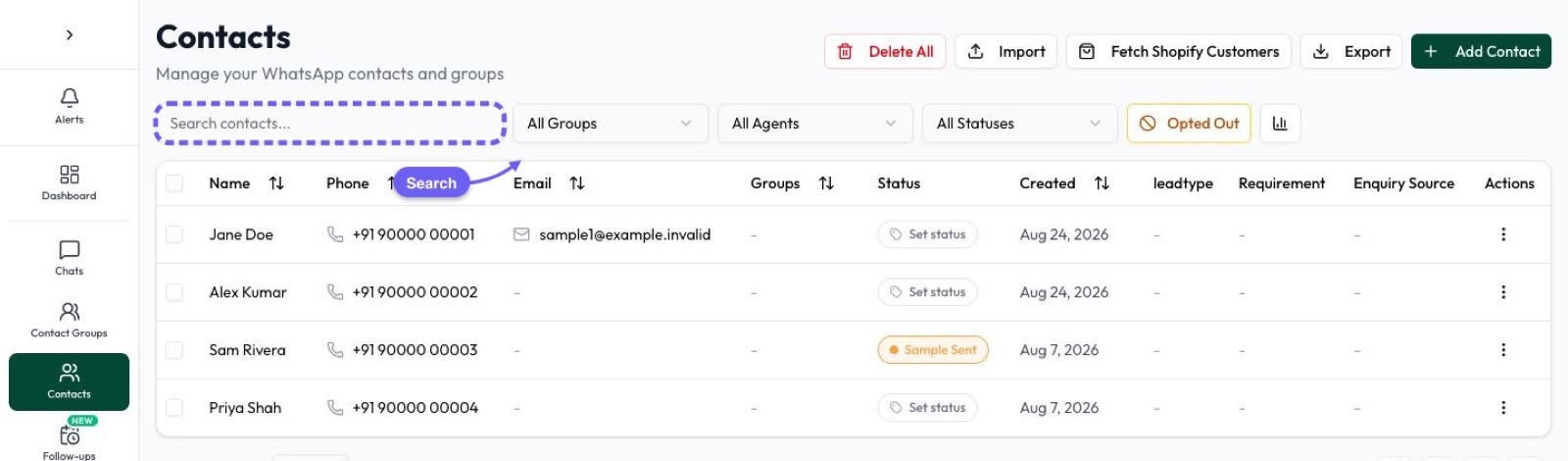
- One contact per person. A form lead is matched by phone number: if the number is already a contact, that contact is updated (only empty fields are filled in) rather than duplicated.
- A Lead Source for each chat ad. In Settings › Lead Sources, add a phrase from a chat ad’s prefilled message, such as “weekend batch timings”, and a source name, such as “Chat ad: weekend batch”. New contacts whose first message matches get that source, shown in the chat list next to the status. Give each chat ad its own prefilled message.
- The same statuses for both, such as New lead, Qualified and Won, set in Settings › Contact Statuses. Every comparison later depends on these being honest.
- Auto-assignment (Settings › Auto Assignment) hands chats out in turn or least busy first, by department, when the customer’s message arrives, so a form lead is assigned when they reply.
- Re-inquiry. Once your team has set a lead’s status, a new message from that lead marks the chat Re-inquiry, so a form lead who later taps a chat ad stands out.
| What happens | What Automate AI does |
|---|---|
| Someone taps a chat ad, then later fills in a form | The form lead updates the existing contact instead of making a new one |
| Someone fills in a form, then later taps a chat ad | The chat goes to the same contact and the ad is saved on it, so they count under that ad in Meta Ads, and a Lead event can go to Meta |
| An old customer taps a new chat ad | The new ad is saved as the latest touch, and the chat shows Re-inquiry if your team set a status before |
Follow up both routes
- Qualify with a chatbot that starts on the shared question and asks one or two more with buttons, on the AI + Automation Plan and Series 4.
- Follow up quiet leads with a drip sequence aimed at a status such as New lead: two or three helpful templates that stop when they reply, also on the AI + Automation Plan and Series 4.
- Time them by route. Early follow-ups to a chat lead can fall inside the free window; a form lead’s are charged templates, so keep them few.
For timing ideas, see WhatsApp lead follow-up. Template prices by country are in WhatsApp API pricing.
Measure which ads bring customers
| Where | Chat ads | Form ads |
|---|---|---|
| Meta Ads in Automate AI | Spend, views, clicks, chats started, cost per chat and the contacts each ad brought you, including ads made in Ads Manager | Spend, views and clicks; the leads themselves are in Facebook Leads |
| Facebook Leads › Lead activity | Not used | Each lead, its status, the Page and the form name |
| Integrations › Conversions API | Lead events, status events and chatbot Conversion Event steps sent back to Meta | Not sent: Automate AI sends these events only for contacts with a click ID from a chat ad |
| Contact statuses | Qualified and Won, with the Lead Source shown in the chat list | Qualified and Won, matched to the form name in Lead activity |
Meta says reporting chat events through its Conversions API helps it improve ads that click to WhatsApp. In Automate AI, map “Won” to Purchase and moving a chat-ad contact to Won reports the sale, within an attribution window you set (up to 90 days).
For form leads, Meta’s route is the Conversions API for CRM (the Conversion Leads goal), using Meta’s lead ID. Automate AI doesn’t send those events, so count form-lead sales from statuses and form names. More in how to track which ads bring WhatsApp buyers.
Acting on the numbers
- Divide spend by qualified leads for each route, adding template charges to the form route. For example, with made-up numbers: ₹7,000 and 20 qualified chats is ₹350 each.
- Pause what isn’t working. On the Meta Ads page, tick several campaigns, ad sets or ads and press Pause; you see the names and confirm first.
- Move budget in small steps.
Setup checklist in Automate AI
Only an account owner or manager can connect ads and Pages. Meta bills ad spend to your own ad account.
- Connect Meta Ads. Open Meta Ads in the main menu, choose Continue with Facebook and pick your ad account and Page. It’s on every plan.
- Create the chat ad. Describe the offer in a line; AI drafts the headline, text, audience and greeting. Add a photo, set the prefilled message, the daily budget and an end date if you want one, then publish. With no end date it runs until paused.
- Make the instant form in Meta Business Suite › Instant forms, with your consent line and a required phone question, then create the lead form ad from Meta Ads or Ads Manager.
- Connect Facebook Leads under Integrations › Facebook Leads (AI + Automation Plan and Series 4): tick the Page that runs the form ads.
- Choose the first message: an approved welcome template for all leads, and a matched template for each form ad that pairs with a chat ad.
{{1}}is filled with the lead’s first name. - Add a Lead Source rule for each chat ad’s prefilled message in Settings › Lead Sources.
- Set up the inbox: auto-assignment, the shared statuses and a chatbot that starts on the shared question.
- Add follow-ups: a drip sequence for leads who go quiet.
- Turn on the Conversions API under Integrations, map statuses to Meta events in Settings › Contact Statuses, then send a test event.
- Test both routes with your own number: tap the chat ad, submit the form, and check that both land on one contact in the inbox.
More in Click-to-WhatsApp Ads, the Facebook Lead Ads integration and the pricing page. For other ways to win leads, see WhatsApp lead generation and quality leads from WhatsApp ads.
Frequently asked questions
How do I generate leads on WhatsApp using Facebook ads?
Run Click-to-WhatsApp ads, which open a chat with your business, and instant-form ads, whose leads you message with an approved template. A WhatsApp Business API tool puts both into one inbox.
How do I get Facebook leads on WhatsApp?
Connect the Facebook Page that runs your lead ads to a WhatsApp Business API tool. Each new lead is saved as a contact and can get an approved template straight away, as long as your form says you’ll contact them on WhatsApp.
Should I run Click-to-WhatsApp ads and lead form ads at the same time?
You can. Pair them by offer, give both the same next question and follow-up, and compare cost per qualified lead and per sale before moving budget.
What if the same person comes through both ads?
Automate AI matches them by phone number, so they stay one contact. A form lead who is already a contact updates it rather than making a duplicate, and a chat from a number you already have goes to that same contact.
Can I see which ad each lead came from?
For chat ads, Meta Ads in Automate AI shows the contacts each ad brought you, and a Lead Source rule can label them in the chat list. For form ads, Lead activity shows the form each lead used.
Sources
- Meta: Pricing on the WhatsApp Business Platform (free entry point window)
- Meta: Template categorization
- Meta: Get opt-in for WhatsApp
- Meta for Business: Lead ads
- Meta Marketing API: Lead ads
- Meta Marketing API: Create lead ads (custom questions, higher-intent forms)
- Meta: Conversions API for business messaging
- Meta: Conversion Leads integration (Conversions API for CRM)
WhatsApp rules and prices change. We check these guides against Meta’s documentation, but always confirm current terms with Meta before you rely on them. Questions? Message us on WhatsApp at +91 836 977 8812.