WhatsApp Catalog API: How to Send Products With the Cloud API
How the WhatsApp catalog API works: connect a Meta catalogue, send catalogue, single and multi-product messages and templates, and read order webhooks.
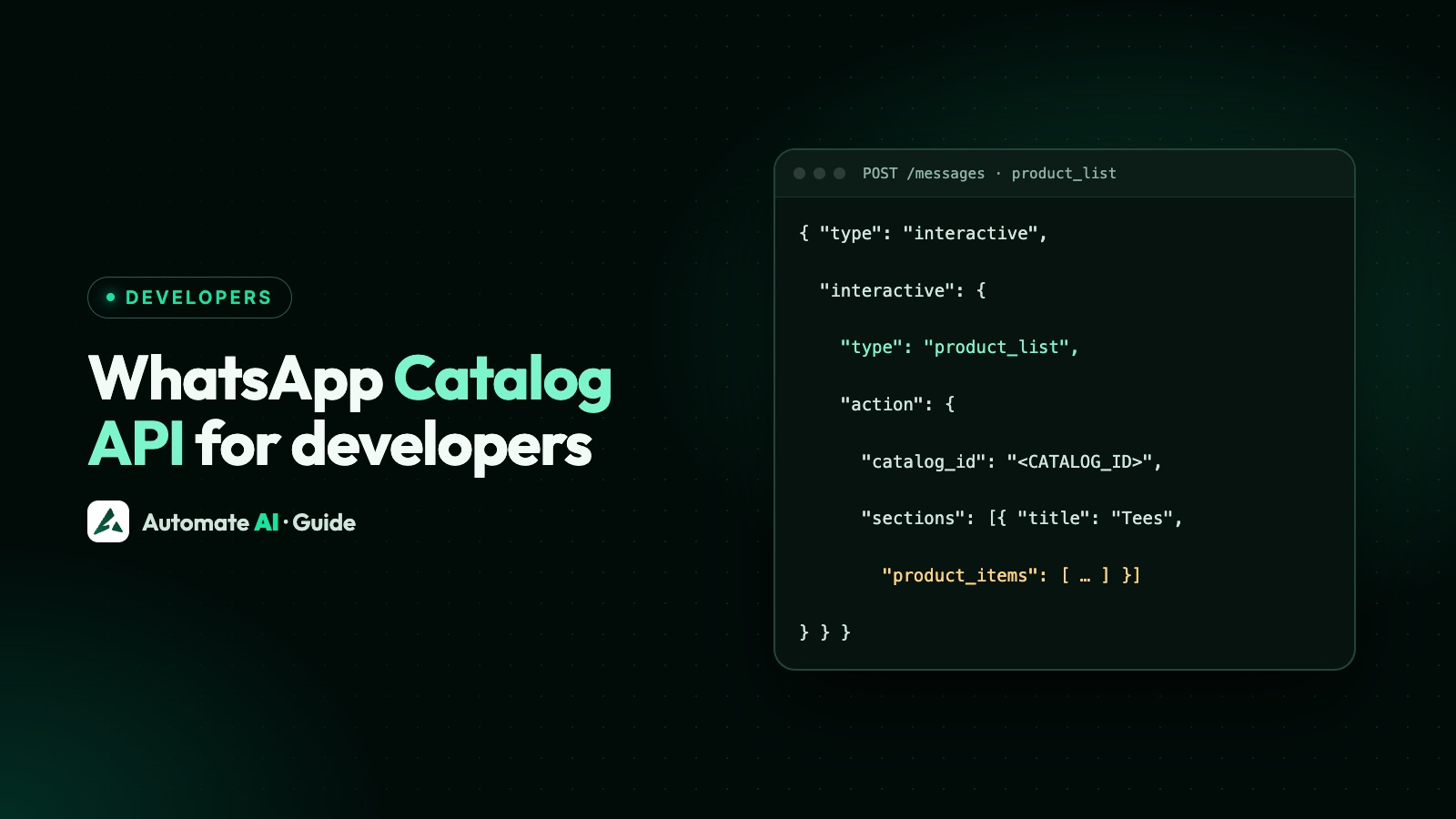
The WhatsApp catalog API is not one endpoint: you keep products in a Meta catalogue, connect it to your WhatsApp Business Account, then send them with the Cloud API’s Messages endpoint as interactive catalog_message, product or product_list messages. Orders come back to your webhook as messages of type order.
This guide is for developers. It shows each step with the JSON Meta documents for Graph API v27.0: connecting the catalogue, the per-number commerce settings, the three product message types, the catalogue and product templates for reaching people outside the 24-hour window, and the order webhook. If you want the business side (building a catalogue in the WhatsApp Business app, sharing links, payments), read our WhatsApp catalogue guide instead.
Key takeaways
- Products live in a Meta catalogue (Commerce Manager or the Commerce API). Only one catalogue can be connected per WhatsApp account hierarchy.
- The storefront icon starts hidden on API numbers: set
is_catalog_visible=truewithPOST /<PHONE_NUMBER_ID>/whatsapp_commerce_settings. - Interactive product messages need an open customer service window. Outside it, use approved marketing templates with
CATALOG,MPMorspmbuttons. - A multi-product message holds up to 30 products, organised in sections (the MPM template allows up to 10). Products that don’t match your catalogue are dropped.
- Orders arrive in the messages webhook as
type: "order". Identify the customer byfrom_user_id, becausefromcan be missing.
The pieces of the WhatsApp catalog API
Meta describes catalogue commerce on WhatsApp in four stages: upload inventory, set commerce settings on each number, share products in messages, and receive customer responses through webhooks. Connecting the catalogue to your WhatsApp account is part of the first stage, shown here as its own row. Each stage uses a different part of Meta’s platform:
| Stage | Where it happens | What you call or set |
|---|---|---|
| 1. Inventory | Commerce Manager or the Commerce API | An ecommerce catalogue with products, each with a SKU (Content ID) |
| 2. Connection | WhatsApp Manager | Link the catalogue to the WhatsApp account hierarchy |
| 3. Settings | Cloud API | POST /<PHONE_NUMBER_ID>/whatsapp_commerce_settings |
| 4. Sharing | Cloud API | POST /<PHONE_NUMBER_ID>/messages with an interactive or template message |
| 5. Orders | Your webhook | messages field, type: "order" |
Everything below uses placeholders. Swap in your own phone number ID, a permanent system-user token and your catalogue ID; the Cloud API setup guide covers the token and IDs. The SKU Meta calls product_retailer_id is the Content ID column in Commerce Manager.
Step 1: connect a catalogue to your WhatsApp Business Account
If the business already has a Meta catalogue for Facebook or Instagram shopping, Meta’s advice is to use that one. Otherwise create a catalogue in Commerce Manager, or with the Commerce API if your product data already lives in your own system and you want to keep it in sync by code. Then connect it to the WhatsApp account in WhatsApp Manager.
- One catalogue per hierarchy. Meta allows one catalogue per WhatsApp account hierarchy, so every phone number in it shares the same products.
- Partners. If a Solution Partner manages your WhatsApp account, you give the partner permission to manage your catalogue in Meta Business Suite and Commerce Manager, and the partner connects it in WhatsApp Manager.
- Review. WhatsApp reviews items in a connected catalogue automatically. Items that break the commerce policies are flagged, and you can appeal in Commerce Manager.
Product field limits (titles, descriptions, image sizes) are collected in WhatsApp catalogue limits, so they aren’t repeated here.
Step 2: turn on the cart and the storefront for each number
Commerce settings are set per business phone number. Meta’s defaults are cart on, storefront icon hidden, which is why a freshly connected catalogue often seems invisible. These three calls are all you need:
| Goal | Request |
|---|---|
| Show the storefront icon and catalogue buttons | curl -X POST "https://graph.facebook.com/v27.0/<PHONE_NUMBER_ID>/whatsapp_commerce_settings?is_catalog_visible=true" -H "Authorization: Bearer <ACCESS_TOKEN>" |
| Turn the cart on or off | curl -X POST "https://graph.facebook.com/v27.0/<PHONE_NUMBER_ID>/whatsapp_commerce_settings?is_cart_enabled=true" -H "Authorization: Bearer <ACCESS_TOKEN>" |
| Read the current settings | curl "https://graph.facebook.com/v27.0/<PHONE_NUMBER_ID>/whatsapp_commerce_settings" -H "Authorization: Bearer <ACCESS_TOKEN>" |
The first two return {"success": true}; the GET returns is_cart_enabled and is_catalog_visible. With the catalogue hidden, catalogue links show an “Invalid catalog link” warning. With the cart off, customers can still view products but can’t order. More causes and fixes are in WhatsApp catalogue not showing.
Send a catalogue message
A catalogue message shows a thumbnail, your body text and a View catalog button that opens the whole catalogue. It’s an interactive message, so it can only go to a customer whose customer service window is open (they messaged you in the last 24 hours; see the 24-hour window).
| Line | POST /v27.0/<PHONE_NUMBER_ID>/messages |
|---|---|
| 1 | { "messaging_product": "whatsapp", "recipient_type": "individual", "to": "919800000000", "type": "interactive", |
| 2 | "interactive": { "type": "catalog_message", |
| 3 | "body": { "text": "Hi Priya, here is this week’s range. Tap below to browse and add to your cart." }, |
| 4 | "action": { "name": "catalog_message", "parameters": { "thumbnail_product_retailer_id": "TEE-BLK-M" } }, |
| 5 | "footer": { "text": "Example Store, free delivery over ₹999" } } } |
The body can be up to 1,024 characters and the footer up to 60. parameters is optional: without it, WhatsApp uses the image of the first item in your catalogue as the thumbnail. A successful call returns the usual messages[0].id (wamid…).
Send one product or a list of products
To point a customer at a specific item, send a single-product message (type: "product"). Its action must contain both catalog_id and product_retailer_id; body and footer are optional:
| Part | JSON inside "interactive" |
|---|---|
| Single product | { "type": "product", "body": { "text": "The black tee you asked about is back in size M." }, "action": { "catalog_id": "<CATALOG_ID>", "product_retailer_id": "TEE-BLK-M" } } |
For a short selection, such as a customer’s usual order or one category, send a multi-product message (type: "product_list"). It needs a text header, a body, your catalog_id and sections, each with a title and product_items:
| Line | JSON inside "interactive" |
|---|---|
| 1 | { "type": "product_list", |
| 2 | "header": { "type": "text", "text": "Winter picks" }, |
| 3 | "body": { "text": "Three bestsellers for colder days. Add any to your cart." }, |
| 4 | "action": { "catalog_id": "<CATALOG_ID>", "sections": [ |
| 5 | { "title": "Tees", "product_items": [{ "product_retailer_id": "TEE-BLK-M" }, { "product_retailer_id": "TEE-GRY-M" }] }, |
| 6 | { "title": "Hoodies", "product_items": [{ "product_retailer_id": "HOOD-NVY-L" }] } |
| 7 | ] } } |
- Limits: up to 30 products in a multi-product message, organised in sections. Keep section titles short; the template version caps them at 24 characters and 10 sections.
- Missing SKUs: if none of the items match your catalogue, the API returns an error and nothing is sent. If at least one matches, the message goes out, the unmatched items are dropped and you get an error asking for a catalogue update.
- Old apps: Meta lists minimum versions (multi-product: iOS 2.21.100, Android 2.21.9.15; single-product: iOS 2.21.210, Android 2.21.19). Customers on older apps get a notice instead, and for multi-product messages you get a failure webhook.
- Live data: when a customer opens an item, WhatsApp fetches its latest price, title and stock, so a message sent last week still shows today’s details.
Meta’s docs also cover a product carousel of 2 to 10 swipeable cards, useful when images matter more than a list.
Reach customers outside the window with product templates
Interactive product messages can’t start a conversation. To reach someone who hasn’t messaged you in the last 24 hours, and who has agreed to hear from you, send an approved marketing template. You create it once with POST /<WABA_ID>/message_templates, then fill in the products each time you send:
| Template | Button in the template | What you pass when sending |
|---|---|---|
| Catalogue template | { "type": "CATALOG", "text": "View catalog" } | A button component with sub_type: "CATALOG" and an optional thumbnail_product_retailer_id |
| Multi-product (MPM) template | { "type": "MPM", "text": "View items" }, plus a required text header | A button component with sub_type: "mpm", index: 0 and sections of up to 30 products in up to 10 sections |
| Single-product (SPM) template | { "type": "spm", "text": "View" }, with a header of "format": "product" | A header parameter of type: "product" with product_retailer_id and catalog_id |
Here is the button component of an MPM template send, the part people most often get wrong. It goes in the template’s components array, after any header and body parameters:
| Line | MPM button component |
|---|---|
| 1 | { "type": "button", "sub_type": "mpm", "index": 0, "parameters": [{ "type": "action", "action": { |
| 2 | "thumbnail_product_retailer_id": "TEE-BLK-M", |
| 3 | "sections": [{ "title": "Back in stock", "product_items": [{ "product_retailer_id": "TEE-BLK-M" }, { "product_retailer_id": "HOOD-NVY-L" }] }] |
| 4 | } }] } |
- Text limits: MPM header 60 characters, body 1,024, footer 60. The SPM body is shorter, at 160 characters. A catalogue template body can be 1,024.
- App version: MPM and SPM templates need WhatsApp 2.22.24 or later, and customers can’t forward them.
- Cost and consent: these are marketing templates, charged per delivered message by country. Only send them to people who opted in, and keep a way to opt out. Sample marketing copy should end with “Reply STOP to opt out”.
A sample MPM template body you could submit: “Hi {{1}}, the items you looked at are back in stock. Tap View items to see them. Reply STOP to opt out.” More on template buttons is in WhatsApp template buttons.
Receive orders and product questions
When a customer sends a cart, WhatsApp posts to your webhook with the messages field and a message of type: "order". Inside order you get catalog_id, an optional text the customer typed, and product_items, each with product_retailer_id, quantity, item_price and currency. A trimmed example:
| Line | Webhook: entry[0].changes[0].value.messages[0] |
|---|---|
| 1 | { "from": "919800000000", "from_user_id": "IN.••••••••", "id": "wamid.••••", "timestamp": "1795593600", "type": "order", |
| 2 | "order": { "catalog_id": "<CATALOG_ID>", "text": "Can you deliver by Friday?", |
| 3 | "product_items": [{ "product_retailer_id": "TEE-BLK-M", "quantity": 2, "item_price": 799, "currency": "INR" }] } } |
- Identify the customer by
from_user_id. Meta warns thatfromandwa_idare left out when a user has adopted a username and their phone number isn’t available.from_user_id(the business-scoped user ID) is always there. - Look up each SKU in your own system, check stock and work out the total from your own prices;
item_priceis what the catalogue showed when the customer ordered. - Reply within the window the order just opened: confirm items, delivery and payment. A sent cart can’t be edited, so ask for a new cart if something changes. Businesses can’t send a cart to a customer.
- De-duplicate by message ID. Webhooks can be retried, so the same order can arrive twice.
Customers can also tap Message business on a product. That arrives as a normal text message with a context object describing the product they were viewing, so your bot or agent knows what the question is about. Webhook basics, signatures and retries are in WhatsApp Cloud API webhooks.
The no-code route: product sharing in Automate AI
If you’d rather not build all this, Automate AI sends these same message types for you from the catalogue connected to your WhatsApp account. An owner or manager turns on product sharing in Settings › WhatsApp › WhatsApp Shop (it’s off until then, and needs your catalogue ID). On every plan, your team can then:
- Send the whole catalogue, one product or up to 30 picked products from the chat box, within the 24-hour window.
- See a customer’s cart in the chat, with the items and total, so the order is handled in the shared inbox.
- Send approved catalogue and multi-product templates from campaigns, picking the products each time.
- Use the same switches to show the catalogue on your profile and allow the cart, without calling the commerce settings API.
Chatbots on the AI + Automation Plan and Series 4 add a Products step, so a chatbot can send your catalogue, a product or a product list when a customer asks. If you don’t keep a Meta catalogue at all, Online Store (AI + Automation Plan and Series 4) gives you a store page linked to WhatsApp instead. Plans and prices are on the pricing page.
Frequently asked questions
Is there a WhatsApp catalog API?
Yes, but it’s a set of pieces rather than one endpoint. Products live in a Meta catalogue (Commerce Manager or the Commerce API), the catalogue is connected to your WhatsApp account, and you send products with the Cloud API’s Messages endpoint. Orders arrive at your webhook.
How do I connect a catalogue to the WhatsApp Cloud API?
Create or reuse an ecommerce catalogue in Meta Commerce Manager, connect it to your WhatsApp account in WhatsApp Manager, then set is_catalog_visible=true for each phone number with the commerce settings endpoint.
How many products can I send in one WhatsApp API message?
Up to 30 in a multi-product message (product_list). An MPM template also allows up to 30 products, in up to 10 sections. A single-product message shows one.
Can I send a product message to a customer who hasn’t messaged me?
Not as an interactive message. Outside the 24-hour customer service window you need an approved marketing template: a catalogue, multi-product or single-product template, sent only to people who opted in.
How do I receive WhatsApp orders through the API?
Subscribe to the messages webhook. A sent cart arrives as a message with type: "order" containing the catalogue ID and each item’s SKU, quantity, price and currency.
Can I use more than one catalogue on one WhatsApp Business Account?
No. Meta allows one catalogue per WhatsApp account hierarchy, shared by every phone number in it.
Can I share catalogue products without writing code?
Yes. In Automate AI, an owner or manager turns on product sharing in Settings › WhatsApp › WhatsApp Shop, and the team can send the catalogue, one product or up to 30 products from the chat box.
Sources
- Meta: Catalogs overview
- Meta: Upload inventory (one catalogue per account)
- Meta: Set commerce settings
- Meta: Catalog messages
- Meta: Single-product messages
- Meta: Multi-product messages
- Meta: Multi-product message templates
- Meta: Order messages webhook reference
WhatsApp rules and prices change. We check these guides against Meta’s documentation, but always confirm current terms with Meta before you rely on them. Questions? Message us on WhatsApp at +91 836 977 8812.