WhatsApp Manager: A Guide to Meta’s Dashboard
WhatsApp Manager is Meta’s web tool for numbers, templates and analytics. How to log in, what each area does, who gets access, and what belongs in a platform.
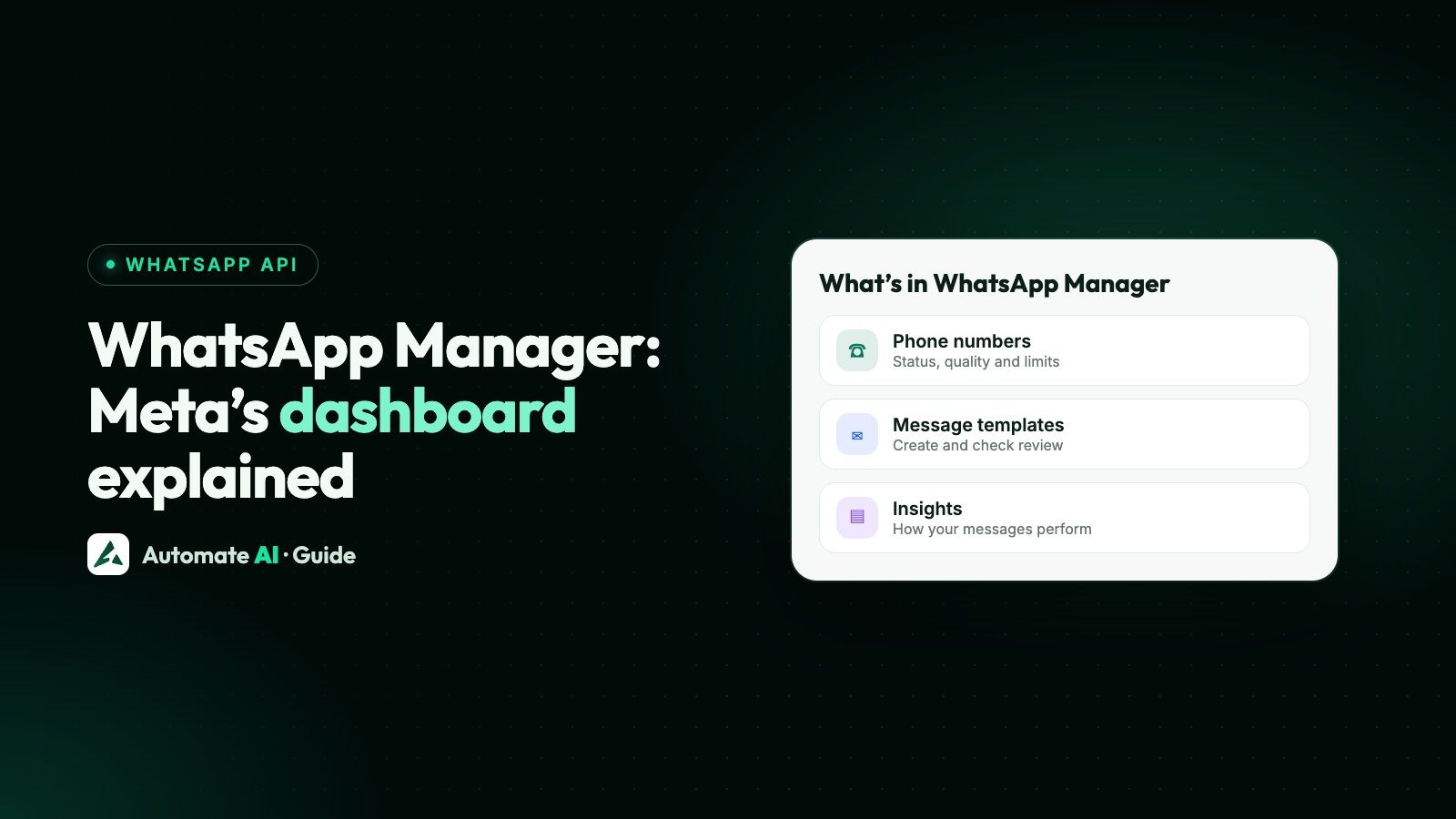
WhatsApp Manager is Meta’s web app for managing your WhatsApp Business Platform accounts, phone numbers, message templates and analytics. You open it in a browser at business.facebook.com/wa/manage/home, signing in with the account that has access to your business portfolio. There’s nothing to download.
This guide shows how to get in, what each area is for, who can have access, and which jobs belong in WhatsApp Manager and which belong in a platform such as Automate AI. Meta renames menus from time to time, so we only use labels that appear in Meta’s own documentation.
Key takeaways
- WhatsApp Manager is a website, not an app. Meta describes it as a web app, so there’s no download.
- It has no separate login. You sign in to Meta and need access to the right business portfolio.
- It’s organised by Messaging account, and a selector at the top right switches between them.
- The main areas are Phone numbers, Message templates and Insights.
- People and partners are managed in Meta Business Suite settings, not in WhatsApp Manager.
- It’s for setup and checks. Daily chats, campaigns and chatbots run through the API, in a platform.
What WhatsApp Manager is
Meta’s developer documentation calls WhatsApp Manager “a web app” for managing Messaging accounts, phone numbers and templates, and for reviewing analytics. It’s part of the WhatsApp Business Platform, so it applies to numbers on the API, including numbers connected through a provider.
Three names cause most of the confusion:
| Name | What it is | What it holds |
|---|---|---|
| Business portfolio | The top-level container in Meta Business Suite | Your WhatsApp accounts and Messaging accounts |
| WhatsApp account | Your business presence on WhatsApp | One business phone number |
| Messaging account | The account you work with in WhatsApp Manager | Message templates and billing details |
Older guides call all of this a WhatsApp Business Account, or WABA. Meta’s newer documentation splits it into the two accounts above, and says you need both to send messages and manage templates.
WhatsApp Manager login: how to open it
There are two ways in. The first is Meta’s direct link, business.facebook.com/wa/manage/home. The second goes through Meta Business Suite, and helps when you have more than one business:
- Sign in to Meta Business Suite.
- Pick the right business portfolio from the dropdown at the top left.
- Go to Settings › Accounts › Messaging accounts.
- Select your account, or click Details.
- Click the WhatsApp Manager button on the Summary tab.
If you have several Messaging accounts, use the account selector at the top right of WhatsApp Manager to switch between them.
If you can’t get in, or see nothing
- Wrong portfolio selected. Check the dropdown first. A WhatsApp or Messaging account can belong to only one portfolio.
- You haven’t been given access. Someone with full control has to add you to the portfolio and assign the account to you.
- Someone else owns the portfolio. If a developer or agency set up your number, the accounts may sit in their portfolio. Ask them to confirm where it is.
- You have no platform account yet. If you only use the WhatsApp Business app, there’s nothing to manage here until you connect to the platform.
Is there a WhatsApp Manager download?
No. Meta describes WhatsApp Manager only as a web app and links to it on business.facebook.com, so you open it in a browser. If you search an app store and find something called “WhatsApp Manager”, don’t assume it comes from Meta, and don’t enter your business login into it.
The apps WhatsApp does offer are WhatsApp itself and the WhatsApp Business app, and neither one is WhatsApp Manager.
The main areas, and what each is for
| Area | What you do there | Our detailed guide |
|---|---|---|
| Overview | See alerts about your account, such as a blocked number | Account banned |
| Account tools › Phone numbers | Status, display name, quality rating, messaging limits, two-step verification, deleting a number | Phone number status |
| Message templates | Create and edit templates, check their status and quality, appeal a rejection | WhatsApp templates |
| Insights | Review analytics, including button clicks in a template’s insights | Quality rating |
Phone numbers
This is the panel you’ll use most. The Status column shows whether a number is connected, and the Name column shows the display name and its review state. Open a number to reach its settings, including the Two-step verification tab. Meta is removing that tab for eligible numbers, so read the two-step PIN guide if it’s missing.
Adding a number here doesn’t finish the job. Meta says a number added in WhatsApp Manager is linked to your account but not registered for the Cloud API, which takes a separate API call. Providers handle that step during sign-up.
Deleting a number happens here too, and it’s often blocked at first. If the number sent a paid message in the last 30 days, WhatsApp Manager sends you to Insights to show the date of that message, and you can delete it 30 days later.
Message templates
Templates belong to the Messaging account. A portfolio that isn’t verified can hold 250 templates per Messaging account. A verified portfolio with an approved display name on at least one WhatsApp account can hold 6,000.
Insights
Insights is Meta’s analytics view. It’s useful for a quick check that’s independent of your provider, such as when a number last sent a paid message or how a template’s buttons are doing. Developers can read the same kind of data through the API.
WhatsApp Manager also has the Flow Builder for WhatsApp Flows, if you make your own in-chat forms.
Billing
Meta says the Messaging account holds your billing details and the payment method. If you work with a Solution Partner, Meta says to arrange payment with that partner directly, so you may have nothing to set up here. Who bills you depends on your provider’s type. In Automate AI, messages are charged from your wallet.
Who can access WhatsApp Manager, and how to add people
Access comes from your business portfolio. People start with basic access and only see what they’re assigned. Only someone with full control can add people or share assets with partners.
Add a team member
- Go to Settings in Meta Business Suite for your portfolio.
- Click People. If you can’t see it, you may not have full control.
- Click Invite people and enter the person’s email address, or pick their managed Meta account.
- Choose their portfolio permissions, then the assets and permissions they need, including your WhatsApp and Messaging accounts.
- Click Invite. They have to accept, and it can take a few days for all features to appear.
Give a partner access
Partners don’t get a personal invite. You share each account with their business portfolio, using their business portfolio ID:
- Where: the first time you share, go to Settings › Accounts, select the WhatsApp account, click Details, then Assign partner, and set permissions with the toggles. Repeat for the Messaging account, because messaging doesn’t work unless the partner has both. For a partner you’ve already added, use Settings › Users › Partners and Assign assets.
- Limits: a WhatsApp account can be shared with up to five Solution Partners, and a Messaging account with up to two partners.
- Review: Settings › Users › Partners shows who has what. Open a partner and check the Assets you assigned tab.
What to do there, and what to do in a platform
WhatsApp Manager is for setup and checks. Meta doesn’t list answering customers among its jobs, and the API is what sends your messages. Here’s how the work divides if you use Automate AI:
| Job | WhatsApp Manager | Automate AI |
|---|---|---|
| Create and submit templates | Yes | Yes, under Templates, with a live preview |
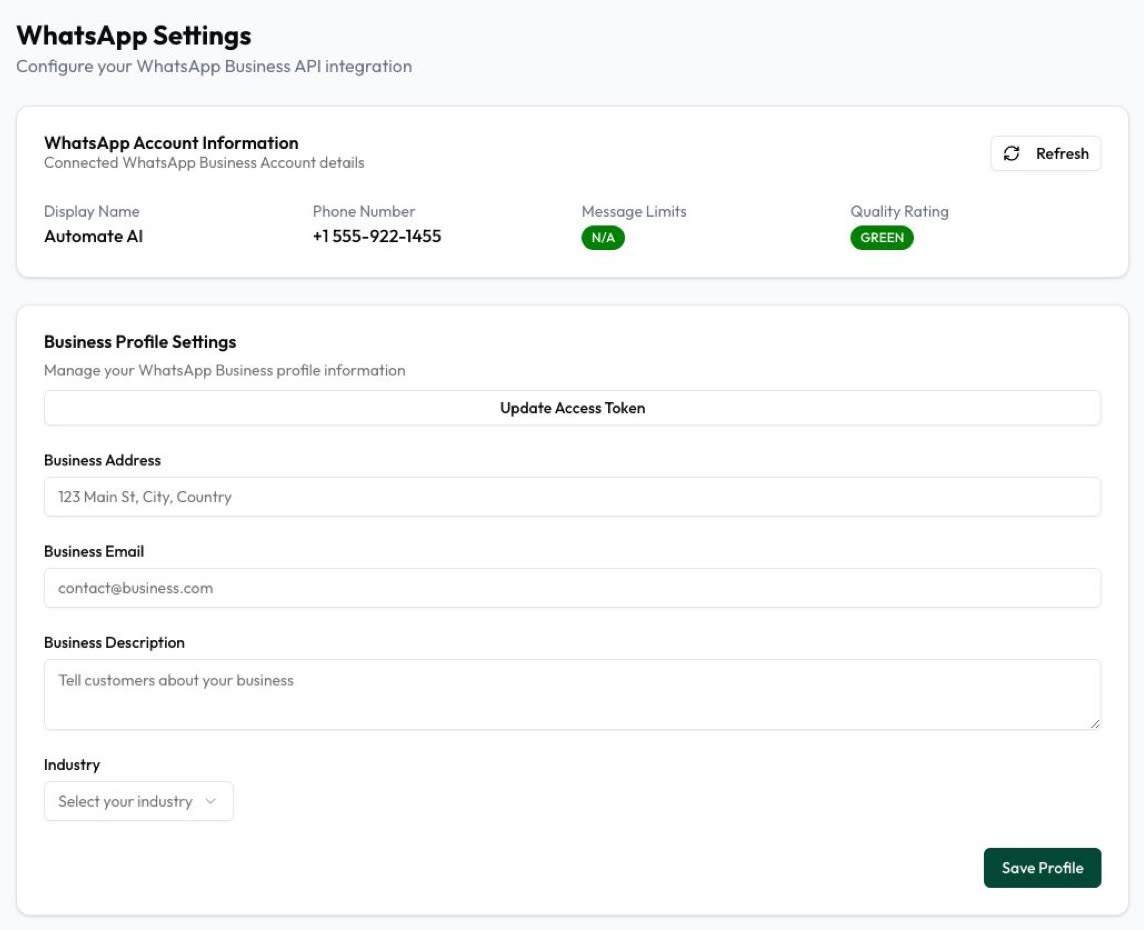
| Check quality and messaging limit | Yes | Yes, under Settings › WhatsApp |
| Change the PIN or delete a number | Yes | No |
| Add people to your Meta portfolio | No, use Business Suite | No |
| Answer customers as a team | No | Yes, in the shared inbox, with owner, manager and agent roles |
| Send campaigns to your contacts | No | Yes, under Campaigns, with delivery, read, reply and click reports |
| Run chatbots | No | Yes, under Automation › Flows, in Series 2, 3 and 4 |
The two stay in step. A template you create in WhatsApp Manager appears in Automate AI too: the Templates screen updates itself from Meta, at most every 10 minutes while in use, and Sync from WhatsApp pulls it straight away.
Common jobs, and where to start
| You want to | Start here |
|---|---|
| Find out why a number can’t send | Phone numbers, Status column, then the status guide |
| Change your display name | Phone numbers, then display name rules |
| Edit your profile photo or description | Your number in WhatsApp Manager, or your provider’s settings |
| Fix a rejected template | Message templates, then template rejected |
| See why quality dropped | Phone numbers, then quality rating |
| Request a blue tick | Your number’s settings, then the verified badge guide |
| Appeal a policy violation | Business Support Home, then account review |
Meta also shows policy violations as a banner inside WhatsApp Manager, so if you see one, read it before you change anything else.
Frequently asked questions
What is WhatsApp Manager?
Meta’s web app for managing Messaging accounts, phone numbers and message templates on the WhatsApp Business Platform, and for reviewing analytics.
How do I log in to WhatsApp Manager?
Open business.facebook.com/wa/manage/home and sign in with the account that has access to your business portfolio. It has no separate username or password. You can also get there from Meta Business Suite: Settings › Accounts › Messaging accounts.
Is there a WhatsApp Manager app to download?
No. Meta describes it as a web app, so you open it in a browser. Be careful with any app store listing that uses the name.
Is WhatsApp Manager free?
Meta doesn’t list a charge for using it. What you pay for is messages on the platform, plus your provider’s plan if you use one. See is the WhatsApp API free.
Why can’t I see my phone number in WhatsApp Manager?
Usually the wrong business portfolio or Messaging account is selected, or nobody has assigned the account to you. Check both selectors, then ask someone with full control.
Can I send messages from WhatsApp Manager?
It isn’t where you run chats or campaigns. Those go through the API, using a platform or your own software.
Do I need WhatsApp Manager if I use Automate AI?
Not day to day. You still need access for jobs only Meta handles, such as changing the PIN or deleting a number, so keep it with the business owner.
Sources
- Meta: About the WhatsApp Business Platform
- Meta: WhatsApp accounts and Messaging accounts
- Meta: Business phone numbers
- Meta: Template management
- Meta: Analytics
- Meta Business Help: Add people to a business portfolio
- Meta Business Help: Give a partner access to business assets
- Meta Business Help: About billing for your WhatsApp Business account
WhatsApp rules and prices change. We check these guides against Meta’s documentation, but always confirm current terms with Meta before you rely on them. Questions? Message us on WhatsApp at +91 836 977 8812.