WhatsApp Business Not Working or Crashing? How to Fix It
WhatsApp Business not working, crashing or stuck after an update? Find your problem in one table, then fix it on Android or iPhone without losing chats.
If WhatsApp Business isn’t working, restart your phone, check that a website loads, and update both the app and your phone’s software. If it keeps crashing, free up storage, clear the app’s cache on Android, and only then reinstall, after backing up your chats. These are the steps WhatsApp’s own Help Center gives.
“Not working” can mean many things. Find yours in the table below, then jump to the fix. Some problems, such as missing notifications or a banned number, have their own guides, and we link to them rather than repeat them here.
Key takeaways
- A clock next to a message means it hasn’t been sent yet, which is usually your internet connection.
- One grey tick means sent but not delivered: often the other person’s phone is off or offline, not a fault on your side.
- WhatsApp lists the usual causes of crashes: low memory or storage, an outdated app or phone, corrupted data or cache, bugs and network issues.
- Back up before you reinstall. Apple warns that deleting an app can lose the data stored in it.
- Install only the official app. WhatsApp says unofficial versions break its terms and can get your account banned.
Which problem do you have?
Match what you see to the likely cause. Each problem has a different fix, so this saves time:
| What you see | Likely cause | Where to go |
|---|---|---|
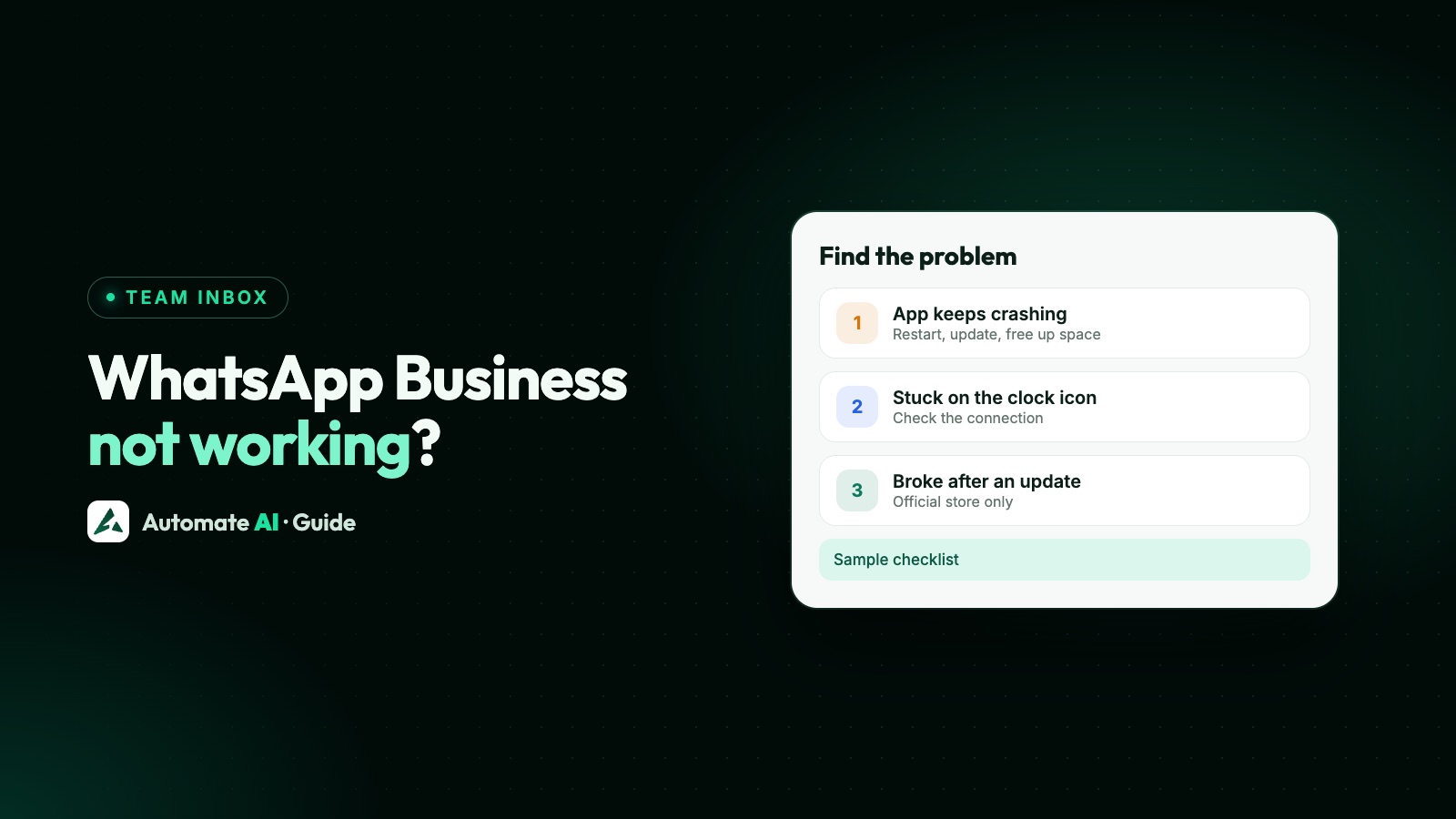
| The app closes, freezes or won’t open | Memory, storage, an old version, or corrupted cache | The Android or iPhone crash fixes below |
| A clock next to your messages | Your phone isn’t connected | Messages stuck on a clock or one tick, below |
| One grey tick that never turns into two | The other person’s phone is off or offline | Messages stuck on a clock or one tick, below |
| Messages only appear when you open the app | Notifications, not the app | Notifications not working |
| The app won’t install or update | Not enough space, or a Play Store error | Problems after an update, below, and storage full |
| WhatsApp Web or the desktop app logged out | Linked devices | WhatsApp Business on a PC |
| The six-digit code never arrives | Registration | Verification code not received |
| A banned, temporarily banned or restricted message | An account action, not a bug | Number banned or account restricted |
| Your catalogue is missing for customers | Catalogue settings or review | Catalogue not showing |
Quick fixes to try first
WhatsApp’s pages on app crashes and on sending and receiving problems start with the same few steps. Try them in order before anything drastic:
- Check your connection. Open a website in your browser. Switch between Wi-Fi and mobile data, or move somewhere with a better signal.
- If the app is frozen, close it and open it again.
- Restart your phone. Turn it off and on.
- Update the app from Google Play or the App Store, and install any system update for your phone.
- Free up storage. Delete large old videos and other unused files, and on Android clear the app’s cache.
When messages don’t arrive, WhatsApp’s page on sending and receiving problems also suggests checking that the date and time on your phone are set correctly. If the steps above don’t help, move on to the section for your phone.
WhatsApp Business keeps crashing on Android
WhatsApp’s page on app crashes lists the likely causes: memory and storage issues, an outdated app or operating system, compatibility issues, device issues, bugs, corrupted data or cache, and network issues. Work through its steps:
- Restart your phone and check your internet connection.
- Check for a phone software update, then update WhatsApp Business from Google Play.
- Clear the cache. Go to your phone’s Settings › Apps › WhatsApp Business › Storage › Clear cache (names vary by phone). WhatsApp says this won’t delete your messages or chats.
- Close other apps to free up memory.
- Uninstall apps and files you don’t need, and free up storage inside WhatsApp Business (see storage full).
- If it still crashes, back up your chats, then uninstall and reinstall the app.
Two more things to check. WhatsApp supports Android 6.0 and newer, so a very old phone may not run current versions. And WhatsApp doesn’t support rooted phones or custom ROMs: it says they stop its security model working as designed, and recommends a stock ROM with root removed.
WhatsApp Business crashing or not working on iPhone
WhatsApp’s crash steps apply to iPhone too, apart from clearing the cache, which is Android only. Apple’s own steps for an app that stops responding or closes unexpectedly are:
- Force the app to close, then open it again. Only do this when it’s frozen: WhatsApp says swiping the app closed can stop notifications until you open it again.
- Restart your iPhone.
- Check for updates. Open the App Store, tap your profile icon, then App Updates. If there’s no update for WhatsApp Business, update your iPhone’s software.
- Delete and reinstall the app. Apple warns you might lose data stored in the app, so back up your chats first (see below).
Check your iOS version too. WhatsApp’s page on supported systems says it supports iOS 15.5 and newer from 30 November 2026 (iOS 15.1 and newer before that). WhatsApp says it notifies you in the app before it stops supporting your system.
Messages stuck on a clock or one tick
The icons next to a message tell you where the problem is:
| Icon | What it means | What to do |
|---|---|---|
| Clock | Not sent yet, usually a connection problem on your phone | Fix your connection (steps below) |
| One grey tick | Sent, but not delivered to the other person’s phone or linked devices | Usually wait: their phone may be off or offline |
| Two grey ticks | Delivered to their phone or a linked device | Nothing: it arrived |
| Two blue ticks | Read | Nothing |
If every message shows a clock, work through WhatsApp’s connection checklist:
- Open a web page and check whether other apps connect.
- See if WhatsApp works on Wi-Fi but not mobile data, or the other way round. If only one fails, the problem is that connection.
- Turn mobile data off and on, and turn airplane mode on and off.
- Turn off Data Saver and data roaming, and restart the phone.
- Turn Wi-Fi off and on, or try another Wi-Fi network or a hotspot. WhatsApp notes that office or university campus Wi-Fi can cause connection issues.
- Restart your router, or ask your mobile provider to check your APN settings.
If other apps work and WhatsApp doesn’t, WhatsApp suggests contacting your mobile provider, who may need to change settings so WhatsApp can connect. If only one contact’s messages stay on one tick, WhatsApp notes they may have blocked you.
Problems after an update, and how to update safely
When something breaks right after an update, the fix is usually to finish updating, not to go back. WhatsApp says you typically can’t return to an older version. Here’s what helps:
- Update from the official store. In Google Play or the App Store, find WhatsApp Business and tap Update. WhatsApp’s advice is to have a strong connection and back up your chats first. You can turn on automatic updates in your phone or app store settings.
- A feature moved or disappeared. WhatsApp releases features gradually, by country and platform, sometimes over weeks, and people in its beta programme get some features early. A missing feature isn’t always a fault.
- You joined a beta on Android. If the problem started with a beta version, leave it in Google Play: tap your profile icon, Manage apps & devices › Beta, open the app, and under “You’re a beta tester” tap Leave. Then uninstall the beta and reinstall the public version, after backing up.
- The update won’t install. WhatsApp recommends about 1 GB of free space when installing or updating.
| Google Play error | WhatsApp’s suggested fix |
|---|---|
| “There’s insufficient space on the device” | Clear the Play Store’s cache and storage, restart, and free up space |
| “This app is incompatible with your Android device” | Check the phone is on WhatsApp’s supported list |
| “This item isn’t available in your country” | Try Google Play’s help first, then download from WhatsApp’s own website |
| Error 490 | Download on Wi-Fi, and turn on background data for the Play Store |
These come from WhatsApp’s page on download and update problems, which lists more error codes.
Is WhatsApp down today? How to tell
Before you reinstall anything, work out whether the problem is your phone or WhatsApp itself:
- Test your connection. If websites and other apps load but WhatsApp shows a clock, and changing Wi-Fi or mobile data doesn’t help, the problem may not be on your side.
- Try another device. If WhatsApp Web on a computer, on a different network, also can’t send, your phone is less likely to be the cause.
- Ask someone else. If a colleague or friend on a different network has the same problem at the same time, it’s probably wider than your phone.
If it does look like an outage, wait rather than reinstalling. A reinstall won’t fix a problem on WhatsApp’s side, and you’ll have to register your number again.
Meta does run a public status page for the WhatsApp Business Platform. It covers the API side, such as the Cloud API, account management, Embedded Signup and the Marketing Messages API, not the WhatsApp Business app on your phone.
Back up before you reinstall
Reinstalling is the last step in WhatsApp’s crash advice for a reason: without a backup, your chats can go with the app. To back up:
- Open WhatsApp Business and go to Settings › Chats › Chat backup.
- Choose where to back up: a Google Account or WhatsApp cloud storage on Android, iCloud or WhatsApp cloud storage on iPhone. WhatsApp notes cloud storage may not be available to everyone yet.
- Tap Back up (Android) or Back up now (iPhone) and wait for it to finish, ideally on Wi-Fi.
A Google backup needs a Google Account on the phone, Google Play services and enough space in that account. For iCloud, use the same phone number and iCloud account the backup was made with, and have enough iCloud space. If you turned on an end-to-end encrypted backup, WhatsApp warns that your password or key is the only way back in, so keep it safe.
WhatsApp’s page on restoring your chat history explains the rest: reinstall, verify the same phone number, and restore when asked. Only your last successful backup can be restored, so if the app won’t open at all, that’s the one you’ll get. Moving to a new phone rather than reinstalling? See moving WhatsApp Business to a new phone.
Still not working? Report it, or rethink the setup
If nothing above works, report it from the app: Settings › Help and feedback › Send feedback, describing what you were doing when it happened. WhatsApp says this option is rolling out gradually. If the app won’t open, use the contact form on WhatsApp’s website instead. More on both in how to contact WhatsApp Business support.
If a crash or a flat battery on one phone can stop your business replying, that’s a sign you’ve outgrown the app. On the WhatsApp Business API, your number connects to a platform instead. In Automate AI, your team answers from a shared team inbox in the browser or the Android app downloaded from your dashboard, and the inbox doesn’t need one particular phone to be online.
You can also keep the WhatsApp Business app on the same number with coexistence. The trade-offs are covered in WhatsApp Business app limitations.
Frequently asked questions
Why is WhatsApp Business not working today?
Usually it’s your connection: check a website loads, switch between Wi-Fi and mobile data, and restart the phone. If others on different networks have the same problem at the same time, it may be on WhatsApp’s side, so wait instead of reinstalling.
Why does WhatsApp Business keep crashing?
WhatsApp lists low memory or storage, an outdated app or phone system, corrupted data or cache, bugs and network issues. Restart, update, clear the cache on Android, free up space, and reinstall only after a backup.
Will clearing the cache delete my WhatsApp Business chats?
No. WhatsApp says clearing the cache won’t delete your messages or chats. Don’t tap Clear storage, which permanently deletes the app’s data.
Can I go back to an older version of WhatsApp Business after an update?
WhatsApp says you typically can’t return to an older version. Update to the latest one from Google Play or the App Store, and never install a modified copy.
Why is WhatsApp Business not working on my iPhone?
Force close the app if it’s frozen, restart the iPhone, and update both the app and iOS. WhatsApp supports iOS 15.5 and newer from 30 November 2026 (iOS 15.1 before that).
What does a clock next to my message mean?
The message hasn’t been sent yet, usually because your phone isn’t connected. One grey tick means it was sent but not yet delivered.
Will I lose my chats if I reinstall WhatsApp Business?
You can if you haven’t backed up. Go to Settings › Chats › Chat backup and back up first, then restore during setup with the same number.
Sources
- WhatsApp Help Center: Can’t use WhatsApp due to app or device crashes
- WhatsApp Help Center: How to fix connection issues
- WhatsApp Help Center: How to check read receipts
- WhatsApp Help Center: How to manually update WhatsApp
- WhatsApp Help Center: About supported operating systems
- WhatsApp Help Center: About unofficial apps
- WhatsApp Help Center: How to back up your chat history
- Apple Support: If an app on your iPhone stops responding, closes unexpectedly or won’t open
WhatsApp rules and prices change. We check these guides against Meta’s documentation, but always confirm current terms with Meta before you rely on them. Questions? Message us on WhatsApp at +91 836 977 8812.